A monitor flickering when you turn it on is an unnerving way to begin a workday or a gaming session. The important thing is that flicker is a symptom, not a diagnosis. It can point to a simple connection problem, a configuration issue inside Windows, a graphics-driver complication, or a problem within the display itself.
That distinction matters because the first few checks are low-risk and inexpensive. Reseating a cable, trying a different connection, or checking a setting can reveal a problem without turning a minor inconvenience into an immediate monitor-shopping expedition. Conversely, recurring flicker accompanied by blackouts, dim or faded colour, and vertical lines deserves more concern—especially when the usual cable, port, driver, and refresh-rate checks do not change the behaviour.
For PC players, the display is not a background accessory. It is the final link between the game and the person playing it, and it has to keep pace with everything the PC sends it. A startup flicker may be harmlessly mundane, but it is worth investigating methodically rather than guessing.
Start with the physical signal path
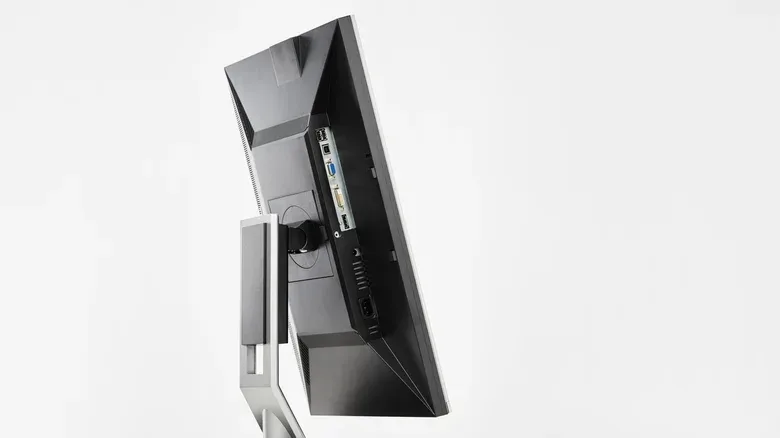
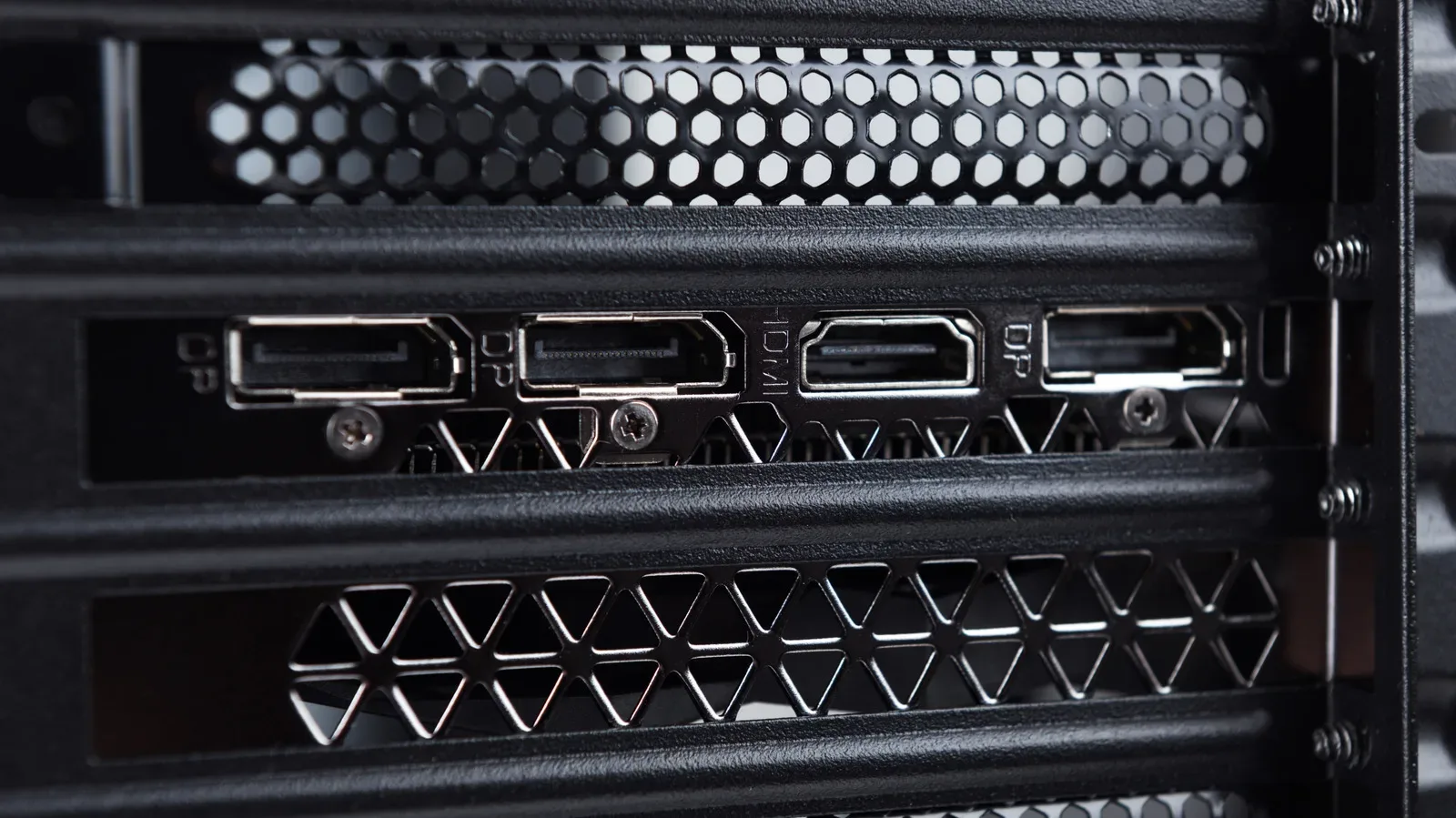
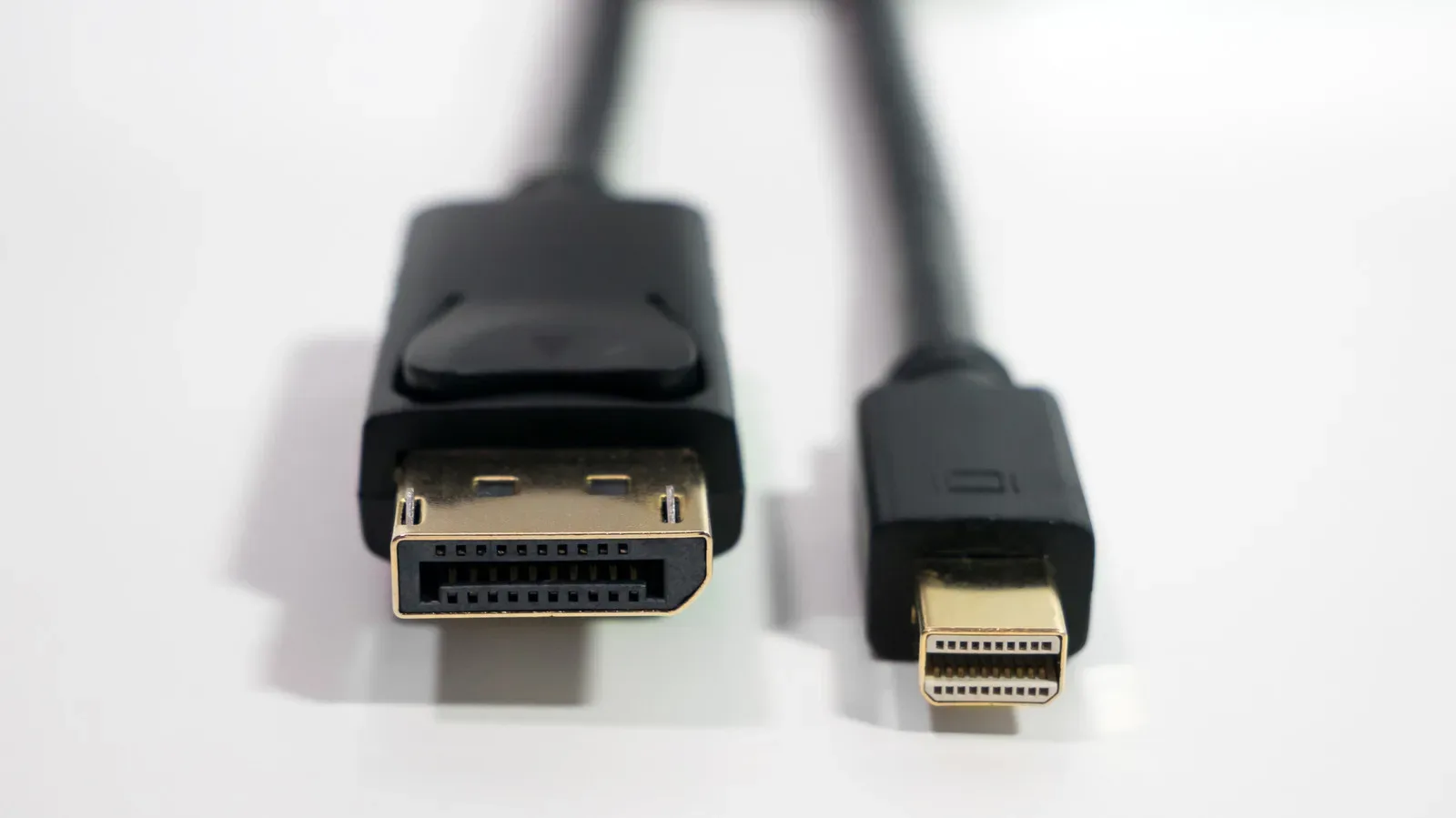
The most practical first suspect is the display cable. HDMI and DisplayPort are common modern connections, while some older setups may use VGA. A cable that is not fully seated, is damaged, or is beginning to fail can interrupt the signal between the computer and monitor. The result can look like flashing, intermittent image loss, or a screen that cannot settle soon after power-on.
Power down or otherwise safely pause what you are doing, then check both ends of the display cable: the end plugged into the monitor and the end plugged into the PC. Reinsert each firmly. Look for visible wear or fraying. This is not a guarantee that a cable is good—internal failure is not always visible—but it is a fast way to rule out an obvious physical issue.
If flicker continues, substitute another compatible display cable if one is available. A different cable is useful as a diagnostic tool, not merely a replacement attempt: if the display works normally with the alternate lead, the original cable becomes the most likely culprit. There is no need to leap to a new monitor before this basic test.
Try another port before blaming the panel
The ports at either end can matter just as much as the cable. A monitor or computer with more than one suitable video port gives you another clean test. Move the same cable to a different compatible port on the monitor or PC where possible, then see whether the flicker changes.
This approach separates several possibilities:
- Flicker stops with another cable: the original cable is a strong suspect.
- Flicker stops on another port: the first port may be involved.
- Flicker remains after changing both: look beyond the original cable-and-port path.
One of the clearest isolation tests is connecting the monitor to a separate computer that is known to work properly. If the monitor behaves normally on that other system, the problem is more likely to be associated with the original PC, its output, or its software setup. If the same monitor continues to flicker on the second computer after connection checks, the monitor becomes a more plausible focus.
It is a process of elimination, not a promise of certainty. Still, each controlled swap reduces the number of variables. Changing a cable, a port, and the computer all at once may solve the problem, but it leaves you with no useful answer about what actually fixed it.
Drivers can be the software-side culprit
If the physical connection appears sound, graphics drivers are a sensible next area to examine. A graphics driver is software that enables the operating system and applications to communicate with the graphics hardware. When that software is out of date, display problems can occur.
Updating the graphics driver may therefore resolve flickering. But newer is not automatically better in every situation: a driver update itself can introduce display trouble. If the flicker began after an update, rolling back to an earlier driver version is another reasonable troubleshooting path.
The timing is the valuable clue. A monitor that was stable until a driver change does not prove that the driver is responsible, but it gives the investigation a coherent starting point. Likewise, a system that has not had its graphics software updated in some time has a straightforward maintenance step to try before treating the monitor as failed hardware.
Keep the scope of the change narrow. Update or roll back the driver, then test the display again. If the symptom is gone, avoid immediately changing several other settings just because they are available. If it remains, you have learned that the driver action did not address the visible problem and can move on.
Check that Windows is using the monitor’s intended refresh rate
Another possible source of trouble is a refresh-rate mismatch. Refresh rate is measured in hertz (Hz) and describes how frequently a display updates the image each second. A 120Hz monitor, for example, is designed to operate at 120 updates per second when it is set and connected appropriately.
If the Windows setting does not match what the monitor is intended to use, it can create display havoc. On a Windows 11 PC, the relevant route is:
- Open Settings.
- Select System in the left panel.
- Choose Display.
- Open Advanced display.
- Change the refresh rate to match the monitor.
This is a configuration check, not a claim that every flicker is caused by refresh rate. But it is both accessible and relevant to monitors that support faster operation. It is especially worth checking after changing display hardware or adjusting PC settings.
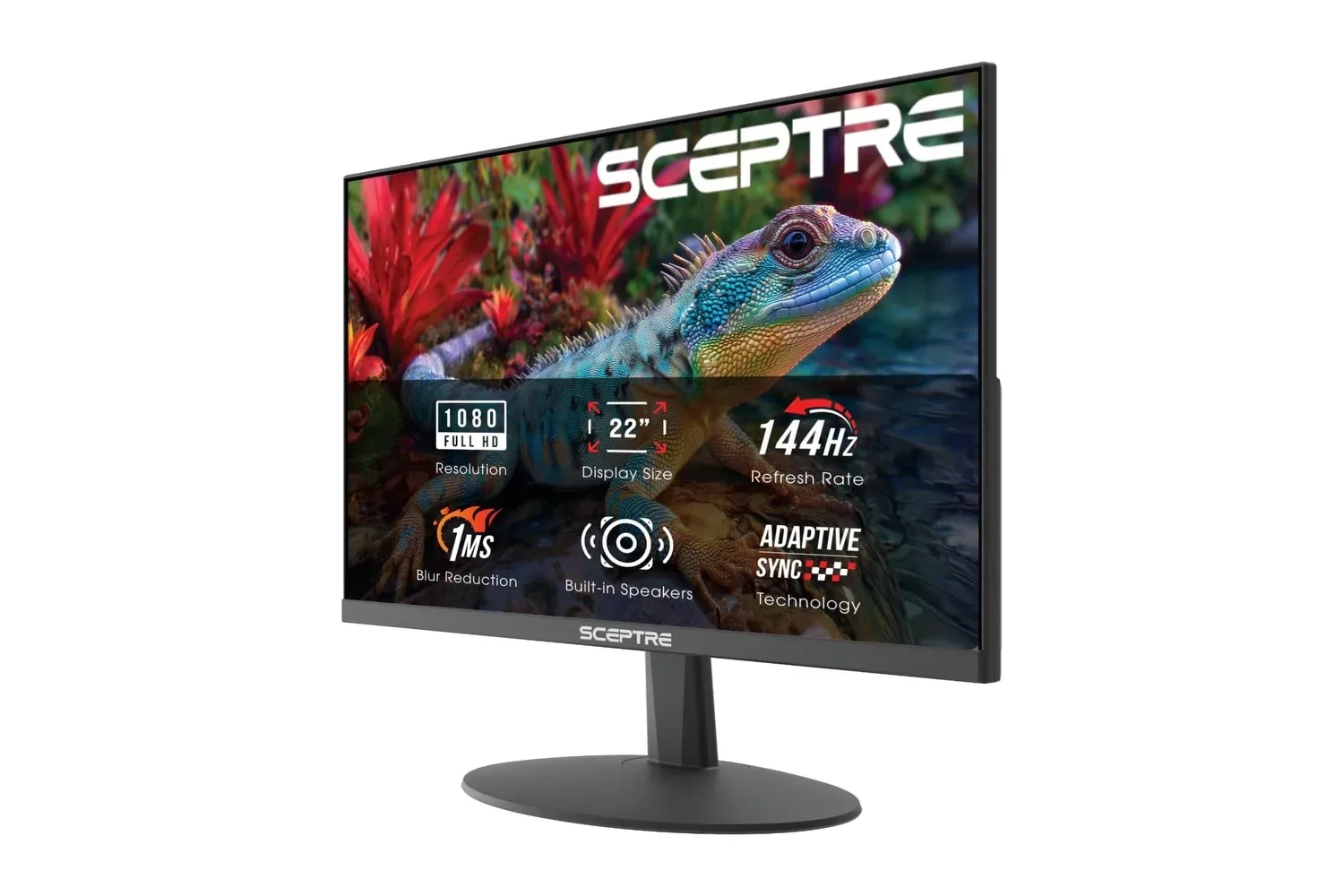
Gaming makes this setting feel more consequential because a higher-refresh display is often part of a player’s setup. A mismatch can undermine the expected behaviour of the monitor even before a game has loaded. For shoppers weighing a replacement instead of a repair, this look at a low-cost 144Hz monitor listing offers useful context on how accessible faster-refresh options can be.
When flicker looks more serious
Not every case will be repaired by a cable reseat, a port swap, a driver change, or a refresh-rate correction. A persistent, shutter-like flicker that survives those checks is a more serious warning sign. It does not establish a specific failed component by itself, but it means the easy external explanations have become less convincing.
Pay close attention to what the monitor does in addition to flickering. Sudden cuts to a fully black screen followed by a return to normal operation are one warning behaviour. So are colours that look faded or unusually dim, and vertical lines that move or appear to swim through the image. These symptoms are useful observations because they indicate that the display is not merely showing a brief, isolated startup oddity.
There is a practical difference between a single moment of instability when a monitor wakes and a display that repeatedly blacks out, loses image quality, or shows artefacts across normal use. The latter pattern is harder to dismiss, particularly after trying the connection and software checks in a controlled order.
Do not confuse diagnosis with a verdict
A troubled image can strongly suggest that the monitor needs professional attention or replacement, but it is still better to phrase the result carefully. The available signs can help identify where to look; they do not replace a full hardware diagnosis. A monitor that flickers on multiple computers, through different cables and ports, while displaying persistent blackouts, dim colour, or vertical lines has a much stronger case for repair or replacement than one that simply had a loose connector.
That is why the second-computer test is so valuable. It helps distinguish a problem travelling with the display from one that remains with the original PC. For anyone unable to perform that test, cable and port substitution remain worthwhile steps before spending money.
Repair or replace: make the decision after the basic checks
Once basic troubleshooting has been exhausted, the practical choices narrow to repair or replacement. Budget is central. A repair may make sense when its cost is acceptable and the display otherwise suits your needs. Replacement may be the simpler route when the monitor’s condition appears poor and the cost of new OLED or 4K screens is falling.
The key point is not that every flickering monitor should be discarded. It is that a replacement decision should follow a reasonable attempt to eliminate the common, reversible causes: cable seating and condition, ports, the PC used for testing, graphics drivers, and refresh-rate configuration.
If replacement wins out, the old monitor may still have a use beyond the desk. Depending on its state, it could be sold for parts or donated. If the panel is visibly unhealthy after every sensible test, however, treating it as a reliable gaming or work display is difficult to justify.
Flicker is frustrating precisely because it looks dramatic while its cause may be trivial. A patient sequence—connections first, then another PC where possible, followed by driver and refresh-rate checks—turns that uncertainty into a clearer repair-or-replace decision.