A gaming desktop can have a capable dedicated graphics card installed and still deliver unexpectedly poor results for one remarkably ordinary reason: the monitor is connected to the wrong video output.
On many desktop PCs, HDMI, DisplayPort and sometimes USB-C display connectors appear in two different places on the rear of the case. One set belongs to the motherboard. The other belongs to the dedicated graphics card installed in a PCIe expansion slot. Since the same monitor cable may fit either location, it is easy to connect to the motherboard by mistake—especially when setting up a new system, moving a desk or swapping cables.
If a desktop has a dedicated graphics card, the monitor should normally be connected to an output on that graphics card. A connection on the motherboard can instead use the processor’s integrated graphics, where available. Integrated graphics are useful for ordinary desktop work and lighter games, but they generally are not a substitute for the separate GPU fitted for gaming.
Why the physical port matters
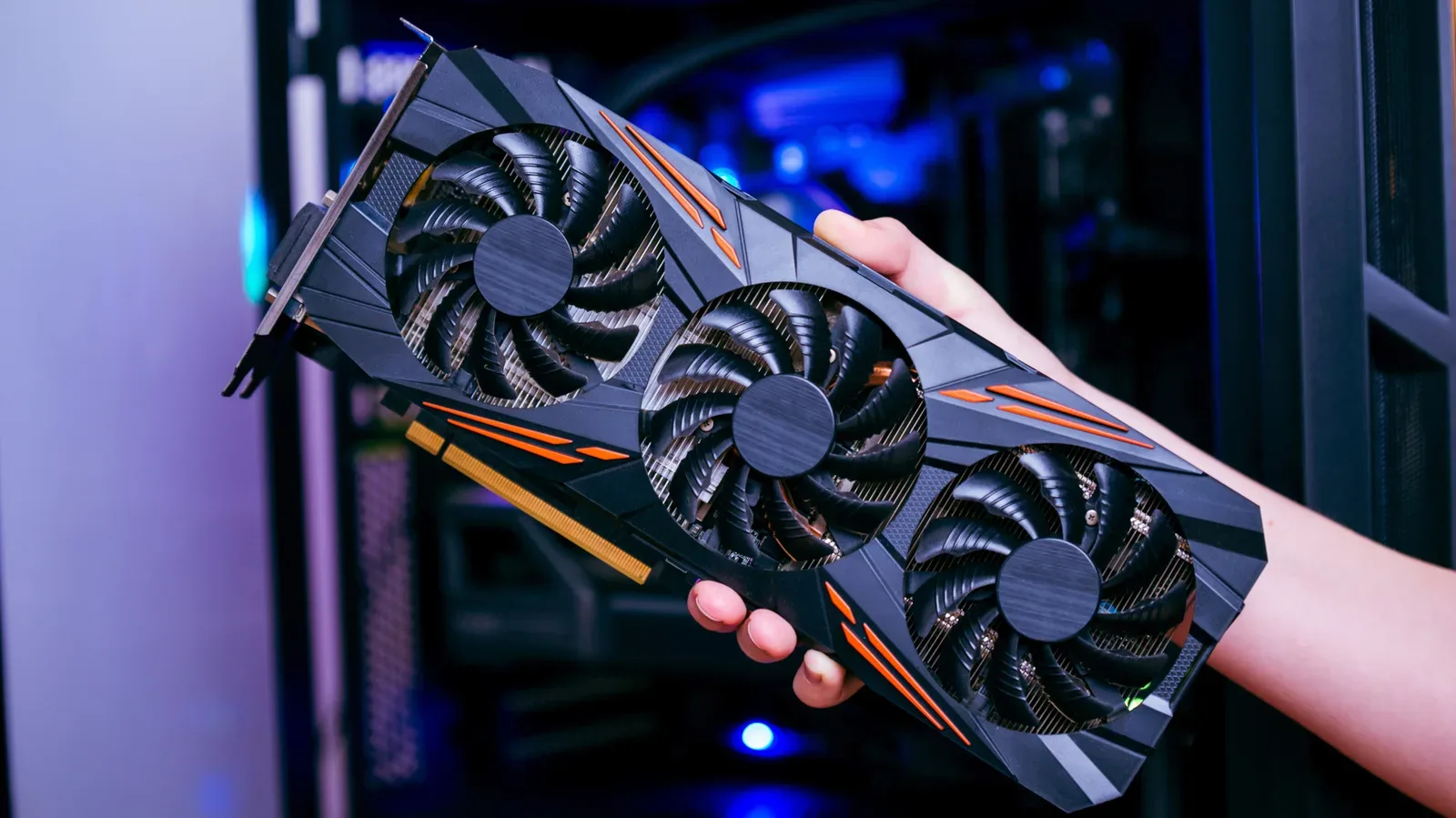
A dedicated graphics card, also called a discrete GPU, is the expansion card installed in the case. It has its own display outputs and is intended to handle demanding graphical workloads. Integrated graphics are graphics capabilities built into a compatible CPU. The motherboard’s display connectors ordinarily route through those integrated graphics rather than directly through the dedicated card.
That distinction can explain an otherwise puzzling situation: a PC recognizes a high-end graphics card, games are installed, and yet performance looks much more modest than expected. If Windows is running the game through integrated graphics, the system is not using the dedicated GPU’s full display path in the straightforward way intended by a conventional gaming-desktop setup.
There is an important complication. Connecting a monitor to the motherboard does not guarantee that the dedicated GPU is doing nothing. In some Windows configurations, the dedicated card may still render a game while frames are routed through integrated graphics before reaching the display. That extra routing can introduce overhead. The size of any performance impact is not fixed; it depends on the PC’s hardware and configuration. This helps explain why the error can remain unnoticed rather than producing an immediate, obvious failure.
The practical lesson is simple: do not diagnose a disappointing game by immediately assuming the GPU is weak, defective or poorly configured. First, confirm where the monitor cable actually goes. It is a quick check, costs nothing and can rule out a fundamental connection issue before deeper troubleshooting begins.
How to identify the motherboard ports and GPU ports
Look at the back of a typical tower desktop. The motherboard’s connectors are usually grouped together in one area with USB ports, Ethernet, audio jacks and other rear input/output connections. If video outputs are present in that cluster, they are motherboard outputs.
Related coverage includes Check This PC Cable First If Your Gaming Performance Feels Wrong.
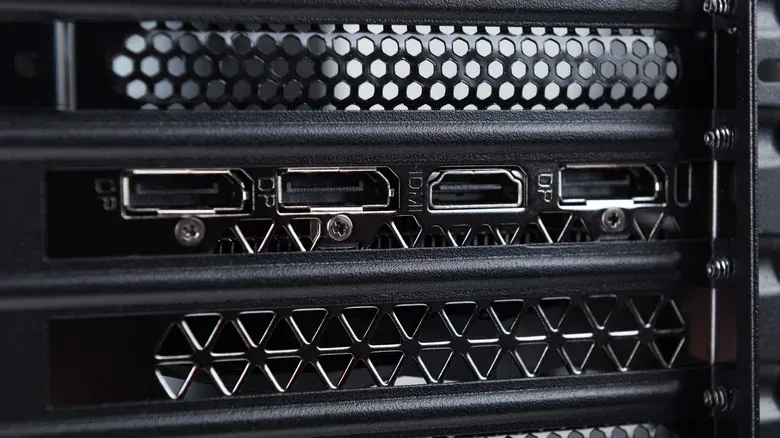
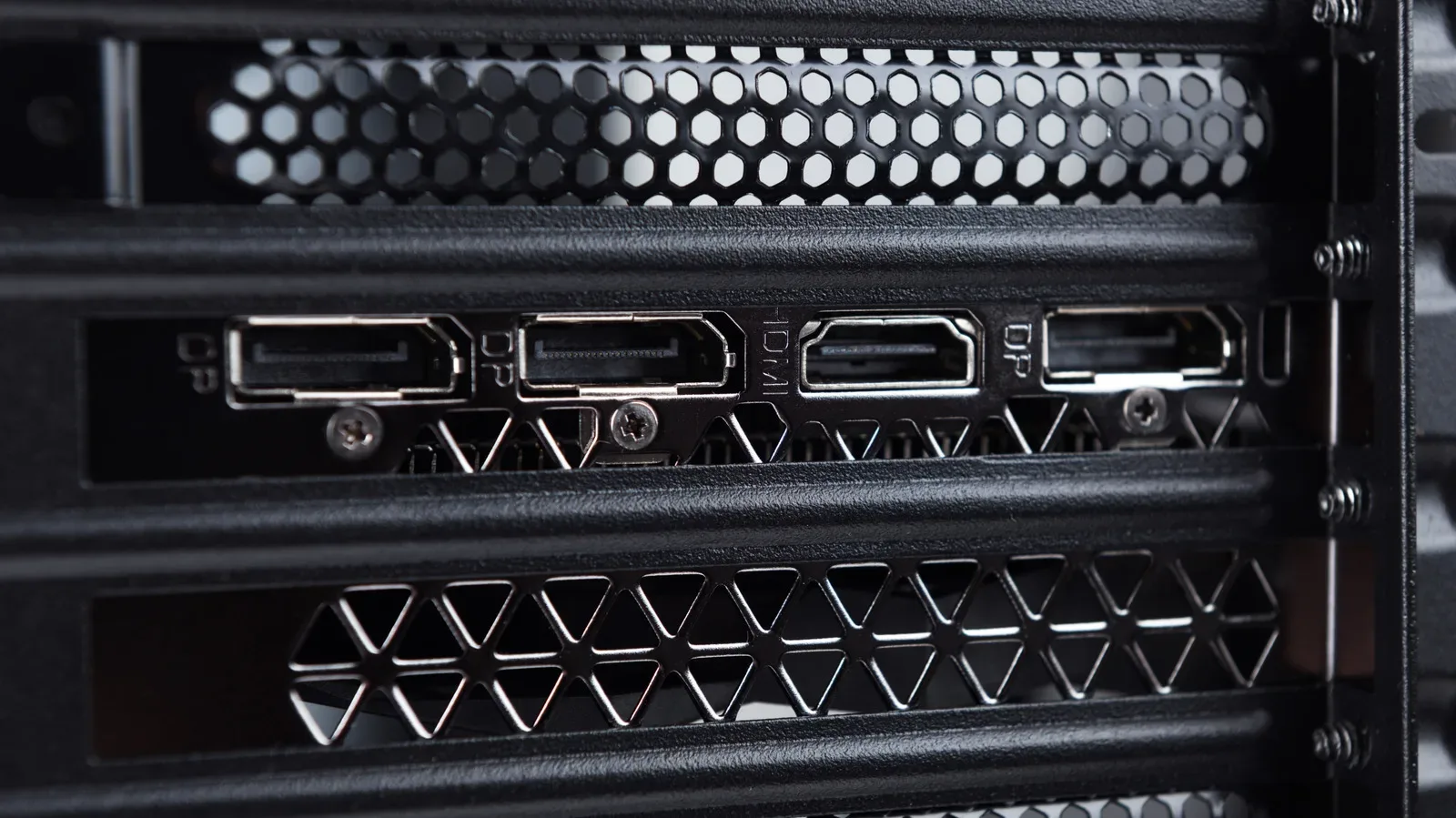
The dedicated graphics card has a separate bank of display outputs mounted on an expansion bracket. On many standard cases it sits lower down than the motherboard connector cluster. The ports are often arranged horizontally, though the layout and orientation can vary between cases and graphics cards. Instead of relying only on whether a port looks “lower” or “sideways,” trace the output to the component it belongs to: the display ports on the expansion card belong to the dedicated GPU.
- Motherboard display outputs: usually next to USB, networking and audio connections.
- Dedicated GPU display outputs: on the separate expansion-card bracket.
- Best default for a gaming desktop with a discrete GPU: connect the primary monitor to the graphics card.
This is not merely a cable-management preference. Both HDMI and DisplayPort can carry a monitor signal, but which physical device supplies that signal is central to whether the display is connected to the graphics hardware intended for gaming.
A safe cable-swap checklist
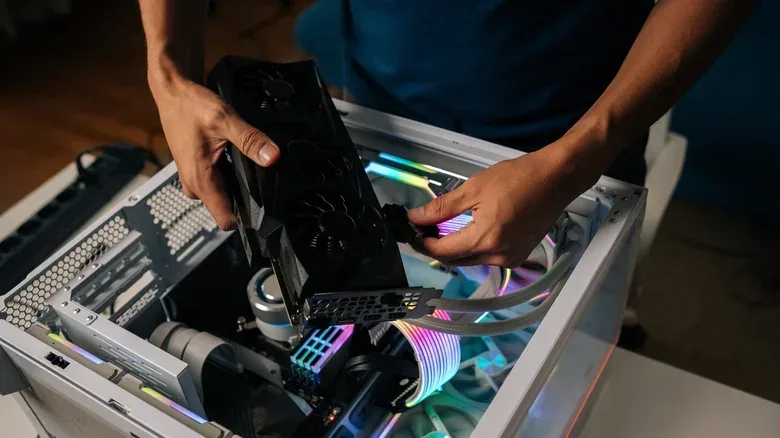
Before moving the display cable, turn the PC off. Move the HDMI or DisplayPort cable from the motherboard output to an available output on the dedicated graphics card. Then power the PC back on and make sure the monitor is set to the matching input.
- Shut down the desktop.
- Identify whether the monitor cable is currently connected among the motherboard’s USB, Ethernet and audio connections.
- Move that cable to a display output on the dedicated graphics card’s separate expansion bracket.
- Turn the monitor and PC on.
- Select the appropriate HDMI or DisplayPort input on the monitor if it does not switch automatically.
- Once Windows loads, confirm that the monitor is operating at its intended refresh rate.
A black screen after the swap is not, on its own, proof that the graphics card has failed. First check the selected monitor input. Then try another display output on the GPU or another cable. Those checks are less invasive than immediately inspecting the graphics card’s power leads or physical seating.
If it becomes necessary to check connectors or reseat hardware, shut down the PC and unplug it first. That basic precaution matters before working inside the case or handling power connections.
Why a motherboard connection can show nothing at all
Not every desktop can output video through the motherboard. Intel desktop processors with an F or KF suffix lack integrated graphics. In those systems, motherboard display ports cannot provide a picture because the CPU does not include the graphics hardware those ports rely on.
Some PCs also disable integrated graphics when a dedicated graphics card is installed. As a result, a display connected to the motherboard may remain blank even on a CPU model that otherwise supports integrated graphics. In either case, the useful first response is to connect the display to the dedicated card, not to conclude that the GPU is dead.
Conversely, an image from the motherboard port does not establish that it is the best connection for gaming. It only shows that integrated graphics are active and capable of supplying a display signal.
HDMI, DisplayPort and the refresh-rate check people miss
Switching to the graphics card is only one part of the display chain. The graphics card, monitor and cable must all support the resolution and refresh rate a player wants to use. Both HDMI and DisplayPort can support high-refresh-rate gaming when the entire chain supports the required mode.
That means there is no automatic need to buy DisplayPort just because it is common on modern gaming monitors. If an existing HDMI connection is already delivering the desired resolution and refresh rate, it is doing the job. The key is to verify the actual setting rather than assuming a cable or monitor label has enabled the highest available refresh rate.
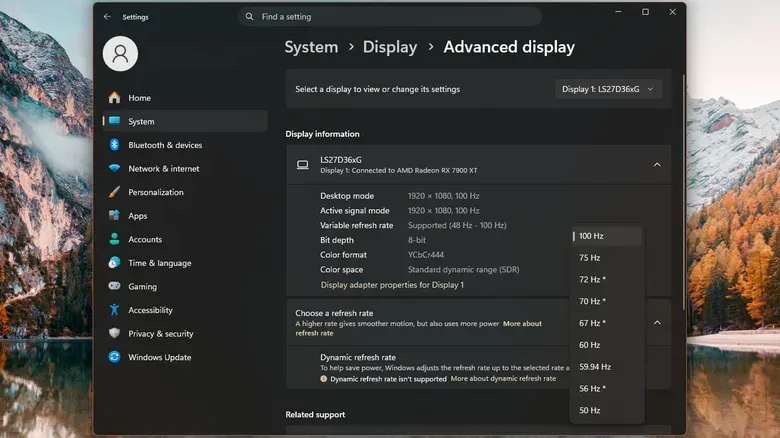
For example, a 100Hz monitor configured to run at 60Hz displays only 60 updates per second, regardless of how many frames the graphics card renders. That does not mean the GPU is necessarily underperforming; it means the display is currently set to a lower refresh-rate mode.
In Windows 11, open Settings > System > Display > Advanced display and inspect the refresh-rate setting. Select the intended option if it is available. If the desired rate is absent, the limitation may lie with the monitor, cable, selected port, resolution setting or their combination; the available evidence does not support treating one cable type as a universal fix.
Windows also includes other diagnostics that are useful when a system feels off, although they address different issues. For laptop-specific power troubleshooting, see how Windows Powercfg can create a battery report.
What to check before blaming the GPU
For a desktop gamer facing low frame rates, the sensible order is to start with the least disruptive checks: verify that the monitor is attached to the dedicated GPU, confirm the monitor input, and verify the configured refresh rate. These steps distinguish a connection or display-setting problem from a graphics-card problem.
Only then is it worth investigating more involved possibilities such as GPU power connections or whether the card is seated correctly. A blank screen can be caused by the selected output, the cable or a motherboard port that cannot function with the installed CPU, so it is not a definitive hardware diagnosis by itself.
Using a second monitor through the motherboard
A motherboard display output can still have a role in some setups. If integrated graphics remain enabled, a compatible system may allow a second monitor to be connected through the motherboard while the primary gaming display is connected to the dedicated GPU. Compatibility varies by system, so this should be treated as an option to verify rather than a guaranteed configuration.
For the main monitor used to play games, though, the direct connection to the dedicated graphics card remains the normal choice. It keeps the display attached to the hardware purchased to render those games and removes one easy-to-miss variable from PC performance troubleshooting.