PC gaming advice usually treats Windows’ hardware-accelerated GPU scheduling toggle as a harmless set-and-forget setting. For graphics cards with plenty of memory, that may be a reasonable approach. For a system trying to run newer games on a 6GB or 8GB card, though, it can be worth treating the setting as another performance trade-off rather than a universal upgrade.
Hardware-accelerated GPU scheduling, generally shortened to HAGS, moves much of the work of scheduling graphics tasks from a CPU-managed process to dedicated hardware on the GPU. Its purpose is sensible: reduce scheduling overhead and potentially reduce delays between input and the image shown on screen. Yet HAGS itself uses video memory, or VRAM. When VRAM is already the tightest resource in a game, reclaiming that allocation may be more valuable than preserving a small frame-rate advantage.
That makes this a particularly relevant test for owners of older or lower-cost hardware. One reported comparison using an 8GB RTX 2070 Super found that disabling HAGS recovered nearly 950MB of graphics memory, while frame rate fell by roughly three to five frames per second. In the affected games, texture-loading stutter improved. The lesson is not that HAGS should always be disabled. It is that a gigabyte can be a far more consequential amount of memory on an 8GB card than it is on a 16GB model.
What HAGS actually changes
Before HAGS, a high-priority CPU thread coordinated and scheduled graphics work sent by software to the GPU. With HAGS enabled, the GPU takes responsibility for most of that scheduling using its own built-in hardware. Windows still decides which applications receive priority; the change is in how much of the lower-level scheduling workload is handled by the graphics card rather than the CPU.
Scheduling, in this context, is the process of organizing work so graphics tasks can be executed in the appropriate order. Games are constantly asking the GPU to render geometry, effects, textures, user-interface elements, and more. The goal of a scheduling change is not necessarily to make every frame render dramatically faster. It is to make the path to rendering more efficient and reduce avoidable latency or interruptions.
Microsoft introduced HAGS with a Windows 10 update in May 2020, initially leaving it off by default while the new scheduling model matured. Support then arrived at different times across graphics vendors. Nvidia added it for GTX 10-series cards and newer through its 451.48 driver in June 2020. AMD support was later associated with the RX 7900, 7800, and 7700 cards in December 2023. Intel support is limited to Arc B-series hardware in the information available here.
Compatibility, then, should not be confused with a guaranteed performance win. The feature’s original premise was that many games already concealed scheduling costs effectively, so large visible changes were not expected in every title. That is broadly consistent with older comparisons: tests across high-end and entry-level Nvidia cards found average differences that ran from a 0.73% decline to a 0.06% improvement. Another set of testing found no major gains in the games examined and measured a repeatable 2.4% performance drop in F1 2019 on a four-core Intel Core i3.
Those figures matter because they put the decision in perspective. If HAGS contributes little or nothing to average frame rate in a particular game, turning it off to recover VRAM can be a rational exchange. If it improves consistency or enables a feature a player uses, keeping it on can be the better choice. The correct answer depends on the game, driver, GPU, CPU, graphics settings, and whether memory usage is pushing the card beyond its comfortable limit.
Why VRAM headroom matters more than a single FPS number
VRAM is memory attached to the graphics card. It holds data the GPU needs close at hand, including texture data. When a game’s demands approach or exceed the available VRAM, the result is not always a straightforward reduction in the average FPS counter. A player may instead see late-loading or low-detail textures, pauses when entering a new area, uneven frame delivery, or stutter during fast movement.
This is why a benchmark that focuses only on average frames per second can miss the practical issue. Losing three to five FPS is undesirable, but a lower average frame rate may still feel better if the game stops pausing to catch up with texture streaming. Texture streaming is the process of loading texture detail as it is needed. Under memory pressure, it can struggle to keep the required data resident on the card.
The reported 950MB saving should also be treated as an example rather than a promise. It was observed on one 8GB RTX 2070 Super configuration. Memory use can differ by GPU, driver, game, resolution, settings, and the applications running in the background. Still, the result illustrates why HAGS is worth checking on constrained cards: on 6GB or 8GB hardware, even a partial recovery of that amount may create useful headroom.
By contrast, a card with 12GB or more has more room to absorb HAGS’ allocation. That does not guarantee there can never be a memory bottleneck, particularly at demanding settings, but it makes the trade-off less urgent. Leaving the feature enabled is generally the less complicated option on such systems, especially for players relying on frame generation.
The key catch: disabling HAGS removes DLSS Frame Generation
The biggest reason not to make this a blanket recommendation is DLSS Frame Generation. HAGS is required to use it. Frame generation is designed to create additional frames between traditionally rendered ones, which can increase the displayed frame rate. A player using this feature must keep HAGS enabled.
That creates two distinct routes for a VRAM-limited PC gamer. One route keeps HAGS on and retains DLSS Frame Generation. The other turns HAGS off, sacrifices Frame Generation, and may make more graphics memory available for the game itself. Neither route automatically wins. A game that is functioning well and benefits from frame generation has little reason to change. A game that is severely short on VRAM may be better served by recovering memory and seeing whether texture behavior stabilizes.
It is also useful to separate frame generation from underlying game performance. Higher displayed FPS can be helpful, but it does not erase a VRAM shortage. If textures are visibly streaming in late or the game is hitching because memory is overcommitted, reducing the pressure on VRAM remains worth investigating.
Who should test the setting first
Owners of 6GB and 8GB graphics cards are the clearest candidates, especially when a specific game is already close to exhausting available VRAM. The installed-base context reinforces that this is not a niche concern: September 2026 hardware-survey figures place 8GB cards at more than a quarter of surveyed GPUs, second only to 16GB models, while 6GB cards represent 5.12%.
The setting can also matter outside the game window. OBS guidance notes that switching HAGS off may help users who run into recording or streaming problems. That does not mean every streaming setup needs the feature disabled. It means a streamer facing unexplained instability has one more targeted troubleshooting step to test.
For players with ample VRAM, the practical reason to touch HAGS is much weaker. If games are smooth, frame generation is in use, and there is no recording problem, changing a low-level graphics scheduling setting is unlikely to be productive. This is not a universal optimization button; it is a diagnostic lever for specific symptoms.
How to test HAGS without guessing
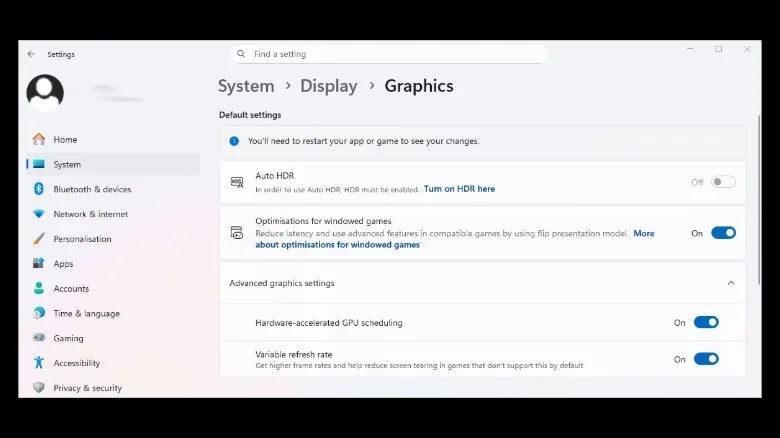
In Windows 11, the option is located at Settings > System > Display > Graphics > Advanced graphics settings. A restart is required after changing it. The exact default state can vary, so it is better to look than assume it is enabled or disabled on a particular PC.
- Choose one game with a repeatable troublesome scenario: an area where textures load late, a route that reliably stutters, or a demanding built-in benchmark.
- Record the game’s graphics settings and keep them unchanged for both tests. Resolution and texture quality are particularly important when investigating VRAM pressure.
- Run the scenario with HAGS in its current state. Note not only average FPS, but also visible texture pop-in, pauses, and consistency while moving through the area.
- Change the HAGS toggle, restart Windows, then repeat the same scenario.
- Compare the results. If disabling HAGS stops meaningful texture trouble for only a minor performance loss, it may be the better setting for that game. If the change does nothing or makes performance worse, turn it back on.
A game-by-game mindset is important. There is no supplied evidence that HAGS must be configured one way for an entire library. What works for a memory-heavy title may not be best for another game, and a setting that is valuable for frame generation may be unnecessary elsewhere.
Before changing broader hardware plans, this kind of controlled check can reveal whether a software setting is consuming memory a system cannot comfortably spare. It is also one practical example of why “more FPS” and “better playability” are not always the same outcome. For more PC-side context on software tools and gaming-related technical changes, see our coverage of AI-assisted software clones and game decompilation.
HAGS is therefore best understood as a trade-off. On memory-rich GPUs, it is usually sensible to leave enabled, particularly when DLSS Frame Generation is part of the setup. On a 6GB or 8GB card showing clear signs of VRAM strain, disabling it can be a useful experiment—one that may exchange a small amount of frame rate for memory headroom and smoother texture behavior.