
A laptop battery can be easy to ignore right up to the moment it becomes impossible to ignore. Charging takes longer than it used to. Runtime feels shorter. The machine unexpectedly shuts down. In more serious cases, the laptop’s body may begin to bulge as the battery swells. Those symptoms do not all prove the same underlying problem, but they are useful reasons to investigate rather than simply guessing.
Windows includes a built-in utility called Powercfg that provides a practical starting point. It is a command-line tool for monitoring and managing aspects of a PC’s power behavior. On a desktop, that can mean examining energy efficiency or adjusting sleep and hibernation states. On a laptop, Powercfg is particularly useful because it can produce reports about the battery’s condition and the system’s energy use.
The key advantage is that the utility writes its findings to an HTML report—a normal web-page-style file saved on the computer. That means the initial diagnostic does not require specialized software or deep technical knowledge. A user needs to open a Windows command interface, run the appropriate command, and then open the file path that Windows provides.
Why laptop battery health deserves attention
A battery is central to the experience of using a portable PC. Its state can affect how long the laptop runs away from an outlet, and a struggling battery can contribute to more disruptive behavior as its condition worsens. At the extreme, it can keep a laptop from booting at all.
That makes battery diagnosis less about chasing a perfect number and more about establishing useful context. Has the battery’s current maximum charge moved far away from the capacity it was designed to hold? Is the system identifying apps or devices that are contributing to power drain? Are the frustrating symptoms happening alongside a report that suggests deterioration? Powercfg can help turn those questions into information a laptop owner can inspect.
It is also important to separate battery capacity from the laptop’s total day-to-day power use. Capacity is the amount of charge the battery can hold; energy use concerns what the computer, its apps and attached devices consume while operating. A machine can have a battery that is wearing down, an avoidable power drain, or both. Windows supplies separate Powercfg commands that address those different angles.
Open a command window with administrator access
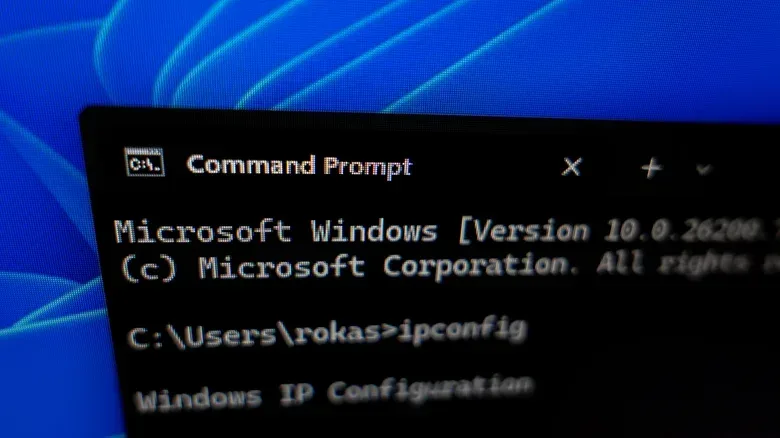
Powercfg is run by typing commands into Windows Terminal or Command Prompt. For the Terminal route, press Win+X and select Terminal (Admin). This opens an elevated window, meaning it has administrator permissions to perform the requested diagnostic.
Command Prompt is another option. Press Win+R, type cmd in the Run box, and press Enter. Once a command window is open, enter the Powercfg command exactly and press Enter. Windows will perform the requested task and state where the resulting HTML report was saved.
Related coverage includes Use Powercfg to Check a Windows Laptop Battery’s Health.
Command-line utilities can look intimidating because there is no large settings panel full of buttons. In this case, the workflow is straightforward: enter one command, wait for it to complete, note the report location, and open that report. The value is in reading the results carefully rather than trying to interpret the command itself as a verdict on the laptop.
Generate a battery report with Powercfg
The most direct command for examining a laptop battery is:
powercfg /batteryreport
Enter that line in Terminal and press Enter. Powercfg will generate a comprehensive report on the laptop’s battery status and save it as an HTML file. The command window will indicate the file’s location.
Two terms in that report are especially useful for a first pass:
- Design capacity: the battery capacity the laptop was built for.
- Full charge capacity: the capacity the battery can currently reach when fully charged.
In general, full charge capacity is most reassuring when it remains close to design capacity. Some difference is expected over time, so a gap is not automatically a crisis. But a substantial difference can support concerns raised by noticeably shorter runtime, unusual charging behavior, or unexpected shutdowns.
A threshold sometimes cited by Dell is that a battery below 40% of its original capacity should be replaced. That is a useful benchmark rather than a universal diagnosis for every symptom. The practical point is to treat a major capacity decline as a reason to consider replacement, particularly when the laptop is also behaving unreliably.
What the report can and cannot settle
The battery report offers evidence about capacity, but it does not mean every laptop problem is a battery problem. Slow charging, for example, is a symptom worth examining; it is not by itself a complete explanation. Likewise, a shutdown can be severe and disruptive without the report alone proving every cause.
Use the report as a baseline. If capacity looks substantially reduced, it gives a clearer explanation for why a laptop no longer lasts as long on battery power. If the capacity remains relatively close to design capacity, it may be more useful to inspect the system’s broader power behavior next. Either result is more actionable than guessing based only on a battery percentage indicator.
Run the 60-second energy check
The companion command is:
powercfg /energy
This check runs for 60 seconds and also saves an HTML report to a location indicated by Windows. Its purpose is broader than battery capacity: it assesses the battery and the laptop’s efficiency, including apps and devices that may need reconfiguration because they are drawing power.
That distinction matters. A battery report addresses what the battery can hold. An energy report looks at how the computer is using energy. If a laptop seems to drain too quickly, the latter can flag places where the system’s configuration may deserve attention.
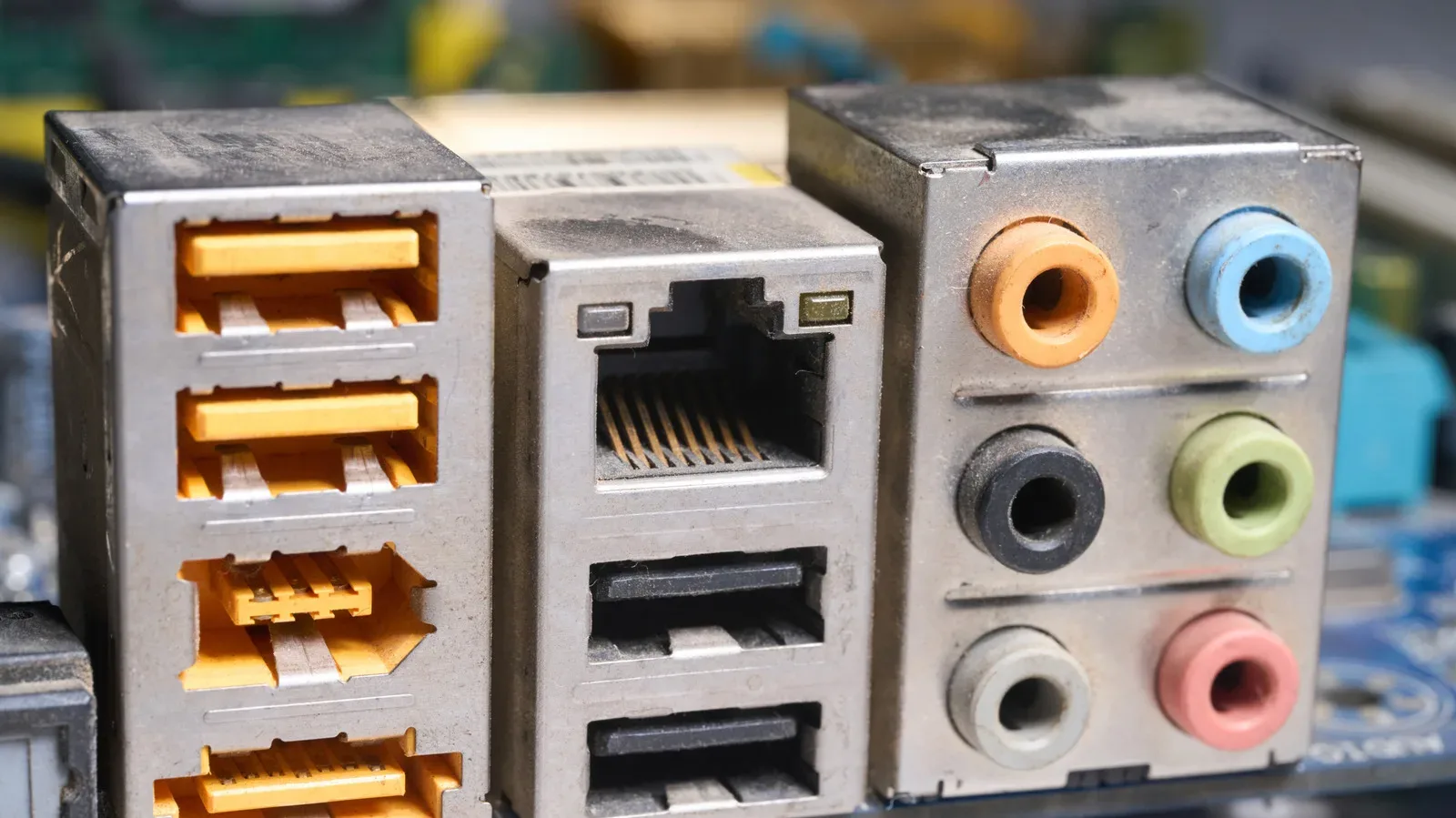
External hardware can be relevant to a laptop’s overall power picture as well. USB port behavior, for instance, is not always just about transfer speed; some ports can support always-on charging. For a separate explanation of that feature, see why yellow USB ports usually indicate always-on charging rather than faster data transfers.
The energy report is therefore a sensible second step after checking capacity. It can help distinguish a battery that has lost a notable portion of its charge-holding ability from a system that may also be spending power in ways that warrant adjustment.
A simple way to interpret both checks together
- Start with the battery report. Compare full charge capacity with design capacity and note whether the difference lines up with the laptop’s real-world symptoms.
- Run the energy report. Let the 60-second scan complete, then open the generated HTML file.
- Look for the practical pattern. Capacity loss points toward a worn battery; items identified for power drain point toward apps or devices that may need reconfiguration.
- Consider replacement when the evidence is severe. A heavily reduced capacity, particularly alongside charging trouble or random shutdowns, makes a replacement decision more reasonable.
This approach is useful because it does not ask a user to jump immediately from “my laptop seems odd” to “I need a new battery.” It provides two built-in checks that examine related but distinct parts of the problem.
Pay attention to the warning signs that matter most
Not every issue arrives with a neat report attached. Slower-than-normal charging can be an early warning sign. Random shutdowns are a more serious interruption. Physical bulging is especially notable because it can indicate a swollen battery with components breaking down.
When these signs appear, generating the reports is a sensible way to document what Windows can see about the battery and power efficiency. A report will not make a failing battery healthy, but it can help establish whether current capacity has fallen substantially from the laptop’s design target and whether power-hungry apps or devices deserve attention.
For Windows laptop owners, Powercfg is a small built-in utility with a notably practical job: it creates a clearer basis for judging battery condition before a laptop’s power problems turn into a complete loss of portability—or a machine that no longer starts.