
A yellow USB-A port can look like a small but useful hardware clue: plug in a controller, headset, phone or other accessory, and perhaps it will keep charging after the PC shuts down. Often, that is exactly what the color is intended to signal. Yellow has commonly been used for an Always On charging port, meaning the machine may continue supplying power over that connection while it is powered off.
There is an important catch for anyone choosing a port for an external drive, a gaming accessory or a phone: the yellow insert does not establish a universal USB speed rating. It is a manufacturer-led convention rather than a requirement shared by every PC maker. In practical terms, yellow can be a helpful hint about charging behavior, but it should never be treated as proof that a port is fast, enabled in every power state, or even configured to charge from the laptop battery.
That distinction matters because modern PCs ask one physical port to do several very different jobs. A mouse has minimal bandwidth needs. An external SSD is a far more demanding data device. A handset may need charging power when the computer is not otherwise in use. Color alone is too blunt a tool to explain all of that.
What yellow usually means
The most common interpretation of a yellow USB-A port is Always On charging. Put simply, this is a USB connection designed to remain capable of charging a connected device once the computer itself has been switched off. It is a convenience feature: a user can treat a laptop or desktop USB port as a limited charging point rather than needing to leave the whole system running.
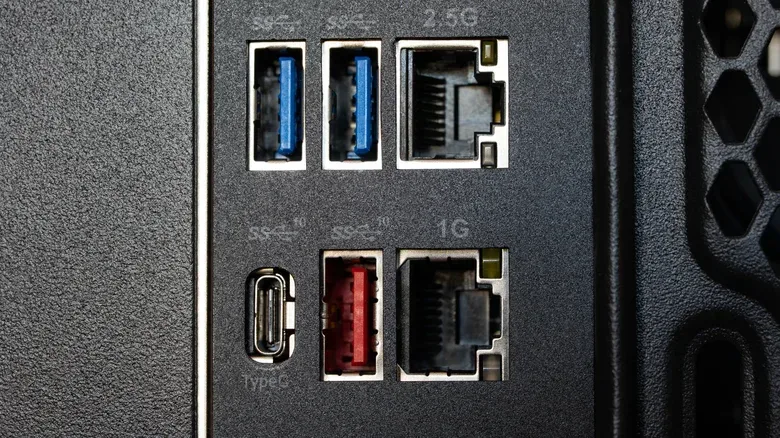
It is not, however, a promise that every yellow port on every product behaves identically. USB port insert colors are not a comprehensive industry standard. The USB Implementers Forum has recommended a particular blue insert to help distinguish USB 3.0 from USB 2.0, but that recommendation is not mandatory. Yellow and the other colors seen on USB-A ports are even less dependable as universal labels.
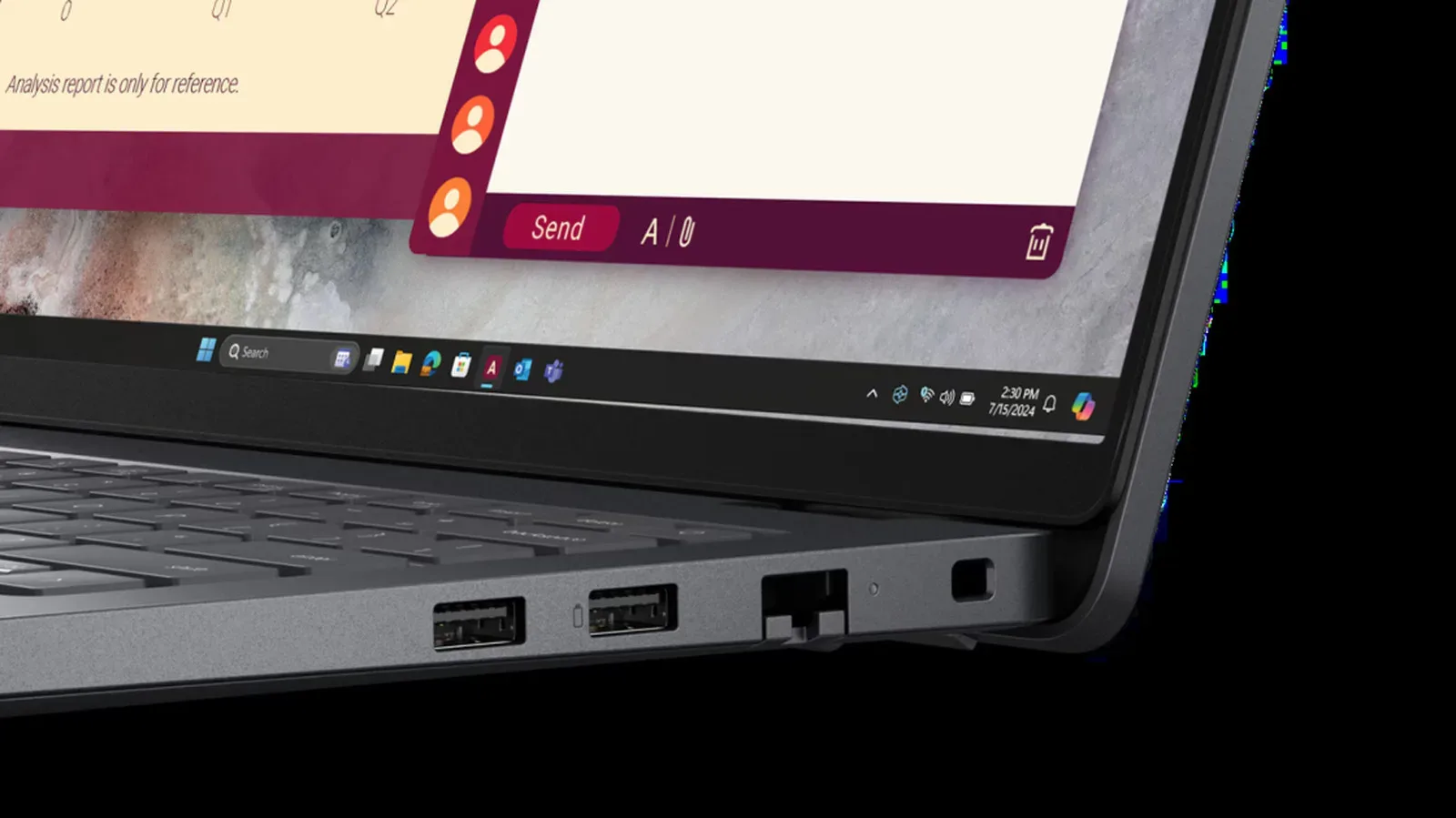
One illustration comes from Lenovo’s own changing approach. Older IdeaPad Y400 and Y500 models used yellow USB-A ports specifically for Always On charging. Later Lenovo systems moved away from yellow and instead used battery icons. The function did not necessarily disappear; the visual language changed. That is a useful reminder that a symbol printed beside a port can carry more weight than the color inside it.
Always On still requires a power plan
“Always On” should not be read as “limitless.” The port still needs a source of power, and the details may be controlled by the system’s settings. On some computers, Always On charging has to be enabled in the BIOS, the low-level firmware configuration area that governs hardware behavior before the operating system takes over.
Some laptops also separate the feature into a setting often described as Charge in Battery Mode. If that option is disabled, the port may charge an attached device only when the laptop is connected to AC power. In that situation, a yellow port could work as expected at a desk with the charger connected, yet stop providing charge after the laptop is unplugged and shut down.
Related coverage includes What a Yellow USB Port Usually Means—and Why You Shouldn’t Trust Color Alone.
For owners, the sensible order of checks is straightforward:
- Look for a battery icon, charging label or other marking next to the port.
- Check the computer’s manual or its official specifications for the exact model.
- Review BIOS options if the documentation identifies an Always On or USB charging function.
- Check whether battery-mode charging must be enabled separately.
This approach avoids a common frustration: assuming a port is defective because it does not charge a device after shutdown, when the function may simply be disabled or restricted to AC power.
Why the color cannot tell you the transfer speed
USB colors are frequently presented as a quick performance chart, but that chart is not a safe basis for a purchase or a setup decision. Yellow has no dependable position on the USB speed ladder. It may be associated with USB 2.0 on one machine and USB 3.0 on another. Some reference charts even place yellow alongside red, while others do not.
Red is generally used for the fastest color-coded USB-A connections, commonly covering 10 Gbps to 20 Gbps. Teal is commonly associated with USB 3.1 Gen 2 or USB 3.2 Gen 2, with transfer rates up to 10 Gbps. Blue is typically used for 5 Gbps USB 3.0, while black and white USB-A ports are at the lower end. Those patterns can be useful starting points, but they are conventions that remain subject to the manufacturer’s choices.
Gbps means gigabits per second and is the connection’s stated data-transfer rate. It is not the same thing as charging power, and it is not a guarantee that every connected device will achieve that rate in real use. The immediate lesson is simpler: a yellow port’s potential to charge when the system is off does not tell a user whether it is suitable for high-speed storage.
If the yellow port is USB 2.0, it remains perfectly appropriate for a keyboard, mouse or similarly basic peripheral. Those accessories generally do not need the bandwidth offered by newer USB implementations. An external SSD is different. For that use case, a port rated at 5 Gbps or higher is the recommended minimum among the supplied information. The relevant label, product specification or manual is more valuable than the port’s color.
Icons are becoming more useful than colors
Manufacturers have reason to rely more heavily on symbols than colored inserts. A battery symbol beside the connector indicates that a port is intended for charging. A trident-style USB symbol can identify the USB implementation, such as USB 3.0 or USB4. Those markings are more directly tied to the capability a user needs to identify.
The transition is especially visible with USB-C. Many PCs and laptops no longer use color coding for USB-C at all, even though the connector can support a broad range of capabilities. The connector shape alone does not communicate every feature, so a printed symbol and the model’s documentation become vital.
That makes a small habit worthwhile when setting up a PC for games and accessories. Identify which port is best for each job before cable management makes the rear panel hard to reach. Reserve a documented high-speed connection for an external SSD. Use an Always On port for an accessory that benefits from charging while the system is off. Leave lower-bandwidth connections for devices such as keyboards and mice. This is not about giving every peripheral the fanciest-looking port; it is about matching its requirements to a confirmed capability.
The same caution is valuable when assessing a broader PC setup. Hardware labels, rated connections and documented behavior generally matter more than visual shorthand, an idea also relevant when weighing when a dedicated graphics card is actually worth adding to a PC.
A practical read on a yellow USB-A port
Yellow should be read as a possible charging clue first, not as a performance badge. If there is a nearby battery icon and the manual confirms Always On charging, it may be the most convenient place to plug in a device that needs power while the computer is off. If the port has no supporting icon or documentation, its color alone is insufficient evidence.
Likewise, do not infer that it is a poor data port merely because it is yellow. Its speed can vary by product. Nor should the presence of a high-speed-looking color replace checking the specification, because manufacturers retain discretion over the palettes they use.
Yellow commonly points to Always On charging. It does not reliably identify USB generation or data-transfer speed.
The clearest answer will always come from the exact device: inspect its port markings, consult the manual or manufacturer specifications, and check firmware settings where necessary. That is less flashy than a universal color chart, but it is the only method supported by the way USB-A colors are actually used.