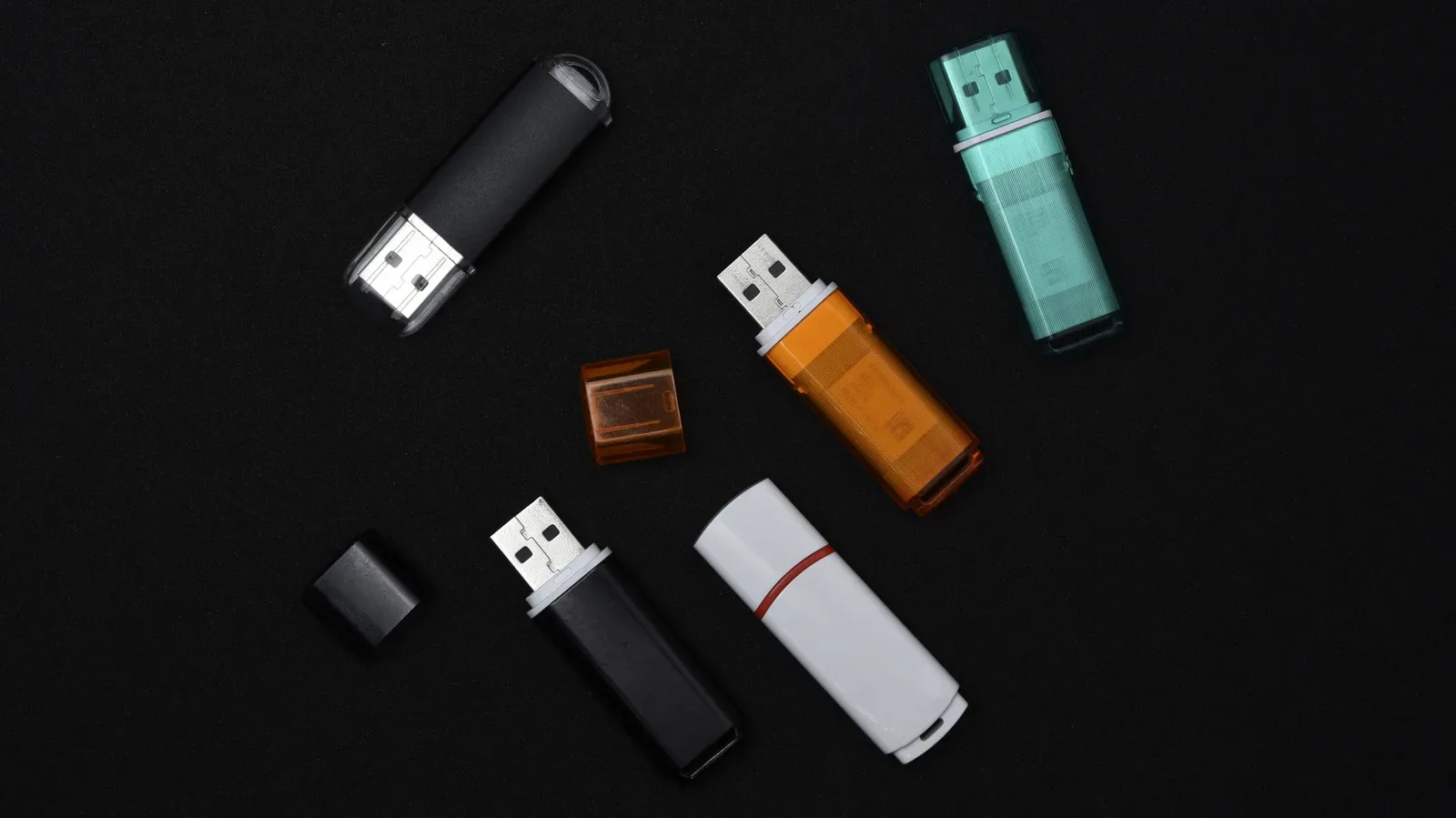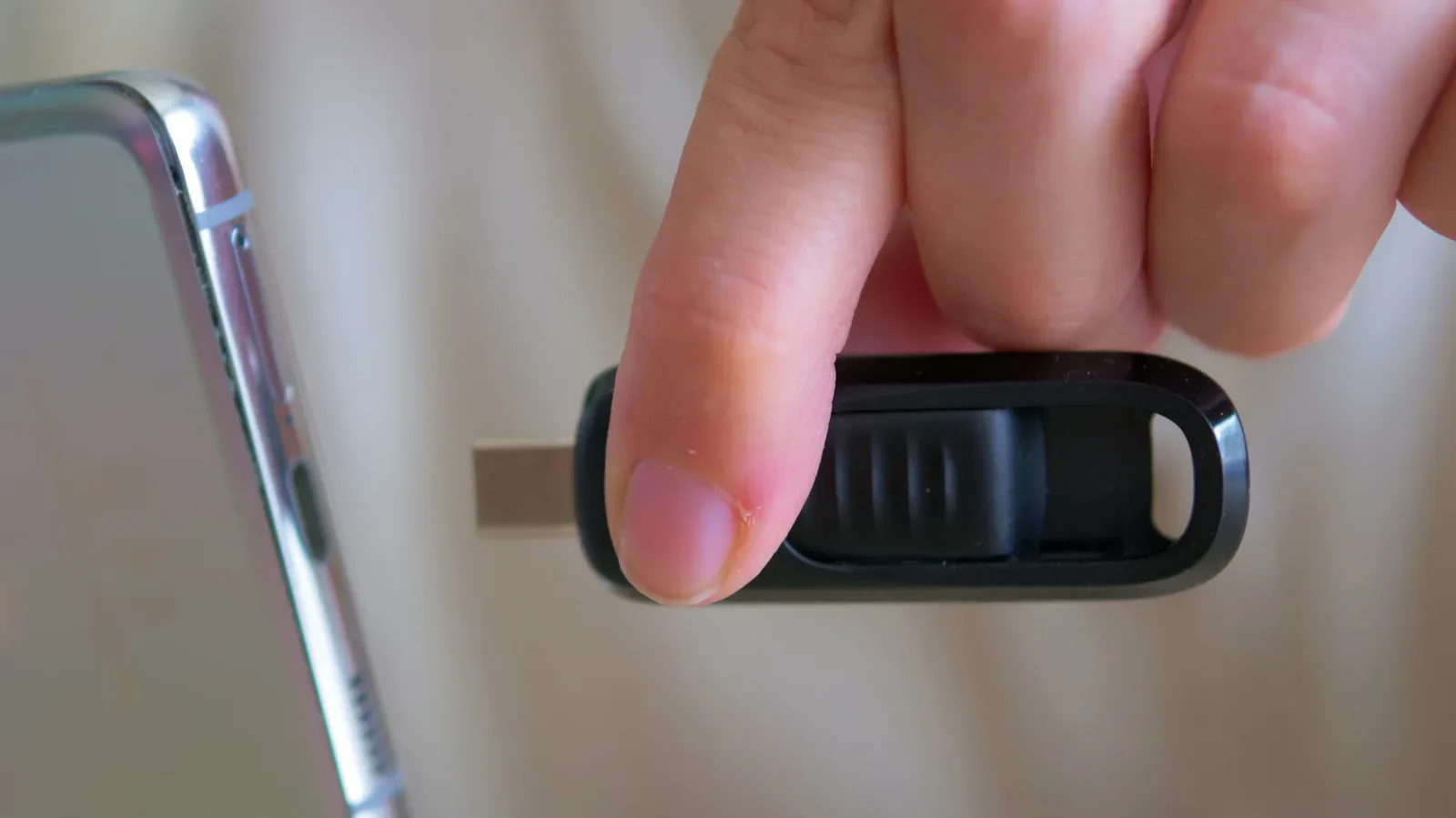
USB-C flash drives look like an obvious upgrade over their USB-A predecessors. The connector is compact, reversible and familiar to anyone using a recent phone, tablet or laptop. It can make moving photos, videos and documents from a mobile device to a computer much less awkward. But there is one important correction to make before shopping: USB-C does not automatically mean a faster flash drive.
USB-C and USB-A describe the physical shape of the connection. They do not, by themselves, identify the data-transfer standard implemented inside a drive. That distinction matters because a USB-C thumb drive operating over USB 2.0 can be slower than a USB-A model built around USB 3.2. Likewise, connecting a very fast drive to a slower port limits the transfer to what that port can handle.
For gamers, PC owners and anyone trying to shift a large capture folder off a phone, the better purchase is therefore not simply “the USB-C one.” It is the drive whose connector fits the devices you actually use, whose quoted read and write figures suit the job, and whose underlying USB specification is supported by the ports at both ends.
Connector type and transfer standard are different things
The easiest way to avoid a disappointing purchase is to separate two related ideas.
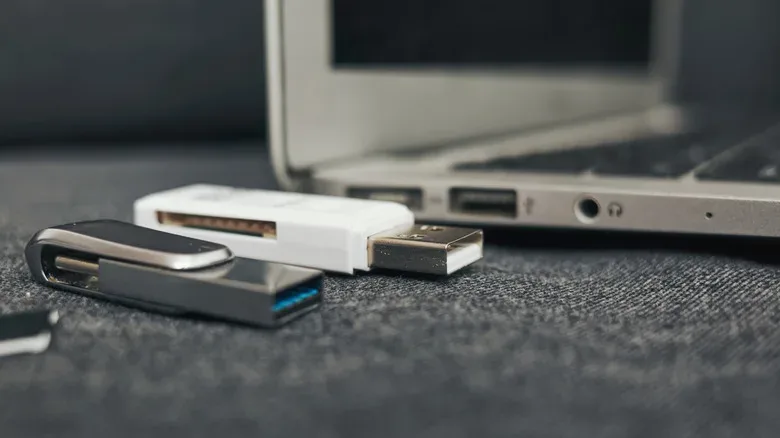
- USB-A is the familiar flat rectangular connector found across desktop PCs, laptops, televisions, routers, cars, consoles and plenty of older hardware.
- USB-C is the smaller, symmetrical connector common on current smartphones and tablets and increasingly present on laptops, desktops and other equipment.
- USB 2.0, USB 3.0 and USB 3.2 describe the USB capability associated with the device and port. Those specifications, along with the drive’s own hardware, are what determine potential transfer performance.
That means the marketing shorthand can be misleading. A newer-looking plug does not tell a buyer whether a drive is quick at reading files from its storage or writing files onto it. Read speed affects how rapidly data can be copied from the drive; write speed affects how fast files can be copied to it. Both are worth checking, especially for large video files, disk images, backups and substantial folders of screenshots or media.
A USB-C drive using USB 2.0 can lose to a USB-A drive using USB 3.2. Reversing the setup does not create a shortcut, either: a USB 2.0 USB-A flash drive cannot suddenly perform at USB 3.2 Gen 1 speeds merely because the computer port is faster. The slowest relevant part of the chain establishes the practical ceiling.
Think of the connection as a chain
A file transfer involves at least three meaningful links: the flash drive, the port on the computer or phone, and the USB standard they have in common. A fast USB-C drive attached to a USB-C port limited to USB 2.0 is constrained to USB 2.0 performance. The physical connector may match perfectly, but the connection is still limited by the port’s capability.
Conversely, a slow drive remains slow when inserted into a fast port. This is why connector-first shopping can create the wrong expectation. USB-C can support higher top speeds than USB-A, but higher capability only matters when the drive and host device both support it. With small flash drives, theoretical interface limits are not necessarily what the storage hardware reaches in normal use.
Related coverage includes USB-C vs. USB-A Flash Drives: Compatibility Matters More Than the Plug.
For a drive advertised as USB 3.0, moving from USB-A to USB-C may change the physical fit and day-to-day convenience without changing the underlying transfer class. USB-A can handle USB 3.2 Gen 1 and Gen 2 performance, up to 10 Gbps; it falls away only beyond that point. In practical terms, the USB-C connector is not a blanket verdict on speed.
Why USB-C is still the better fit for many new devices
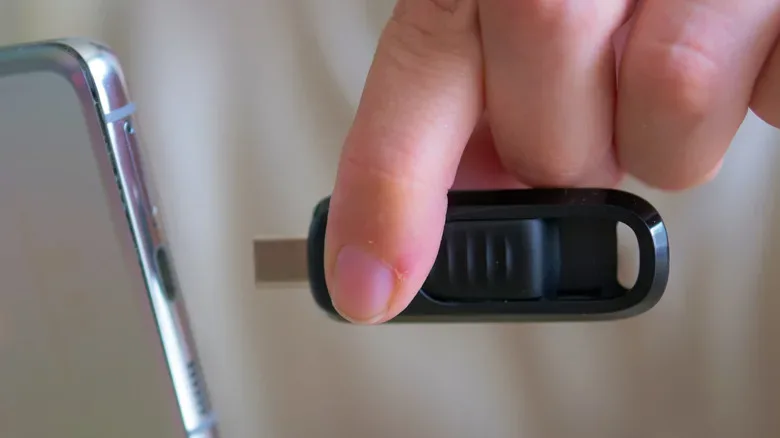
None of this makes USB-C unimportant. It makes its principal advantage clearer: convenience and compatibility with newer personal devices. The reversible plug removes the familiar Type-A ritual of checking which way the connector is facing. More significantly, USB-C is widespread on modern phones and tablets, which makes it useful for transferring substantial batches of pictures, video and documents without routing every job through another device.
That direct phone-to-drive or phone-to-computer flexibility is especially attractive for people who move files back and forth regularly. A newer laptop or desktop is likely to make USB-C the tidier default, particularly in a setup that also includes an iPhone or Android handset. It is not necessary to pretend the connector itself has made the flash storage faster; it may simply remove an adapter from a routine task.
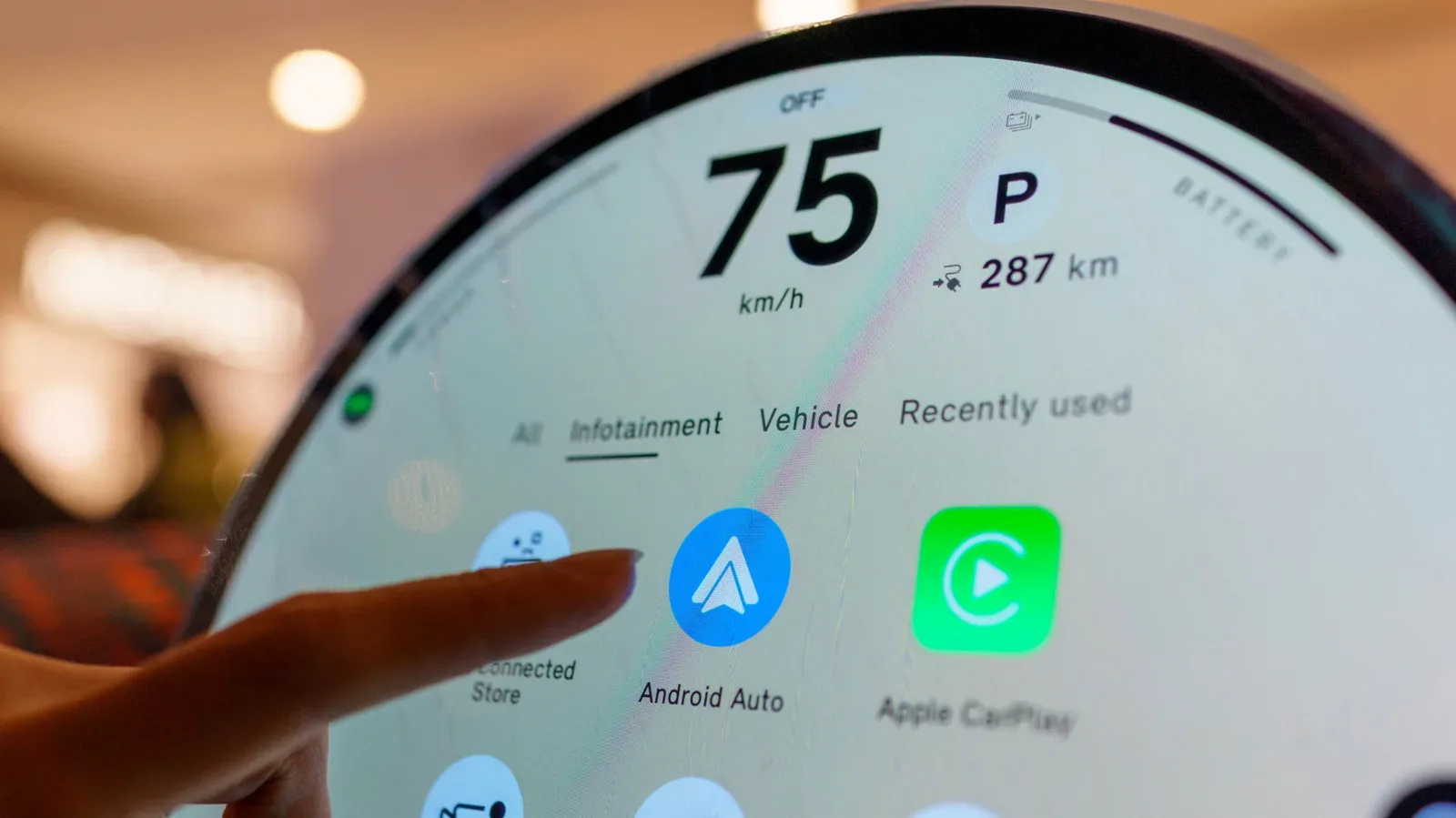
Phone software and connectivity can also affect how smoothly people manage data across devices. For Android users who keep an eye on the wider in-car and mobile software ecosystem, our look at where Android Auto updates are delivered and what a missing button may indicate is a useful reminder that the visible hardware connection is only one part of a broader device workflow.
USB-C also gives people working with very large files an obvious direction when choosing modern hardware. Video editors and 3D artists, for example, are likely to prioritize USB-C for much of their work because the connector can support faster standards. Yet there is a material caveat: once the requirement reaches 20 Gbps and beyond, a portable SSD is generally the more sensible product category than a tiny thumb drive. A flash drive’s size and convenience remain valuable, but they do not make it a substitute for every high-throughput storage task.
USB-A is not obsolete—and may be the more useful spare drive
USB-A remains a practical choice because it is still everywhere. Many desktops and laptops retain it, while televisions, routers, cars, game consoles and older equipment frequently depend on it. Even where USB-C is present, less expensive laptops may offer fewer USB-C ports than higher-end machines. A USB-A drive can therefore be the fastest way to hand off a file without finding a dongle first.
Its usefulness goes beyond casual file copying. USB-A flash drives are well suited to creating bootable operating-system installation media, applying firmware updates, transferring photos and video on equipment with few or no USB-C ports, and serving shared office systems or older PCs. A basic Type-A stick is inexpensive, common and easy to replace, which is a real advantage for a tool that may need to work in unpredictable hardware environments.
For PC gaming households, this broad compatibility can matter more than the newest connector. A spare USB-A drive can be a sensible utility item for recovery media or firmware tasks, whereas a USB-C-only drive may be perfect for a current laptop and phone but unhelpful on an older machine. Neither role is inherently superior. The right answer depends on whether the drive is meant to live with one modern device or travel among many systems.
The dual-ended option solves the plug problem, not the speed problem
A dual-ended flash drive with USB-C on one side and USB-A on the other is often the most flexible answer. It can connect to modern mobile hardware and USB-C computers while still working with legacy Type-A ports, all without carrying a separate adapter. For someone who uses a recent phone at home but encounters a mixture of computers elsewhere, that flexibility can be more valuable than chasing a connector label.
There is a catch: dual-ended does not mean high-performance. Both connectors commonly lead to the same controller and the same USB protocol inside the drive. As a result, the model’s published read and write specifications still matter. A two-ended product may be wonderfully compatible yet disappointingly slow for large transfers.
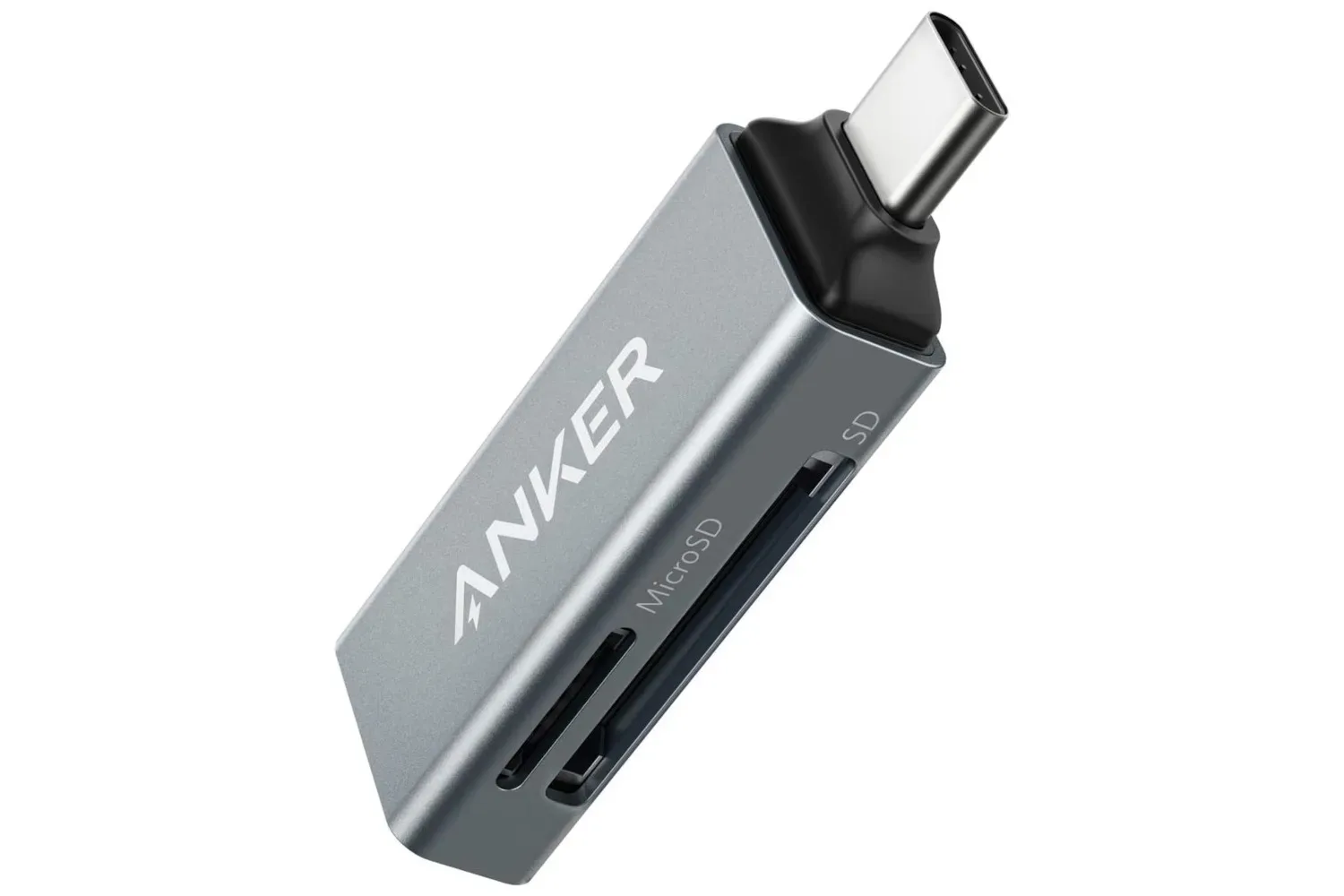
Adapters provide another route to compatibility, but they add one more item to carry, lose or forget. That does not make adapters a bad choice—particularly when an existing drive is otherwise suitable—but it does explain the appeal of a dual-ended design for frequent travel or mixed-device use.
A purchase checklist that avoids the USB-C speed trap
Before choosing a flash drive, work through the actual task rather than starting with the plug.
- List the devices that need to connect. A modern phone and laptop point toward USB-C. A mix of older PCs, consoles, televisions or shared equipment may make USB-A essential. A mixed environment favors dual-ended storage or an adapter plan.
- Check the ports, not just the device age. A USB-C-shaped port can still be limited to USB 2.0 speeds. The host port’s supported standard is part of the transfer equation.
- Read the drive’s quoted read and write speeds. Do not infer either number from USB-A or USB-C alone. This is the key comparison for copying files off the drive and onto it.
- Match the drive to the file sizes involved. Occasional documents, boot media and modest media transfers have different needs from frequent video work or large creative-project assets.
- Consider a portable SSD for sustained large-file work. At 20 Gbps and above, portable SSDs are generally the products that make more sense than small thumb drives.
Which one should you buy?
Choose USB-C when a newer laptop, desktop, tablet or smartphone is the center of your workflow, especially if direct transfers between phone and computer are common. The chief payoff may be a simpler daily routine rather than an automatic leap in speed.
Choose USB-A when broad compatibility is the priority. It remains a dependable option for older computers, shared systems, bootable installation media, firmware updates and hardware that has not moved to USB-C.
Choose a dual-ended USB-C/USB-A drive when you routinely cross between both worlds and do not want to rely on adapters. Then verify its speed figures just as carefully as any single-connector model.
The useful rule is simple: buy the connector that reaches your devices, then buy the performance specification that meets your workload. USB-C makes modern-device file transfers pleasantly direct. USB-A keeps a huge installed base within reach. Neither label, on its own, tells you how quickly the drive will move your files.