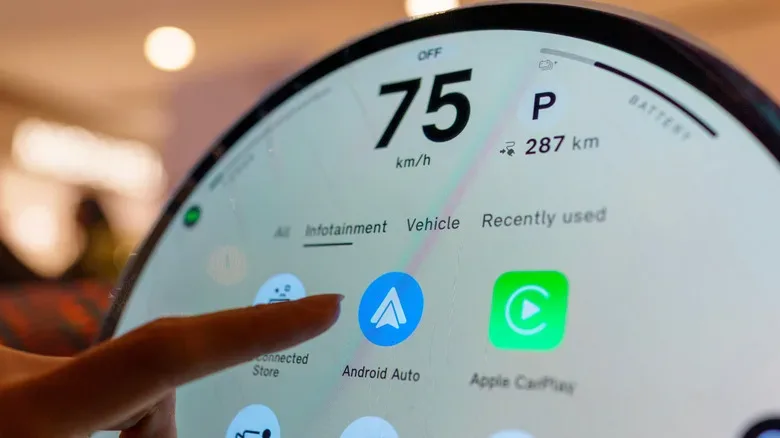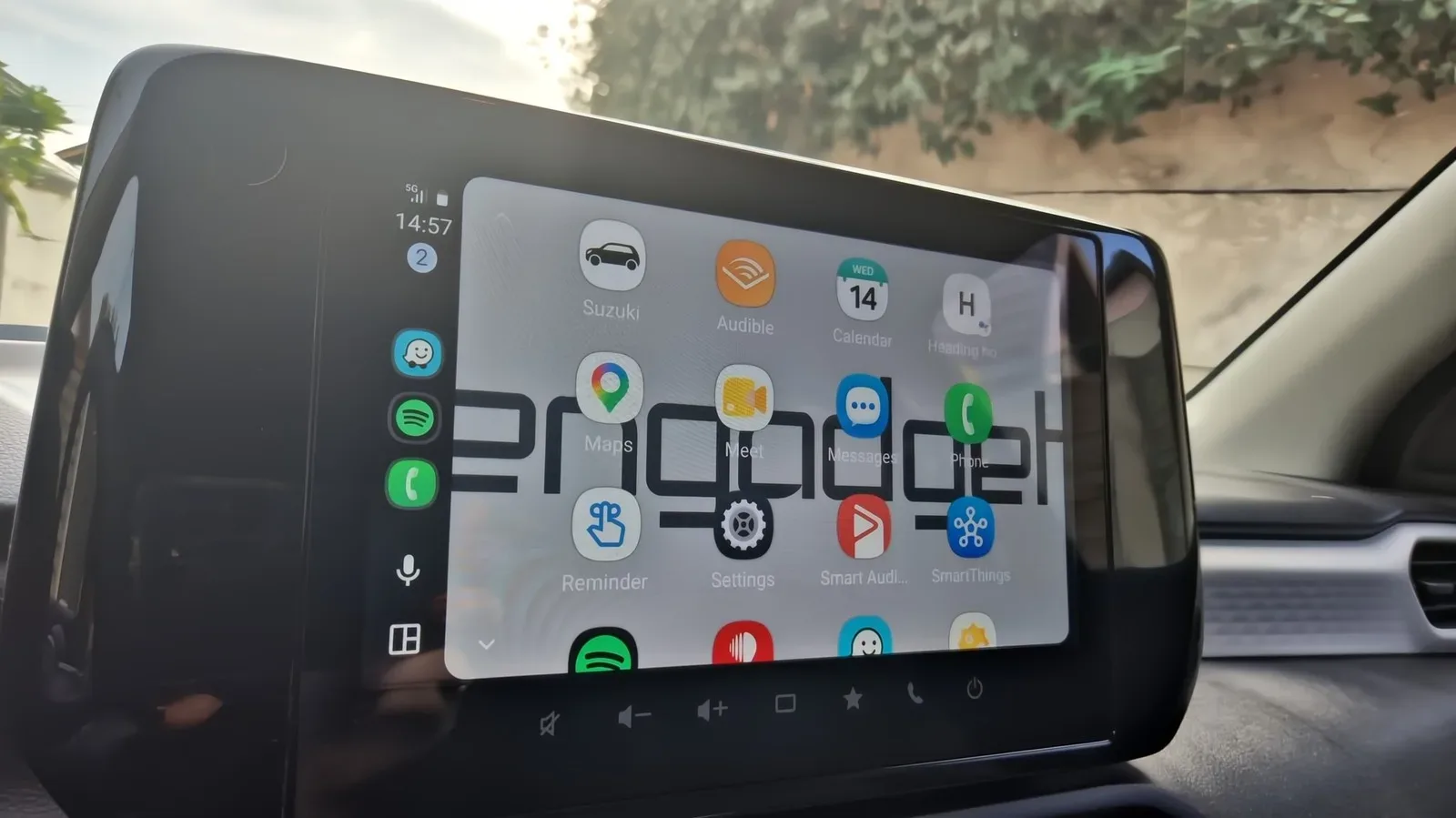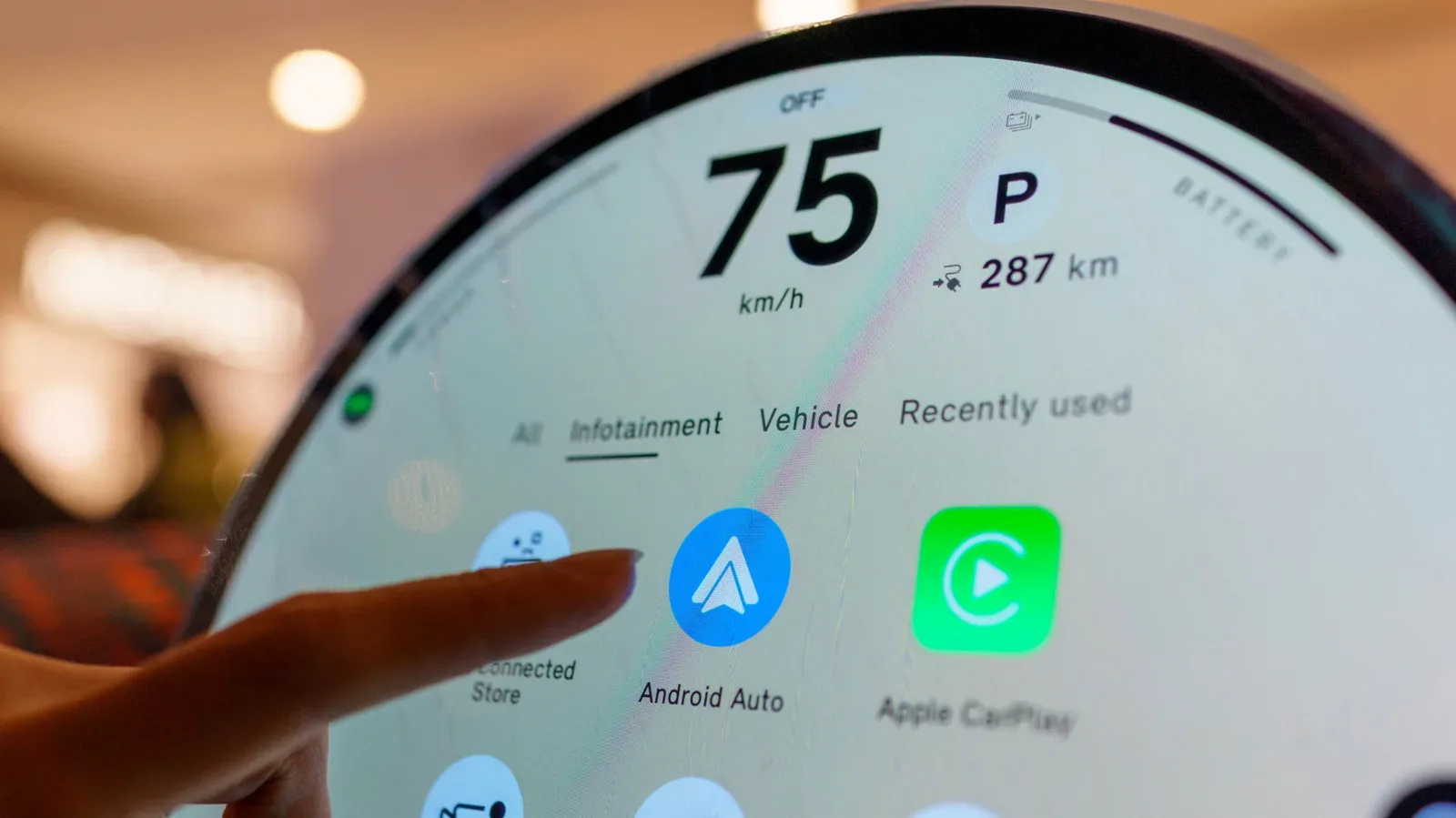
Android Auto may occupy the biggest screen in the car, but the software doing the work lives on the phone. That distinction matters when something goes wrong. A missing feature, a stubborn connection issue, or an interface that suddenly behaves differently may look like a vehicle infotainment problem, yet Android Auto itself is distributed as a normal app through Google Play.
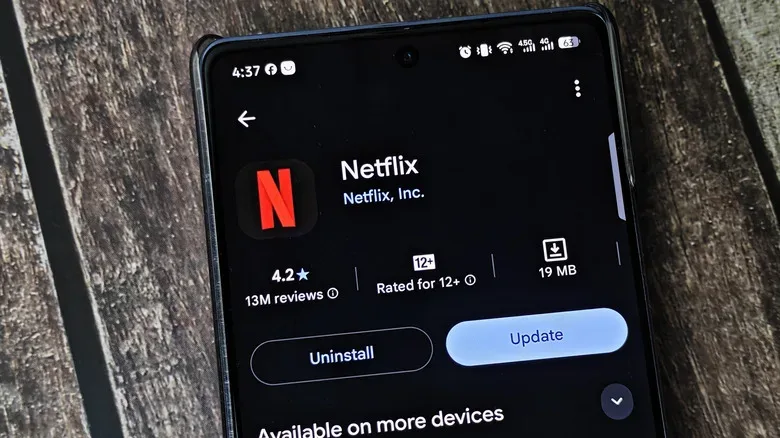
In practical terms, the Play Store is the first stop for an update check. It is also the place to establish an important fact before starting more disruptive troubleshooting: if there is no Update option, the phone may already have the newest version currently offered to that device.
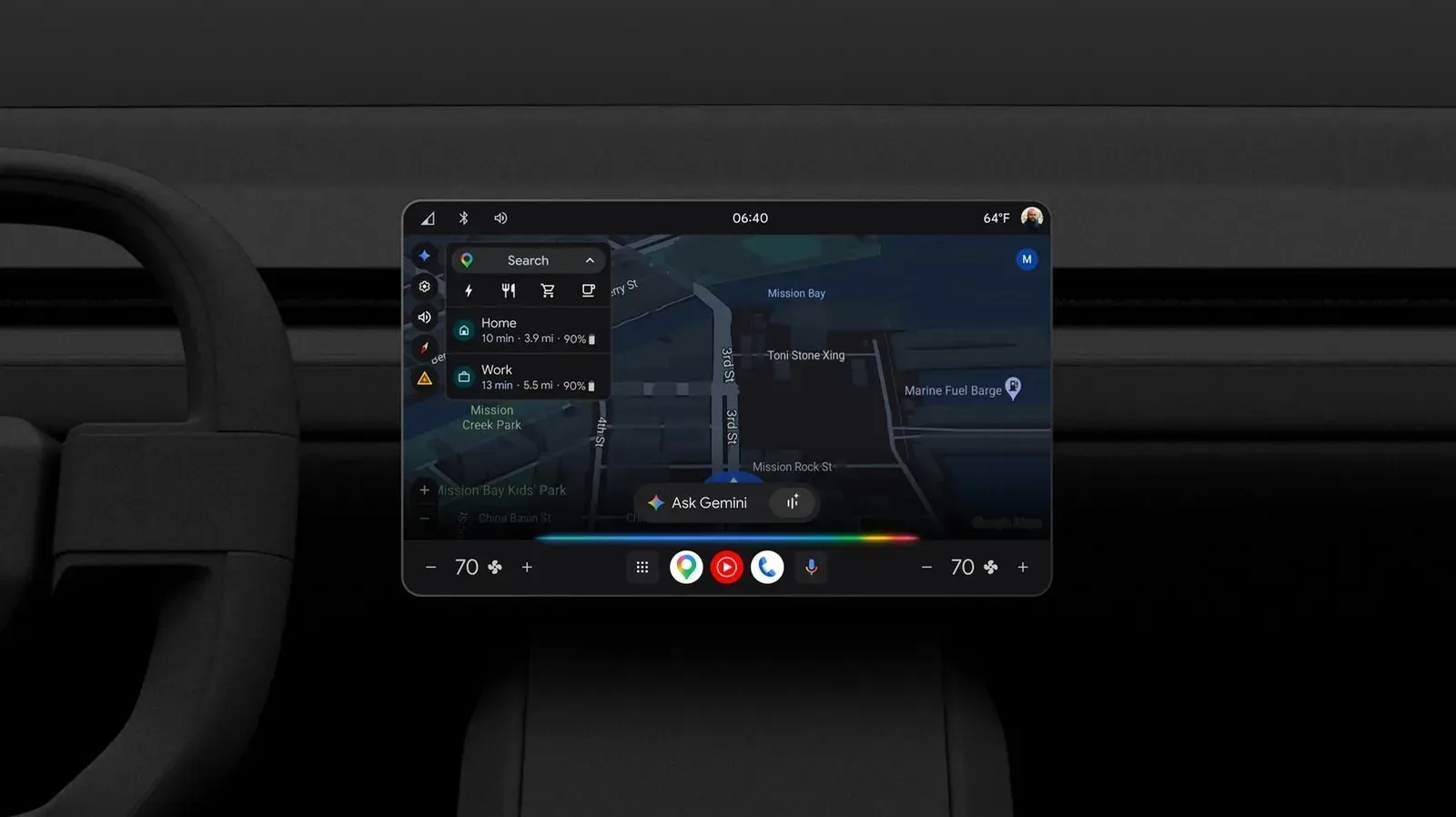
The platform has received changes including Gemini voice-assistant integration, widget support, and a visual redesign intended to align with newer Android styling. That makes updates useful for more than bug fixes, but it also means a car-facing issue can sometimes be connected to the particular app version on the handset rather than to a full Android operating-system release.
Why Android Auto updates differently from core Android software
Android Auto is packaged as an app, not a core system component. A core component would generally be updated as part of a larger Android software release; Android Auto can instead be delivered through the Play Store. That shorter route is significant because it lets Google issue feature and maintenance changes without requiring every user to wait for a major phone update.
It also changes where drivers should look. The car display is the presentation layer, while the phone supplies Android Auto’s functions. Updating the dashboard hardware is not the task here. Check the app installed on the phone that is connected to the car.
Most people will not need to do anything. Play Store apps normally update automatically in the background. But “automatic” is not the same as immediate. An update can be delayed or fail, particularly when the phone has not detected Wi-Fi. By default, the Play Store does not use cellular data for background automatic app updates. So a phone can remain on an older build simply because it has not met the conditions for that background update to happen.
That is the useful explanation behind a common mystery: Android Auto can seem frozen in place even when an update exists. It does not necessarily mean the car is incompatible or that a manual download is required; it may simply mean the Play Store has not completed its usual background work.
How to manually check for an Android Auto update
- Open the Google Play Store on the phone used with the car.
- Search for Android Auto.
- Open the Android Auto app listing.
- If the listing shows Update, tap it to install the available version.
- If it shows only Uninstall, the device is already on the latest version available to it.
That final wording is worth taking literally. The Play Store result confirms what is available for that particular device, not necessarily that every Android phone everywhere is on an identical release at the same moment. For troubleshooting, though, it is the relevant answer: there is no newer Play Store update presently being offered to that handset.
Related coverage includes How to Manually Update Android Auto and Fix Update Problems.
While on the app listing, open the three-dot menu in the upper-right corner and make sure Enable auto update is selected. This will not force an instant update, but it does allow the Play Store to handle future Android Auto releases automatically when its conditions are met.
Compatibility still sets the floor
For older phones, Android Auto needs Android 9.0 or later to receive the latest updates. Android 9.0 arrived in 2018, so this should not exclude most devices, but it is still a meaningful boundary. A driver trying to chase a recent Android Auto feature on an older version of Android may not be able to solve that limitation by repeatedly searching the Play Store.
It is also helpful to separate an app update from a change inside another app. Clearing or rolling back Android Auto does not remove data stored in apps such as Google Maps or Spotify. Android Auto acts as the car-oriented interface through which those phone apps can be used; it is not the same thing as deleting each service’s underlying data.
If the Update button is absent but Android Auto is glitching
An absent update option and a bad experience can both be true. In that situation, the first recovery step is to reset Android Auto’s own saved settings rather than assuming that Maps, Spotify, or the car itself must be wiped.
On the phone, follow this path:
Settings > Apps > See all apps > Android Auto > Storage and cache > Clear storage
Clearing storage resets preferences saved within the Android Auto interface. It does not delete data held inside other apps, including Google Maps or Spotify. After the reset, reconnect the phone to the car and see whether the problem persists.
This is a more consequential step than checking the Play Store because it removes Android Auto preferences. It is therefore best treated as a troubleshooting measure, not a routine way to “refresh” the app. The benefit is focused: if an Android Auto configuration has become the source of the glitch, returning that interface to a fresh state may resolve it without disturbing the data in the services Android Auto surfaces.
Rolling back Android Auto updates: what the option actually does
If clearing storage does not help, Android permits a deeper test on phones where Android Auto updates can be uninstalled. Return to:
Settings > Apps > See all apps > Android Auto
Then open the three-dot menu at the upper right and select Uninstall updates. Rather than removing Android Auto altogether, this takes the app back to the earliest version included with the phone.
A rollback is useful as a diagnostic comparison. If the older included version works more reliably after the car connection is re-established, the result suggests that the newer Android Auto build or its updated configuration may be involved in the problem. It does not, on its own, prove a universal fault, and it does not promise that the old version has every current feature. Its value is that it offers a clear alternative state to test.
If the older version is temporarily more stable, auto-updates can be disabled in the Play Store while waiting for a later update. Alternatively, reinstalling the latest release after the rollback may help if a fresh installation produces a noticeable improvement. These are two different goals: staying on the old version prioritizes short-term stability, while moving back to the newest version checks whether reinstalling the current app resolves the issue without giving up its newer changes.
A sensible troubleshooting order
Because Android Auto’s screen is in the car but its software is on the phone, it is easy to begin in the wrong place. A measured order keeps the process reversible for as long as possible:
- Check the Android Auto Play Store listing for an available update.
- Confirm that auto-update is enabled in the listing’s three-dot menu.
- If no update is available and the issue continues, clear Android Auto storage and reconnect the phone.
- If the issue remains, use Uninstall updates to test the oldest version included with the phone.
- Choose between temporarily holding that older version or returning to the latest app release for a clean reinstall attempt.
This sequence avoids treating every connection problem as proof that an update is missing. It begins by checking availability, then resets Android Auto’s own preferences, and only afterward changes the installed version. Each step answers a slightly different question: Is there a newer app? Are saved Android Auto settings causing the problem? Does the issue differ on the phone’s included version?
What this means for feature expectations
Updates are where Android Auto receives both maintenance work and additions such as Gemini and widgets, so the Play Store listing is the appropriate place to look when anticipating a new capability. But a user should not interpret “no update” as a malfunction by itself. It normally indicates that the currently installed build is the latest one available for that phone.
The Gemini connection also illustrates why Android Auto’s software lifecycle is worth watching. Voice assistants are increasingly part of the broader conversation around how AI functions are presented in consumer-facing interfaces; elsewhere, AI has also been discussed as a bounded tool in visual-effects work, as in this look at AI’s VFX role in ‘Ink’. In Android Auto, the practical point is simpler: assistant functionality is one of the platform changes delivered through its app-update path.
For drivers, the key takeaway is not to chase manual updates every day. Let the Play Store handle them when possible, especially with auto-update enabled. When Android Auto is acting up, however, the phone provides a clear escalation path: check the listing, reset the app’s saved interface preferences, and—if necessary—roll back updates to compare behavior. The dashboard may be where the problem appears, but the phone is where the most relevant controls are.