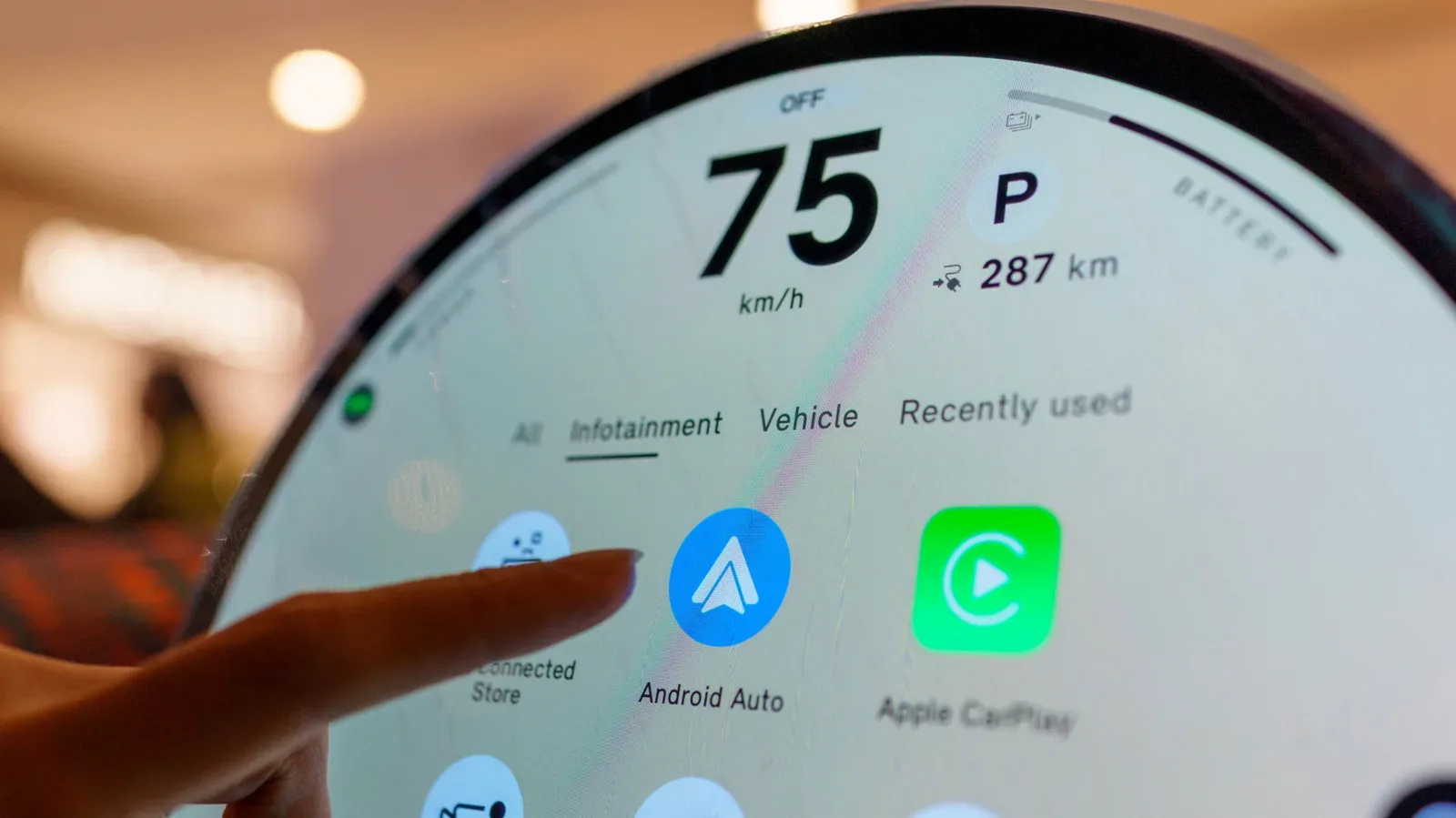
Car infotainment has a habit of turning useful software into a tiny, highly regulated desktop: the map is where it is, the media player is where it is, and the apps you never touch sit patiently in line as though they have seniority. Android Auto offers more room to rearrange that dashboard than its default presentation suggests.
The important distinction is that this is not about making the car screen flashy for its own sake. The available controls affect which apps appear, where they appear, whether a map or media panel gets the closest position, and whether common actions can be reached through a launcher shortcut. Done sensibly, it is a way to remove friction from a screen that should demand as little attention as possible while driving.
These options are not hidden developer tools. Most launcher changes begin on the Android phone, while several visual settings are adjusted on the vehicle display itself. Availability and the exact appearance can vary with a vehicle’s screen, but the core idea is straightforward: put the information and actions you actually use within easy reach, and strip away the rest.
Start with the launcher, not the wallpaper
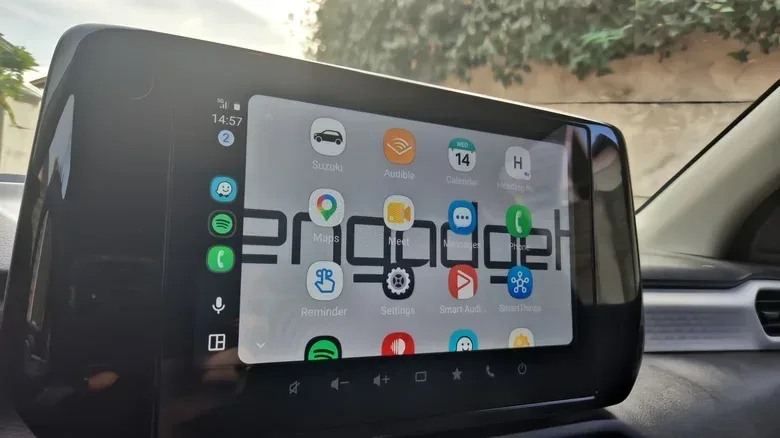
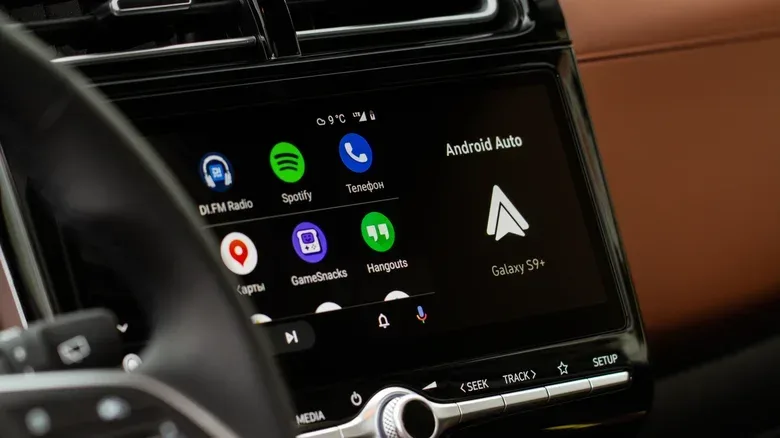
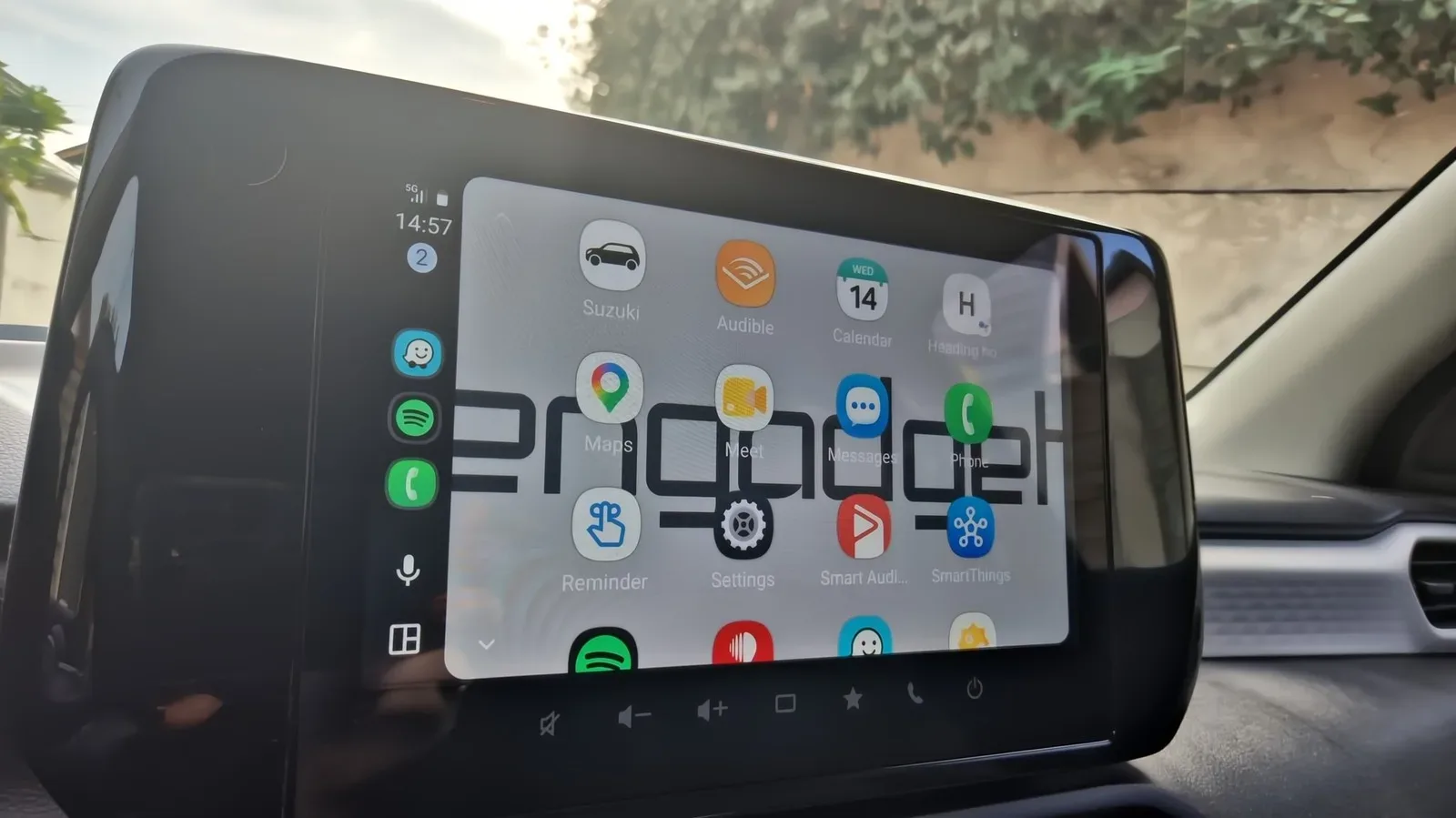
The launcher is Android Auto’s app list: the place where supported navigation, audio, communication and other car-facing apps are presented. It is the practical foundation for customization because it determines what is competing for space and attention.
On the phone, open Settings > Connected devices > Android Auto, or search Settings for “Android Auto.” Then select Customize launcher. From there, apps can be shown or hidden, and their order can be changed by dragging them.
That makes it possible to move a frequently used audio app such as Spotify nearer the top while pushing a less relevant app farther down. The best arrangement will differ by routine. A driver who depends on turn-by-turn directions may want the preferred navigation service especially easy to find. Someone who mostly makes short, familiar trips may give music, podcasts or calls greater priority.
Hiding an app here does not remove it from the phone. It simply takes that app out of the Android Auto launcher. That is a useful technical and practical distinction: this is interface curation, not an uninstall command. An app can remain installed and usable on the handset without occupying a slot on the in-car display.
There is a modest safety benefit in that restraint. A shorter app list is not automatically safer, but a list built around a driver’s real needs can reduce needless hunting through icons. The objective should be fewer visual decisions, not a launcher stuffed with every compatible service.
Use shortcuts for repeat actions
The same Customize launcher page can add shortcuts that either call a contact or trigger an Assistant action. These shortcuts appear alongside ordinary apps in the Android Auto launcher, giving a repeat task its own direct entry point.
A contact shortcut is the simplest example: it can reduce the steps needed to place a routine call. Assistant shortcuts can be broader because they can invoke an action through the assistant. The supplied example combines navigating home, checking an estimated arrival time and sending a message that the driver is on the way. Voice activation can also be used for actions such as calling a contact through a familiar nickname, after that relationship has been set up with Gemini.
It is worth separating the two concepts. A launcher shortcut is a visible button on the car display. A voice command is an instruction spoken to the assistant. Either may reach a similar outcome, but they serve different moments. Voice is useful when it works reliably and the driver can keep attention on the road; a launcher shortcut can be useful when parked or when the needed command is more easily represented as a single button than remembered as a phrase.
There is also a good reason not to turn the launcher into a macro pad. A small number of genuinely recurrent actions is easier to recognize quickly. “Home,” a frequent contact, or a common assistant task may earn a shortcut. Rare tasks are usually better left to voice, the standard app, or a stop before interaction.
Choose which panel is closest to the driver
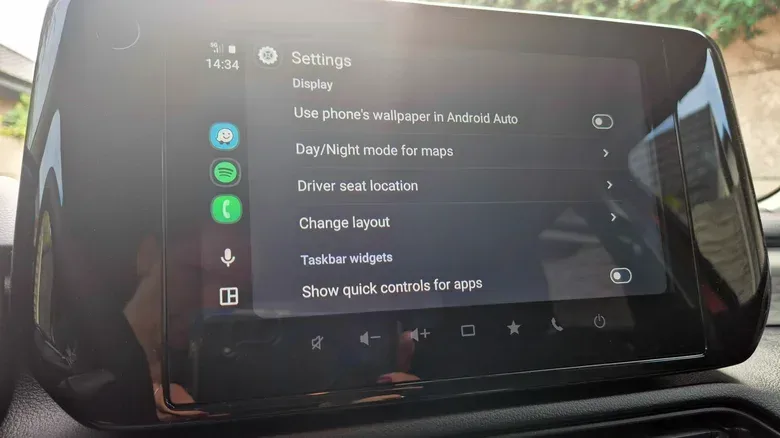
Android Auto also includes a Change layout setting that controls whether the map or the media player sits closer to the driver in a split layout. It sounds cosmetic, but it is one of the more meaningful display choices because it affects the panel a driver is most likely to glance at.
A map-first arrangement makes sense for someone who relies heavily on turn-by-turn guidance. Putting navigation nearer can make route information easier to check quickly. A media-first arrangement may suit a trip where podcast playback or playlists need more frequent management, although a driver should still avoid adjusting entertainment controls while moving.
Screen shape matters here. Wider displays can accommodate split layouts more comfortably than smaller ones. On a compact display, either panel may feel constrained; testing both positions in the actual vehicle is more informative than assuming the same layout works everywhere. The goal is not to declare maps or media universally more important. It is to match the prominent panel to the task that most often needs a glance during that particular kind of drive.
This is the useful side of personalization: not decorating the dashboard, but allowing the dashboard to reflect the trip. Daily commuting, unfamiliar routes and long audio-focused journeys can create different priorities.
Wallpaper is personal, but it should stay legible
Android Auto can use the phone’s wallpaper as the infotainment display background. This option is changed from the car screen rather than the phone. In Android Auto’s settings, enable Use Phone’s Wallpaper and the background will mirror the phone wallpaper.
Unlike launcher order or layout position, wallpaper will not make a task faster. It can make the display feel less generic, however, and it gives users a small way to make a shared or frequently used vehicle screen feel like their own.
Practicality still applies. A busy or very bright phone wallpaper could be a poor match for a display whose icons and text need to stay easy to pick out at a glance. The setting is best treated as visual personalization after the functional choices are settled. A simpler background is likely the sensible choice if a favorite image makes the interface harder to read.
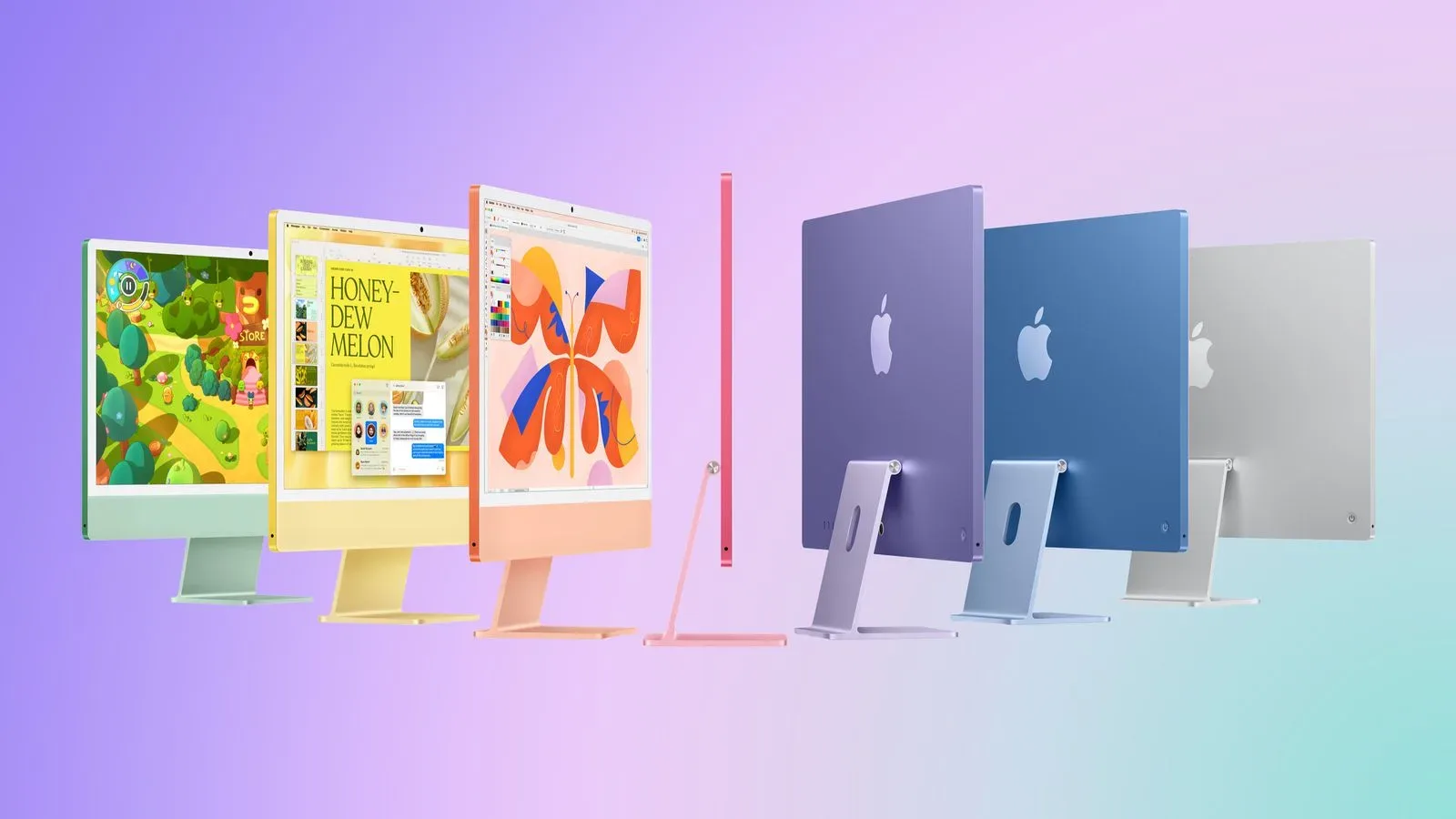
The same instinct is visible in other consumer hardware design choices, including the value people place on familiar visual options such as the M6 iMac’s continuing seven-color lineup. In a car, though, aesthetics have to yield to clarity much more quickly.
Map appearance and startup behavior deserve a check
Android Auto normally changes the map between day and night modes automatically, using ambient light and the time of day. Drivers can instead force day or night mode through the Maps section of Android Auto settings.
Day mode refers to the brighter map presentation intended for daylight conditions, while night mode is the darker presentation ordinarily used when outside light is low. Automatic switching is the default behavior, but manual control is available for anyone who prefers a consistent presentation. The right choice is the one that leaves map information comfortable to read in the driver’s actual conditions.
Another small but potentially welcome adjustment sits in the Startup section: automatic media playback can be turned off. That option matters for drivers who do not want music, a podcast or other audio to begin merely because the drive has started. It is a reminder that customization includes removing automatic behavior, not only adding buttons and visual flourishes.
A sensible setup order
Rather than changing everything at once, it is more useful to work from high-impact choices to lower-impact ones:
- Trim the launcher. Hide apps that have no place in the car interface and move frequent choices up.
- Add only essential shortcuts. Choose routine contacts or assistant actions that genuinely save steps.
- Test both split-screen layouts. Decide whether map or media belongs nearest based on usual driving needs and the vehicle’s display size.
- Review map mode and autoplay. Confirm that visual mode and startup audio match personal preferences.
- Set wallpaper last. If using the phone wallpaper, favor readability over visual noise.
None of these controls changes Android Auto into a completely different platform, and they should not be mistaken for a reason to interact more with the screen while the car is in motion. Their value is quieter than that. A cleaned-up launcher, a well-placed navigation panel and a few deliberate defaults can make the system feel less like a factory preset and more like a dashboard built around the drive ahead.