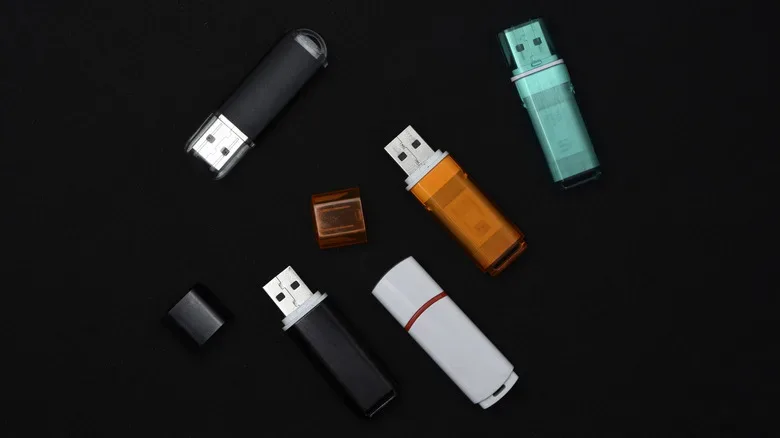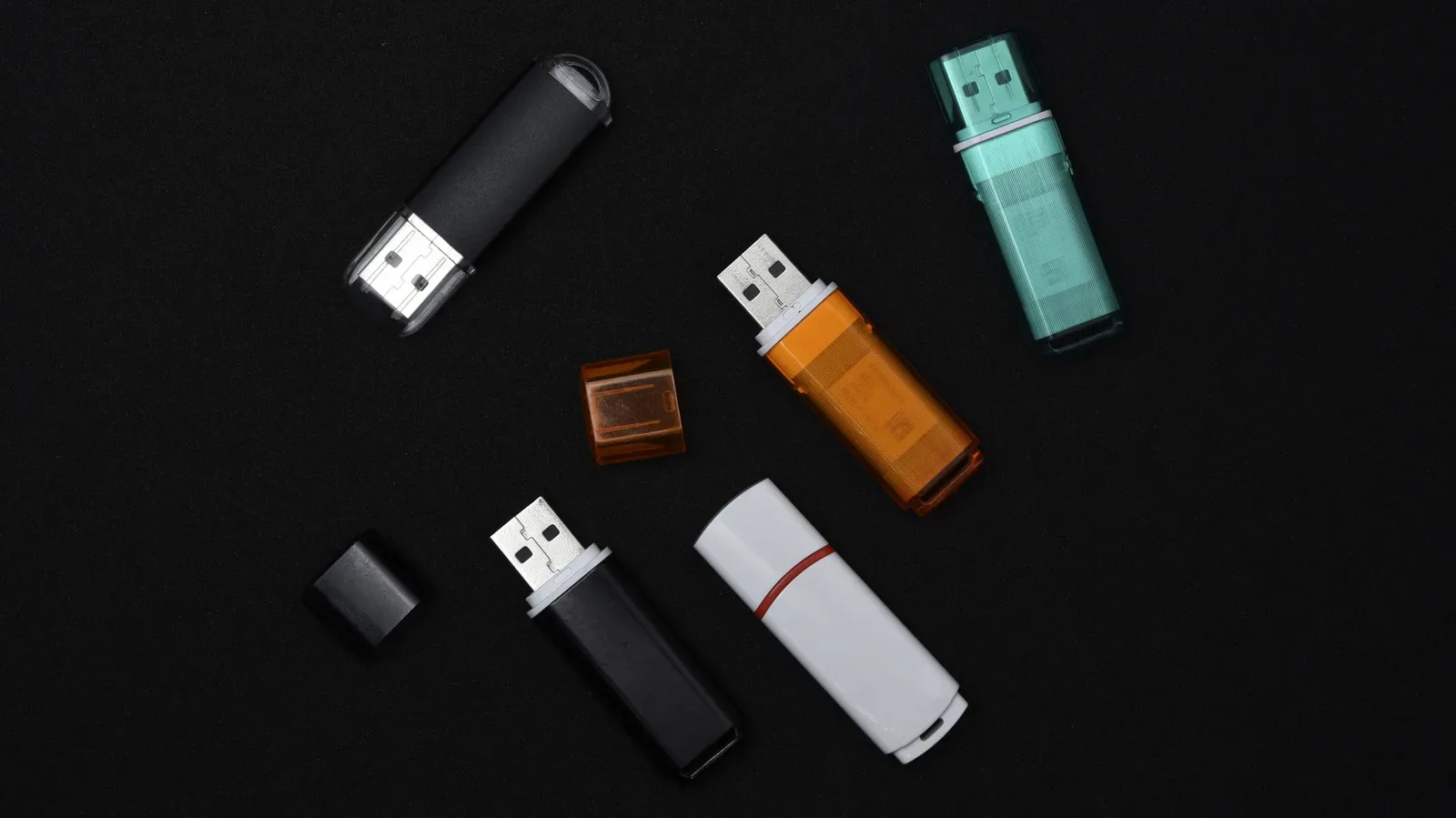
A flash drive may look like the least complicated purchase in computing: choose a capacity, pick whichever tiny rectangle costs the least, and use it for documents, installers or a quick handoff. That logic still works for plenty of people. But rising NAND flash costs, linked to heavy demand from AI and data-center infrastructure, mean inexpensive removable storage is no longer an automatic bargain. The more useful question is not whether a pricey USB drive is inherently good. It is what, precisely, the extra money buys.
The answer can be meaningful: much faster file copies, better endurance during long writes, stronger protection if the drive is lost, resistance to an unfriendly environment, or a connector layout that works across old and new devices without an adapter. It can also be less meaningful: a large capacity number paired with limited write performance, a confusing USB label, or a compact design that creates a port-access problem on a laptop.
For gamers, creators and anyone moving sizable folders between machines, a flash drive is often less about the drive itself than the interruption it removes. Copying a few PDFs is a negligible task. Moving game captures, 4K video, a large archive or repeated project exports is where the difference between a basic drive and a well-chosen premium model can become obvious. That does not make the most expensive option the right answer. It makes the specifications—and the intended job—worth reading closely.
Start with the work, not the capacity label
A low-cost USB 3.x drive is generally adequate for occasional files, bootable installers and documents. In that role, the convenience of having portable storage matters more than shaving time from a small transfer. Paying substantially more for a speed rating is difficult to justify when the device spends most of its time in a drawer.
The calculation changes for recurring large transfers. Read speed describes how quickly data can be pulled from the drive, while write speed describes how quickly it can be put onto it. Both figures matter, but write speed deserves special attention for anyone using a flash drive as a destination for camera footage, game clips or bulky folders. A drive can appear quick when opening or copying off files, then become far less impressive when asked to accept them.
Kingston rates the DataTraveler Max at up to 1,000 MB/s for reads and 900 MB/s for writes. By comparison, a 10GB transfer test of Samsung’s less expensive Fit Plus recorded 319.7 MB/s reads and 58.4 MB/s writes. Those are not just slightly different numbers on a box. The write-speed spread is especially consequential when filling the drive with large files. A short document transfer will not expose it, while a folder of 4K video likely will.
That distinction has a practical implication: do not shop using capacity alone. A 1TB or 2TB drive sounds like a portable vault, but its usefulness depends heavily on how it behaves while that vault is being filled. Anyone planning to copy hundreds of gigabytes regularly should look for information about sustained write performance. “Sustained” means performance over an extended transfer rather than a short burst. It is the relevant measure when a drive faces a long copy job rather than a quick file drop.
USB branding is not a speed guarantee
USB terminology has become an obstacle to making an informed purchase. USB 3.0 succeeded USB 2.0 with a theoretical maximum transfer rate of 5 Gbps, up from 480 Mbps. Subsequent names moved through USB 3.1 and USB 3.2, then were retroactively recast with “Gen” terminology. The important takeaway for a buyer is straightforward: seeing “USB 3.2” does not tell you the actual ceiling by itself.
Current guidance favors stating the maximum transfer rate instead. A USB 3.2-branded product may top out at 5 Gbps, 10 Gbps or 20 Gbps. Check the specific rate in the specifications rather than treating the umbrella label as a performance grade.
There is also a unit trap worth avoiding. Gbps means gigabits per second, while MB/s means megabytes per second. The former is commonly used for the USB connection standard; the latter is often used for a drive’s advertised read and write speeds. They are not interchangeable figures, so a shopper should not compare the raw numbers without noticing the unit. More importantly, neither a connection’s theoretical limit nor an “up to” drive rating promises that every real transfer will occur at that pace.
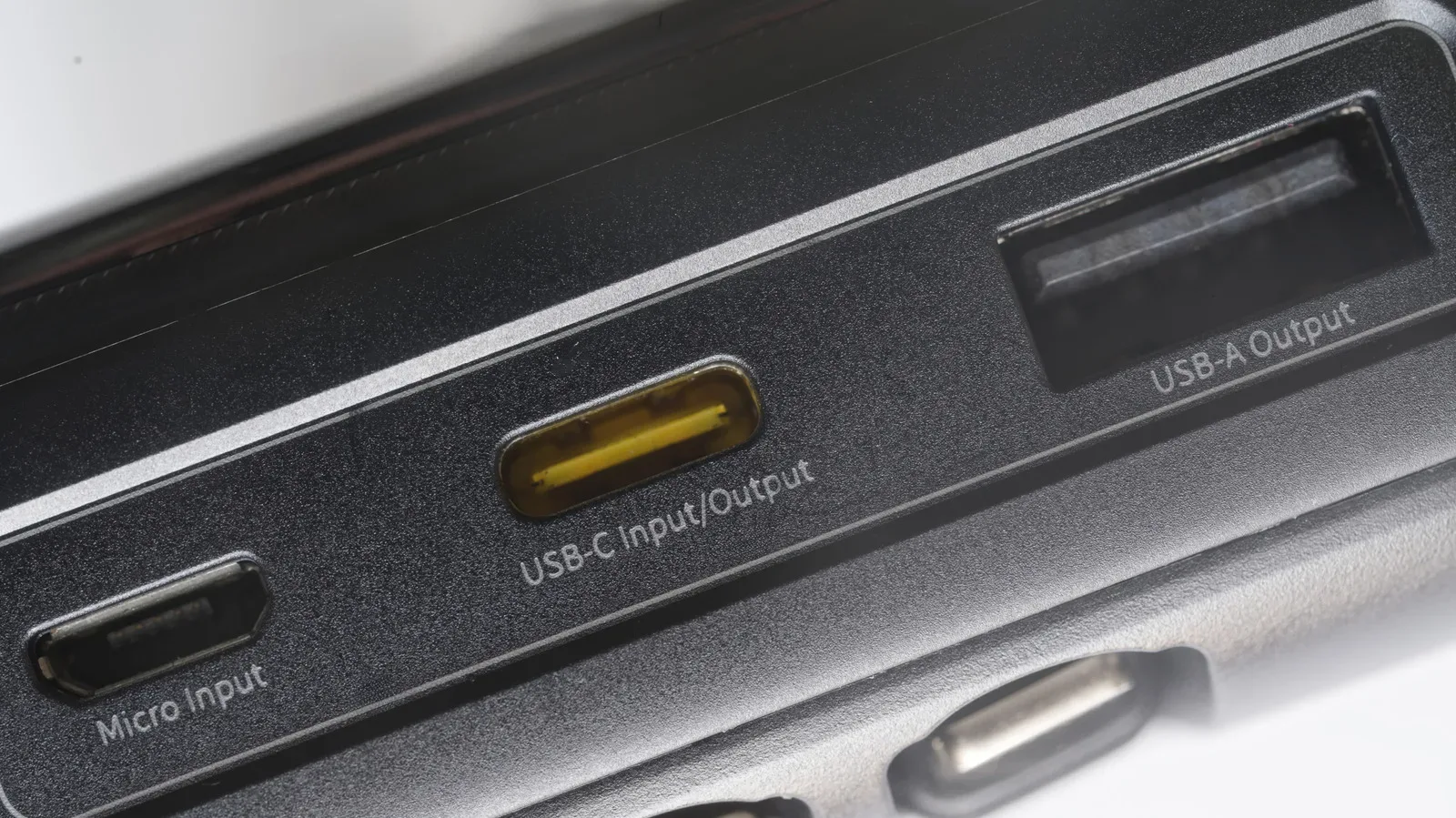
USB-C adds another common misconception. It identifies a connector shape, not a speed level. A USB-C device can operate at USB 2.0 speeds. The port can be convenient without being fast. That is especially relevant to a drive advertised around a reversible modern connector: confirm its transfer specifications rather than assuming USB-C automatically makes it a high-performance device.
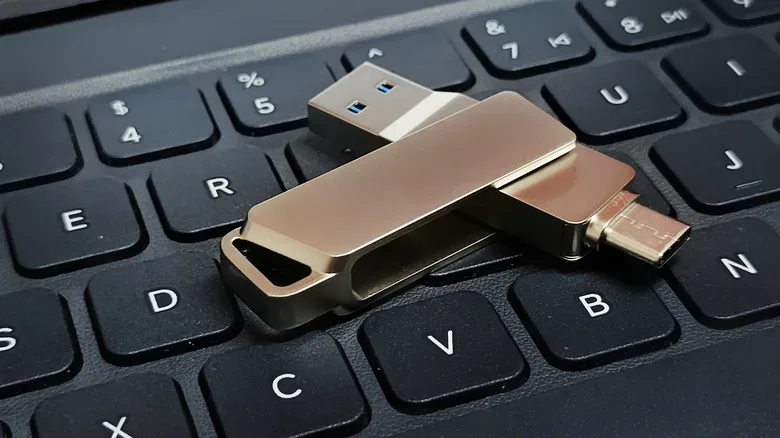
Connector flexibility can nevertheless be a legitimate premium feature. A drive with both USB-A and USB-C can move between an older desktop or console-adjacent PC setup and a newer laptop, tablet or phone without carrying an adapter. For people who repeatedly transfer clips or files across mismatched hardware, that small convenience can be more valuable than a modest benchmark advantage.
Why real-world results can fall below the headline number
A flash drive contains more than flash memory. Its controller manages functions including error correction and write management. The controller and the memory used inside both influence performance. Manufacturers do not always provide enough detail about these components to make easy, apples-to-apples comparisons between drives.
This opacity is a reason to be cautious with one attractive maximum figure. Performance may decline during extended copies, which is why a drive that looks excellent in a brief transfer may not be the ideal tool for frequent large workloads. The right research question is not simply, “What is the highest advertised speed?” It is, “How does this drive write when the transfer is long enough to resemble the work I will actually do?”
Small physical dimensions can bring their own trade-offs. The tiny 1TB SanDisk Extreme Fit achieved 318.3 MB/s reads and 82.52 MB/s writes in the same 10GB test, illustrating again that a high capacity in a minute enclosure does not inherently produce fast writing. Its form factor also came close to obstructing the adjacent USB-C port on the tested laptop. That is a useful reminder that a drive’s footprint is part of its compatibility. A device that fits technically but blocks a neighboring port may be frustrating in a tightly arranged laptop setup.
For video-heavy workflows, portable storage should be chosen as deliberately as capture gear. A high-bandwidth production setup such as DJI’s 4K/60 HDR transmission-focused equipment underscores the broader point: demanding media workflows are built around moving substantial data, not just producing it. A compact drive is helpful for transport, but it must have credible sustained performance if it is expected to ingest large footage folders routinely.
Security can matter more than speed
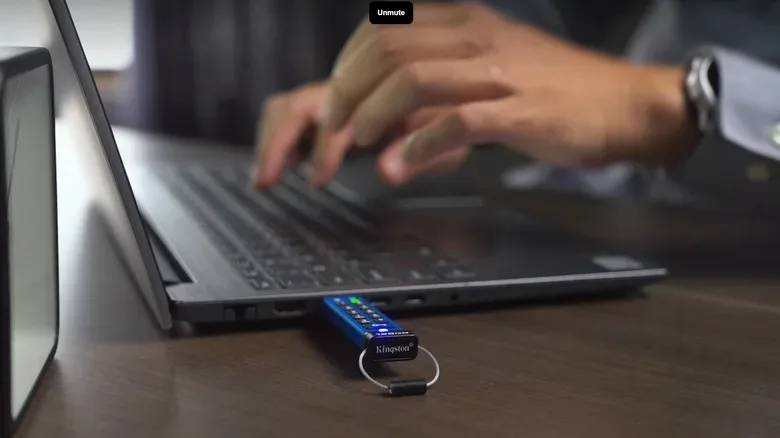
A premium drive does not have to win a transfer race to justify its price. If the contents are sensitive, the better question is what happens when the drive leaves your possession. Kingston’s IronKey Keypad 200 is built around this concern. It includes a physical keypad, XTS-AES 256-bit hardware encryption, protections against brute-force attempts and FIPS 140-3 Level 3 validation. Its fastest variants are rated at 280 MB/s read and 200 MB/s write speeds—well below the DataTraveler Max’s cited figures—but its purpose is different.
Hardware encryption means security functions are handled by the device’s own hardware rather than being solely dependent on software running on the computer. XTS-AES 256-bit refers to an encryption approach and key strength intended to protect data at rest. Brute-force protection addresses repeated attempts to guess access credentials. FIPS 140-3 Level 3 validation is a security validation level associated here with defenses against physical tampering and technical attacks.
None of these features guarantee that a person can be careless with important data. They do, however, address a threat that a normal bargain flash drive is not designed around: the drive being lost, stolen or physically accessed by someone else. A drive carrying private records or other confidential material may be worth protecting even if its transfer bar advances less dramatically.
The key is to avoid treating security branding as a vague luxury add-on. If the files are ordinary, a keypad and advanced encryption may be excessive. If the cost of exposure is high, those capabilities can be more useful than a top-tier speed figure. Premium value is contextual, not universal.
Durability and warranty have practical value
Portability is a flash drive’s defining benefit, but it also places the hardware in harsher surroundings than a desk-bound storage device. A keychain, camera bag or travel pocket invites drops, temperature swings and accidental encounters with water. In those cases, ruggedness can be a sensible reason to move beyond the cheapest option.
Samsung rates the BAR Plus for protection against water, shock, extreme temperatures, magnets and X-rays, and includes a five-year limited warranty. Those claims are not about transferring files faster. They are about making the physical device better suited to travel and routine abuse. A person who leaves a drive permanently in a safe desk environment may gain little from that protection; someone carrying it every day has a clearer reason to value it.
Warranty length should be read accurately, too. A five-year limited warranty is useful coverage information, not a declaration that the drive will preserve every file indefinitely or survive every circumstance. The presence of rugged hardware and a warranty can reduce some risks. Neither replaces a separate copy of the data.
A flash drive is transport, not a backup plan
Even an encrypted, rugged, expensive drive can fail, be misplaced or simply be unavailable when needed. It should not be the only location for valuable files. That principle applies regardless of the drive’s price tag and regardless of whether its capacity reaches 2TB.
There is a second decision point for buyers pursuing both very high capacity and fast sustained transfers: compare the flash drive with a portable SSD. An external solid-state drive is often the stronger option for repeatedly moving large quantities of data or for storage that will remain attached to a computer. The USB stick’s compactness is excellent for carrying a small library in a pocket. It is not automatically the best architecture for a demanding, repeated-storage workload.
A focused buying checklist
- For occasional documents and installers: A reasonably priced USB 3.x drive is likely sufficient. Avoid paying for performance you will never notice.
- For large video, captures and repeated transfers: Prioritize stated read and write speeds, then seek evidence of sustained-write behavior. Compare the final price against portable SSD options.
- For sensitive files: Consider whether hardware encryption, keypad access and brute-force protections match a real security need.
- For travel or field use: Look at protection claims, physical design and the warranty—not merely capacity.
- For mixed old and new hardware: A dual USB-A/USB-C design can eliminate adapters, but verify the actual data rate because USB-C alone says nothing about speed.
- For every use case: Keep important data in more than one place. A USB drive is useful removable storage, not a complete backup strategy.
The most expensive flash drive is not automatically the best value, and the cheapest one is not automatically a mistake. A good purchase matches the bottleneck: transfer duration, confidentiality, physical exposure or connector compatibility. Once that need is clear, the price difference between two similarly sized USB sticks stops looking arbitrary—and becomes much easier to judge.