A black USB port is usually a modest clue, not a definitive hardware diagnosis. On many PCs, laptops and motherboards, a black USB-A port conventionally indicates USB 2.0—the version also called Hi-Speed USB. That generally means a maximum data-transfer rate of 480 Mbps.
For gaming setups, that can be perfectly useful. A wired controller, keyboard, mouse, headset, microphone or ordinary flash drive does not necessarily need the fastest connection available. The trouble begins when a color convention gets mistaken for a standard. USB port colors are chosen by manufacturers, not enforced as a universal identification system. A black port may be USB 2.0 on one machine and represent something else on another.
So the practical answer is simple: black commonly means USB 2.0 for USB-A ports, but the only dependable answer for a particular computer comes from its labels and documentation.
What a black USB-A port commonly means
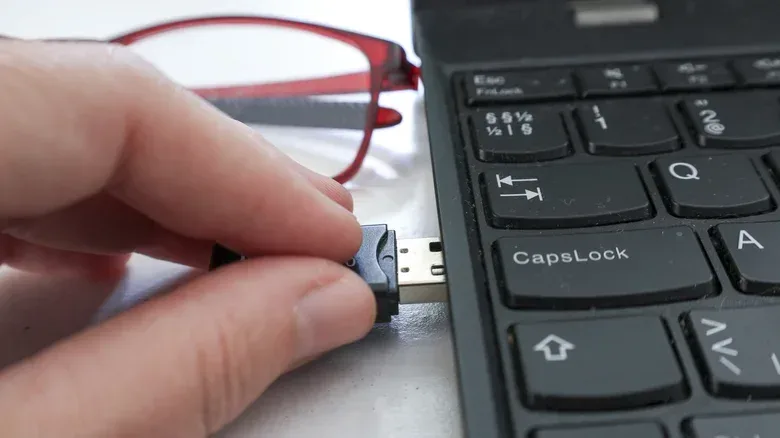
USB-A is the familiar rectangular connector found on many computers, consoles, accessories and older charging equipment. When its inner plastic tab is black, the usual interpretation is a USB 2.0 connection. USB 2.0 has a theoretical maximum throughput of 480 Mbps.
That phrase needs a little unpacking. Mbps means megabits per second, a measure of the maximum rate at which data can move through the connection. It is not a promise that every file transfer will reach that figure, and it is not a description of a device's storage speed. The port, cable and connected device all affect the result. Still, the rated ceiling is useful when comparing USB generations.
USB 2.0's older Hi-Speed name can sound more impressive than it is in a modern desk setup. It is substantially faster than USB 1.x, but it is a poor choice for tasks involving a large volume of data. The term describes the USB 2.0 tier, rather than guaranteeing that a lengthy backup or a big game-video transfer will feel quick.
Black versus white: the usual convention
If a machine follows common USB-A color conventions, a black port is associated with USB 2.0 while a white port is associated with USB 1.x. USB 1.x can reach 1.5 Mbps in low-speed mode and 12 Mbps in full-speed mode. Against that 12 Mbps full-speed figure, USB 2.0's 480 Mbps maximum is 40 times higher.
That comparison explains why black came to be regarded as the faster color in the black-versus-white matchup. It does not mean black is inherently fast in every current PC, nor that every black port is guaranteed to follow the convention. Some systems use the same color across ports that support different protocols. Others provide little or no visible labeling. In those cases, the insert color offers no safe basis for deciding where a device should go.
Port color is a hint. The markings next to the port and the manufacturer's documentation are the evidence.
Why this matters for gaming accessories
USB 2.0 is often a sensible home for low-speed, low-power accessories. A keyboard or mouse sends comparatively small bursts of input data. A wired controller, headset or microphone can also be an appropriate fit. Using a confirmed USB 2.0 port for those accessories can leave faster connections open for devices that genuinely need more bandwidth or power.
That last point matters on crowded gaming desks, where one PC may be handling a controller, a wireless receiver, a webcam, capture-related equipment, storage and charging at the same time. The best port is not automatically the fastest-looking one; it is the one whose capabilities match the device's needs. A basic peripheral can work comfortably on a USB 2.0 port, while an external drive used for frequent large transfers is a much stronger candidate for a faster port.
There is also a power consideration. USB ports do more than move data; they can supply power to connected hardware. USB 2.0 may have limitations that matter for certain external drives. One documented example is Seagate's Wireless Plus 2TB drive, which may not be detected through particular USB 2.0 connections when the available voltage is insufficient. A device failing to appear is therefore not always evidence of a bad drive or bad cable—the port's available power may be part of the problem.
Devices that fit a confirmed USB 2.0 port
Once documentation confirms that a black USB-A socket is USB 2.0, these are the kinds of devices for which it is generally appropriate:
- Keyboards and mice
- Wired game controllers
- Headsets and microphones
- Basic flash drives
- Similar low-speed, low-power accessories
This is a matter of sensible allocation, not a warning that more advanced accessories can never connect. The goal is to avoid spending a faster connection on a task that gains little from it, especially if another peripheral has a more demanding job.
Where USB 2.0 becomes a bottleneck
External hard drives and SSDs are the clearest examples of hardware that can be held back by USB 2.0. An HDD is a hard disk drive, while an SSD is a solid-state drive. Either can be used for backups or large media files, and those jobs involve moving substantial amounts of data. USB 2.0's 480 Mbps maximum can make that process frustratingly slow compared with a faster connection.
The practical implication is straightforward: do not judge an external drive only by whether it connects. A drive can work and still be connected through a port that limits its transfer performance. This is especially relevant for copying large video files or backing up a drive. If a faster USB port is available and is documented as such, it is the better place for that sort of workload.
It is worth separating compatibility from performance. Compatibility answers whether a device can connect and function. Performance answers how quickly it can perform its task once connected. A setup may succeed at the first while disappointing at the second.
USB 3.0 devices can still connect—but with a limit
Many USB 3.0 devices can work when plugged into a USB 2.0 port. The connection does not magically acquire USB 3.0 throughput, however; the device is restricted by the USB 2.0 connection's maximum speed. This is backward compatibility in practice: newer hardware can often operate with an older port, but it operates within the older port's constraints.
The same principle applies in the other direction. A USB 2.0 accessory can be connected to a USB 3.0 port, but the accessory will not perform above its own USB 2.0 capabilities. Moving a keyboard or controller from a USB 2.0 port to a faster port is therefore unlikely to create a meaningful improvement for that accessory.
For a clean setup, prioritize based on demand:
- Use confirmed USB 2.0 ports for routine, low-power peripherals.
- Use faster ports for external storage and other devices that benefit from higher transfer rates.
- Reserve ports marked as faster or “Always On” for equipment that benefits from those specific capabilities.
- If an external drive is not detected, consider port power as well as the drive and cable.
Do not apply USB-A color rules to USB-C
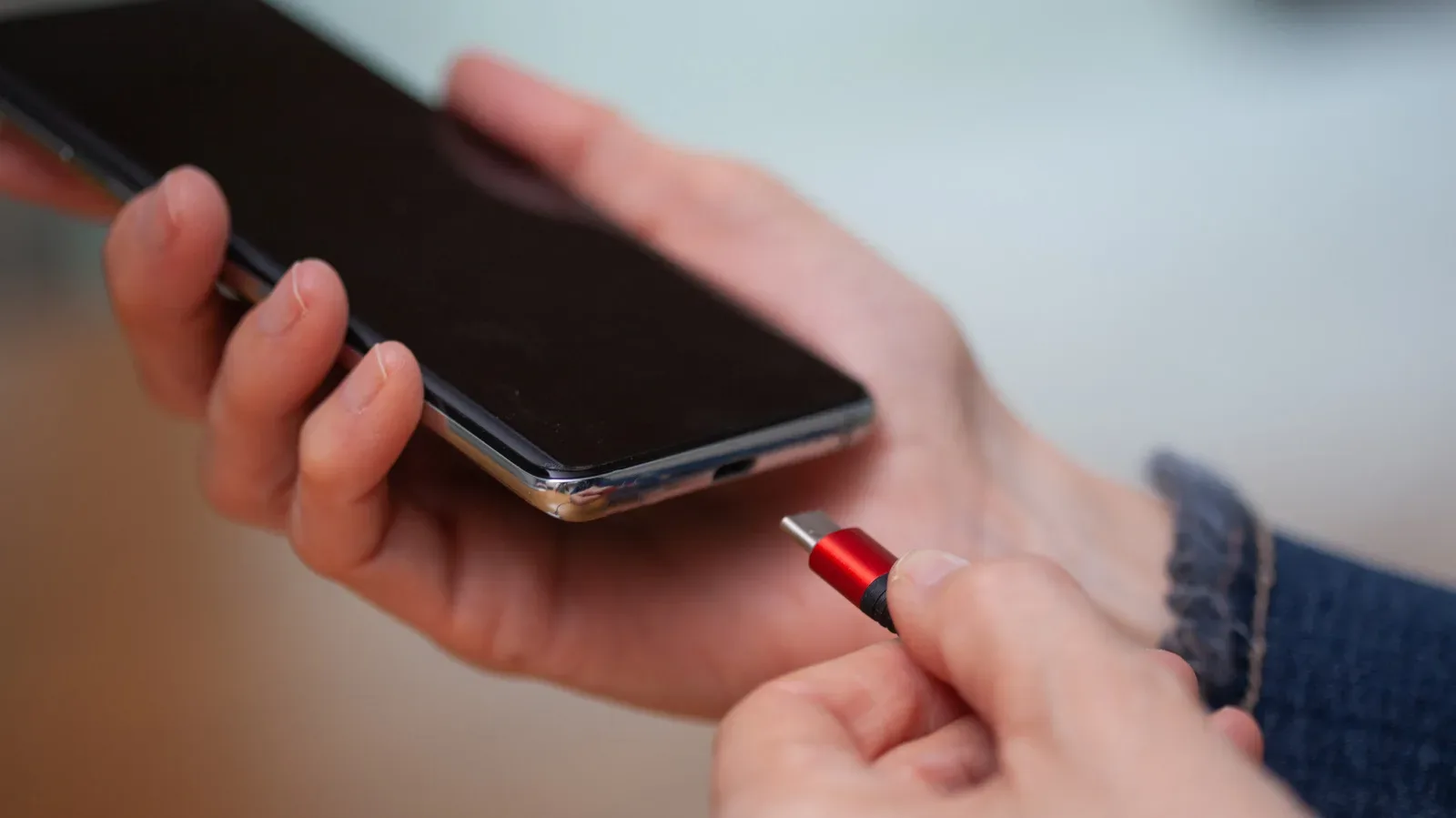
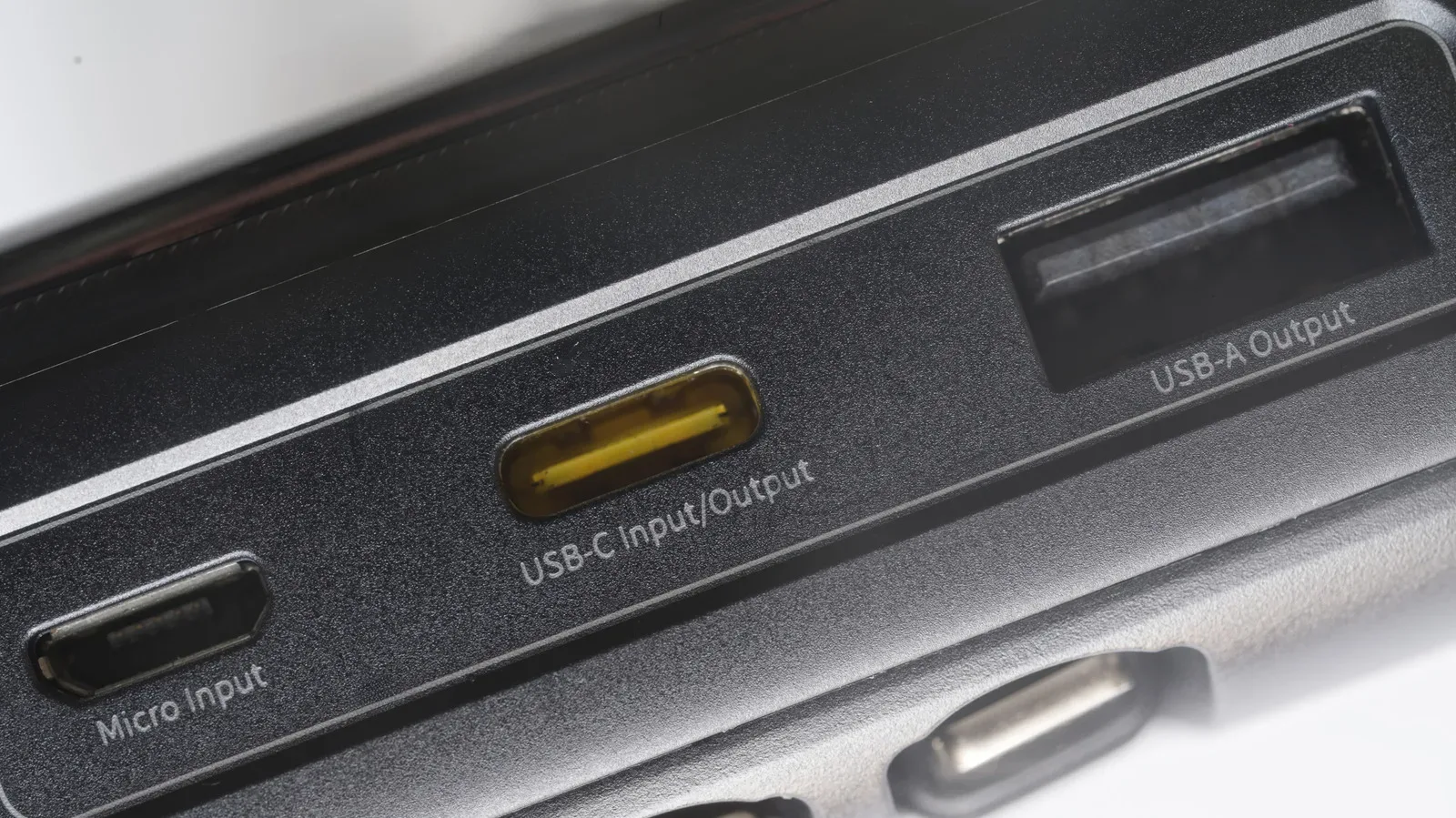
The black-port convention discussed here is about USB-A. It should not be transferred to USB-C merely because both are USB connectors. USB-C ports have a much wider range of possible capabilities, and most are not color-coded at all. If a USB-C port does have a color, it is likely cosmetic rather than a dependable shorthand for its data or power features.
This distinction is important because connector shape and technical capability are separate questions. USB-C is a connector format with a broad range of possible functions; it does not make the USB-A color chart more universal. For more on that naming distinction, see why USB-C’s “C” is simply the next connector name.
How to identify a port without guessing
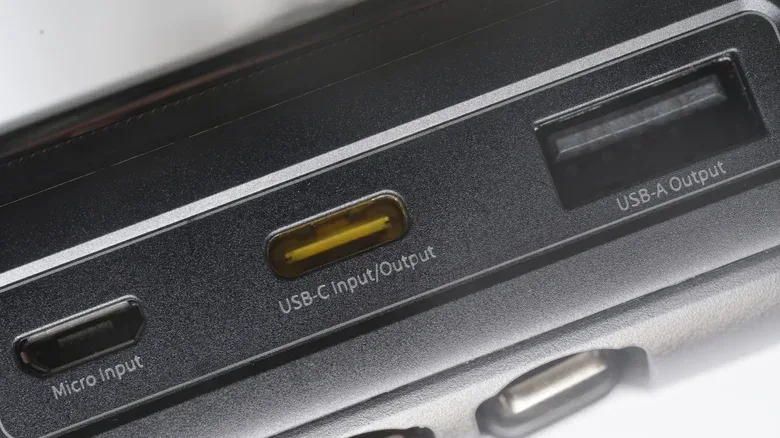
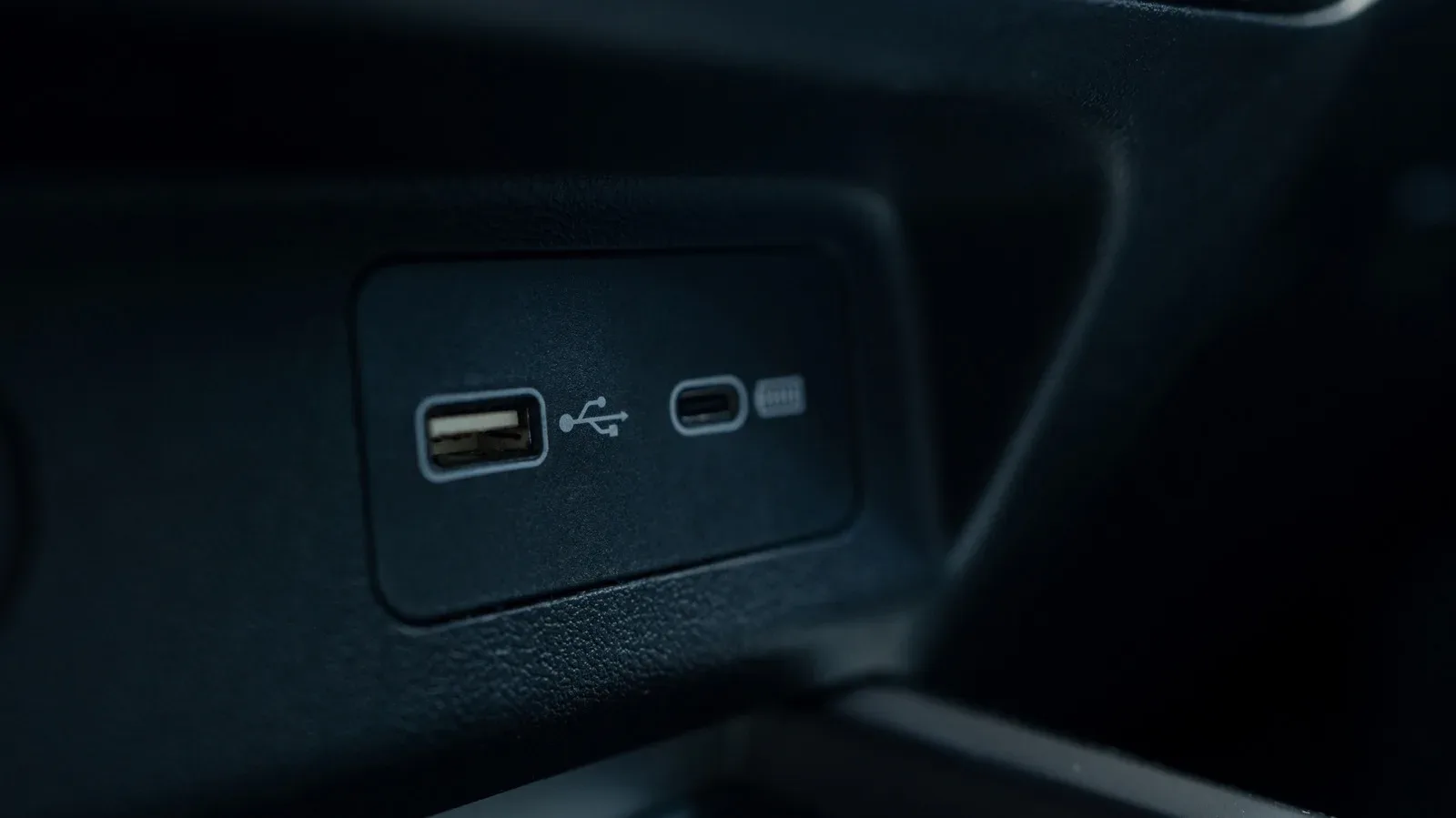
Start with the markings beside the port. Symbols, icons and letters can provide useful clues, but they may not fully identify the connection. If the marking is vague—or absent—the manufacturer’s manual or product support documentation is the best place to check. This can feel less convenient than interpreting the plastic color, but it is the only reliable approach when manufacturers are free to use their own visual choices.
That check is particularly worthwhile before assigning an external HDD or SSD to a port, troubleshooting a drive that is not detected, or reorganizing a gaming desk with limited high-speed connections. The difference between “probably USB 2.0” and “confirmed USB 2.0” is the difference between a useful shortcut and an informed setup decision.
In short, a black USB-A port is commonly a USB 2.0 port with a 480 Mbps maximum and is well suited to everyday peripherals. Treat that as a convention, not a guarantee. Check the hardware's own labels and documentation, then match each port to the device that will benefit most from it.