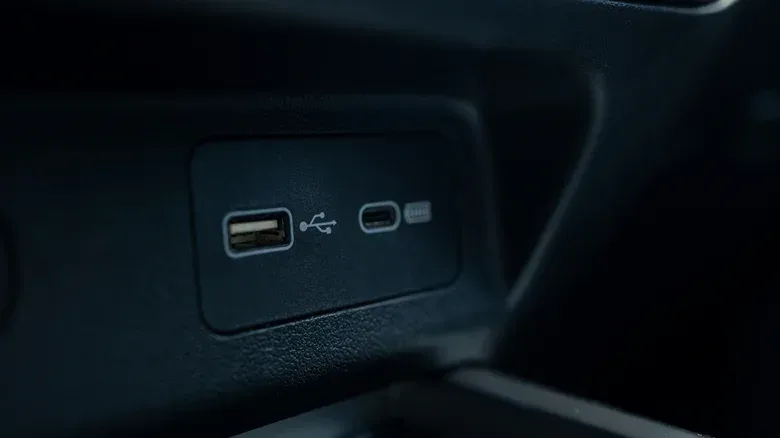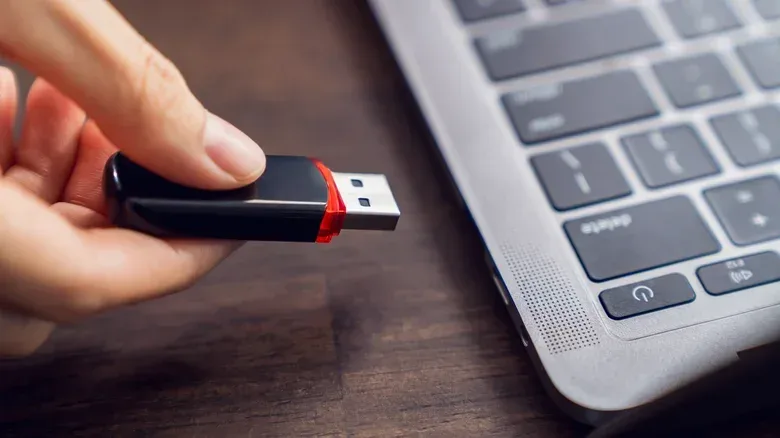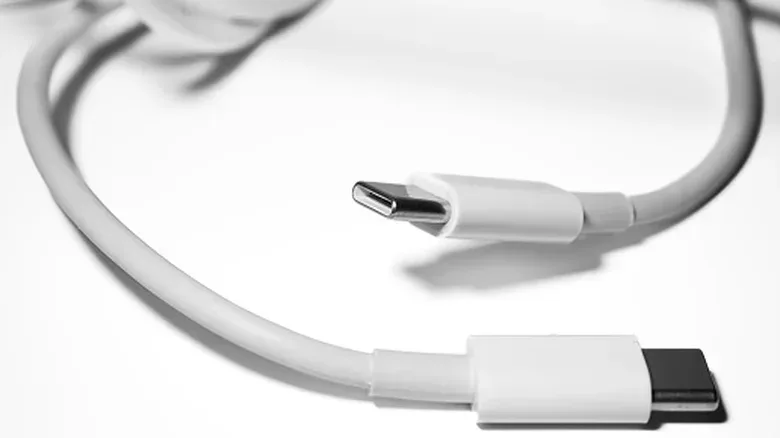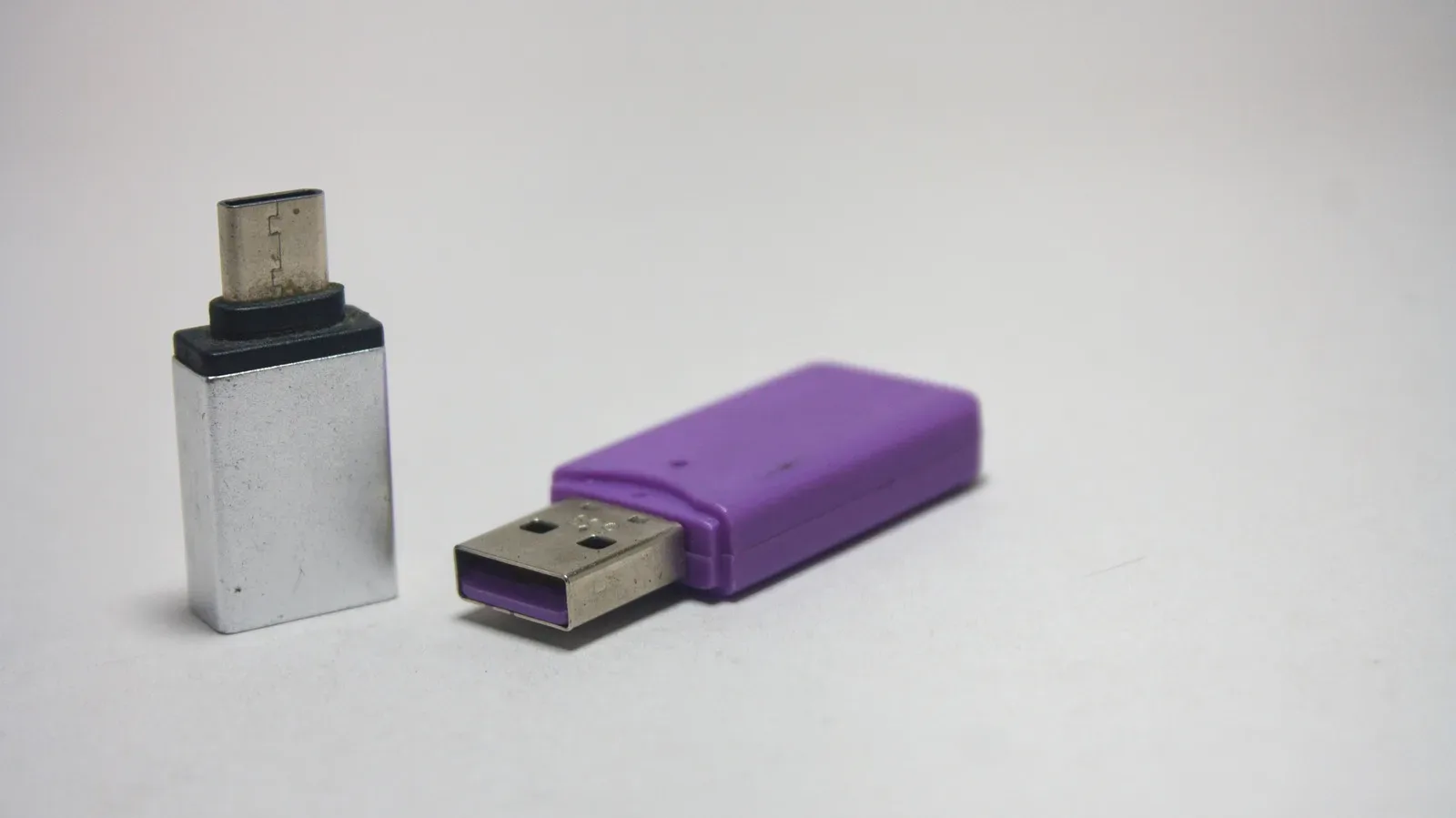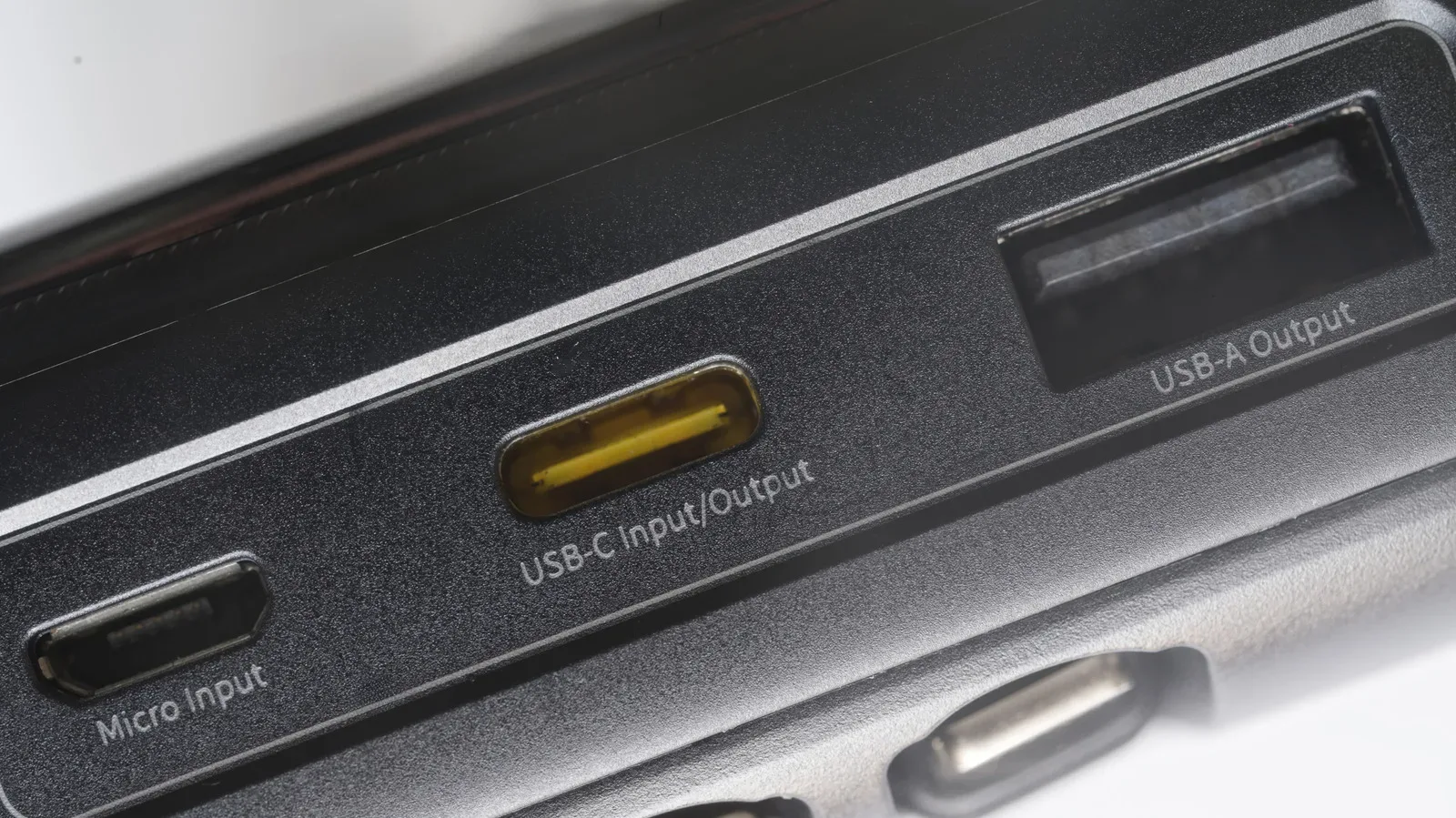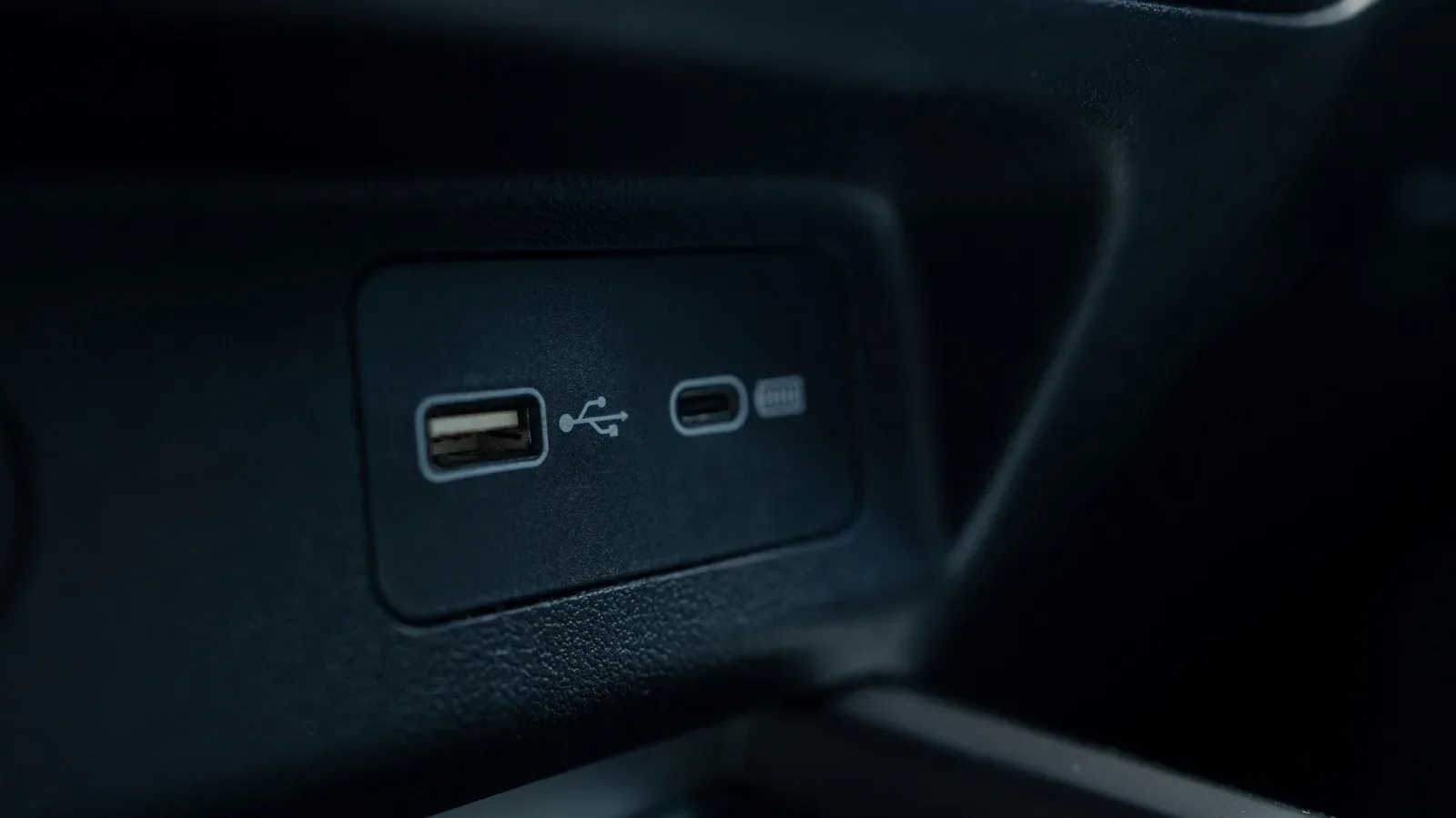
USB-A and USB-C are easy to recognize once you know their shapes. USB-A is the longstanding rectangular plug that seems determined to be inserted the wrong way on the first attempt. USB-C is the smaller, oval-shaped reversible connector now common on newer phones, laptops, controllers and accessories.
That visual distinction is useful, but it does not answer the practical question behind most cable hunts: Will this actually do what I need? Connector type describes the physical fit. Transfer speed, charging capability and video support depend on the underlying USB standard, the individual port and the cable. A USB-C connector can be slow; a USB-A port can still be perfectly appropriate for plenty of peripherals. The plug is the opening act, not the complete spec sheet.
For anyone assembling a gaming desk, moving files to an external drive, connecting a controller, or trying to make a laptop dock behave, separating connector shape from connection capability can prevent a surprising amount of frustration.
USB-A: the familiar rectangular veteran
USB Type-A, usually shortened to USB-A, was one of the two original connector types defined with USB 1. Its rectangular design has contacts on one side, meaning orientation matters. If the plug does not go in, it needs to be turned over rather than persuaded with increasing force.
USB arrived to make computer peripherals simpler. Earlier computer setups could require a variety of ports and cables depending on the accessory. The original USB arrangement also established distinct roles: one device was the host, normally a computer, while the other was the attached device. USB-A is associated with that host side.
That design explains why an ordinary USB-A-to-USB-A cable is not a standard way to connect two computers. Both ends may attempt to act as hosts, creating a setup that is not meant to work that way.
USB-A remains broadly useful because it has existed for so long. It can still be found on desktops, laptops, consoles, routers, vehicles and chargers, including charging points built into places such as plane seats and clocks. It is also a natural match for older accessories that have not moved to USB-C.
For gaming, USB-A is still relevant wherever an older wired controller, charging lead, headset adapter, keyboard, mouse or storage accessory uses it. Its age does not inherently make it bad. It simply means buyers should not assume that a USB-A connection supports every newer feature now associated with USB-C.
USB-C: reversible, smaller and more flexible
USB Type-C, or USB-C, debuted in 2014 and reached devices in earnest in 2015. Its defining physical benefit is immediate: the oval plug is reversible. There is no up or down orientation, so there is no ritual of flip, retry and quiet annoyance.
USB-C also moves beyond the old fixed host-and-device distinction. When two compatible devices connect, they determine their roles. This helps support a broader range of uses from the same compact connector.
Its adoption has spread across laptops and desktops as well as smaller electronics including smartphones, tablets, headphones and controllers. USB-C is also increasingly present in places once dominated by USB-A, such as vehicles, routers and power banks. Micro-USB has not disappeared entirely, particularly on less expensive hardware or products that have not been refreshed for years, but USB-C is the newer default direction.
The appeal is versatility. Depending on the device and cable, USB-C can carry data, supply power, deliver audio and video, and connect peripherals. On a laptop, this can reduce the number of dedicated ports needed for charging, external storage, a display and other accessories. A compact connector can therefore support a cleaner desk setup—but only when the specific ports and cables provide the required modes.
The crucial distinction: connector versus protocol
The most important USB lesson is that USB-A and USB-C are connector types. They tell you what physically plugs in. They are not, by themselves, reliable labels for speed, charging rate or display capability.
A protocol, in this context, is the technical standard governing how a connection transfers data and which capabilities it supports. A USB-C cable is not automatically a high-speed cable, just as a USB-A port is not automatically limited to the oldest USB behavior. The capabilities are negotiated within the limits of the equipment connected.
This is why two ports with the same shape can behave very differently. One USB-C port on a laptop might accept charging, while another may be intended for data only. Another may support video output. Likewise, a USB-C lead included with one device may be adequate for charging but not the choice for fast external storage or a display connection.
Common speed labels, translated
USB naming has changed over time, including retroactive renaming of standards once called USB 3.0, USB 3.1 and USB 3.2. The clearer current labels focus on maximum speed:
- USB 2.0: theoretical maximum of 480 Mbps. Ports and connectors are often black or white.
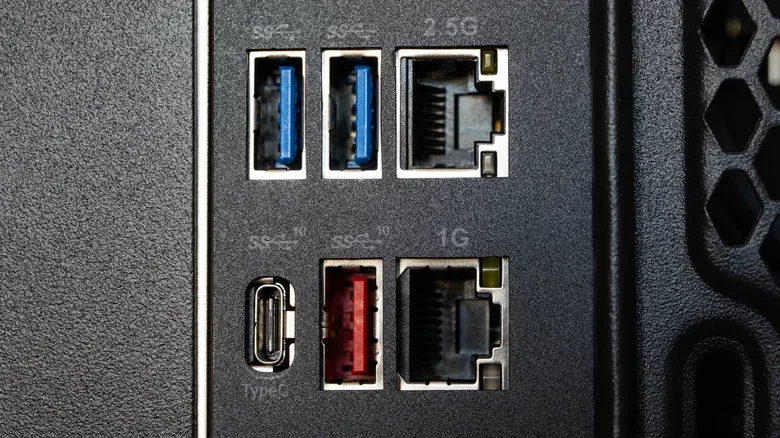
- USB 5 Gbps: maximum speed of 5 gigabits per second; older USB 3.0 labeling is associated with this level. Ports are often blue.
- USB 10 Gbps: maximum speed of 10 gigabits per second.
- USB 20 Gbps: maximum speed of 20 gigabits per second.
Those figures are maximums, not promises that every cable bearing a particular connector shape will reach them. The entire chain has to support the level in question: the port on the computer or console-like host device, the port on the accessory, and the cable between them.
For example, plugging a USB 20 Gbps cable into a USB 5 Gbps port does not transform the port into a faster one. The connection runs at the lower supported speed. The reverse is also true in practical terms: a fast port cannot extract a higher data rate from a cable or accessory that supports less.
What USB-A and USB-C can support
USB-A can span from USB 2.0 through USB 10 Gbps. That range makes it a good example of why physical appearance is incomplete information: two rectangular USB-A ports can look alike while offering very different transfer ceilings.
USB-C can also operate as slowly as USB 2.0. However, it can support USB 20 Gbps as well, and USB4 is only available through USB-C. USB4 has a base speed of 20 Gbps and can reach 40 Gbps, or 80 Gbps with USB4 Version 2.0 devices.
That does not mean every USB-C socket is a USB4 socket. It means USB-C is the connector required by that family of higher-speed specifications. Treat a USB-C port as a versatile physical doorway, then check the documentation to learn what is actually behind it.
Thunderbolt and DisplayPort: two labels worth noticing
Thunderbolt is a separate standard that guarantees performance beyond the various USB generations. It has never used USB-A. The first two Thunderbolt generations used Mini DisplayPort, while Thunderbolt 3 and later use USB-C.
The shared USB-C shape can be convenient, but it can also obscure a difference in capability. Seeing USB-C tells you a cable fits; it does not independently establish that the connection offers a particular Thunderbolt level or feature set. Where performance matters, the specific Thunderbolt and device specifications remain the deciding information.
Video is another area where the logo matters. A USB-C port capable of video output is typically marked with a DP symbol. DP refers to DisplayPort Alternate Mode, a capability that enables video output over that USB-C connection. If you are trying to connect a monitor through USB-C, that marking—and the device manual—matters more than the connector’s shape alone.
This can be especially important with a desk setup that combines a monitor, external SSD, microphone and power delivery through a small number of ports. USB-C makes that arrangement possible in many cases, but it does not guarantee every port participates in every job. A port dedicated to data may not charge the laptop; a charging-capable port may not necessarily output video.
A practical cable-check routine
Before buying or reusing a cable, start with the task instead of the plug. That keeps the decision grounded in what the connection must accomplish.
- Identify both physical ends. Does the device require USB-A, USB-C, Micro-USB, USB-B or another connector? A cable must fit before its speed matters.
- Define the job. Are you charging, moving data, attaching an external drive, connecting a display, or adding a peripheral? These needs can require different capabilities.
- Check the port’s specifications. Do not infer data speed, charging input or display support from a USB-C shape alone. Check the manual or device specifications.
- Check the cable specifications. A cable can be the limiting component. For faster data, all parts of the connection need to support the intended standard.
- Look for useful markings. A DP symbol identifies a USB-C port that can handle DisplayPort Alternate Mode. Color can sometimes offer a clue for older USB ports—black or white for USB 2.0 and often blue for 5 Gbps—but documentation is the safer authority.
This same approach applies to adapters. An adapter solves a physical compatibility problem, but it does not automatically add features missing from either device. For a closer look at that purchasing trap, see what gamers should check before buying USB-A-to-USB-C adapters.
Which connector should you prefer?
USB-C is the more forward-looking choice when selecting newer equipment because it supports the modern USB ecosystem’s broadest potential feature set, including USB4. It is reversible, compact and increasingly common on devices that need one port to perform several roles.
But USB-A remains practical wherever existing peripherals and charging accessories depend on it. A USB-A port with the required data standard can still be a functional connection for many accessories. Replacing every cable solely because it uses USB-A would confuse newness with necessity.
The useful rule is simple: pick USB-C when you need its physical compatibility or its supported capabilities; keep USB-A where it works with the devices and performance level you already have. In either case, verify the actual specification. The cable that fits is not always the cable that delivers fast storage transfers, video output or the charging behavior you expect.