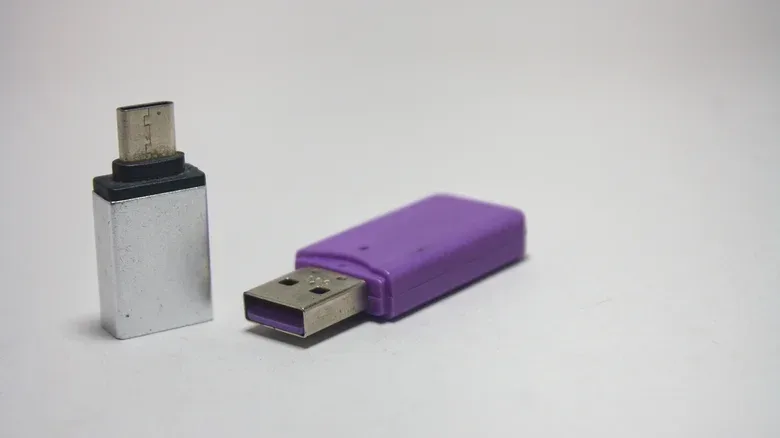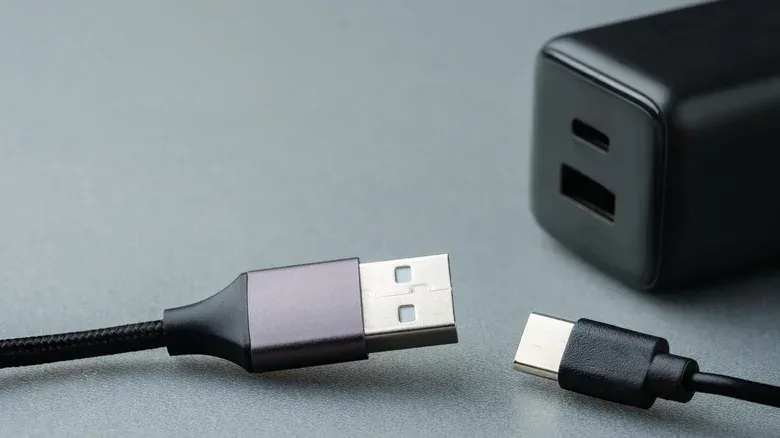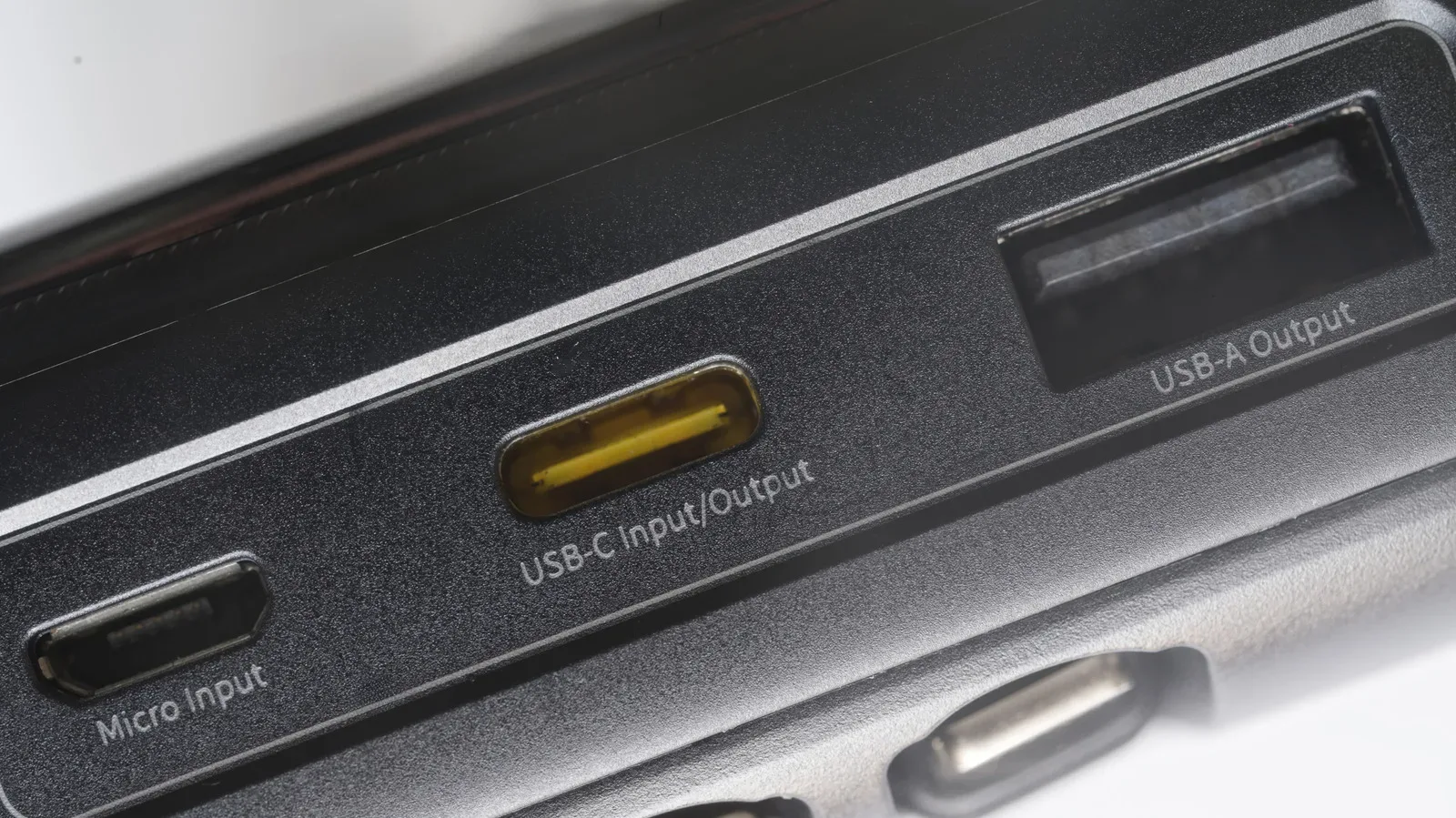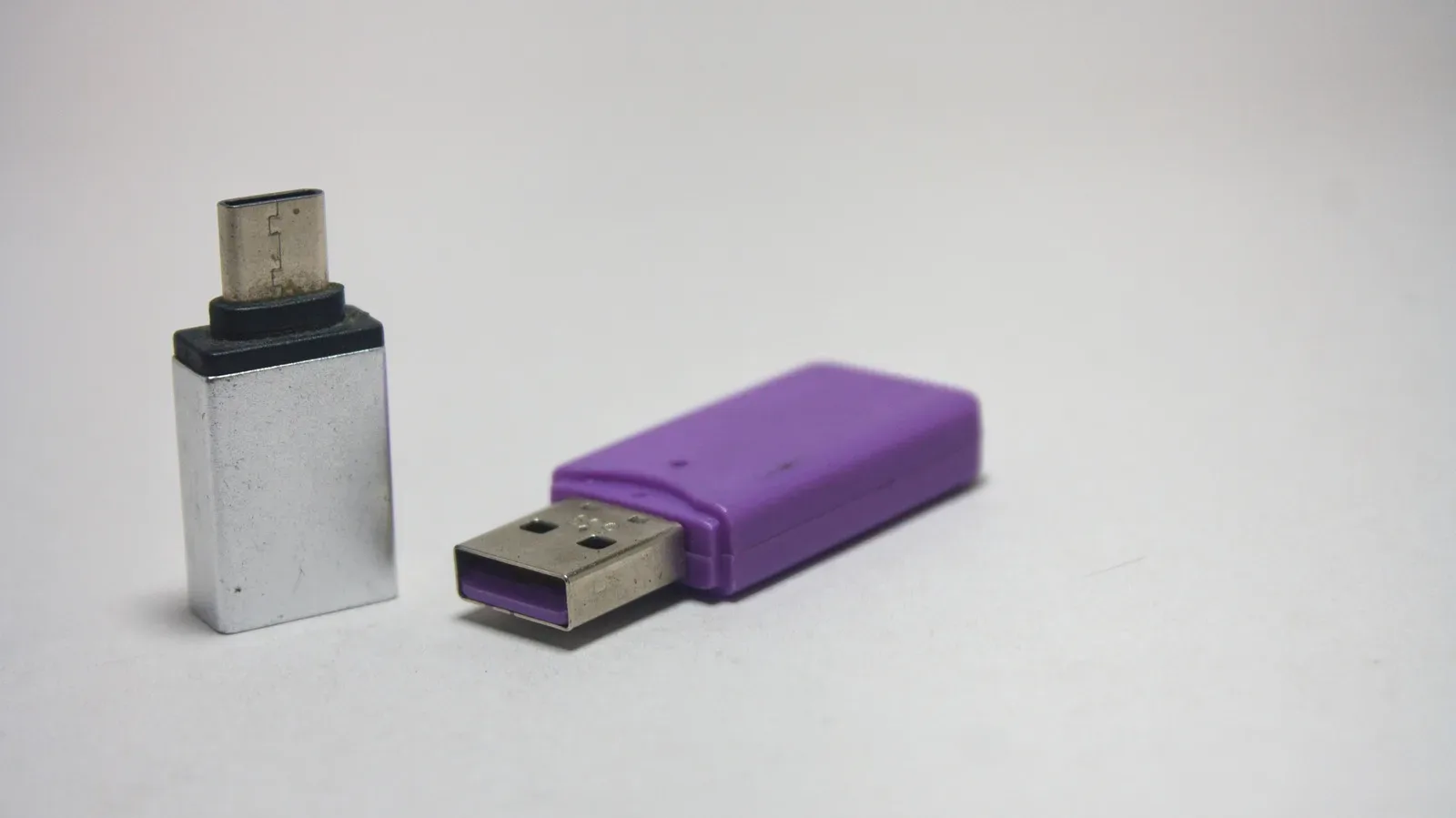
A USB-A-to-USB-C adapter is one of those deceptively tiny desk accessories that seems as though it should be impossible to get wrong. One end plugs into the familiar rectangular USB-A port found on older laptops, consoles, chargers and cars; the other provides a USB-C socket for a newer cable. It looks like a simple bridge between generations.
But a bridge is only as capable as the route feeding it. An adapter cannot turn an older USB-A port into a high-power USB-C charging connection, and it cannot make a USB 2.0 port move files at USB 3.2 speeds. For players juggling controllers, headsets, handheld accessories, external storage and phone charging, that distinction is the difference between a handy fallback and an unexpectedly slow bottleneck.
The sensible way to shop is not to start with the connector shape. Start with the job: low-power peripheral charging, data transfer, or a temporary phone top-up. Then check the USB generation of the host port, the adapter’s stated specification and its safety information. The little adapter should fit the use case, rather than becoming the weakest link in an otherwise modern cable setup.
The connector changes the fit, not the limits of the port
USB-A and USB-C describe the physical connector styles involved here. A USB-A-to-USB-C adapter typically has a male USB-A plug and a female USB-C port. That lets someone use a USB-C cable with equipment that only has USB-A available.
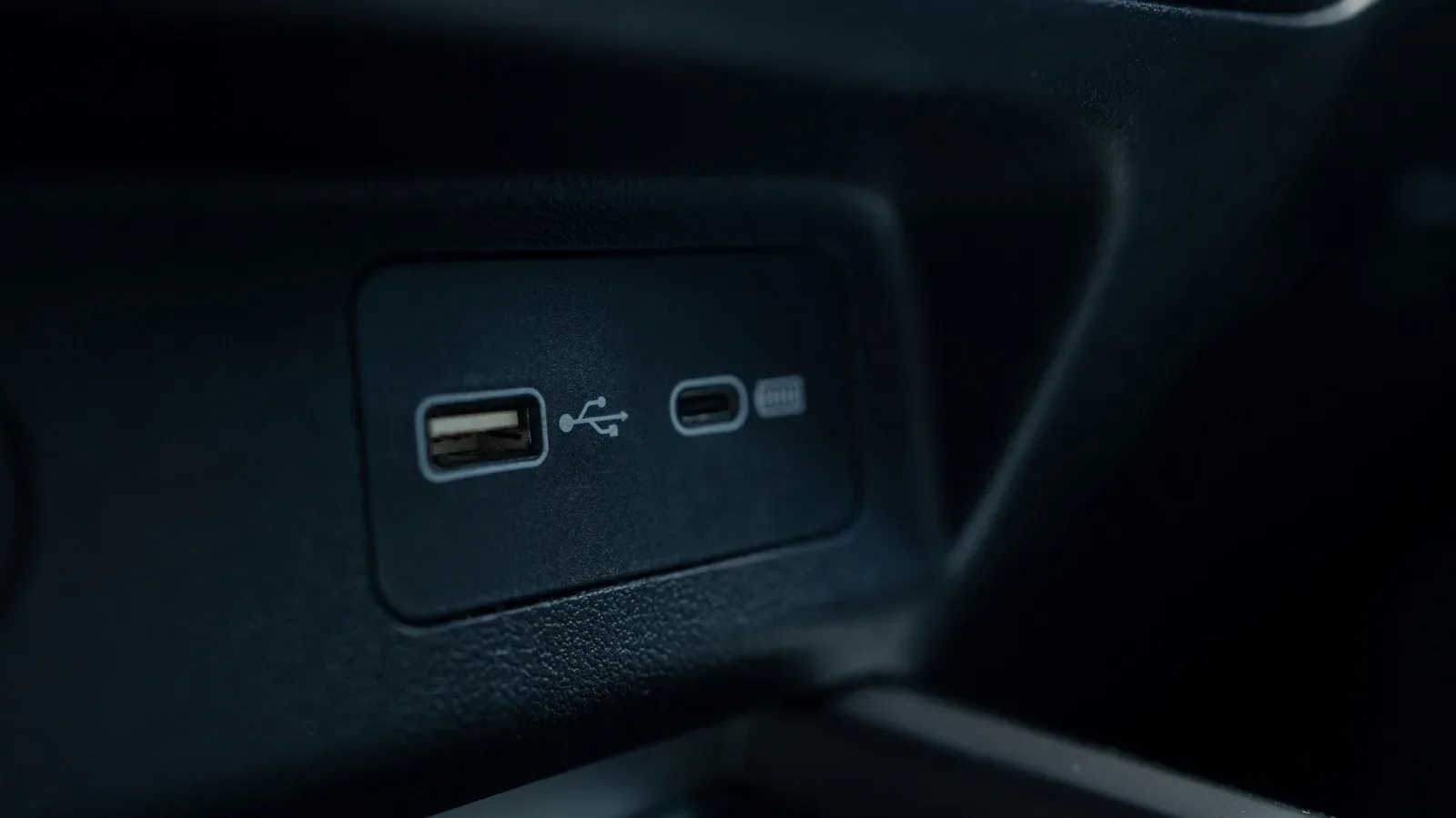
It is useful when a laptop’s sole USB-C port is occupied by its own charger, while its USB-A ports remain free for other jobs. It can also help when an older wall charger or car has USB-A outputs but the cable at hand is USB-C to USB-C. In gaming terms, it can make a modern cable usable for an accessory without requiring a separate cable immediately.
What it does not do is upgrade everything behind the USB-A connection. The host port is still responsible for the data bandwidth and power it can supply. If the laptop port is older and slower, an adapter rated for a newer USB generation does not make that laptop port faster. Likewise, a high-capability USB-C cable connected through USB-A should not be expected to deliver the charging behavior it achieves when plugged directly into a capable USB-C charger.
This is the core expectation to set before spending money: the adapter provides compatibility, not a performance transformation.
Data speed: USB 2.0, USB 3.0 and USB 3.2 Gen 2
The specification on the package matters because the gap between USB generations is substantial. USB 2.0 tops out at 480Mbps for data transfers. USB 3.0 supports up to 5Gbps, while USB 3.2 Gen 2 can reach up to 10Gbps.
Mbps means megabits per second, while Gbps means gigabits per second. These are stated transfer-rate ceilings, not promises that every real-world copy will continuously hit that exact number. Still, the difference gives a meaningful indication of which class of connection is appropriate. A 5Gbps USB 3.0 path has a headline data ceiling of roughly ten times USB 2.0’s 480Mbps limit.
For a mouse, keyboard, wearable or controller that simply needs a connection or modest charging, USB 2.0 can be entirely appropriate. Those devices do not require high-bandwidth file transfers. Choosing a basic adapter for that kind of role is not automatically a compromise; it is matching the hardware to a light workload.
External drives and flash drives are different. If an adapter is part of the path to storage, USB 2.0’s 480Mbps ceiling can become a frustrating restriction. That matters for anyone moving game clips, captures, saves or other files between a computer and an external drive. A USB 3.0 adapter is the more fitting baseline for those jobs, provided that the computer’s USB-A port also supports that generation. USB 3.2 Gen 2 is the higher-speed option described here, but it still depends on compatible equipment across the connection.
A quick compatibility rule
The slowest relevant component establishes the practical ceiling. That can be the computer’s USB-A port, the adapter, the cable or the device at the other end. Buying the most capable adapter available is not harmful merely because a port is older, but it will not lift that older port beyond its own limit.
Before adding an adapter to the cart, identify the USB generation of the port it will occupy. If it is USB 2.0, budgeting for a USB 3.0 or USB 3.2 Gen 2 adapter will not unlock their faster transfer rates on that connection. If fast file movement is the point, the port’s generation is as important as the adapter’s printed spec.
Charging is where expectations most often go wrong
USB-A is useful, but it is not the same power environment as a capable USB-C charging setup. A USB 2.0 adapter is described as delivering 5V/0.5A, or about 2.5W; with wall chargers, it can supply up to 7.5W. That is suitable territory for low-power equipment rather than a phone that needs a rapid refill.
For USB-A outputs, a laptop port is generally capped around 7.5W. A dedicated USB-A wall charger may provide around 12W to 15W. Those numbers explain a familiar annoyance: a USB-C cable that feels quick when used directly with the right charger can feel conspicuously slow after it has been routed through a USB-A adapter and port.
Watts are a measure of power. In the figures above, power is described through voltage and current: 5V is five volts, 0.5A is half an amp, and together they amount to roughly 2.5W. The key practical point is less about memorizing the arithmetic than recognizing that the available power comes from the USB-A host or charger. The adapter cannot supply more than that setup can provide.
That makes USB-A-to-USB-C adapters far more convincing for headphones, wearables, controllers and basic peripherals than for urgent phone charging. They can absolutely be useful when no other option is around, but “it connects” should not be confused with “it enables fast charging.” If time matters and a capable direct USB-C charger is available, that remains the preferable route.
There is also a broader setup lesson for gaming desks and travel kits. A modern USB-C cable is not automatically a universal fast-charge answer once it meets an older USB-A outlet. Keeping the adapter for accessory duty—and treating phone charging through it as a backup—helps avoid the assumption that something has malfunctioned when the real constraint is simply the source port.
Choose the adapter by task, not by looks
Two adapters can look nearly identical while differing in supported USB specification, power handling and component quality. That makes a simple checklist more valuable than an impulse purchase based on size or color.
- For keyboards, mice, wearables and other modest-power accessories: a USB 2.0 adapter can be enough, because these uses do not depend on high transfer bandwidth or fast charging.
- For flash drives and external storage: choose at least USB 3.0 if the host port supports it. This avoids needlessly imposing USB 2.0’s 480Mbps cap on a file-transfer task.
- For a spare headset or controller cable: confirm the intended device only needs the modest power a USB-A source can offer. The adapter may be convenient, but it should not be selected with fast-phone-charging expectations.
- For phone charging: treat USB-A through an adapter as a fallback. A dedicated USB-A wall charger can offer more than a laptop USB-A port, but it remains a different proposition from a capable direct USB-C charging arrangement.
Controller hardware itself is a good reminder that connectors are only one part of a wider accessory ecosystem. A recent limited PlayStation DualSense merch drop may draw attention for its design, but the everyday cable question is more prosaic: whether the available port, cable and adapter can actually support the task at hand. The answer comes from the specifications, not from the fact that USB-C fits.
Do not overlook build quality and safety markings
Performance is not the only consideration. Cheap, uncertified adapters can regulate power incorrectly, creating a risk of overheating or damage to a device’s charging port over time. That is an especially poor gamble when the adapter will be left connected to a laptop, charger or valuable accessory.
Look for manufacturers with an established track record, safety certifications such as UL or CE, and protections including overvoltage protection. Overvoltage protection refers to a safeguard intended to help prevent excessive voltage from reaching connected equipment. It is not a flashy specification, but it speaks directly to the job an adapter must do reliably: pass a connection between devices without introducing unsafe power behavior.
Packaging claims should be read closely. A USB version indicates the adapter’s stated data capability, but real use remains limited by the attached USB-A port and other components in the chain. A safety marking and a clear specification are more useful signals than vague claims of being universally fast. If the listing or package does not plainly identify the USB generation or safety credentials, that missing information is itself a reason to be cautious.
A practical pre-purchase checklist
- Identify the USB-A port that will be used: laptop, wall charger, car or another device.
- Check that port’s USB generation if data speed matters.
- Decide whether the adapter is for peripherals, storage transfers or charging.
- Match the adapter’s USB rating to the task: USB 2.0 for light accessories, USB 3.0 or better for storage where the host supports it.
- Plan for slow phone charging through USB-A compared with a capable direct USB-C setup.
- Choose a reputable maker and check for UL or CE certification and overvoltage protection.
The best USB-A-to-USB-C adapter is not necessarily the one that makes the boldest speed claim. It is the one whose stated specification fits the port and workload, whose power limits are understood in advance, and whose construction is trustworthy enough to stay in the setup without becoming a weak or risky link.