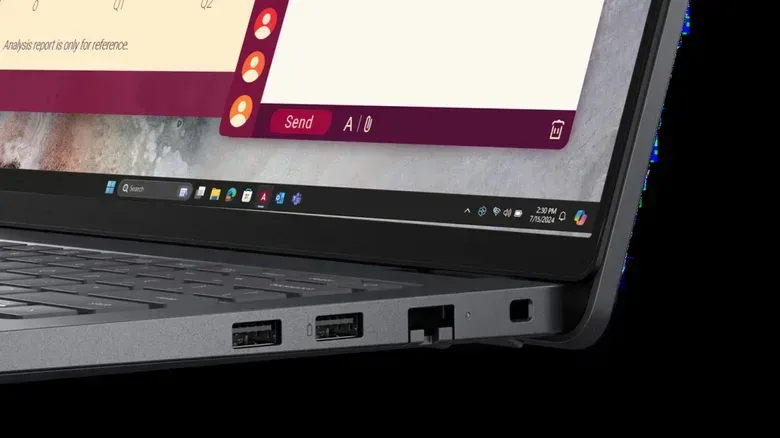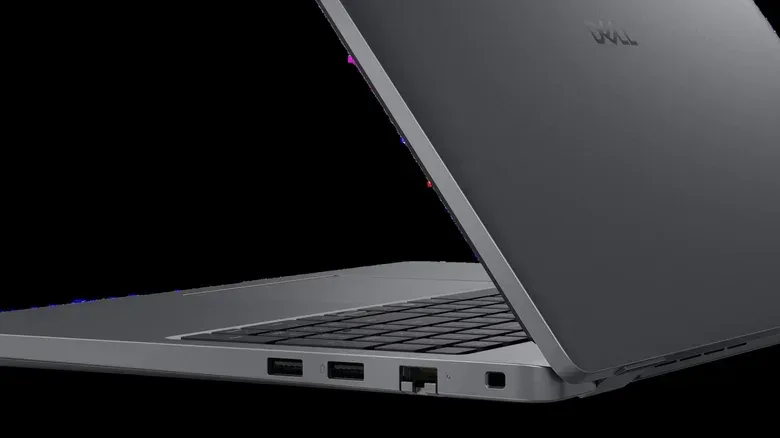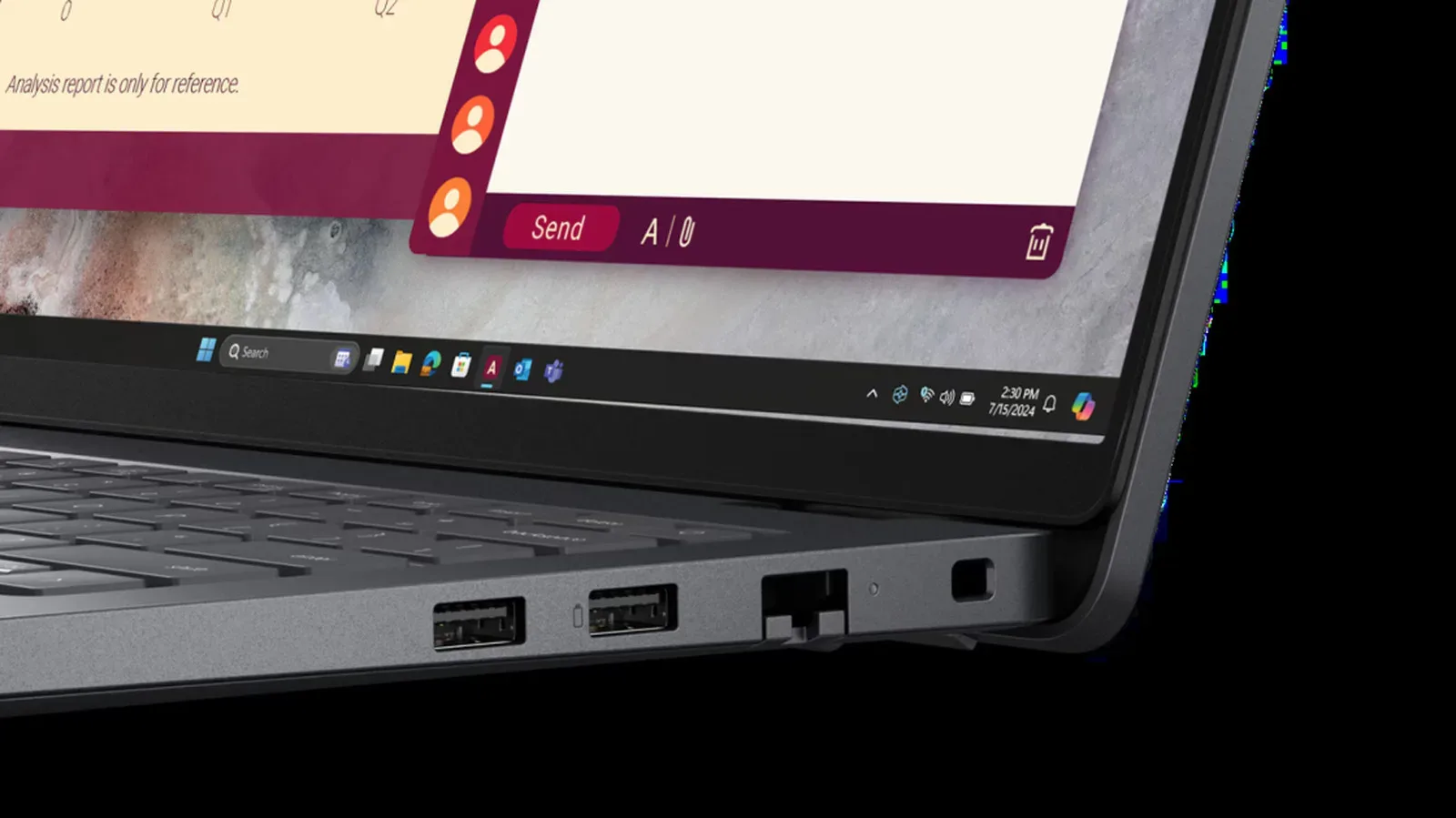
A tiny battery symbol next to a USB port is one of those laptop markings that looks self-explanatory until it is not. It may signal that the port can charge devices, accept more capable charging hardware, or keep supplying power while the computer sleeps. It does not, however, guarantee identical behavior on every device.
In the most common case, the mark is associated with USB Power Delivery, usually shortened to USB PD. That is a charging protocol designed to let compatible equipment negotiate an appropriate amount of power. It can enable higher power levels than an ordinary USB port and can therefore matter whether you are charging the laptop itself, topping up a phone, or connecting a more demanding accessory.
For players and desk-setup builders, the practical point is simple: not every USB socket has the same charging role. A familiar connector shape tells only part of the story. The icon, the machine’s specifications and the behavior described in its manual are what identify whether that particular port is meant to be a serious charging connection.
What USB Power Delivery actually means
USB PD is a protocol: a shared set of rules that compatible chargers and devices use to manage power. Rather than blindly sending a fixed amount of electricity, the connected hardware carries out a digital exchange to determine the voltage and current that should be used. This is the “handshake” often associated with Power Delivery.
That negotiation is important because charging is not just about sending the largest possible amount of power. The charger and device need to agree on what the device can accept. USB PD is intended to provide the appropriate level without overheating risk from an unsuitable power arrangement.
The standard has been around since 2012, before USB-C debuted. It was later updated in 2021 with support for up to 240W. That upper ceiling puts USB PD in range for more power-hungry categories of equipment, including high-end laptops and some monitors. It also explains why the same broad protocol appears in very different contexts: a small portable device may use it to recharge, while a laptop may rely on it as its main power input.
It is worth separating USB PD from the physical form of a port. USB-C is a connector type; Power Delivery is a charging protocol. They are often encountered together, but they are not the same thing. A port label or symbol is therefore more useful than assuming every visually similar connection has the same power capabilities.
The battery icon can indicate a port that charges the computer
When a laptop’s battery-marked port is USB PD capable, connecting a compatible charger can offer faster laptop charging than a typical USB arrangement. The central advantage is that the power level is negotiated between the charger and the computer instead of being treated as a one-size-fits-all connection.
That does not mean the icon itself promises a particular charging speed or the 240W maximum available under the newer USB PD specification. USB PD can support that level, but the supplied information does not establish that every battery-labelled port, charger or laptop is built to use it. The symbol is a useful pointer, not a complete spec sheet.
This distinction matters when replacing a charger or diagnosing why a setup behaves differently from expected. The port may be compatible with the protocol, but a user still needs to consult the manufacturer’s specifications for the exact supported behavior. The same cautious approach applies to cables and attached hardware: the charging arrangement works as a system, not as an icon acting alone.
It may let the laptop charge another device
The most immediately useful interpretation of a battery symbol may be bidirectional charging. In plain language, the laptop can use that port to provide power outward to another device. A smartphone or a set of wireless earbuds can be connected to draw from the computer’s battery.
That can turn a laptop into a convenient backup power source when an outlet is inconvenient. It may be especially handy for a phone or earbuds that need a small recharge during travel, at a desk or between sessions. But convenience comes with an obvious trade-off: the other device’s charge comes from the laptop battery.
Leaving a phone connected to a compatible laptop port can completely drain the laptop’s battery. That outcome is particularly easy to overlook when the phone is placed out of sight or when a user assumes that closing the laptop ends the flow of power. A battery-marked port can continue to be useful precisely because it is designed to keep charging in situations when other ports may not.
Always On charging is a separate practical wrinkle
Some laptops extend this behavior with an “Always On” charging feature. On compatible systems, the marked USB port can charge a connected device even while the computer is asleep or shut down. The name describes the result: power remains available from that port beyond normal active use.
That is valuable when the laptop is deliberately being used as a temporary power bank, but it also increases the chance of returning to a low or empty computer battery. Laptop makers commonly provide a way to disable this feature. If keeping the computer charged is more important than using it to replenish accessories, checking that setting is the sensible move.
- Use it deliberately: A battery-labelled port may be the appropriate place for a phone or earbuds when you want the laptop to charge them.
- Watch the laptop battery: An attached device can drain it completely.
- Check sleep and shutdown behavior: Always On support can mean charging continues after the laptop is no longer in active use.
- Look for the manufacturer control: Many laptop makers include an option to turn that behavior off.
Why the marking is less universal than it should be
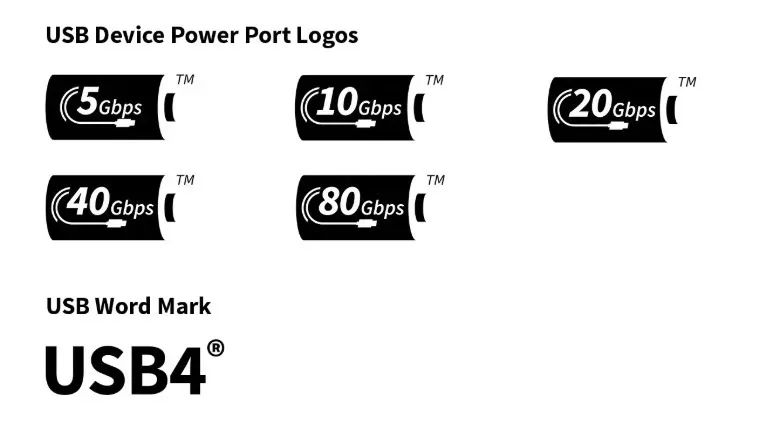
The frustrating part is that the battery icon is not a perfectly universal language. The USB Implementers Forum, the organization responsible for official USB standards, has an official USB PD mark: a battery-shaped symbol made with negative space. In practice, manufacturers do not all present Power Delivery the same way.
A device may use that official battery form, another battery graphic, the letters PD, or a lightning-bolt symbol. The lightning bolt needs special care because it is not the same as the Thunderbolt symbol. A quick visual assumption can lead users to confuse a charging designation with a different port technology.
The inconsistency goes further: a device can support USB PD without showing a dedicated mark at all. MacBook Thunderbolt ports are an example of ports that can be compatible with the protocol without an explicit USB PD label. In other words, an icon can be informative when present, but no icon does not prove that Power Delivery is absent.
This is a broader lesson for any crowded laptop edge. Labels are shortcuts, not a substitute for a product’s documentation. Users trying to establish whether a port can charge the laptop, power accessories while asleep, or support the specific charging behavior they want should use the manufacturer’s specifications and user manual as the final check.
A quick way to interpret what you see
- Start with the battery mark. It commonly indicates USB Power Delivery capability or a port intended for charging duties.
- Consider the direction of power. The port may be used to charge the laptop, to charge another device, or potentially to support both roles depending on the machine.
- Do not equate the mark with one fixed wattage. USB PD has a maximum of up to 240W under its 2021 update, but individual products can have different capabilities.
- Distinguish symbols carefully. “PD,” a battery graphic and a lightning bolt may be used by different companies; a lightning bolt should not be mistaken for Thunderbolt.
- Verify the model’s documentation. This is the only dependable way to confirm port-specific support, including Always On charging and any setting used to disable it.
For a gaming or work setup built around a laptop, the result is less mysterious than the branding suggests. The battery glyph is usually a useful sign that a port has a special relationship with power rather than merely data. It can be the connection that gets the laptop charged more intelligently or the one that rescues a nearly empty phone. Just do not let a convenient overnight phone charge quietly turn the computer into the dead device in the bag.
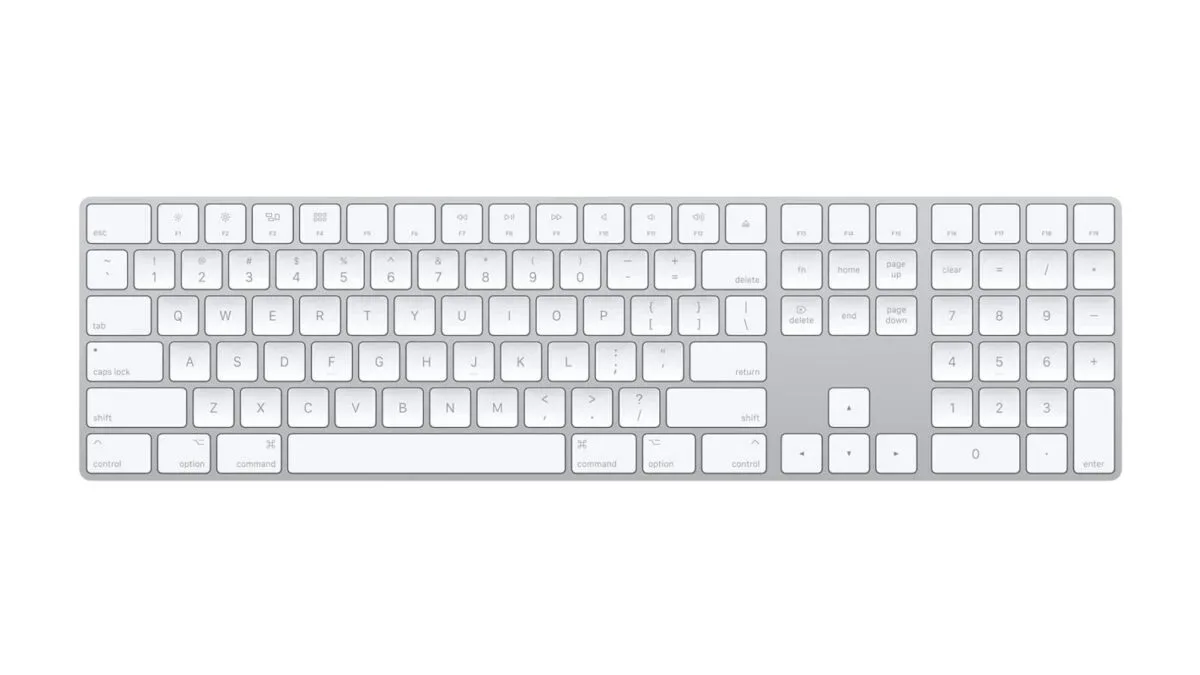
That kind of attention to small hardware details also matters when choosing peripherals for a Mac or iPad desk arrangement, where port roles and charging expectations can shape the setup as much as the accessory itself. See our look at Apple’s Magic Keyboard with Numeric Keypad for Mac and iPad desk setups.