An external GPU, or eGPU, offers a tempting desktop-and-laptop compromise: keep one portable machine for work or travel, then attach a full desktop graphics card for more demanding games at a desk. It is a real route to more graphics horsepower, but it is not equivalent to placing that same card inside a conventional desktop PC.
The central limitation is simple: the graphics card sits outside the laptop and must exchange data over Thunderbolt or USB4 rather than through the laptop’s internal PCIe connection. That cable connection can restrict how completely an eGPU uses the potential of a powerful desktop card. Add the price of an enclosure, an appropriate power supply, potential monitor changes and compatibility checks, and the “one laptop that does everything” plan becomes a more specialized proposition.
That does not make eGPUs pointless. Their value can be especially clear for somebody who already owns a suitable desktop GPU after upgrading another system. But anyone considering a fresh, high-end eGPU purchase should distinguish raw GPU specifications from the performance the complete external setup can actually deliver.
First, “onboard” does not necessarily mean integrated graphics
In this comparison, an onboard graphics card means a dedicated GPU built into a laptop, rather than the integrated graphics hardware in the processor. That distinction matters. A laptop with a dedicated GPU has a graphics processor installed inside its chassis and connected internally, even though its power limits and physical design differ sharply from a desktop.
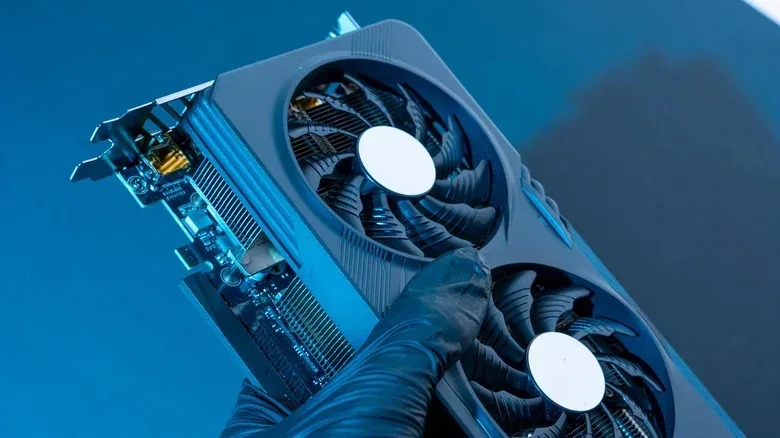
Product names can make this confusing. A laptop GPU and desktop GPU may carry a similar name but have substantially different specifications. NVIDIA’s RTX 5090 Laptop GPU, for example, has 10,496 CUDA cores, 24GB of GDDR7 memory and a GPU subsystem power range of 95W to 150W. The desktop RTX 5090 has 21,760 CUDA cores, 32GB of GDDR7 memory and a 575W total graphics power rating.
CUDA cores are NVIDIA’s processing units for parallel workloads, including the graphics calculations a game needs to render an image. More cores alone do not define every result, but the figures show that a desktop card and a laptop card sharing a family name are not automatically the same tier of hardware.
The desktop RTX 5090 also lists 1,792GB/s of memory bandwidth, compared with 896GB/s for the RTX 5090 Laptop GPU. Memory bandwidth describes how quickly the GPU can move data to and from its own dedicated graphics memory. It is not the same measurement as the bandwidth of a Thunderbolt cable. Still, it illustrates the larger pool of raw resources that a desktop-class eGPU can bring before the laptop-to-enclosure link enters the picture.
Why the external connection changes the equation
Inside a laptop, a dedicated GPU communicates over an internal PCIe connection. PCIe, short for Peripheral Component Interconnect Express, is the high-speed interface used to connect components such as graphics cards. A laptop’s internal design can provide a wider multi-lane PCIe link than an eGPU connection, giving the built-in GPU more room to move the data it needs.
Related coverage includes eGPU vs. Laptop GPU: Bandwidth, Cost and Portability Limits.
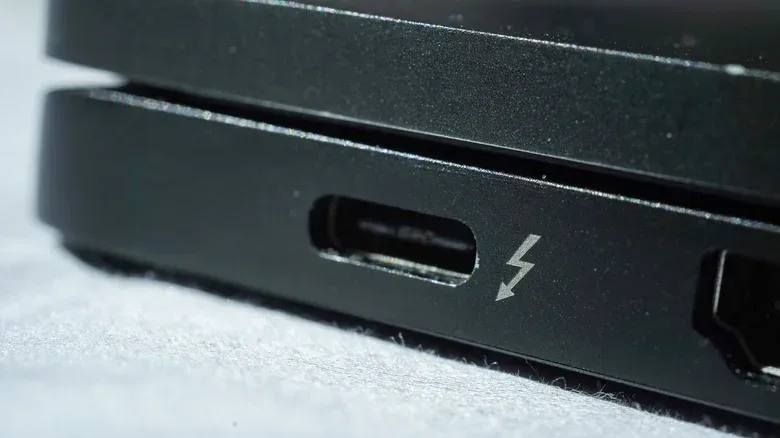
An eGPU instead normally relies on Thunderbolt or USB4. These standards can carry PCIe traffic, but their limits are a key part of the buying decision. Thunderbolt 4 provides 40 Gbps of overall bandwidth and requires 32 Gbps of PCIe data throughput. Thunderbolt 5 raises the base speed to 80 Gbps and doubles the PCIe data-throughput requirement to 64 Gbps.
That improvement is meaningful, but it does not erase the basic difference between an external cable connection and a direct internal implementation. The more capable the desktop GPU, the more likely it is that the connection can become an important constraint. An enclosure can house a formidable card; the laptop still has to communicate with it through the external link.
Thunderbolt 5’s 120 Gbps Bandwidth Boost mode can also sound like a dramatic leap on a specification sheet. However, that figure should not be read as 120 Gbps of PCIe bandwidth available to the graphics card. PCIe throughput remains at 64 Gbps. In practical terms, the mode does not turn the external GPU into an internally installed desktop card.
Bandwidth is not a universal frame-rate penalty
It is sensible to expect an eGPU’s external connection to reduce some of the benefit of a desktop GPU, but there is no single percentage that applies to every setup. Results vary based on the GPU, laptop, interface, game and resolution. That uncertainty is important because it makes blanket claims about eGPU performance misleading.
A buyer should therefore avoid treating the desktop card’s standalone specifications as a promise of identical results in an enclosure. The GPU remains powerful hardware, but the system around it determines how much of that capability is accessible in a particular workload.
Use an external monitor when possible
Display routing is another practical issue. When a game runs on an eGPU but is shown on the laptop’s built-in screen, rendered frames may need to make the return journey through the same limited cable connection. That can add another performance penalty.
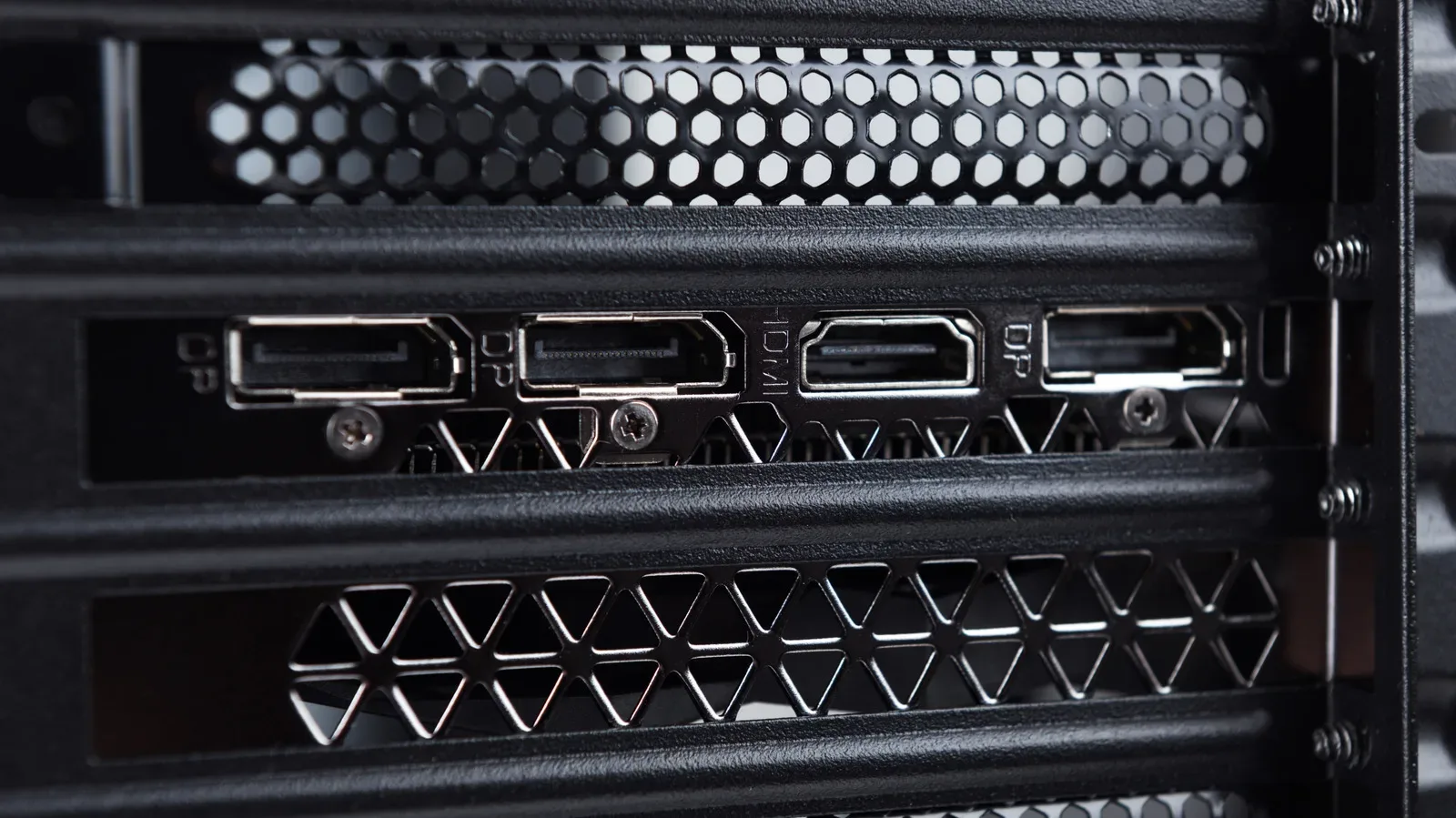
Connecting an external monitor directly to the eGPU can avoid that extra trip back to the laptop display and is often the more sensible arrangement for an eGPU desk setup. It also makes the physical reality of the setup clearer: the laptop is only one component in a station that may include an enclosure, desktop graphics card, power supply and separate display.
The monitor connection itself deserves attention. As with a desktop graphics card, the display should be connected to the eGPU rather than a video output that routes through different graphics hardware. For related context on why the physical display cable can matter in a graphics setup, see this guide to avoiding a monitor cable mix-up.
USB-C shape is not a compatibility guarantee
One of the easiest mistakes is assuming every USB-C port can run an eGPU. USB-C describes the connector shape, not a complete promise about the capabilities behind it. USB4 may support PCIe traffic, but the laptop’s host hardware must provide the right support for an eGPU to work.
Even a suitable port is only part of the checklist. The enclosure, GPU, drivers and power requirements all have to cooperate. That means eGPU research should begin with the exact laptop model and its supported connection features, rather than the assumption that a USB-C-shaped port settles the matter.
- Confirm that the laptop supports the required Thunderbolt or USB4 eGPU functionality.
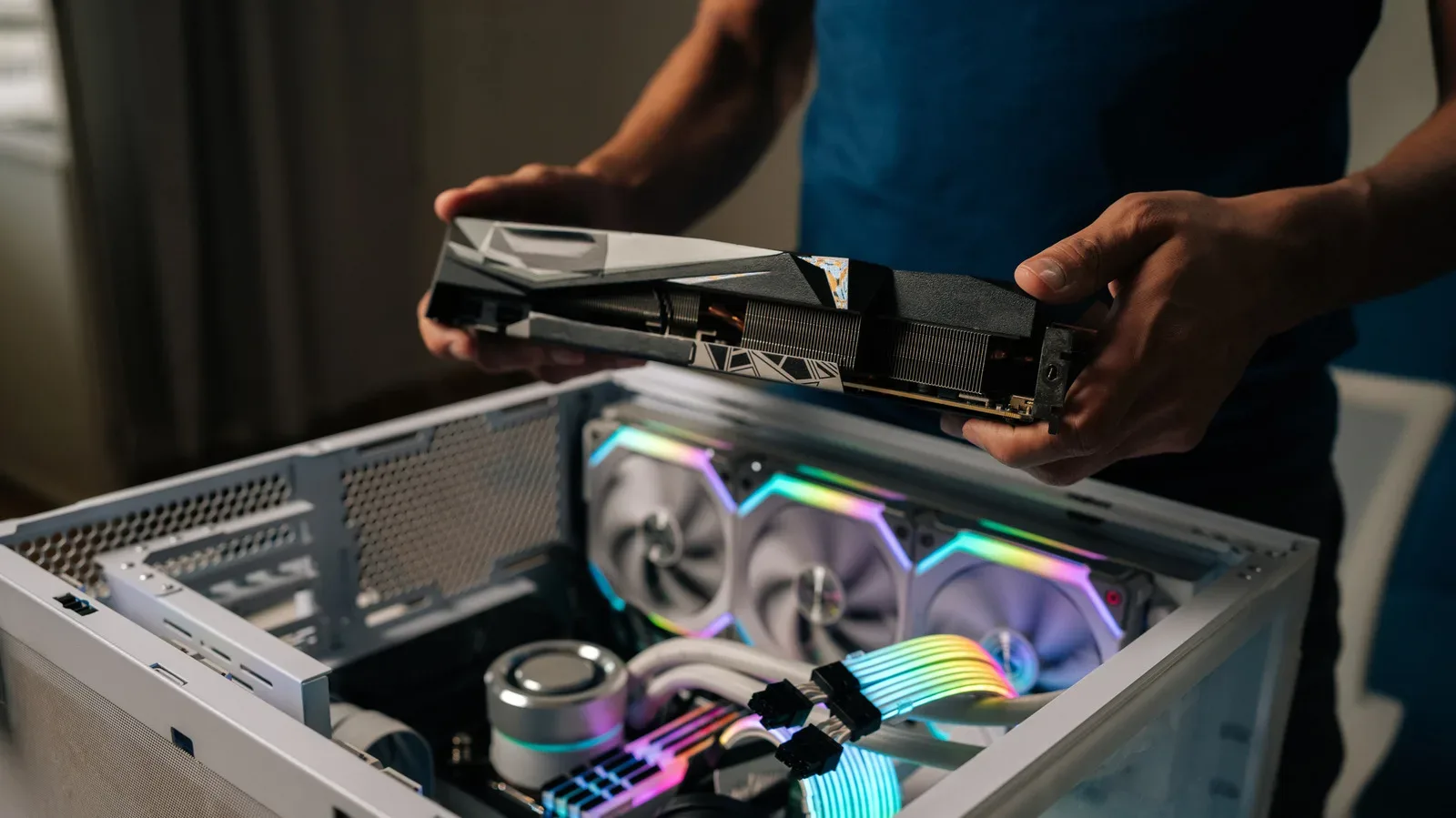
- Check that the enclosure supports the intended card’s physical size and slot width.
- Verify graphics-driver compatibility.
- Account for the enclosure’s power needs, including whether a separate ATX power supply is required.
- Plan to attach an external display directly to the eGPU if the goal is to reduce display-return overhead.
The enclosure cost is only the starting point
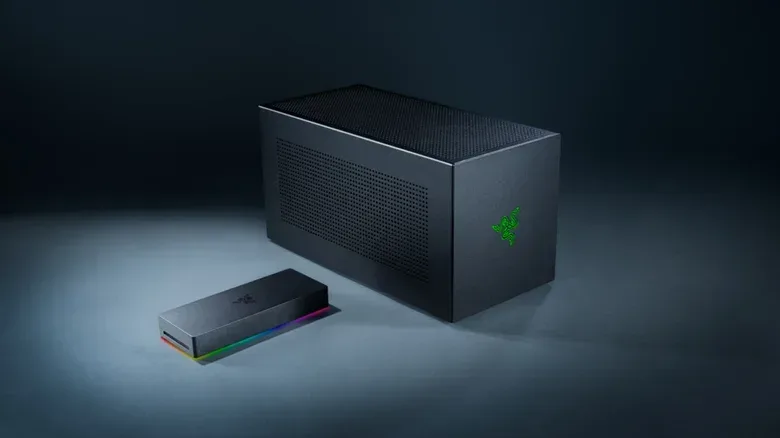
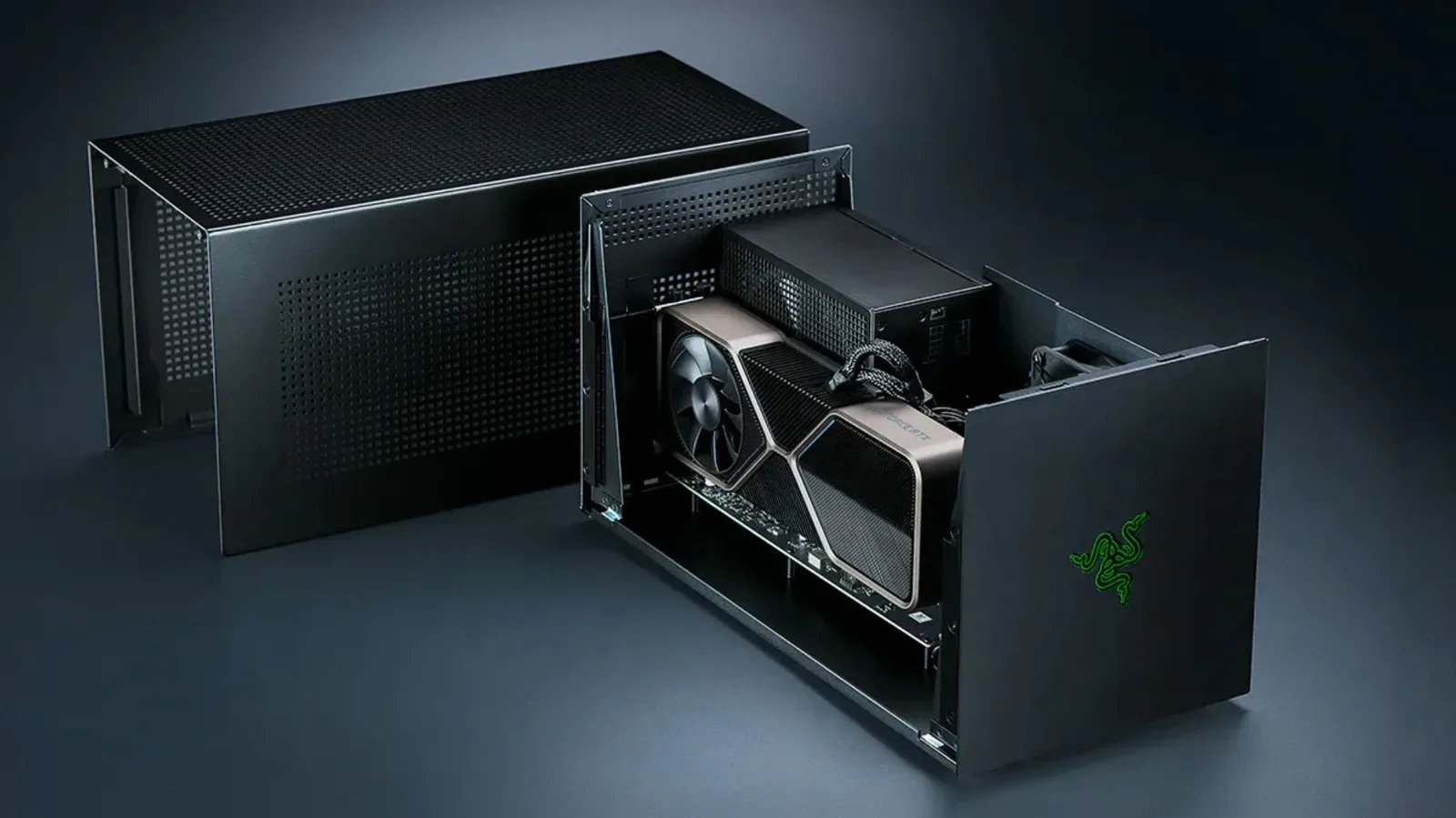
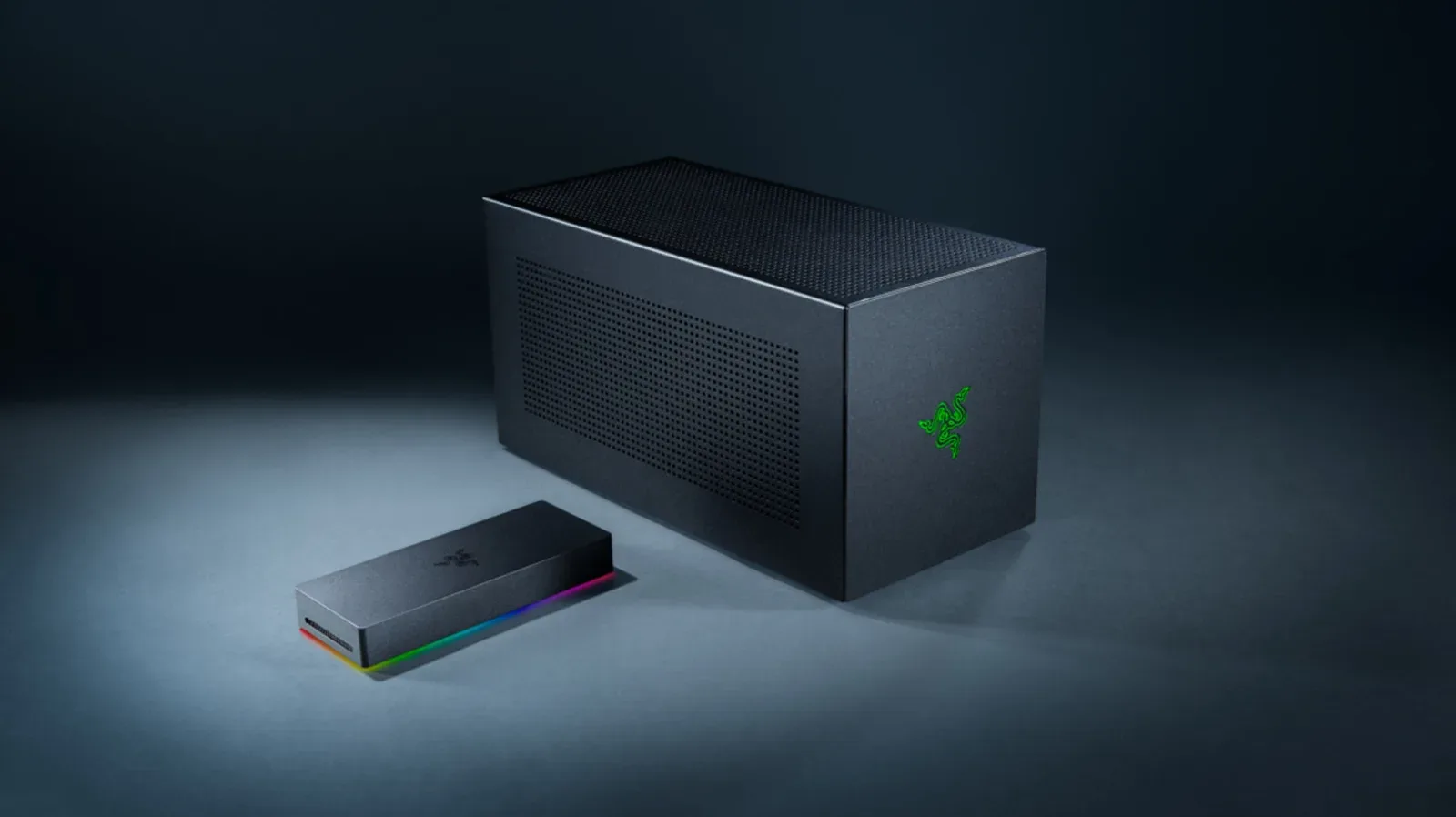
An eGPU setup is not merely the price of a graphics card. Razer’s Thunderbolt 5 Core X V2 provides a useful example of the surrounding costs. It supports full-size NVIDIA and AMD desktop GPUs up to four slots wide and includes a 120mm cooling fan. But it does not include either the graphics card or the ATX power supply needed to operate the system.
The enclosure itself costs approximately $350, before those essential additions. A desktop GPU, power supply and potentially an external monitor can all change the total significantly. For a buyer starting from nothing, the eGPU path can become difficult to justify against other hardware choices—particularly when the chosen desktop GPU will not be able to use every bit of its potential through an external cable.
The calculation is more favorable for a person with a compatible card already sitting unused after a desktop upgrade. In that situation, buying an enclosure can extend the useful life of existing hardware and provide a substantial graphics upgrade to a compatible laptop without purchasing an entirely separate computer.
Portability changes from “laptop” to “docked workstation”
A built-in laptop GPU has obvious limits. It operates under the laptop’s cooling and power constraints, which is a major reason laptop-branded GPUs can have far less raw hardware than desktop versions. Yet that compromise comes with a major convenience advantage: the entire graphics setup remains inside the machine.
There is no separate enclosure to carry, no desktop card to install at a desk and no potential ATX power supply to accommodate. An eGPU setup can also add fan noise and takes up considerably more space, especially when using a large card. It is portable in the sense that the laptop can leave the desk, but the enhanced gaming setup stays behind.
That makes the eGPU concept best understood as a docked workstation arrangement, not as a way to make a high-end desktop GPU effortlessly portable. The laptop retains its travel role, while the desk gains extra capability and extra equipment.
When an eGPU makes sense—and when it may not
An eGPU has a clear appeal for someone who values one familiar laptop for everyday use and wants more graphics capability at home. It can also be a sensible reuse project for an existing desktop GPU. In both cases, the buyer should accept the cable bandwidth limitation, verify compatibility before spending money and build the desk setup around an external monitor connected to the enclosure.
It is less compelling when the plan requires buying an expensive desktop GPU, an enclosure and a power supply solely to chase the performance implied by the desktop card’s specifications. The external connection, additional display routing when using the laptop panel, extra cost and reduced simplicity all need to be weighed against the raw graphics advantage.
The short version is that a dedicated laptop GPU is lower-power hardware designed around an integrated, portable machine. An eGPU can supply far more desktop-class muscle, but it does so through a narrower external pathway and a larger pile of gear. The best choice depends less on which option has the bigger specification sheet and more on whether the full desk-bound arrangement fits the laptop, the budget and the way it will actually be used.