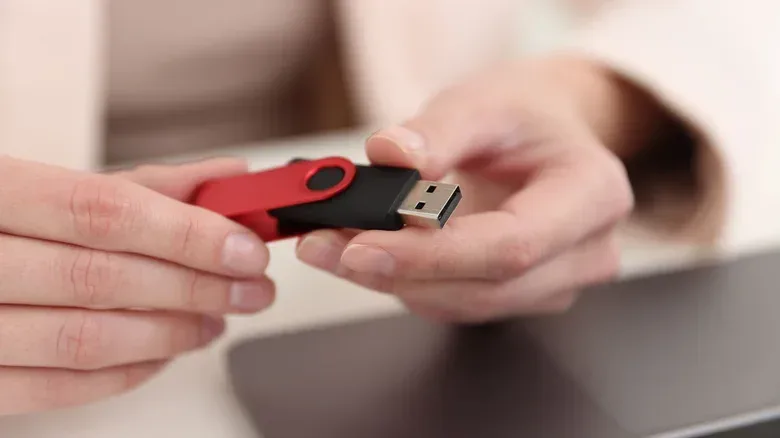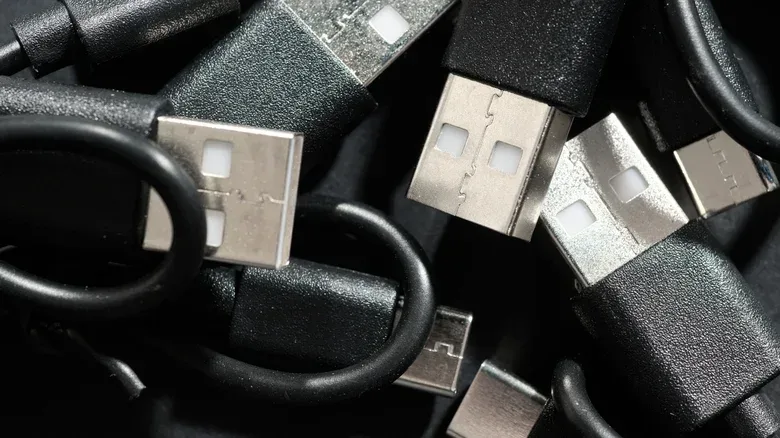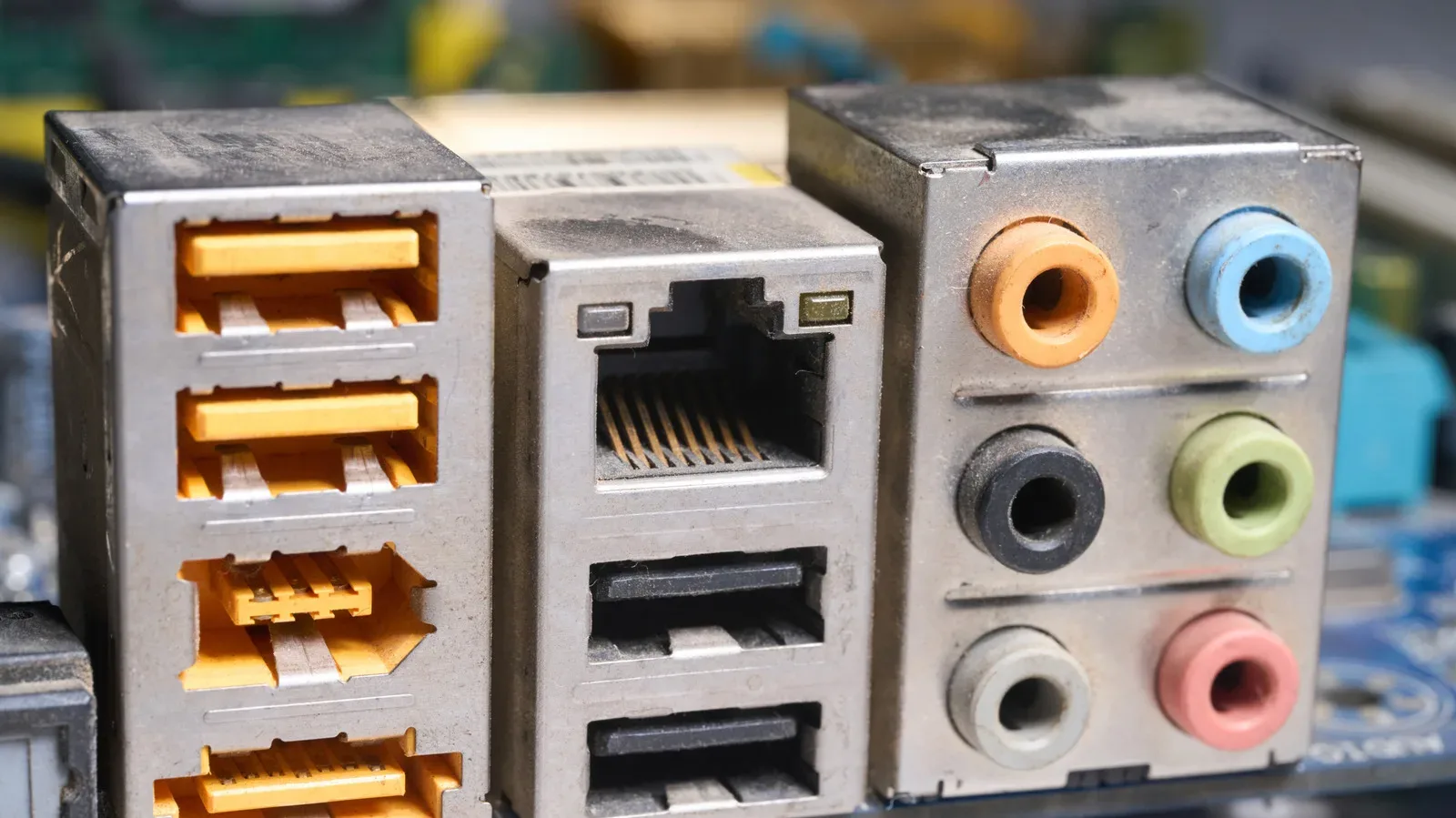
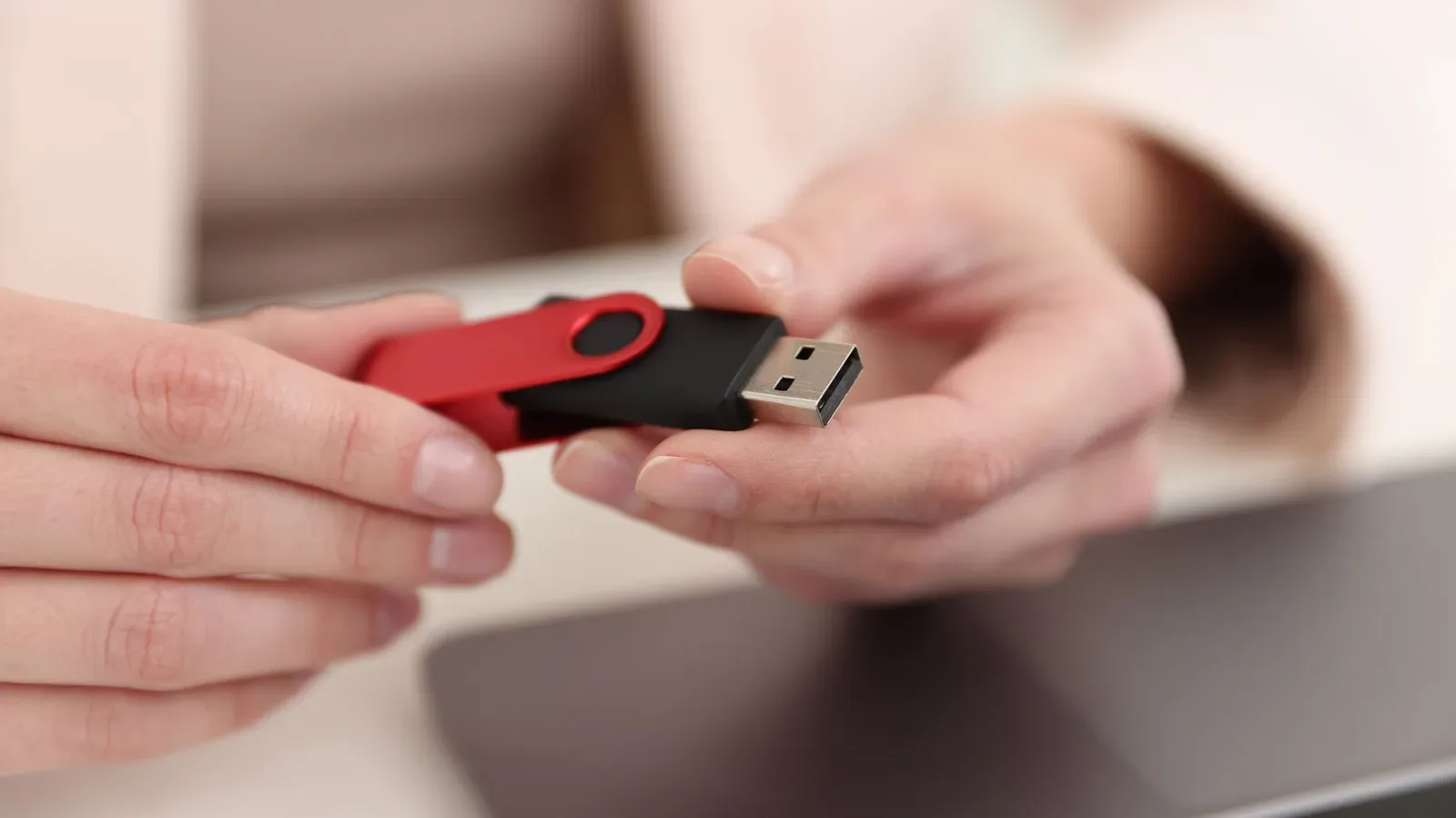
USB-A is one of those pieces of computer hardware that feels so familiar it barely seems to need an explanation. It is the wide rectangular connector on countless keyboards, mice, flash drives, controllers, charging leads and older peripherals. Yet its everyday presence is also why its label can create confusion: surely the “A” must reveal something important about speed, quality or power?
It does not. The “A” in USB-A is simply the Type-A connector designation. USB means Universal Serial Bus, while Type-A identifies the physical connector style. It is not a grade, a performance tier, an indication of “advanced” capability, or a guarantee that two ports will behave the same way.
That distinction matters on a gaming PC desk. A USB-A port may be ideal for a keyboard, mouse, headset receiver or controller. Another port with the same shape may be a much better choice for moving a large game capture or backup between an external SSD and a computer. The rectangular opening alone cannot settle that question.
The letter identifies the connector, not the capability
USB connector labels were created to distinguish physical connections and their roles in moving data and supplying power. In a traditional printer arrangement, for example, the square-ish Type-B connection is associated with the printer-side device connection, while the rectangular Type-A end plugs into the computer.
The same basic naming idea applies across USB-A, USB-B and USB-C: the letter tells you which connector type is involved. It does not independently state:
- the maximum rate at which files can transfer;
- how much charging power a port can provide;
- whether a cable carries data as well as power; or
- whether a given peripheral will get the best performance from that connection.
This is the key mental split to make when shopping, troubleshooting or sorting a drawer full of mystery cables. Connector type and connection capability are separate pieces of information. USB-A describes the plug or port shape. The relevant USB specification, plus the particular computer port and cable, determine what that connection can actually do.
That is also why seeing USB-A on both ends of a setup is not enough to predict the result. Two rectangular ports can look identical while supporting substantially different data rates. Likewise, two cables that fit the same USB-A port may not offer the same functions.
Why USB-A shape does not tell you its speed
A USB 2.0 connection has a maximum data rate of 480 Mbps. Faster USB-A implementations can support 5 Gbps or 10 Gbps. These figures describe the connection limits, not a promise made by the plug’s outline.
Related coverage includes What the “A” in USB-A Actually Means.
Mbps means megabits per second, while Gbps means gigabits per second. The important practical takeaway is simple: 5 Gbps and 10 Gbps are higher-speed connection capabilities than 480 Mbps. If a player is copying sizable video files, moving a game library, or working from an external SSD, choosing the right port and cable can make a meaningful difference to the wait. For low-bandwidth gear such as a conventional mouse or keyboard, the faster connection is generally unnecessary.
External storage provides the clearest use case. A fast external SSD is intended to transfer data more quickly than a basic input device needs to communicate. Plugging it into a slower connection can create a bottleneck: the storage device may be capable of more, but the link between the PC, port and cable limits the transfer. That does not necessarily mean anything is broken. It means the pieces of the connection have different ceilings.
The same caution applies to cables. A USB-A lead discovered in a drawer might support charging only, or it might support both charging and data transfer. Without markings or specifications, its capabilities are unknown. A cable’s ability to physically connect two devices should not be confused with proof that it can perform every task expected of it.
USB-C is not automatically fast, either
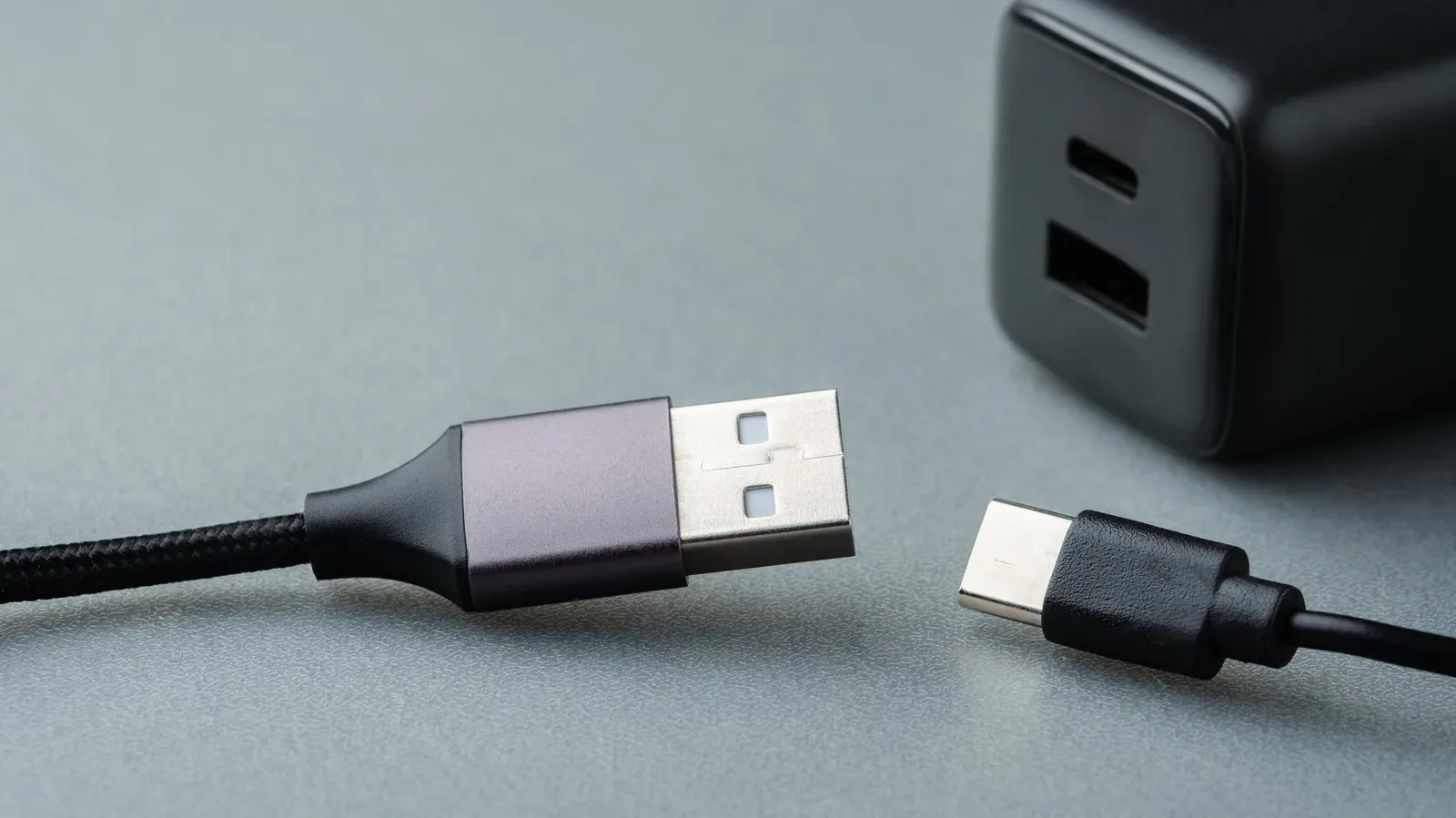
USB-C often gets treated as shorthand for modern, high-performance USB. Its smaller reversible connector and role as a platform for USB4 capabilities make it an increasingly common choice, especially where laptop space is limited. But the same naming principle applies: USB-C identifies a connector type, not an automatic performance level.
A USB-C connection can be limited to USB 2.0 as well. In other words, changing the shape of the plug does not, by itself, reveal its bandwidth. A USB-C cable and port should still be matched to their stated capabilities, just as USB-A equipment should.
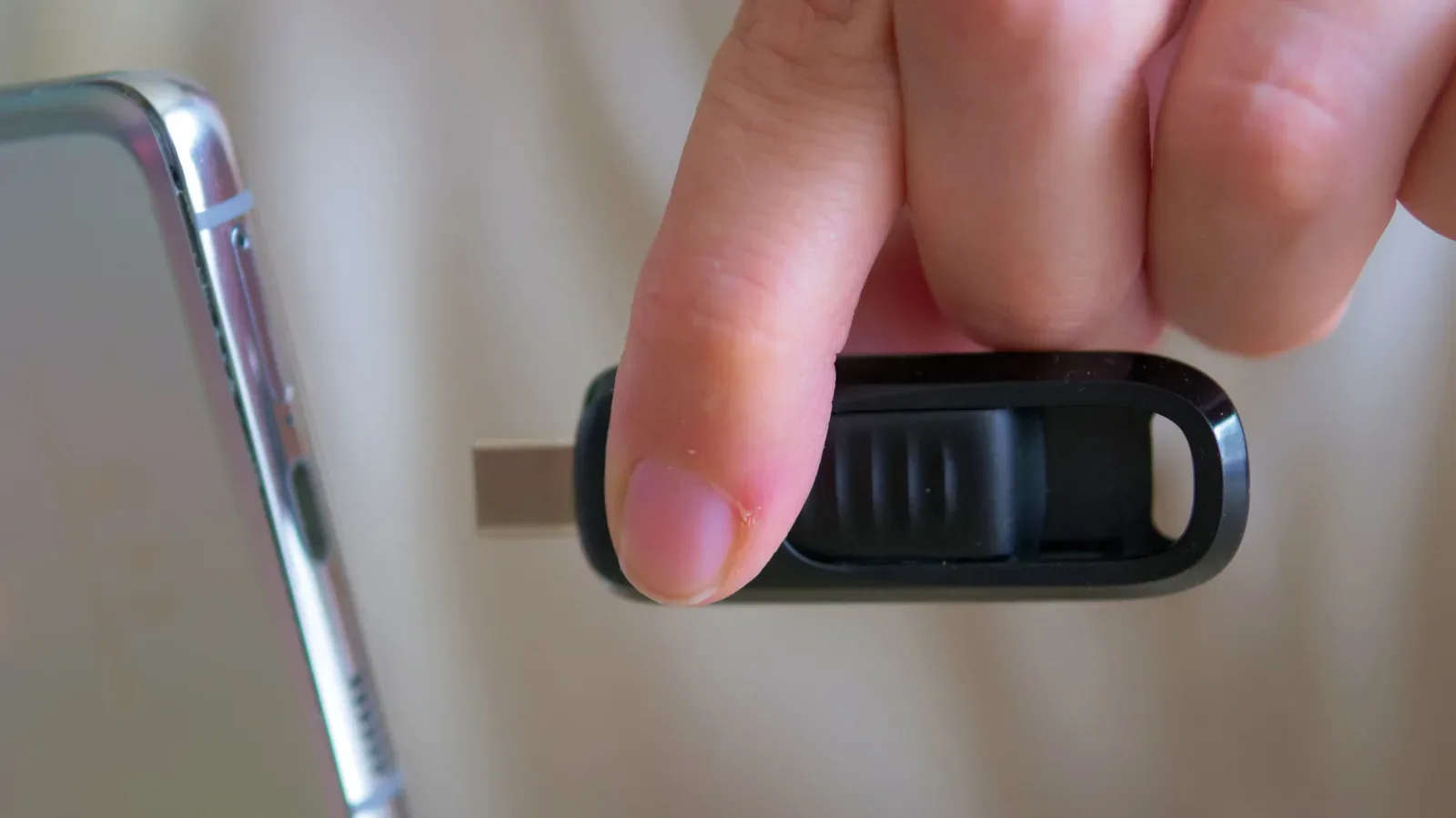
For gamers, this can be especially relevant when a newer laptop has several USB-C ports but an existing collection of Type-A peripherals. A USB-C-to-USB-A adapter can preserve the usefulness of a Type-A controller, keyboard, flash drive or receiver. The sensible question is not whether USB-A is old enough to discard. It is whether the adapter, cable and available port suit the job being performed.
How to choose the right USB port on a PC
The most useful approach is to start with the device rather than the connector shape. A keyboard, mouse and many wireless dongles ordinarily do not require the sort of bandwidth that an external SSD does. That creates an easy, practical hierarchy: reserve the connection with the needed performance for the device that can use it, and put basic input gear where it works reliably.
- Identify the device’s needs. A keyboard or mouse is different from an external SSD. Do not treat every USB device as though it needs the same transfer capability.
- Check the PC’s port markings. Ports may have symbols near them, including the familiar USB trident. A computer manual can also identify port capabilities.
- Check the cable, too. The port may support a faster connection, but an unknown or limited cable can still determine what the setup can do.
- Do not rely on color alone. Teal can indicate a faster USB connection, but port colors are largely manufacturer choices rather than a universal decoding system.
- Match all three parts. The device, cable and computer port need compatible capabilities for the intended result.
That final point is the one worth remembering. A connection is a chain. The device may offer a feature, the cable may or may not carry the necessary data, and the port may have a different limit. Looking at only one part of that chain can lead to a result that feels unexpectedly slow or incomplete.
There is also no need to treat USB port color as an infallible map. Color can be a helpful clue, but it is not a standard guarantee. Labels and product documentation are more useful evidence than assuming every blue, teal or otherwise colored socket means exactly the same thing on every PC.
USB-A is declining, not suddenly useless
USB-C is taking a larger role in current hardware. It is reversible, smaller, useful for compact laptops and associated with a connector platform that can support USB4 capabilities. Many newer PCs, particularly mid-range and higher-end systems, place more emphasis on USB-C than earlier generations did.
That trend does not make USB-A obsolete in practical terms. PCs and Macs still commonly include Type-A ports, even if they are no longer the centerpiece of the port selection. Existing keyboards, mice, flash drives and USB-A accessories remain useful when the computer provides the relevant port or an appropriate adapter.
For a PC gaming setup, this is good news rather than a crisis. The USB-A devices already on a desk do not need replacement merely because USB-C is more prominent in newer hardware. Keeping a USB-C-to-USB-A adapter available can add flexibility when a newer machine has fewer Type-A connections. Conversely, buying a USB-A device can still make complete sense when it matches the ports used most often.
The broader purchasing lesson is compatibility planning. Before buying another controller cable, storage device, hub or peripheral, inventory the ports that are actually available on the machine and the cables already in use. Then compare the connection requirements rather than judging from the letter on the plug. A Type-A connector can be completely adequate for a peripheral; a high-speed storage workflow may need more careful matching.
USB-A remains the familiar rectangular workhorse, while USB-C is becoming the more flexible physical connection for newer devices. Neither name alone tells the whole performance story. For a closer look at the physical design, see why the two square holes on a USB-A plug are there.
The short version for a crowded gaming desk
The “A” in USB-A means Type-A. That is all it means. It identifies the familiar rectangular connector, not whether a port runs at 480 Mbps, 5 Gbps or 10 Gbps; not whether a cable supports data; and not how much power a port delivers.
Use markings and documentation to establish what a port and cable can do. Treat color as a hint rather than proof. Give high-bandwidth devices such as external SSDs the connection they need, while letting lower-bandwidth gear such as keyboards and mice occupy whichever suitable USB port is convenient. And while USB-C is increasingly important, USB-A hardware that still meets a real need does not become waste just because the connector landscape is changing.