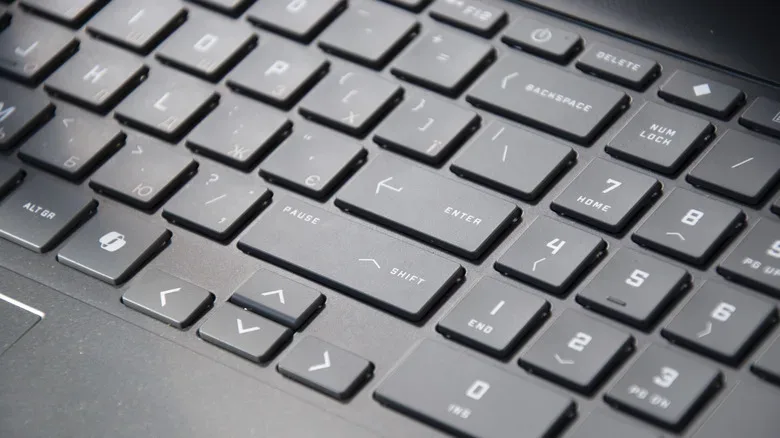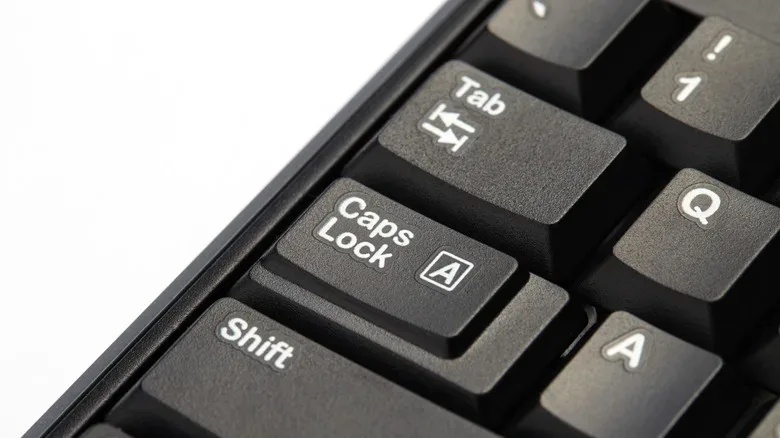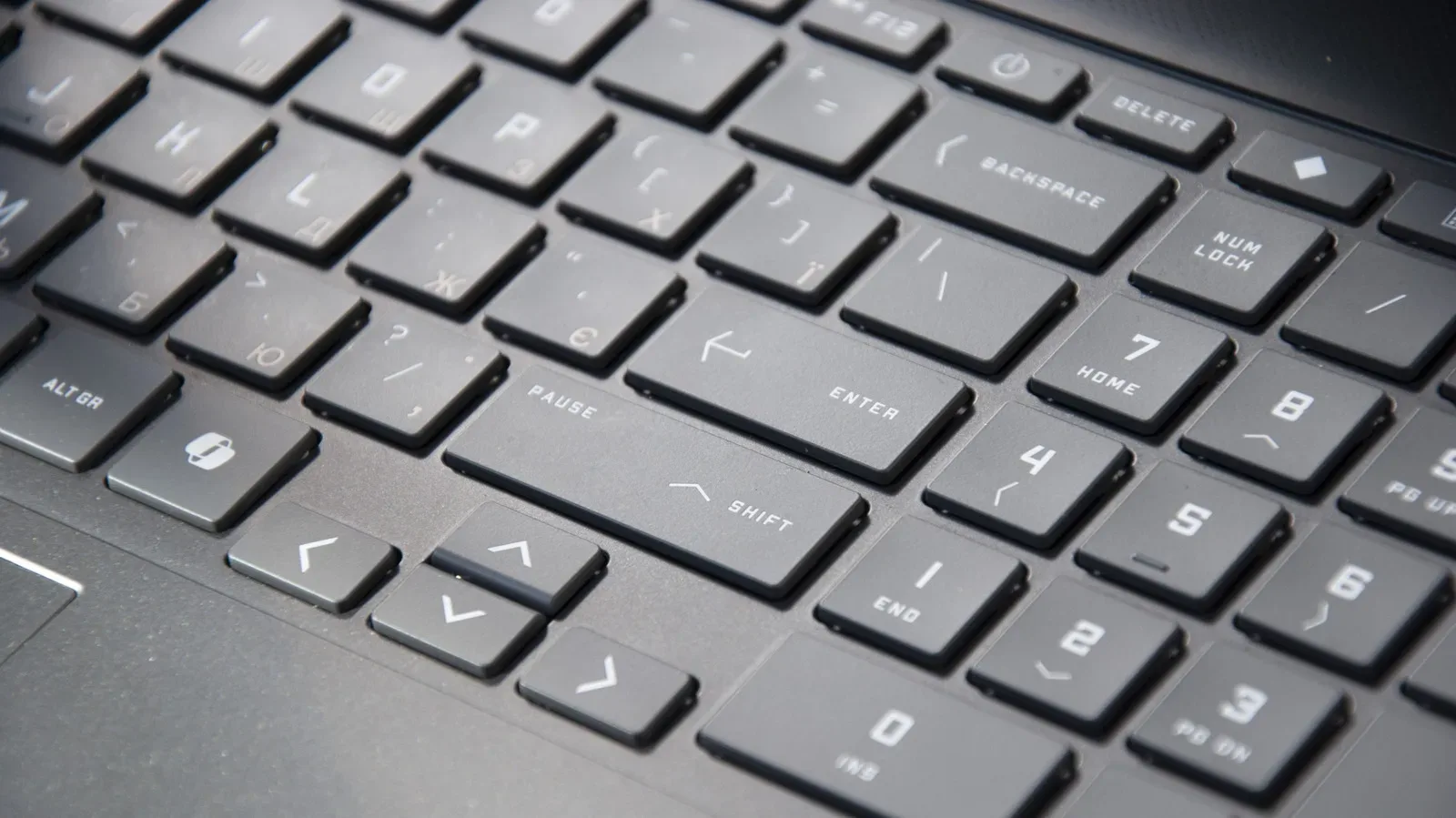
A keyboard is packed with valuable real estate, yet a surprising amount of it can go unused during an ordinary Windows day. Letter keys, number rows, Shift, Ctrl, Alt and the spacebar all earn their place. But keys such as Caps Lock, Insert, Scroll Lock, Pause/Break and some function keys can sit untouched for months—until one accidental press creates a minor, deeply irritating problem.
For PC players, that is a missed opportunity. A key positioned close to the action could become a media control, a useful shortcut, a second Backspace, or simply a disabled button that can no longer interrupt a match, a chat message or a spreadsheet. Windows users can make those changes with Keyboard Manager, a component in Microsoft’s free PowerToys suite.
The idea is not that every keyboard needs a complete rebuild. It is better to make a few deliberate adjustments around habits that genuinely slow you down. If Caps Lock regularly turns a message into an unintended shout, neutralize it. If a compact keyboard lacks dedicated media buttons, assign Play/Pause somewhere convenient. If a one-sided Ctrl or Alt key is all you ever use, its mirror-image partner may be ready for a new role.
Use PowerToys Keyboard Manager for reversible remaps
For most people, PowerToys is a practical starting point because its changes are easy to undo. PowerToys is available through the Microsoft Store and GitHub, and Keyboard Manager is one tool within its broader collection of Windows utilities.
After opening PowerToys, select Keyboard Manager in the sidebar and switch on Enable Keyboard Manager. From there, choose Remap a key, then use Add key remapping. Each row has two important fields: the physical key being replaced under Select, and the result it should produce under To send.
You can select a key by pressing it after choosing the selection control, or by locating it in the provided dropdown. Repeat the process on the destination side to define the new behavior. For example, setting Caps Lock as the selected key and Delete as the destination means a Caps Lock press performs Delete instead. It no longer toggles capitalization.
That approach can be repeated for multiple keys, but restraint helps. Start with one or two changes, use them long enough to decide whether they fit your muscle memory, then expand only if they are actually useful. A remap that looks efficient on paper can be inconvenient if it replaces a key you occasionally need.
Single keys are only the beginning
Keyboard Manager can send more than one ordinary key. It can map a button to a shortcut combination, including something such as Ctrl + Shift + Esc for opening Task Manager. The destination menu also includes less obvious controls, including Help, Play/Pause Media and Start Mail. Choosing Disable prevents the selected key from doing anything at all.
Related coverage includes How to Remap Underused Keyboard Keys in Windows.
There is also a text option. Change the send field from a key or shortcut to Send Text, enter the desired text, and the chosen key can type that text for you. It may be convenient for a repeated email address, a sign-off, a phone number or another short piece of routine information. For high-volume repeated text, dedicated text-expansion software such as Beeftext or a clipboard manager such as ClipClip can be better suited to the job.
PowerToys also offers Remap a shortcut, which is different from altering one physical key. This can change a shortcut across Windows or within a particular app. Someone who finds Ctrl + P awkward, for example, could move that action to Ctrl + Q. Be careful with familiar combinations, though: replacing a common shortcut can make a PC less intuitive for anyone else who uses it.
Keys worth reclaiming
The right candidates depend on the keyboard, the apps you use and whether your PC is mainly a work machine, a gaming rig or both. Still, a handful of keys are frequent candidates because they are either rarely needed or unusually easy to hit by mistake.
- Caps Lock: Unless all-caps text is part of your work, Caps Lock is often more disruptive than useful. A second Backspace is a sensible assignment because it adds an eraser key within reach of the left hand. Delete, Escape or Disable are other possibilities depending on your preferences.
- Insert: Insert switches between Insert and Overtype modes, but its behavior is not consistent in every application. If you have no use for it, moving a frequently used command here can make better use of the key.
- Scroll Lock: Scroll Lock has a specialized role affecting arrow-key behavior in Excel. People who do not rely on that behavior can consider Browser Favorites, Browser Home or another occasional command instead.
- Pause/Break: Pause/Break does very little in modern everyday Windows use. Win + Pause can open the About area in Settings, but that alone may not justify retaining a dedicated key.
- Unused left- or right-side modifiers: If one Ctrl or Alt key does all the work, the duplicate on the other side can be repurposed. This can be particularly useful where a full-size keyboard does not have separate media controls.
- Select function keys: F1 through F12 are uneven in usefulness. F5 remains familiar as a browser refresh command, while a key such as F9 may have no role in a given routine. Check the applications and games you use before replacing any function key permanently.
A keyboard with no built-in media controls is an especially clear use case. Mapping a seldom-used key to Play/Pause Media can give music or video playback a quick hardware-style control without replacing the keyboard. It is a small convenience, but a welcome one when a game, launcher, browser and voice chat are competing for screen space.
Think about gaming conflicts before you change anything
PC games often assign actions to keys differently, and some games expect traditional function keys or modifier keys. Before remapping a key, consider whether a title you play often uses it for inventory, screenshots, menus, push-to-talk or another in-game command. A global remap can change what the game receives, so it is wise to avoid altering keys that are important to a favorite game’s default controls.
For game-specific remaps, configuration utilities from major gaming keyboard brands such as Logitech and Razer can be an option. Their software is better positioned for profiles tailored to a particular title, while PowerToys is useful for broad Windows behavior.
It also helps to separate computer-wide quality-of-life changes from game controls. Turning Caps Lock into Backspace is a change likely to help in browsers, chat clients, documents and many games. Replacing F5 with a command intended for one game, however, could become frustrating when you want to refresh a webpage. The closer a remap is to a universal convenience, the safer it generally is as a global assignment.
Keyboard tuning is only one part of a smoother PC routine. When online sessions start feeling rough, basic network maintenance can matter too; restarting a router before the next online match is another straightforward habit worth understanding.
Know PowerToys’ limits before relying on a remap
PowerToys remaps apply to the current Windows user account. They do not apply at the Windows sign-in screen. They also rely on PowerToys continuing to run in the background: if its process is closed, the affected keys return to normal behavior. Enabling PowerToys at startup is important if you want the remaps to remain available after a reboot.
Those limits are also why PowerToys is approachable for experimentation. Switching the feature off temporarily removes all its key changes, providing a simple way to check whether a remap is helping or getting in the way. It is preferable to make a short list of changes, test your routine, and revise rather than trying to memorize an entirely reinvented layout overnight.
SharpKeys provides another route for Windows keyboard remapping, but it works by changing the Registry. That makes its remaps apply more broadly and makes them less convenient to reverse. Anyone considering that route should understand the difference: a registry-level change is not merely a personal PowerToys preference that disappears when the utility is turned off.
The goal is not to treat every dusty key as a problem. It is to make the keys beneath your hands better reflect the way you actually use a PC. A disabled accidental Caps Lock press, an extra Backspace, or one convenient media shortcut can remove a recurring annoyance without demanding a new keyboard—or a new set of habits.