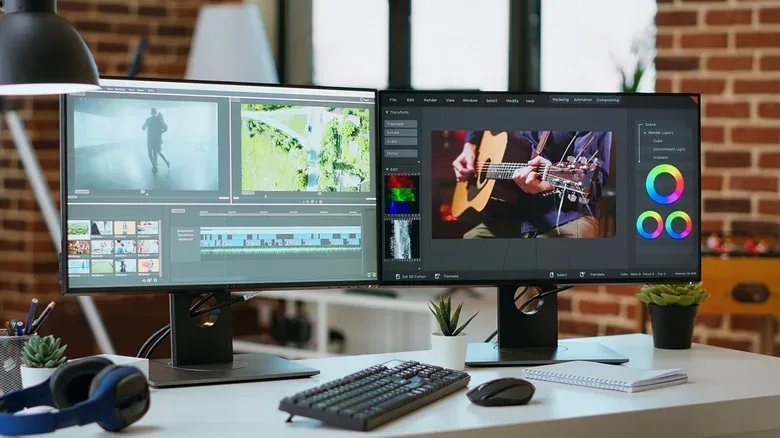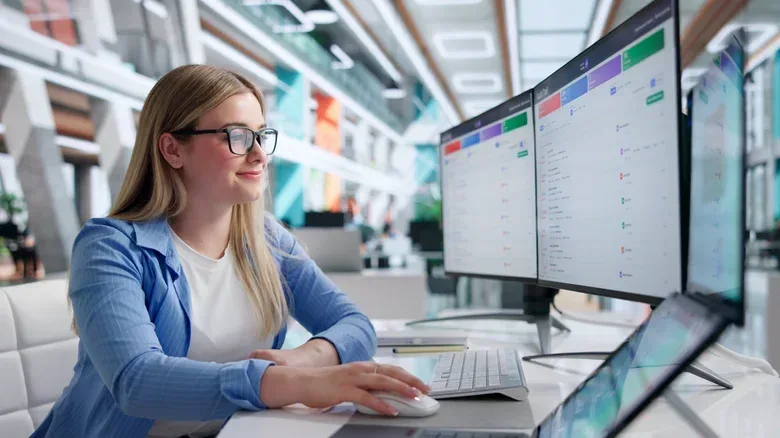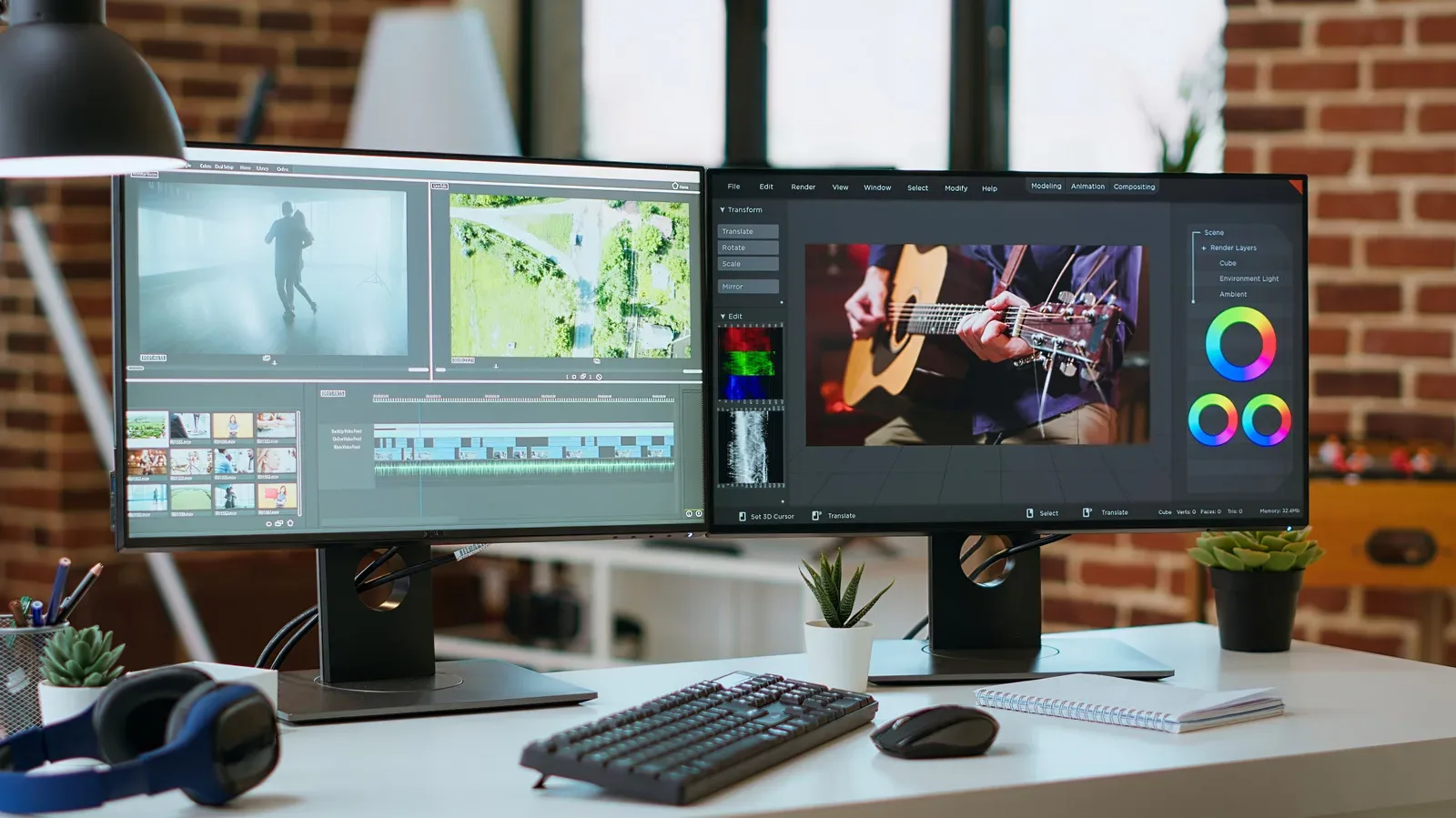
A second monitor is one of those PC additions that sounds extravagant until the first time it prevents a small but relentless annoyance: the constant shuffle between windows. A game, a Discord conversation, a browser tab, an inbox, a recording control panel and a note document can all fit into a normal day at a computer. On one display, each is competing for the same patch of pixels. With two, the important distinction is not simply that there is more screen space. It is that information can remain visible while the task in front of it keeps moving.
For PC players, that can mean running a game on the main screen while leaving chat, stream controls, recording software or a guide on the other. For work and school, it can mean writing in one window while reading a PDF or researching in another, without shrinking both into narrow half-screen panes. The arrangement is also useful for less glamorous jobs: copying details between documents, monitoring email, taking video-call notes, or keeping a communication app available without covering the thing being worked on.
Two screens are not automatically a productivity miracle, and they do not need to be. Their most practical value is reducing unnecessary context switching: the repeated action of minimizing, maximizing, locating and reopening the application needed next. If that sequence happens dozens of times in a session, a second display can remove a surprisingly large amount of friction.
Why a second screen changes the workflow
Screen real estate is the simple term for the usable visual area available for apps and files. A larger single monitor creates more of it; adding another display changes how that area can be organized. Rather than splitting one panel between a document and reference material, each can have its own full display. Text can stay at a comfortable size, and less time is spent resizing windows to make two tasks coexist.
Split-screen tools still have a role. They are an efficient option when a person has one display, and they can make it possible to write on one side while checking a browser or a PDF on the other. But a split layout necessarily makes both areas smaller. Two full-size monitors give each activity more room, which can be especially helpful with dense spreadsheets, long documents, creative software or data-heavy material.
The most useful setup is often not a pair of equally intense tasks. One screen typically becomes the active workspace while the other holds context: a chat window, email inbox, schedule, reference file, dashboard or a second browser. This division is valuable because the secondary information remains in sight but does not cover the active program.
That is why dual displays make sense well beyond specialist fields. Someone revising a resume can keep job listings open next to the document. Someone moving information between files can copy and paste without repeatedly changing tabs. A video-call participant can have the meeting on one display and notes on the other. A how-to creator can read a script on one screen while carrying out the steps on the main display.
The gaming case: keep the game where it belongs
Gaming is an obvious fit for a two-monitor desk, but the point is not that a second display makes every game run better. The supplied evidence does not establish any performance gain. The benefit is organizational: it gives supporting tools somewhere to live without pulling the game away from the main screen.
Related coverage includes Why a Second Monitor Can Make Everyday Computing Easier.
Players who record gameplay can leave their recording controls visible on the secondary monitor. Streamers can keep an eye on audience chat there. Discord can remain open without requiring a trip out of the game, and a browser can be available for information that would otherwise demand a phone, tablet or a string of alt-tab inputs. That can make a session feel less interrupted, even though the player is still managing the same tools.
It can also be useful in games whose communities generate discussion, clips and strategies at high speed. A player following competitive fighting games, for example, may want conversation and stream-related tools close at hand while playing. That broader culture can be every bit as entertaining as the matches themselves, as seen in the unusual story of a Tekken 8 player reaching God of Destruction while wearing a sleep mask. A second monitor will not supply that kind of skill, of course; it simply makes it easier to keep the surrounding apps separate from the game.
There is a sensible boundary to observe. Anything demanding close attention can become a distraction when it is permanently visible. The second panel is best viewed as a place for tools and information that are useful to glance at, rather than an invitation to divide attention between several equally urgent things. For some players, keeping Discord or recording controls available is a gain. For others, turning the display off during a focused session may be the better choice.
Two monitors versus more monitors
For most people, two displays are the practical middle ground. Some roles may gain from three or four: traders, programmers and people who need numerous sources of information visible at once are examples. But every additional monitor adds cables, desk space, window-management decisions and more potential distraction. The goal is not to build a command center for its own sake. It is to give frequently used windows stable places.
A simple starting arrangement is usually enough:
- Main display: the game, primary work document, creative project or main video call.
- Second display: chat, recording controls, email, a reference document, browser research or a notes app.
- Temporary task: move it to the second monitor only while it helps, rather than filling both screens with permanent clutter.
This approach is particularly effective for people who habitually keep many browser tabs open or use two separate browsers. One browser can serve the active task while the other holds research, accounts or reference pages. The physical separation makes it easier to recognize which windows belong to which activity, rather than treating every open tab as part of one sprawling workspace.
Buying and matching a second monitor
The second monitor does not always need the same premium specifications as the primary one. A high refresh rate matters most on the screen being watched most closely for fast-moving content. If the additional display is mainly for email, chat, documents, stream management or static reference information, a more affordable option can be entirely appropriate.
That said, mismatched displays can make a desk less comfortable to use. Two considerations deserve particular attention: size and pixel density. Pixel density describes how tightly pixels are packed into a display. Matching it between screens helps text and images appear at similar physical scales. When density differs substantially, moving a window across the desk can make its text look unexpectedly larger or smaller, even when the software itself has not changed.
Matching sizes also creates a more seamless visual arrangement. It is not a strict requirement, but monitors with similar dimensions are easier to align at the same height and tend to make the mouse transition between displays feel more intuitive. If an exact match is unavailable, placing the displays so their top edges or their most-used viewing areas line up can still improve the experience.
Brightness and contrast are worth adjusting after both screens are connected. Brightness controls how light the display appears, while contrast is the distinction between light and dark parts of the image. Two displays can look noticeably different out of the box. Bringing them closer together can make moving between them less jarring, especially when the setup is used for long stretches.
Setup checks before committing to the desk space
Before buying anything, confirm that the computer can connect to two external displays. The supplied guidance is straightforward: the computer needs two video outputs and the appropriate cables. This is where an otherwise good monitor plan can become needlessly complicated. The ports available on the computer and displays determine the cable arrangement, so compatibility is a practical first check rather than an afterthought.
Laptop users have an additional decision. A laptop can be part of the display layout, or it can be closed while external monitors do the visual work. If it will be closed, the system may need to be configured to remain running with the lid shut. The provided information notes that modern MacBooks can support at least two monitors, but capability should still be checked for the particular setup being considered.
Mounting hardware can help put both monitors at the same level and free some desk space, while cable management makes the arrangement easier to live with. Neither changes what the computer can do, but both can prevent a useful upgrade from becoming a cluttered one. A tidy route for power and video cables also matters when the desk must accommodate controllers, microphones, keyboards or other gaming gear.
Comfort matters as much as additional pixels
Adding a second display changes where the eyes and head move during the day. It is worth considering viewing distance and eye height before settling on a layout. Screens that sit at an uncomfortable height, or that force a persistent twist toward one side, can make extra workspace feel like extra effort.
Aligning the displays at a similar level is a useful baseline. The main screen should occupy the position where attention naturally spends the most time; the secondary one can be positioned for quick glances. This reflects the actual division of labor in most dual-monitor setups: the second panel supports the main task instead of replacing it.
There is also a small organizational advantage to using a monitor instead of a phone or tablet as the auxiliary screen. A dedicated display can hold the reference material, chat or inbox without putting a mobile device in reach as a competing source of alerts and distractions. It can even replace some printed reference documents, reducing paper and the physical clutter those pages create on a desk.
When a second monitor is worth it
A second monitor is most compelling for people who regularly need two applications or information sources at once. The strongest use cases are clear: working from a document while consulting another, communicating during a task, managing recording or streaming tools while gaming, reviewing a script while demonstrating a process, or monitoring an inbox without repeatedly abandoning the active window.
It may be less important for someone who uses a computer only briefly, focuses on one full-screen task at a time, or lacks room for a comfortable layout. But it does not need to be active every hour to justify its place. Its value comes when a task suddenly benefits from keeping the relevant information visible instead of burying it behind a stack of windows.
For gaming and everyday PC use alike, that is the real appeal of the dual-monitor setup. It is not about having a more elaborate desk. It is about making the computer behave less like a single crowded surface and more like a workspace with room for the thing being done and the information needed to do it.