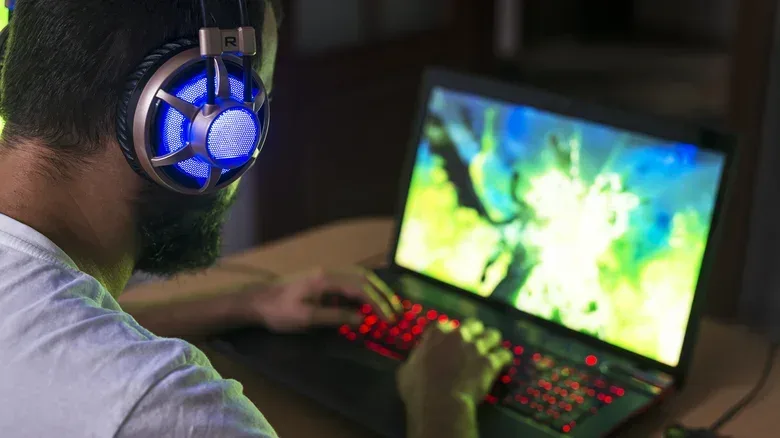
A laptop that suddenly sounds ready for takeoff can turn a quiet gaming session, study block, or video-rendering job into an unwanted noise test. The reassuring news is that loud fans are not automatically evidence of a broken machine. In many cases, particularly on gaming laptops, the noise means the cooling system is doing exactly what it was designed to do: moving heat away from components that are being pushed hard.
The less reassuring part is that context matters. A fan racing while a demanding game is hammering the system is one thing. A laptop roaring while only a few browser tabs are open is another. And a rattle or buzz is not the same as ordinary high-speed airflow. Learning the difference can help owners avoid panic when noise is normal, while also recognizing when a repair professional or manufacturer should enter the chat.
Why gaming laptops can get so loud
The central issue is heat. A laptop’s CPU, or central processing unit, handles general computing work. The GPU, or graphics processing unit, handles graphics-intensive work and can be heavily involved in games, visual effects, and certain demanding productivity tasks. Both create heat when under load. A laptop’s fans spin faster to move air through the system and prevent its internal temperatures from climbing too high.
That compact chassis is the important constraint. Gaming laptops put powerful hardware into a portable design, so their cooling systems can become conspicuous when modern games demand sustained CPU and GPU performance. A graphically intensive title, especially one using ray tracing, can put pressure on both chips at once. Ray tracing is a rendering technique used for advanced lighting and reflections; in practical terms here, it is one of several options that can make a GPU work harder and, consequently, make fans louder.
The same principle applies outside games. A workstation laptop dealing with 4K video rendering can become very noisy when GPU use rises. Fan volume is therefore not a clean measure of whether a laptop is healthy. It is more accurately a clue about the work it is doing, the heat it is trying to move, and the efficiency of its airflow.
High-performance modes can make this tradeoff even more obvious. Many gaming machines offer a Turbo mode intended to prioritize performance. That can mean a louder cooling profile, because the machine is allowing or pursuing more demanding operation. The source material notes that an ASUS ROG Zephyrus G14 in an RTX 5080 configuration can exceed 50 dB in Turbo mode. That is distracting in a quiet room, but it is not, by itself, evidence that the laptop has failed.
When loud is normal—and when it deserves attention
The first question is simple: what is the laptop doing when the fan becomes loud? If it happens during a demanding AAA game, heavy rendering, or another intensive task, fast fan speeds are generally normal. Loud cooling can be annoying, but it is preferable to the instability that can result when a GPU overheats. In that scenario, the fan is a loud coworker doing essential work, not necessarily an alarm bell.
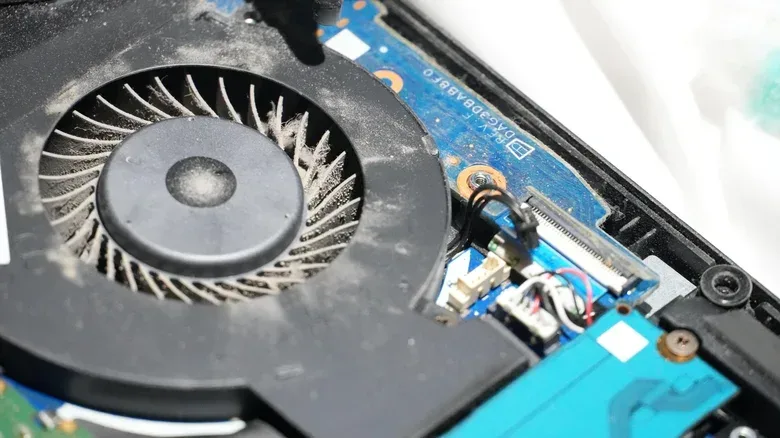
The more concerning pattern is a fan that stays at maximum speed while the system is doing very little. If CPU and GPU usage are low but the laptop sounds like it is tackling a major game, the problem may be restricted airflow from dust. Dust can accumulate around fan blades and interfere with airflow, meaning the system may have to work harder to cool itself.
Software activity can also be relevant before assuming a hardware issue. Background processes can place unexpected demand on a system, which in turn can make fans work harder. Windows users can open Task Manager, check CPU usage, and close applications they do not need. This is a useful first check because it connects the fan noise to actual system activity rather than guessing from sound alone.
Noise quality matters as much as volume. A steady whirr under load is different from rattling or buzzing. Irregular mechanical noises can suggest a damaged internal fan bearing. That deserves prompt attention because a fan that cannot cool properly may contribute to overheating, instability, crashes, or shutdowns. In that situation, contacting the manufacturer or taking the laptop to a qualified repair specialist is the sensible route.
A quick way to assess the situation
- Consider the workload. Are you running a demanding game, using ray tracing, rendering 4K video, or doing another intensive job? Loud fans are more expected in these conditions.
- Check background activity. Look at CPU usage in Task Manager and close programs that are not needed.
- Listen for the type of sound. Fast, steady airflow is not the same as rattling or buzzing.
- Look at where the laptop is sitting. A soft surface can obstruct its vents and force the fans to compensate.
- Escalate unusual symptoms. Persistent full-speed fan operation during light use, or irregular mechanical sounds, justify expert help.
Airflow is not optional
Even a healthy cooling system needs access to air. A laptop placed on a desk or another flat surface has a better chance of keeping its intake and exhaust paths clear. Using it on a bed, or even directly on a lap, can obstruct ventilation and increase fan noise. That does not mean every loud fan is caused by a cushion ambush, but it is an easy condition to rule out.
Ambient temperature matters too. During warmer weather, the surrounding air is warmer, so the cooling system has to work harder to manage the heat generated inside the laptop. The fan is not merely reacting to the game or application; it is working within the conditions around the machine.
Dust is a separate airflow concern. If buildup is suspected, the appropriate remedy described here is professional cleaning: a repair specialist can remove the lower case and use compressed air on the fans. That recommendation is especially useful because laptops vary in construction, and an unnecessary do-it-yourself teardown can introduce other problems. If a user is unsure whether the noise is ordinary performance behavior or restricted airflow, professional inspection is a practical way to resolve the uncertainty.
How to make the noise less brutal
Reducing fan noise generally means asking the laptop to use less power or generate less heat. That comes with a straightforward tradeoff: quieter operation may mean lower performance. For games, the goal is not necessarily to eliminate fan sound altogether. It is to choose a performance level that fits the game, the room, and the player’s tolerance for the laptop’s tiny internal wind tunnel.
Use a quieter Windows power mode
On Windows, go to Settings > System > Power & battery > Power mode and select Best power efficiency. Better power efficiency can improve battery behavior and reduce cooling demand, which can reduce fan noise. It is an especially logical setting for browsing, schoolwork, videos, or other tasks where maximum performance is not needed.
Gaming laptops may also include manufacturer software with profiles that alter system behavior. The ASUS Zephyrus G14, for example, includes a Quiet profile in Armoury Crate. Such profiles offer a more direct choice between performance and noise, although the exact options vary by laptop.
Lower the game’s demands
For players, in-game settings are often the most effective noise control. Capping a game at 60 FPS rather than allowing uncapped frame rates can reduce performance demand. FPS means frames per second: the number of individual images the system renders each second. An uncapped frame rate can make the GPU keep working to produce as many frames as it can, while a cap gives it a defined target.
Other useful levers include disabling ray tracing and reducing a game’s internal resolution. Lowering these graphics demands reduces strain on the GPU, which can let the laptop run more quietly. The appropriate setting is personal: competitive play may favor higher performance, while a single-player session may feel better with a frame cap and a room that no longer sounds like an airport gate.
This is also a reminder that cooling noise and game settings are connected. If a laptop becomes unpleasantly loud only in one title, that does not automatically point to a defective fan. It may simply be the title or its selected settings demanding substantially more from the hardware than other games do.
Noise is only one part of PC care
Fan behavior is one indicator of a gaming PC’s working conditions, alongside sensible power settings, clear ventilation, and attention to unusual sounds. It also sits within a broader care routine: power events can pose their own risks even when the system seems otherwise healthy. For more on that separate issue, see why unplugging can matter when a blackout hits a gaming PC.
Ultimately, a loud fan during a demanding game is usually a sign that the laptop is actively protecting its internals from heat. The real red flags are mismatch and mechanical change: maximum fan speed when the computer is barely working, airflow trouble that does not improve, or rattling and buzzing instead of a steady rush of air. Start with workload, background tasks, power mode, game settings, and a hard flat surface. If the symptoms do not fit the workload—or sound physically wrong—leave the next step to an expert.