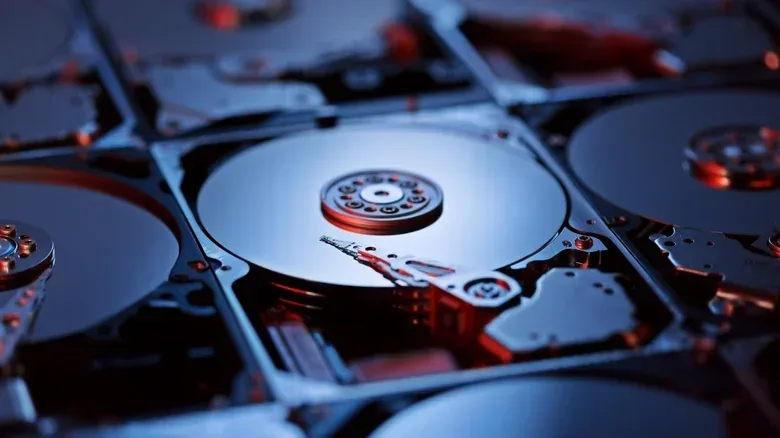
Old hard drives have a peculiar way of becoming tech-drawer fossils. A 500GB or 1TB disk that once seemed enormous can feel too cramped for a modern PC, particularly when game installs, captured footage, downloads and project files all compete for space. Yet a drive that is no longer compelling by itself does not necessarily need to be discarded. Combining multiple disks into a RAID array can turn that scattered capacity into a single, more useful storage volume.
For PC players, this is primarily a storage-planning idea rather than a magic performance upgrade. A hard-drive RAID can provide faster transfers than a conventional single hard disk, but it will not reach SSD speeds. Its bigger appeal is organization and, with the appropriate RAID level, resilience when a single drive fails. That distinction is important: RAID can reduce the disruption caused by a disk failure, but it is not a replacement for a separate backup.
That makes an old-drive array potentially useful for game libraries that do not need to sit on a primary SSD, archived recordings, larger video files, or other data that benefits from being consolidated. Before committing any files, however, it is essential to understand that the word RAID describes several very different layouts. Some chase capacity and throughput; others reserve substantial capacity so the same data exists in more than one place.
Players preparing a PC for a massive new release are already likely to be weighing capacity against faster storage. Our GTA VI launch storage checklist covers the wider preparation question; RAID is one possible way to give otherwise underused hard drives another role, rather than an automatic answer for every install.
RAID, explained without the acronym fog
RAID means Redundant Array of Independent Disks. At its simplest, it is a method of making two or more physical disks operate as one storage unit. Rather than treating every old drive as an isolated letter in a file browser, the computer distributes data across the collection according to the RAID layout selected.
The phrase “according to the layout” does most of the work here. Different levels decide whether data is split between drives, duplicated on them, or arranged with information that can help reconstruct data after a failure. The source material identifies four common choices: RAID 0, RAID 1, RAID 5 and RAID 10. They do not offer interchangeable combinations of capacity, speed and protection.
For a gaming PC, it helps to separate two goals that often get blended together:
- Performance and capacity: using multiple disks to make one bigger volume and improve hard-drive transfer performance.
- Redundancy: retaining access to data when a drive in the array stops working.
Those goals can coexist in some layouts, but the protection always has a trade-off. If every byte must be copied somewhere else, not all raw capacity remains available for files. If the array prioritizes its full combined capacity and distributes every file across disks without protection, a single disk failure can take the whole array with it.
RAID 0: capacity and speed, with no safety net
RAID 0 is the straightforward choice for combining drives into one large volume, but it is also the riskiest of the common configurations. It uses striping, which means splitting data across multiple disks. Because the disks work on portions of the data together, reads and writes can be faster than those of one conventional hard drive. The array also combines the total capacity of its member drives.
This can make sense where faster hard-drive transfers and maximum usable space are the only priorities. Large video files and databases are examples of workloads that can benefit. A player could view it as a way to pool old drives for a broad, less critical library or file collection.
But RAID 0 has no parity and no redundancy. A failure of any drive means losing the array’s data. This is not merely a small compromise on a system made from aging hardware; it is the defining limitation of the setup. If the data matters, RAID 0 needs a full backup elsewhere. If recreating or re-downloading the content would be frustrating but acceptable, the risk may be easier to tolerate. The decision should be deliberate, not hidden behind the comforting word “RAID.”
RAID 1: the simple reliability-first route
RAID 1 takes the opposite approach. It writes the same data to every disk in the array, a process commonly described as mirroring. If a disk fails or disconnects, the other mirrored disk still contains the files. That is the practical benefit for anyone whose project files, saves, recordings or other material would be genuinely painful to lose.
The capacity cost is easy to understand in a two-drive RAID 1 array: two 1TB disks yield 1TB available for storage, not 2TB. Half of the raw space is used to keep the second copy. The array may offer faster speeds as well, but its defining reason to exist is the duplicate data, not a promise of SSD-like responsiveness.
RAID 1 is therefore a more natural fit for an old-drive project where data continuity outweighs squeezing every available gigabyte from the drawer. It also illustrates the core RAID trade: redundancy uses capacity. Anyone choosing it should look at the usable size, rather than simply adding up the labels on the drives.
RAID 5 and RAID 10 add options—and complexity
RAID 5 introduces a different protection mechanism. Data is divided into blocks and written across several disks, with the arrangement allowing the system to reconstruct missing data using the remaining drives and algorithms if one disk fails. It requires at least three drives. That minimum alone makes it less approachable for someone who only has a pair of retired disks, but it can be relevant when the collection is larger.
The important practical point is that RAID 5 is designed to withstand one drive failure, not every possible failure scenario. It can protect the array through the loss of one member drive, which is valuable, but it still should not be described as a complete backup plan.
RAID 10 combines ideas associated with RAID 0 and RAID 1. Drives are organized into mirrored pairs, while the wider configuration uses the paired structure to combine performance and duplication. A single-drive failure can be handled, but the location of failures matters. If a mirrored pair fails, the data can be lost. This is the kind of detail that makes a RAID label insufficient on its own: “redundant” does not mean invulnerable.
For a first array assembled from leftover hardware, the choice is less about finding the numerically highest RAID level and more about matching the layout to the data. RAID 0 offers pooled capacity and speed but zero protection. RAID 1 gives a direct, easy-to-grasp mirror at a 50% capacity cost. RAID 5 needs at least three disks and can reconstruct after one failure. RAID 10 uses mirrored pairs and has its own failure constraints.
Software RAID versus a hardware-based setup
There are multiple ways to create the array, and the path depends on both the computer and its operating system. A software-based setup connects two or more drives to a computer and creates the RAID through software. This is generally the easier approach, though performance is not optimal.
On macOS, Disk Utility supports RAID 0 and RAID 1 arrays. Windows has Disk Management, while StableBit DrivePool and SnapRAID are paid software options with additional features. The key takeaway is not that one utility is universally correct; it is that the operating system and chosen tool shape which configurations are available and how they are managed.
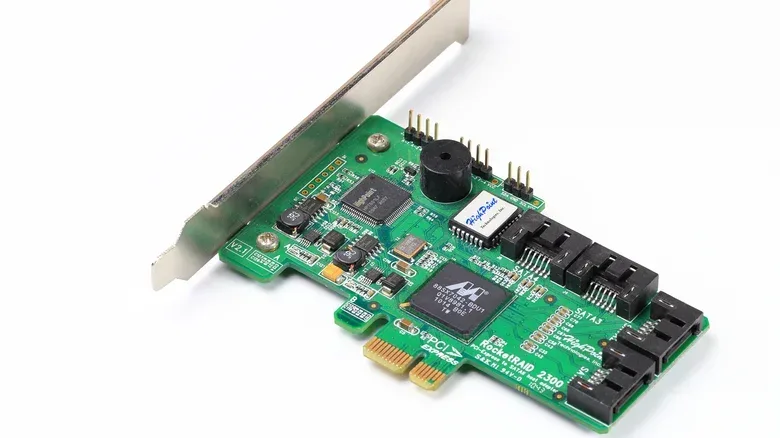
A hardware-based route uses dedicated RAID controllers. These can better protect drives against failures and offer better performance, but they add setup complexity. One approach is buying a RAID controller for installation on the motherboard. That may suit an enthusiast who wants a more dedicated arrangement, but it is a bigger project than simply attaching old disks and enabling a software configuration.
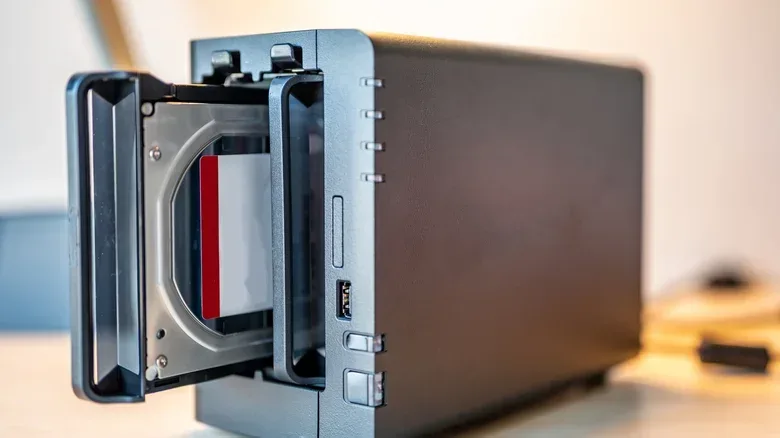
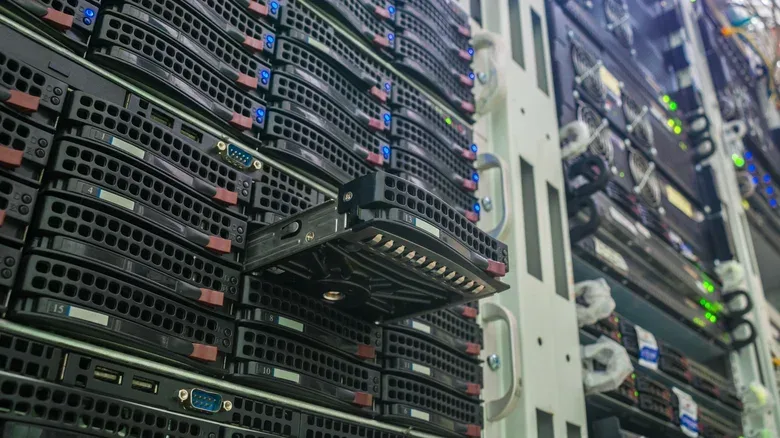
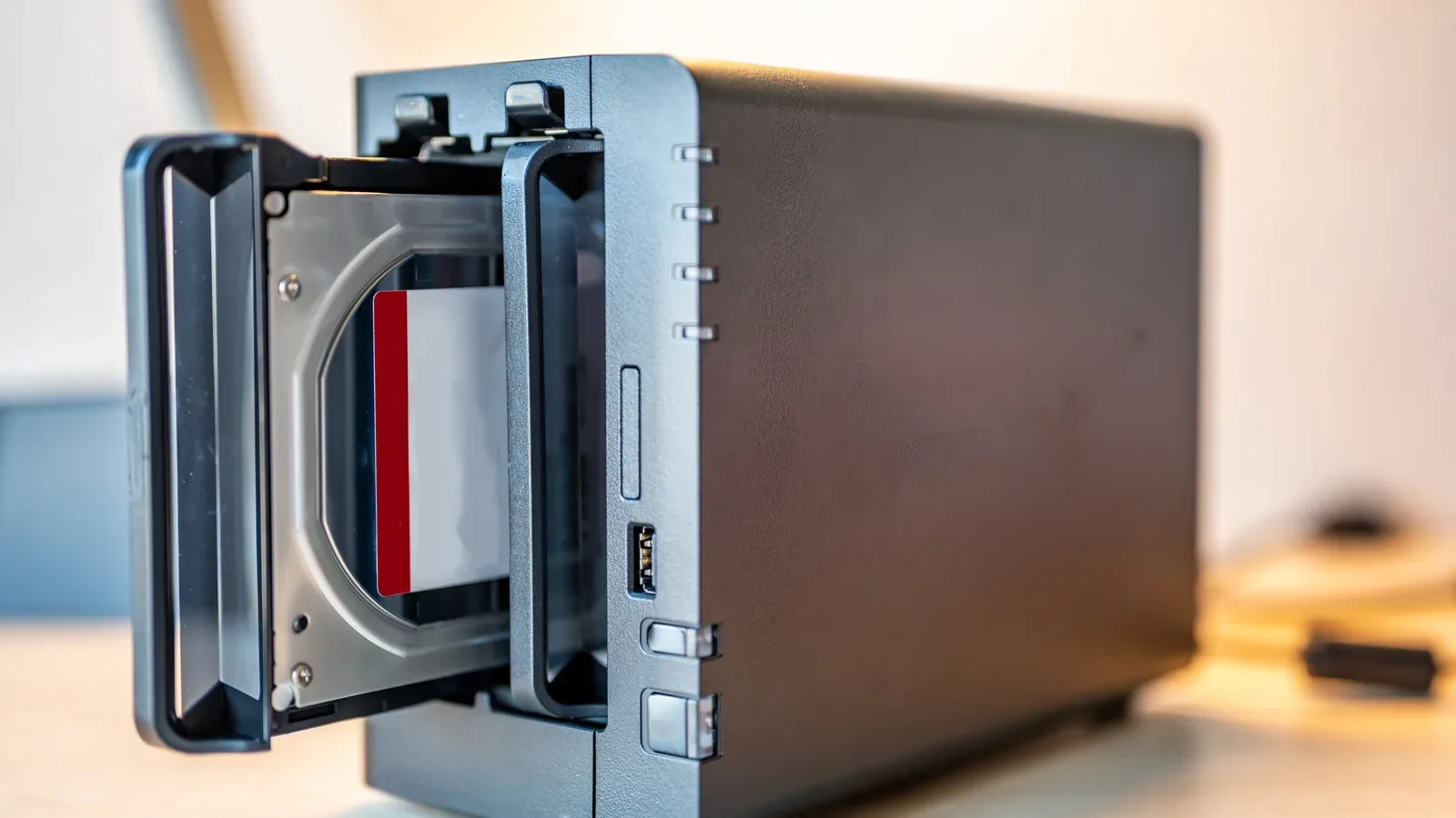
A RAID enclosure is another hardware option, especially relevant when adding a controller inside a computer is inconvenient or when using a mini PC. Such enclosures typically include a RAID chip: install the drives in the enclosure and connect it to the computer. It is a cleaner proposition on paper, but specifications still matter. Maximum supported capacities and connection speeds should be checked before purchase. A connector alone does not guarantee high speed, much like a USB-C accessory cannot be judged solely by the port shape.
A sensible checklist before repurposing the drive pile
The attraction of RAID is that it extracts more purpose from hardware that seems too small in isolation. The caution is that an array turns separate disks into a shared system, so a poor choice can also concentrate risk. Before moving files, consider these questions:
- What is the data worth? If losing it is unacceptable, RAID alone is insufficient; maintain a separate backup.
- Is capacity or redundancy the real goal? RAID 0 prioritizes combined space and faster transfers, while RAID 1 sacrifices half of two-drive capacity for mirrored data.
- How many drives are available? RAID 5 needs a minimum of three drives, whereas RAID 0 and RAID 1 can begin with two.
- What setup is practical? Software RAID is usually the easier starting point. A controller or enclosure can offer a more hardware-focused route but requires attention to compatibility, maximum capacity and speed.
- What should live there? The answer may be a secondary game collection, archives or large files rather than the applications for which SSD-class performance matters most.
The old-hard-drive RAID is best understood as a measured repurposing project. It can bring stray capacity together, improve on a lone conventional disk’s transfer behavior, and—in the right configuration—keep a single failed drive from immediately becoming a data-loss event. It cannot make spinning disks perform like SSDs, and it cannot eliminate the need for backups. Once those limits are clear, the drive drawer looks less like clutter and more like a set of components with a few genuinely useful second acts.