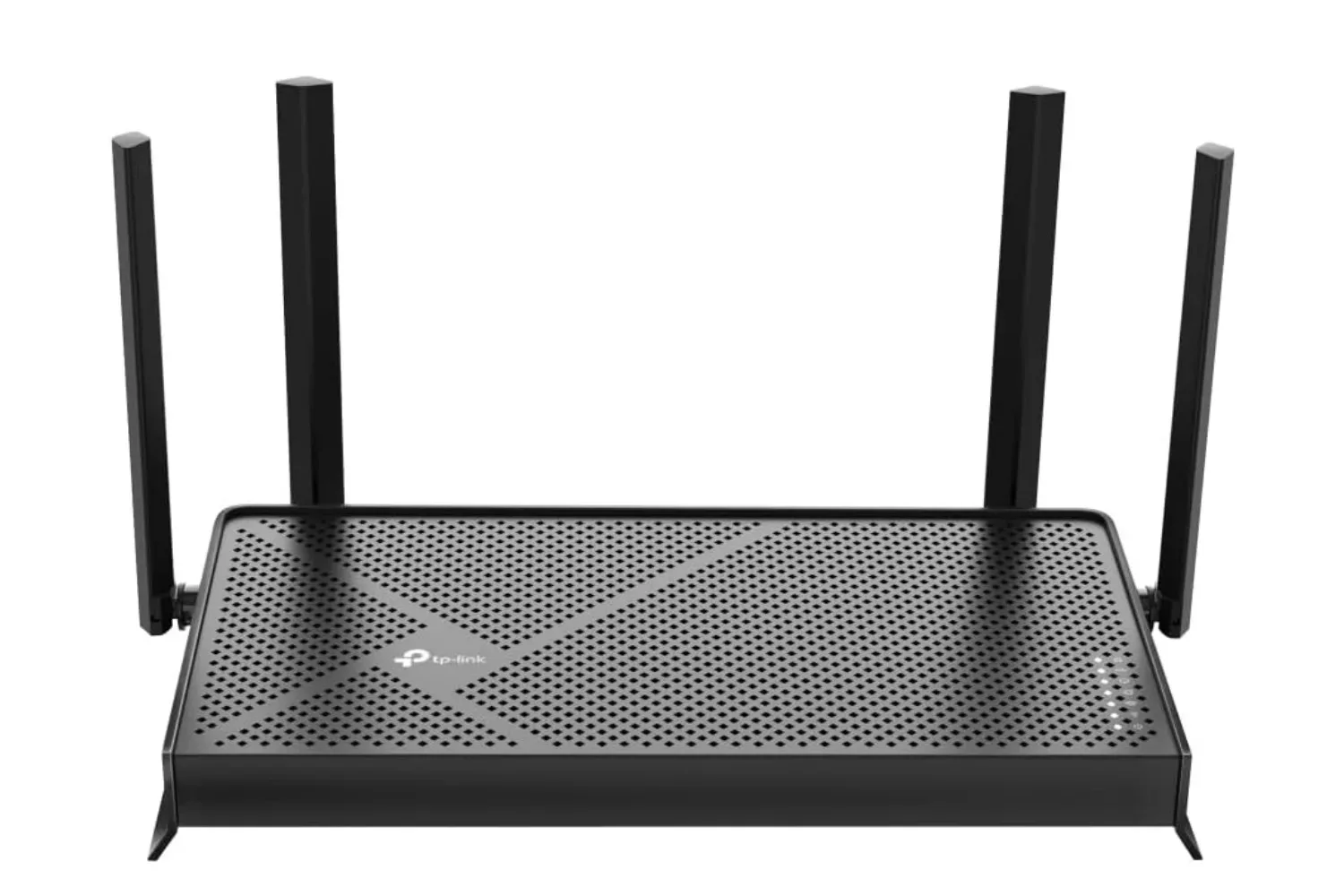
Multi-Link Operation, usually shortened to MLO, is one of the more ambitious features attached to Wi‑Fi 7 routers. Its basic promise is appealing: rather than treating each Wi‑Fi frequency band as a separate lane and moving a device from one to another, an MLO-capable network can use multiple bands for the same connection. In principle, that could mean faster transfers, steadier responsiveness, and fewer of the awkward moments where a device seems to cling to a busy wireless band.
That promise matters to PC and console players, particularly in homes where gaming shares a network with streaming, downloads, video calls, and a growing pile of connected devices. But MLO is not a simple “new router equals instant upgrade” switch. The feature depends on the particular MLO implementation in the router, the access points in the network, and—crucially—the Wi‑Fi capability of the device trying to connect.
For many households, enabling MLO today may produce no useful benefit at all. In some mixed-hardware setups, it can create instability instead. The practical answer is therefore less exciting than Wi‑Fi 7 marketing: check what your equipment supports, then test the setting rather than assuming it should always be on.
What Multi-Link Operation is meant to do
A Wi‑Fi router communicates across frequency bands. Earlier generations commonly relied on automatic band steering, where the router decides which available band should serve a device and moves that device when it thinks another option will be better.
Band steering can be useful, but it is still fundamentally a handoff. A device may wind up on a crowded band, or experience disruption while the network changes its connection from one band to another. Those transitions are one reason a connection can feel inconsistent even when the router itself is relatively close and the broadband line is otherwise healthy.
MLO, a feature introduced with Wi‑Fi 7, is designed to take a different approach. Instead of merely selecting one band and later switching, it is intended to let the router connect across multiple frequency bands at the same time and divide traffic between them. Properly delivered, that means data being sent and received across all three bands rather than depending entirely on a single route.
The key word is intended. MLO describes a capability with more than one implementation, and those implementations do not offer the same behavior. A router menu that says “MLO” does not automatically mean the network is simultaneously carrying a device’s traffic on multiple radios.
Two MLO approaches that should not be confused
The strongest version of the feature is called Simultaneous Transmit and Receive. This is the version most people picture when they hear MLO promoted as a speed and stability feature. It uses multiple router radios to connect to several bands concurrently. In theory, the router can spread traffic across those connections, avoiding the all-or-nothing nature of a conventional band switch.
Related coverage includes What MLO Means on a Wi-Fi 7 Router—and When to Leave It Off.
The other approach is Enhanced Multi-Link Single Radio. Rather than operating several radios in parallel for the connection, this method uses one radio that monitors available bands and changes to the best option. The goal is to avoid the signal interruptions that can accompany traditional band steering, but it is not the same thing as full multi-radio operation.
That distinction is the central reality check for buyers and upgraders. In testing reported in February 2026, no Wi‑Fi 7 router was found to support the full multi-radio form of MLO. Enhanced single-radio behavior may still be an improvement over older steering techniques, but it should not be mistaken for the complete simultaneous-band experience suggested by the broadest descriptions of MLO.
In other words, a Wi‑Fi 7 router may support an MLO setting while not delivering the particular MLO benefit a buyer expects. This is not just terminology. It affects whether a setting can change throughput or consistency in a meaningful way on an actual home network.
Why client compatibility is just as important as the router
Wi‑Fi features are a conversation between network hardware and the connected client. A router can advertise a Wi‑Fi 7 capability, but a phone, laptop, desktop network card, or other device must support Wi‑Fi 7 to use MLO. Older clients do not gain MLO simply because they are connected to a new router.
This is especially relevant when upgrading only one part of a network. A household may replace its primary router while retaining Wi‑Fi 6 or older access points elsewhere. Any device connected through a Wi‑Fi 6 access point will not receive MLO’s benefits, because MLO is a Wi‑Fi 7 feature. The same limitation applies to a gaming PC or laptop whose wireless hardware is not Wi‑Fi 7 compatible.
That makes MLO less of a one-box upgrade and more of an ecosystem feature. To give it a meaningful chance of helping, the connection path needs compatible Wi‑Fi 7 hardware where it counts: the router or access point serving the device, plus the device itself. A mixed network can still work perfectly well, but its older links set clear limits on where Wi‑Fi 7-only features can apply.
Compatibility also changes the risk calculation. Enabling MLO when the devices you use are not equipped to take advantage of it can introduce network instability. That is a poor trade for someone whose priority is a dependable connection for online matches, voice chat, or downloads. Before treating MLO as an upgrade, identify the specific device that would use it and confirm that it is Wi‑Fi 7 capable.
What this means for gaming and PC setups
MLO is easiest to understand as a possible way to improve wireless traffic handling, not a guarantee of lower ping or a substitute for the rest of a home network. Its potential benefits are faster internet speeds and a more stable connection, but whether those advantages appear depends on the implementation and compatibility described above.
For a player with a Wi‑Fi 7-capable laptop or desktop network card and a fully Wi‑Fi 7 setup, testing MLO is reasonable. The important phrase is “fully Wi‑Fi 7.” The router alone is not enough, and a Wi‑Fi 6 access point in the path cannot provide the feature. A controlled comparison with MLO on and off is more useful than relying on a label or default setting.
For a network that mixes generations of equipment—or for a setup built around older phones, laptops, and network adapters—the cautious choice is to leave MLO disabled for now. It does not mean Wi‑Fi 7 is unusable; it means this particular Wi‑Fi 7 function is unlikely to provide its intended advantages to those clients.
It is also worth keeping expectations in proportion. MLO concerns the wireless connection between a client and its network equipment. It cannot by itself resolve every source of a poor internet experience. Router placement, device load, and available broadband bandwidth still matter, as outlined in our look at why a Wi‑Fi 7 router is not automatically faster. MLO may improve how compatible Wi‑Fi equipment uses available bands, but it is not a universal performance button.
Should you enable MLO?
There is no blanket answer that fits every router and home. The most sensible decision comes down to the makeup of the network.
- Leave MLO off if your new Wi‑Fi 7 router is joining a network that still relies on Wi‑Fi 6 or older access points, or if the devices you expect to use do not support Wi‑Fi 7. In these cases, the feature cannot provide MLO benefits to the older parts of the setup, and enabling it may cause instability.
- Consider testing MLO if you have a complete Wi‑Fi 7 setup and a compatible high-end laptop or other Wi‑Fi 7 client. Compare your normal use with the setting enabled and disabled, then keep the configuration that performs better and remains reliable.
- Do not assume the setting indicates full simultaneous MLO. Current router support may use Enhanced Multi-Link Single Radio rather than the multi-radio Simultaneous Transmit and Receive mode. The names describe different technical behavior, so the distinction matters.
Testing does not require pretending every result will be dramatic. The useful question is whether the network is more stable and performs better for the compatible device under your normal conditions. If it does not, leaving MLO off is a valid outcome—not a failure to use Wi‑Fi 7 correctly.
Where to find the setting
The route to MLO controls varies by manufacturer. UniFi and eero place MLO options in their router apps, while Linksys uses its router web interface. Default behavior also differs: many routers leave MLO disabled because of compatibility concerns, but some ASUS routers enable it by default.
That variation is a reason to inspect the router’s settings after installation rather than assuming the feature’s state. Check whether MLO is present, whether it is enabled, and whether the devices that matter most actually support Wi‑Fi 7. The right choice is the one that matches the equipment on the network and produces the most dependable result.
MLO remains one of Wi‑Fi 7’s more interesting ideas because it seeks to make wireless connections less dependent on a single band and less vulnerable to imperfect switching. At present, though, it is better approached as an option to evaluate than as a benefit to presume. For most mixed or older networks, off is the safer setting. For an all-Wi‑Fi 7 setup with compatible clients, it is worth a careful on-versus-off comparison.