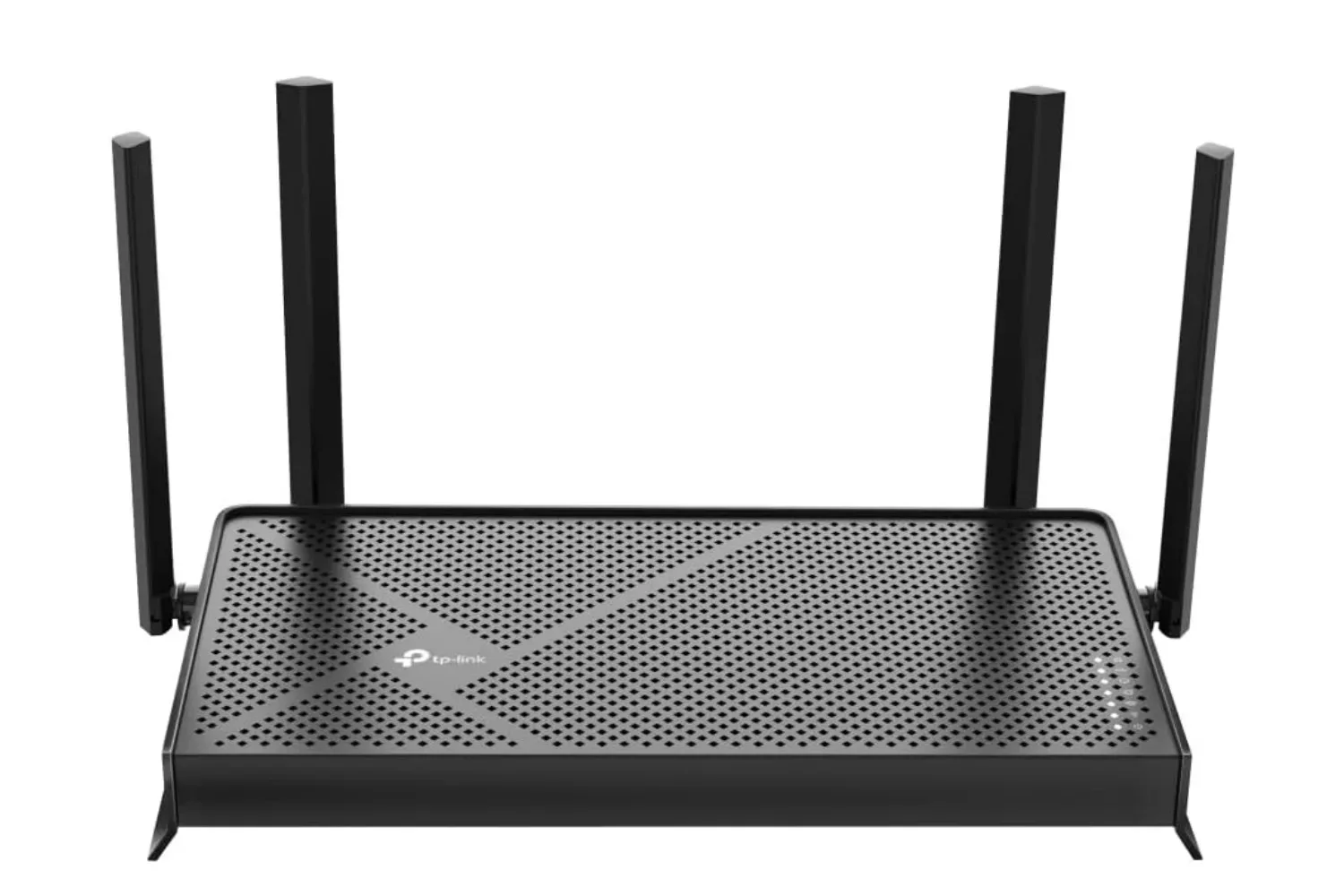
Wi‑Fi 7 has arrived with the sort of numbers that can make an aging home network feel obsolete overnight. The standard launched in 2024, promises substantially higher theoretical throughput than Wi‑Fi 6 or 6E, and is associated with a maximum figure of roughly 46 Gbps in ideal theoretical conditions. Yet an expensive new router can still produce speed-test results that look disappointingly familiar.
That is not necessarily evidence that Wi‑Fi 7 is faulty, or even that the router was a poor purchase. A home connection is a chain: the internet service coming into the home, the router’s ability to manage traffic, the radio signal between router and device, the capabilities of that device, and the number of other gadgets competing for attention all matter. The new standard improves parts of that chain; it does not erase the rest of it.
For players, this distinction matters. Raw download speed is useful for grabbing a giant game update, while latency—the delay in data making a round trip between a device and an online service—matters more to responsive multiplayer sessions. Wi‑Fi 7 is designed for lower latency, better capacity in busy environments and improved handling of congestion. Those are meaningful upgrades, but they depend on the setup around the router too.
The big Wi‑Fi 7 number is not a guaranteed household result
The oft-cited top speeds for Wi‑Fi 7 are theoretical ceilings, not a promise that every phone, console, PC or handheld will see that result. They describe what the standard can deliver under favorable conditions, rather than the speed of every broadband plan or every wireless connection through a furnished home.
There is also a compatibility reality. Wi‑Fi 7 is backwards compatible, so older devices can still connect to a Wi‑Fi 7 router. That is good news for households that are not replacing every piece of hardware at once. But those older devices do not gain all of Wi‑Fi 7’s faster capabilities and newer features simply because the router supports them.
In practice, the router can be modern while much of the network remains older. A household may have a Wi‑Fi 7 router alongside older phones, tablets, smart-home gear and gaming hardware. The upgrade can still improve overall network management, especially in a busy home, but it should not be judged only by a single headline speed figure from a device that cannot use the standard’s full feature set.
Adoption also remains comparatively early. At the beginning of 2026, Wi‑Fi 7 represented 7.2% of the market, up from 1.8% a year earlier. That growth shows momentum, but it also reinforces why mixed-device homes are normal rather than exceptional.
Router placement can undermine the signal before gaming even starts
The least glamorous explanation for sluggish wireless performance may be the most useful one: where the router sits. A router hidden in a closet, pressed into a corner or tucked behind furniture may make a room look tidier, but it can compromise the signal traveling to the devices that need it.
Related coverage includes Why a Wi-Fi 7 Router May Still Feel Slow at Home.
In particular, placing a router very close to drywall can cause its signal to reflect back toward the antennae and degrade the original signal. Corners are therefore not merely an aesthetic compromise. They can work against the wireless coverage a household is trying to buy.
A simple test is to move the router to an open shelf, such as a media-console shelf, or position it at least three feet away from a corner. Then run the same speed test again. Testing before and after the change is important: it turns a general recommendation into an observable comparison for that home.
This is especially relevant when a gaming PC, console or streaming device is located some distance from the router. A premium router cannot make a poor placement invisible. If performance changes noticeably after moving the unit, the bottleneck was likely more about the wireless environment than the marketing label on the box.
A practical placement check
- Move the router out of a corner rather than leaving it tightly boxed in.
- Try an open, accessible shelf instead of a closet or concealed cabinet.
- Keep the router at least three feet from the corner as a starting point.
- Run a speed test after relocating it, then compare the result with the previous test.
This is not a guarantee that relocation solves every network problem. It is, however, one of the easiest variables to change before replacing equipment or assuming the internet plan is at fault.
Count the devices, not just the people
A home network now serves much more than a few laptops and phones. Wearables, appliances, tablets, televisions, smart lights and other connected devices can all occupy the same network. A typical home has at least 20 connected devices. Even if many are not actively being used at a given moment, a router still has to manage the network they form.
That makes timing a useful clue. If the slowdown mainly appears when several people are home and streaming, gaming or otherwise using the connection, device demand and traffic congestion are plausible contributors. If performance remains weak at quiet times throughout the day, placement or the available internet bandwidth may deserve closer attention.
Wi‑Fi 7 is built to deal more effectively with congestion and dense environments, which can make it a worthwhile upgrade in a gadget-heavy household. But capacity is not infinite. A router needs a sufficiently capable processor to handle numerous connected devices, and it needs at least two frequency bands. The broadband service itself must also provide enough bandwidth for what the home is trying to do.
Bandwidth is the amount of data a connection can carry over a given time. It is related to, but not identical with, Wi‑Fi generation. A Wi‑Fi 7 router may create a stronger local wireless network, but it cannot supply more internet bandwidth than the service entering the home provides. When multiple people are streaming while a game downloads or an update installs, the incoming service remains a limiting factor.
That is why a slow connection should be evaluated as a pattern rather than a single irritated moment. Does it happen only at peak household use? Does moving the router change it? Does the issue persist despite fewer active devices? These observations help separate a local Wi‑Fi problem from a broader bandwidth limitation.
Multi-Link Operation is useful, but only with compatible devices
One of Wi‑Fi 7’s key additions is Multi-Link Operation, commonly shortened to MLO. It allows compatible devices to use multiple frequency bands—2.4 GHz, 5 GHz and 6 GHz—at the same time. The intended outcome is a connection that is both faster and more reliable.
For a gaming household, the appeal is straightforward. Network stability and reduced delay can matter as much as a high download number. MLO is designed to give compatible hardware more flexibility across the available bands, rather than relying on a single one. But “compatible” is the operative word. The router and the connected device both need the relevant support before the feature can contribute.
The 2.4 GHz, 5 GHz and 6 GHz labels refer to wireless frequency bands used by the network. Wi‑Fi 7’s ability to work across them through MLO is part of what separates it from an older setup, but it should be viewed as an opportunity enabled by matching hardware, not as an automatic benefit for every legacy device in the home.
That distinction is worth keeping in mind when upgrading selectively. A Wi‑Fi 7 router can remain a sensible foundation because older devices can still connect, while newer compatible devices are positioned to use the additional features. It simply means a household may see its benefits arrive gradually rather than all at once.
How to troubleshoot slow Wi‑Fi 7 without chasing the wrong fix
A disciplined order of checks can prevent a lot of fruitless tinkering. Start with the physical setup before assuming that the standard’s speed claim is misleading. Move the router from an enclosed or corner position, repeat a speed test, and note whether the result changes.
Next, observe the household’s usage pattern. If slowdowns cluster around evenings when people are streaming and playing online, the network is likely being asked to do far more at once than it is during the day. That points toward connected-device load and available service bandwidth, rather than a router that is universally slow.
Then consider the client device. Older devices retain connectivity through backwards compatibility but may not access Wi‑Fi 7’s highest speeds or its newer functions. Compatible devices are also required to make use of MLO. This does not make older hardware unusable; it just sets a realistic expectation for what the router upgrade changes immediately.
- Relocate the router to a more open position and away from the corner.
- Repeat a speed test after the move.
- Check whether slow performance coincides with many people streaming or gaming.
- Consider the total number of connected devices, including smart-home equipment.
- Confirm whether the device being tested is capable of Wi‑Fi 7 features.
- Compare the household’s demand with the bandwidth supplied by its internet service.
For people playing long-lived online PC games, network consistency can be the relevant quality-of-life metric—not simply the largest possible speed-test result. That same practical concern sits behind features such as MLO and Wi‑Fi 7’s emphasis on congestion handling. It is also part of why a game can retain players for years when its systems remain dependable and engaging, as seen in this look at Path of Exile’s enduring build freedom.
A better way to set expectations for an upgrade
Wi‑Fi 7 is not just a bigger number for router packaging. It brings lower-latency potential, more capacity for crowded homes and the ability for compatible devices to use multiple bands simultaneously through MLO. Those are useful advances, particularly as connected-device counts climb.
But a new router is still part of a system. Concealing it in a bad location can weaken its signal. A household full of connected devices can create congestion. Older clients will not receive all of the standard’s benefits. And no router can turn an insufficient internet-service bandwidth allocation into unlimited throughput.
The encouraging part is that some of the most important checks cost nothing: give the router room, test again, watch when slowdowns occur and identify which devices are actually capable of the new standard. Wi‑Fi 7 can improve a home network, but its best results come from matching the hardware, placement and internet service to the demands placed upon it.