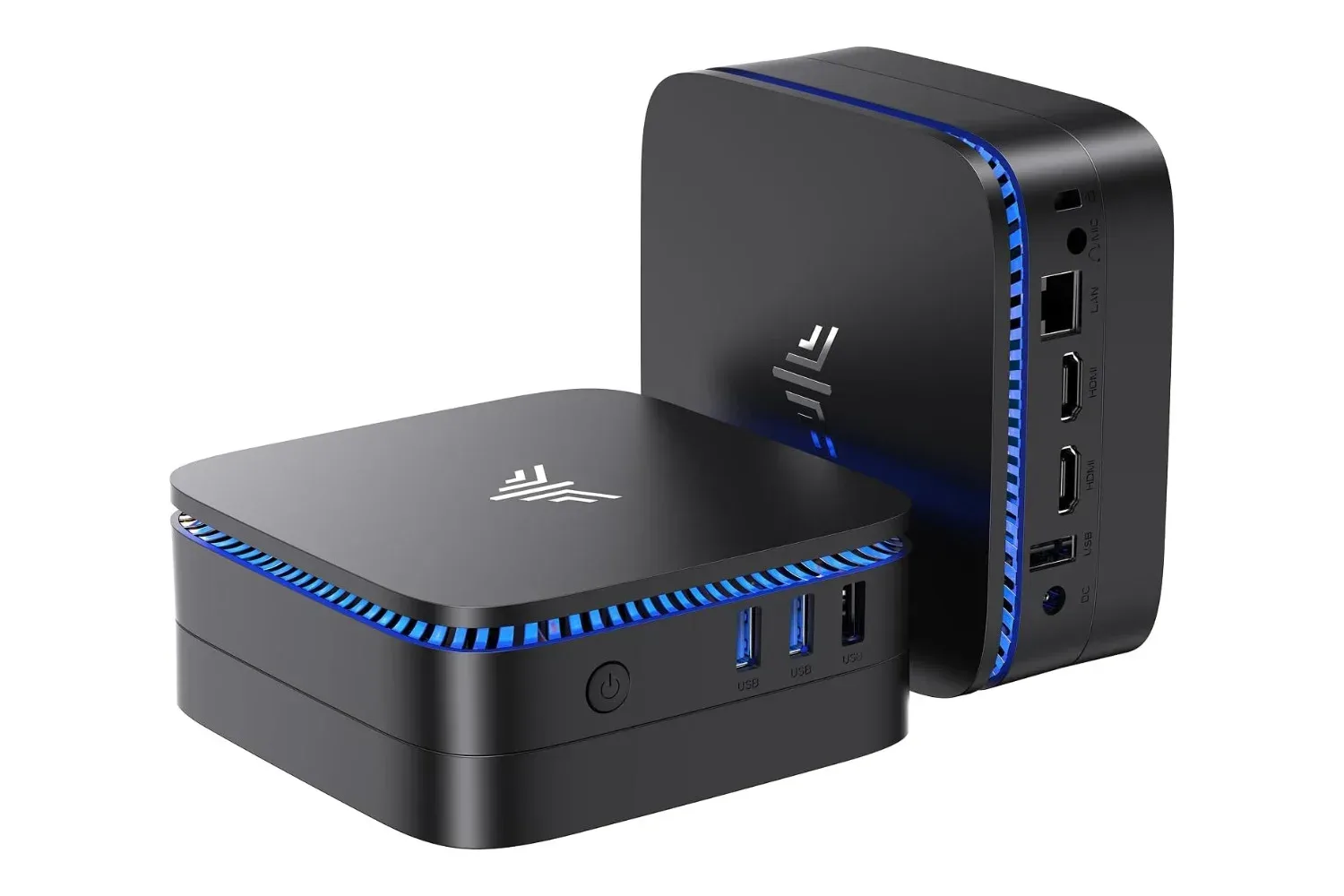
A home-office computer decision can look simple until both candidates arrive at the same desk. A mini PC can disappear behind a monitor, leaving the workspace centered on the display, keyboard and mouse. A laptop can achieve much the same result: connect it to a larger screen through HDMI, add a keyboard and mouse, and it stops feeling much like a small portable computer at all.
That overlap is why the “mini PC versus laptop” question is less about which machine looks more professional beside a monitor and more about what happens away from it. A laptop can become a desktop-like workstation, especially when connected through a compatible USB-C or Thunderbolt dock. A mini PC can be compact, unobtrusive and sensible for a workstation that stays put. Neither form factor automatically wins on speed, graphics capability or even upgrade potential.
The practical answer starts with two questions: does the computer need to leave the desk, and what is actually included in the price?
The desk experience can be remarkably similar
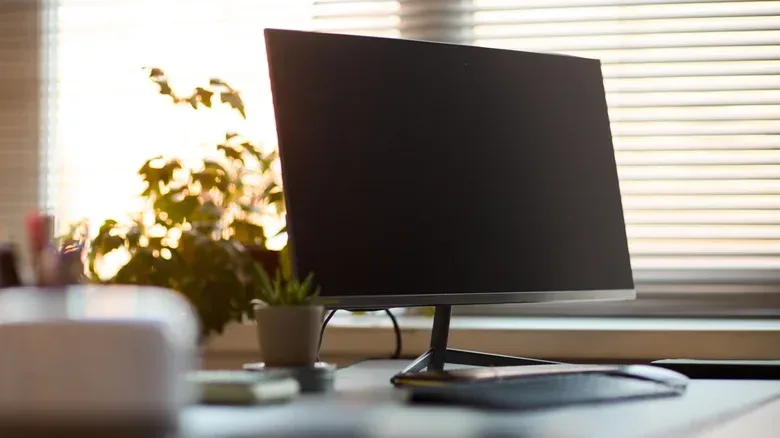
A mini PC’s appeal is direct. It is a computer intended to live with the desk equipment a person has already chosen. There is no attached display, battery, keyboard or trackpad competing for space or sitting unused. For a setup built around an external monitor and full-size input devices, that can make the office feel cleaner and more intentional.
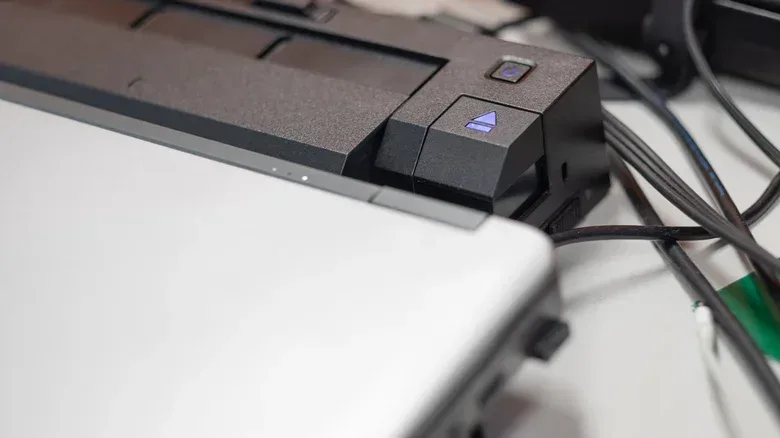
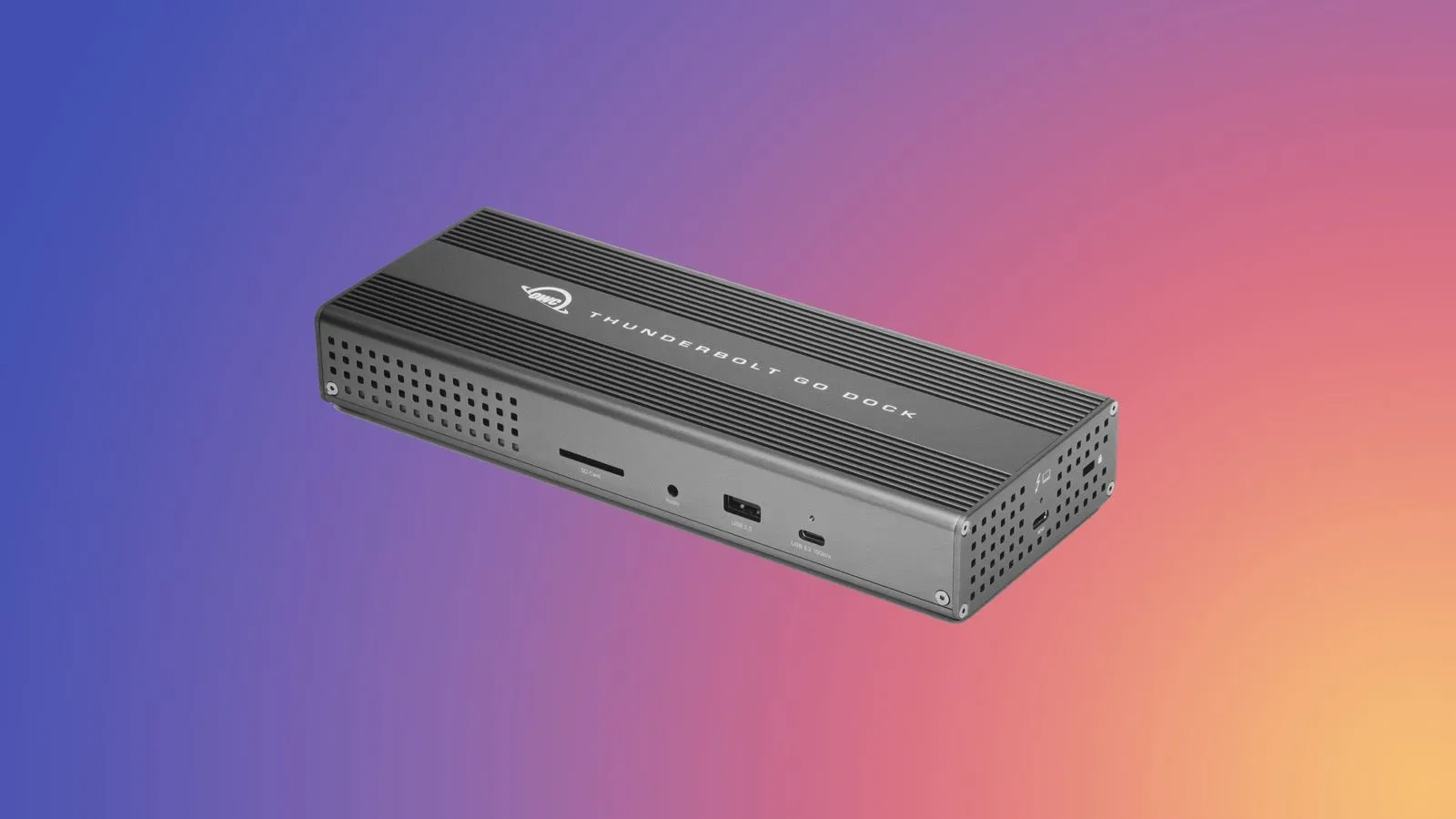
But a laptop does not have to remain open beside that same setup. With an external display and peripherals attached, it can act as the central computer in a desktop-style workspace. A compatible dock can make the transition especially tidy by carrying display connections, Ethernet, USB accessories and, on supported combinations, charging through one connection. Put the laptop in a stand, close its lid if the configuration supports that workflow, and the visible day-to-day experience may be extremely close to that of a mini PC.
That is useful context for anyone considering a display upgrade for both work and games. A larger monitor can be the focal point of either type of system; the computer’s shape does not settle questions around display support or performance. For example, high-refresh PC gaming displays underline why buyers should think about the entire setup, rather than treating the computer box as the only important purchase.
The caveat is compatibility. USB-C and Thunderbolt are connection standards and technologies often used to carry data, video and, in some cases, power. Their presence alone does not promise identical capabilities across every laptop and dock. The laptop, dock and displays need compatible support for the desired combination of screens, devices, networking and charging. HDMI with a keyboard and mouse may be enough for a simple desk arrangement; a dock can reduce cable swapping for a more elaborate one.
Mini PCs often use laptop-class building blocks
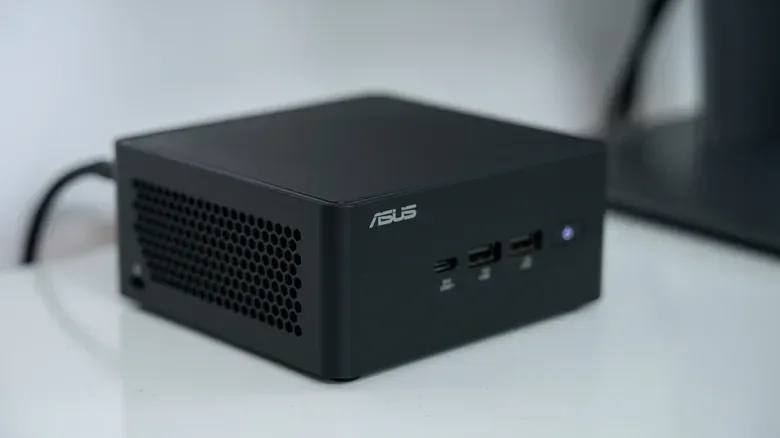
The name “mini PC” suggests a traditional desktop compressed into a smaller shell, but many models are closer in component choice to laptops. The ASUS NUC 15 Pro, for example, supports Intel’s Core Ultra 7 265H, a mobile processor, along with SO-DIMM memory and M.2 SSD storage.
Related coverage includes Mini PC vs. Laptop for a Home Office: How to Choose.
These terms matter when comparing listings. A mobile processor is designed for portable-class systems and their space, thermal and power constraints. SO-DIMM refers to a compact memory module format commonly found in laptops and small computers. An M.2 SSD is a compact solid-state storage format. None of those parts should be treated as a weakness by default; they are practical choices in a computer small enough to mount behind a monitor. They do, however, show why a mini PC should not automatically be thought of as a more powerful desktop simply because it does not have a built-in screen.
Processor names are also not a complete performance verdict. Two computers can use the same named CPU yet perform differently during extended work. Cooling design, firmware and power limits established by the manufacturer influence how much performance a processor can sustain when the workload lasts longer than a short benchmark. A small enclosure must manage heat in a constrained volume, while a laptop has its own design trade-offs involving thinness, noise, cooling and battery operation.
For home-office basics, this distinction may not matter much. Integrated graphics are suitable for email, office programs, video meetings and demanding browser use. Integrated graphics means the graphics capability is built into the processor rather than supplied by a separate, dedicated graphics component. That is a normal fit for general productivity, but it is not a shortcut to GPU-heavy work.
Anyone whose work involves demanding video editing, 3D workloads or another graphics-intensive task should avoid assuming that a mini PC’s desktop label means it has more graphics power than a laptop. The sensible comparison is the exact configuration and its sustained behavior, not the category printed at the top of a store page.
Upgradeability is a specification, not a form-factor promise
Small computers invite another easy assumption: that a mini PC must be more upgradeable than a thin laptop. Sometimes that is true, but it varies substantially by model and configuration. Supported versions of the NUC 15 Pro offer two SO-DIMM slots and two M.2 storage slots. That can provide more flexibility for memory and storage changes than certain thin laptops that use soldered memory.
Yet that example is also a reminder to read the exact product details. Not every configuration includes memory or storage from ASUS. In other words, a buyer may be looking at a barebones system rather than a ready-to-use computer. “Barebones” in this context means that essential components may still need to be supplied before the machine can be used as intended.
This affects the value calculation immediately. A low entry price for a mini PC can become less compelling once RAM, an SSD and potentially an operating system are added. It is not necessarily a bad deal; it is simply not a fair comparison with a laptop whose memory, storage and operating system are already included. The meaningful figure is the cost of the usable configuration a buyer needs, not the starting price of an incomplete box.
The reverse is worth remembering, too. A laptop can include hardware that a desk-bound mini-PC buyer would otherwise have to buy separately: its own display, keyboard, trackpad and battery. If those items will genuinely go unused, their inclusion may feel wasteful. If they make it possible to work in another room or travel without changing machines, they are part of the laptop’s central value proposition.
The laptop’s advantage is continuity, not just portability
It is easy to describe a laptop as the better pick for travel because it is portable. That is true, but the more consequential benefit is continuity. Disconnect from the dock and the same computer leaves with its local files, applications, browser sessions and settings. There is one machine to maintain and no question over whether a recently edited document lives on the desk computer or the travel computer.
For someone who works in multiple locations, that single-machine arrangement can reduce friction every time plans change. The desk setup is still available when they return, but it does not require duplicating their working environment across two computers. The dock turns the portable machine into a desk machine; unplugging it reverses the process.
That advantage is not universal. A computer that almost never moves may not benefit much from a battery, compact built-in display or trackpad. In that case, a mini PC can be a more natural permanent fixture, particularly for a buyer who already owns a monitor and peripherals. It can preserve desk space and keep the system’s role simple: turn it on and work at the same station.
A practical way to choose
The best decision comes from matching the system to the routine, then checking the exact configuration rather than relying on category assumptions.
- Choose a mini PC first if the computer is expected to remain at one workstation, an external monitor and peripherals are already available, and the appeal of a small permanent desk machine outweighs the value of built-in portable hardware.
- Choose a laptop first if work regularly moves between home, meetings or other locations, or if keeping files, apps and settings on one computer is a priority.
- Price the complete mini-PC build by checking whether RAM, storage and an operating system are included. A barebones price is not necessarily the finished cost.
- Check dock compatibility before planning around one cable. Displays, Ethernet, USB devices and charging can be consolidated on compatible equipment, but capabilities differ by laptop and dock.
- Compare sustained performance for heavier jobs. Matching processor names do not guarantee matching results because cooling, firmware and power limits can differ.
- Do not infer graphics strength from size. Integrated graphics handle mainstream office work well, while GPU-intensive creative or 3D tasks demand closer scrutiny of the specific machine.
There is no contradiction in preferring a mini PC for a settled office and a laptop for a flexible life. The two categories share more hardware and more desk behavior than their names imply. The decisive split is whether the workstation should stay assembled in one place or travel intact with the person using it.