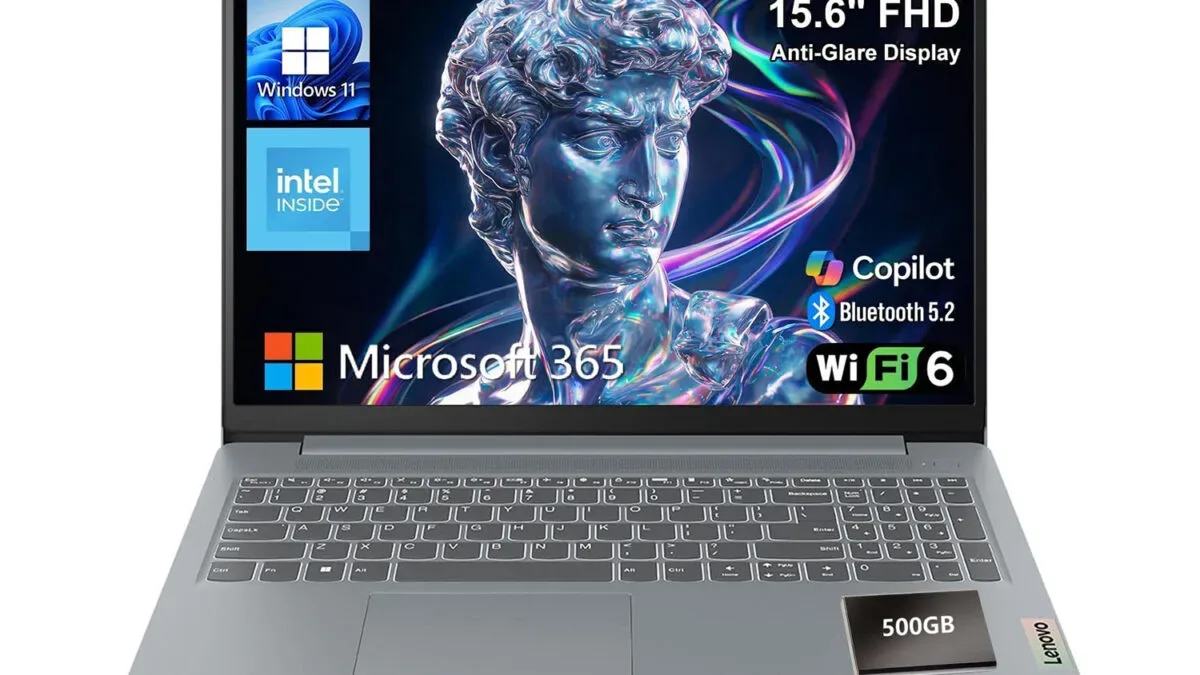
A Lenovo Essential 15.6-inch Windows laptop is listed for $400, a figure presented as half of its $800 list price. For a student, a family computer, or a low-cost machine intended for writing, research, streaming, video calls, and light game-adjacent duties, that number makes the specification sheet worth a careful look. It also calls for realistic expectations: this is a productivity-oriented laptop built around an Intel N100 processor and 4GB of LPDDR5 memory, not a budget gaming rig wearing a trench coat.
The Essential’s main appeal is straightforward. It combines a large 15.6-inch Full HD screen, a relatively light 3.42-pound chassis, current Wi-Fi connectivity, and a port selection that should make everyday desk use less annoying. There are trade-offs in memory, primary storage, and display brightness that prospective buyers should weigh before treating the discount as an automatic win.
The $400 question: what kind of laptop is this?
The Intel N100 is a quad-core processor with speeds of up to 3.4GHz. Paired with 4GB of LPDDR5 RAM, it is positioned for essential computing rather than heavier workloads. The expected sweet spot is a single user doing common school or home tasks: a web browser, documents, coursework portals, email, video calls, and playback of ordinary media.
That description may sound modest, because it is. Four gigabytes of RAM is the part of this configuration that deserves the most scrutiny. Browsers are now famously hungry little creatures, especially when a user has a learning-management page, cloud documents, a research tab pile, chat, music, and a video stream all competing for attention. The laptop can handle basic browsing and document work, but performance may become constrained when multiple demanding tabs and productivity apps are open together.
For gaming, buyers should set the bar even lower. The N100’s integrated graphics are not a sensible target for modern, graphically intensive PC releases. Older games, very lightweight indie titles, and less demanding games may be possible with careful settings choices, but this specification is not a reliable home for major contemporary releases or serious multitasking around them. Anyone primarily shopping for a Steam library machine should look for substantially more memory and a stronger processor or dedicated graphics.
There is still a practical PC-gaming angle here. A laptop that runs a browser, Discord-style communications, schoolwork, and a cloud-gaming service can have a place in a student setup, provided a buyer understands that cloud services depend heavily on a solid internet connection and do not transform the local hardware into a conventional gaming laptop. It can also serve as a utility system for guides, digital tabletop tools, retro-game research, or casual play while a more powerful desktop handles the heavy lifting.
For readers comparing inexpensive ways to revisit older systems, the more important question is often display and connectivity rather than raw performance. Our guide on mapping a retro console connection before buying an HDMI adapter is a useful companion piece for anyone planning a compact desk with a laptop, monitor, and legacy hardware.
Storage needs a closer read
The configuration includes 128GB of UFS 3.1 internal storage. UFS storage can help the system feel responsive during startup and routine use, but 128GB is limited for a primary Windows computer. Windows itself, updates, office applications, a few utilities, downloaded media, and school files can reduce the practical free space in a hurry. For a game library, it is particularly restrictive: even a handful of modern downloads can exhaust it.
The listed package also includes a 500GB hard drive, which gives the machine considerably more room for files than the 128GB internal figure alone suggests. That is meaningful for documents, photos, archived assignments, and media. However, buyers should distinguish between fast built-in system storage and additional hard-drive capacity. A hard drive is useful space, but it will not behave exactly like the quicker internal UFS storage for loading applications or operating-system tasks.
In simple terms, the arrangement is better suited to someone who needs room for files than to someone who wants a speedy, locally installed catalogue of huge games. Keeping the internal storage reasonably clear and moving larger personal files to the available 500GB drive is likely the more sensible approach. Anyone who routinely edits video, stores a large photo archive, or installs many games should budget with those limits in mind.
A large screen, with indoor priorities
The 15.6-inch display has a Full HD resolution and an anti-glare coating. At this price, the anti-glare treatment is a welcome practical feature: it can reduce distracting reflections compared with a glossy screen when working under ordinary indoor lighting. The laptop is rated at 250 nits of brightness, which should be adequate for a desk, classroom, dorm room, or indoor common area.
Brightness becomes the compromise when the environment gets harsher. Near a bright window or outdoors in direct light, 250 nits is near the lower end of comfortable use. That does not make the panel unusable, but it does mean students who expect to work in sunlit outdoor spaces should not assume the anti-glare finish solves everything. It helps with reflections; it does not create extra luminance.
An 88% screen-to-body ratio gives the display a reasonably modern presence for an entry-level 15-inch system. More importantly, Full HD remains a practical resolution for the processor and memory in this class. It is appropriate for documents, streaming video, web pages, and light entertainment without asking the modest hardware to push a higher-resolution panel.
Port selection is a genuine strength
Where this Lenovo configuration makes a persuasive everyday case is connectivity. It includes two USB-A ports rated at 5Gbps, USB-C with Power Delivery and DisplayPort output, HDMI 1.4, an SD card reader, and a headphone jack. That is an unusually flexible assortment for a machine aimed at basic work.
The USB-C DisplayPort capability is especially useful because it enables an external monitor without requiring a separate display adapter. A student can use the 15.6-inch panel on the go, then connect to a larger display for writing papers, managing spreadsheets, or arranging research across more screen space at home. HDMI 1.4 offers another monitor or television route, while the SD card reader will be handy for users moving photos or other material from compatible devices.
- Two USB-A 5Gbps ports: useful for a mouse, keyboard, controller, storage drive, or other peripherals.
- USB-C with Power Delivery and DisplayPort: supports charging-related flexibility and direct external-display output.
- HDMI 1.4: provides a familiar connection for many monitors and TVs.
- SD card reader and headphone jack: small inclusions that prevent extra dongles from becoming an immediate necessity.
- Wi-Fi 6 and Bluetooth 5.2: modern wireless standards for networking and compatible accessories.
For casual gaming and school use, that array means fewer compromises around accessories. A wired controller, headset, mouse, external storage device, and second display become more feasible without immediately building a nest of hubs. The laptop’s 0.70-inch thickness and 3.42-pound weight also make it reasonably manageable for a 15-inch model carried between classes or rooms.
Windows 11 Home in S mode requires a decision
The Essential ships with Windows 11 Home in S mode. In this mode, app installation is limited to the Microsoft Store by default. This matters immediately for people who expect to install Chrome, conventional desktop software, game launchers, or tools obtained outside the Store.
Switching out of S mode is free and is described as taking roughly two minutes, but it is permanent. That makes the choice simple but important: buyers who need ordinary Windows software will likely want to leave S mode early, while those who value the more restricted setup can keep it. The key is not to confuse “Windows laptop” with guaranteed unrestricted desktop behavior on day one.
Microsoft 365 Personal is included, covering applications such as Word, Excel, and PowerPoint. That strengthens the case for a student whose priorities are coursework and basic productivity, though a buyer should still confirm the applicable account and subscription details at checkout. The keyboard also includes a dedicated Copilot key for launching Microsoft’s AI assistant sidebar, intended for writing assistance, summaries, and system-related tasks.
Who should consider the Lenovo Essential?
At the reported $400 price, the Lenovo Essential makes the most sense for a buyer who wants a large-screen Windows system for light, everyday responsibilities and appreciates having useful ports built in. Its durable-design claim includes MIL-STD-810H testing for common temperature, vibration, and drop scenarios, another reassuring detail for a laptop likely to travel in a backpack. Testing certification is not a promise that it will survive every mishap, but it is relevant context for a campus-bound device.
It is less compelling for anyone who regularly pushes many applications at once, needs ample fast local storage, works with demanding creative software, or expects to play recent PC games natively. At its $800 list price, the limitations are difficult to overlook when other laptops can offer much more memory and storage. At $400, the calculus improves sharply, provided the buyer is purchasing the machine it is rather than the one they wish it were.
Prices and configurations can change quickly, so confirm the live listing, included software terms, and exact storage arrangement before committing. For basic schoolwork, communication, streaming, and light PC use, this is a sensible value-led option. For a gaming-first purchase, the 4GB memory ceiling is the giant boss health bar that no sale price can completely defeat.
Shop the products
Check current price, model and availability at the retailer.