A graphics driver is the backstage crew for your GPU: rarely celebrated, frequently blamed, and suddenly very important when a new game starts behaving like it has developed a personal grudge against your frame rate. Keeping that software reasonably current in Windows 11 can help a PC take advantage of game-specific improvements, bug fixes and broader compatibility work from AMD, Intel or NVIDIA.
That does not mean every new driver demands an immediate, ceremonial installation. Drivers are not collectible trading cards, and chasing every release the instant it appears is not required for most people. But if a recently released game is crashing, performing poorly, displaying odd visual glitches, or specifically recommends a newer driver, an update is a sensible troubleshooting step. It is also worth checking occasionally if a system has been running the same driver for a long time.
Windows 11 can locate some driver updates on its own. The graphics-card manufacturer’s tools and official download pages are often better choices when the goal is the newest available release. Each route has a role, and knowing which GPU is inside the machine is the first mission.
First, identify the graphics hardware
A PC may use graphics hardware from AMD, Intel or NVIDIA. Some laptops have more than one graphics processor: an integrated GPU built into the processor plus a separate, more powerful discrete GPU. Before downloading anything, verify the exact name Windows sees.
- Open the Start menu and search for Device Manager.
- Open Device Manager, then expand Display adapters.
- Your installed graphics device or devices will appear in that list.
- Double-click a GPU name and select the Driver tab if you want to inspect its installed driver details.
This is more dependable than guessing from a sticker, a long-forgotten receipt, or a vague memory that the computer “has RTX something.” The manufacturer and model name determine which official tool or download page applies. If two adapters are listed, pay attention to both, particularly on laptops that switch between integrated and discrete graphics depending on the workload.
There is a practical reason to be precise. Graphics drivers are built for particular product families and versions of Windows. Installing software intended for the wrong hardware is not a clever shortcut; it is an invitation for the install process to reject it or for troubleshooting to become much less fun than it needed to be.
The built-in Windows 11 routes
The quickest basic check is through Windows Update. Open Settings, choose Windows Update, and select Check for updates. If Windows has relevant updates available, it can download and install them alongside other operating-system updates.
Device Manager provides a second built-in path. From the GPU’s properties window, open the Driver tab, click Update Driver, and choose Search automatically for drivers. Windows will look for a suitable driver through its available update channels.
These options are convenient, especially for routine maintenance and for people who do not want extra software on the PC. However, Windows Update does not necessarily deliver the exact newest graphics release published by the GPU maker. It may offer an older validated version while AMD, Intel or NVIDIA has already posted newer fixes or game optimizations. That is not automatically a problem, but it matters when a new game, a persistent issue or a required feature makes the latest release desirable.
Simple rule: Windows Update is fine for a low-effort driver check. The GPU manufacturer’s official software or website is usually the place to look when you specifically need the latest available graphics driver.
It is also sensible to avoid random driver-download sites. Search results can be noisy, and an official manufacturer page is the safer destination. If searching the web, use the full GPU model plus the word “drivers,” then confirm that the page actually belongs to AMD, Intel or NVIDIA before downloading anything.
Use the manufacturer companion app
For many gaming PCs, the simplest manufacturer-first method is the companion application. These tools detect the installed compatible GPU and present available driver updates without requiring a manual hunt through several product menus. Search the Start menu for the relevant company name first; the software may already be installed.
- NVIDIA App is NVIDIA’s companion software.
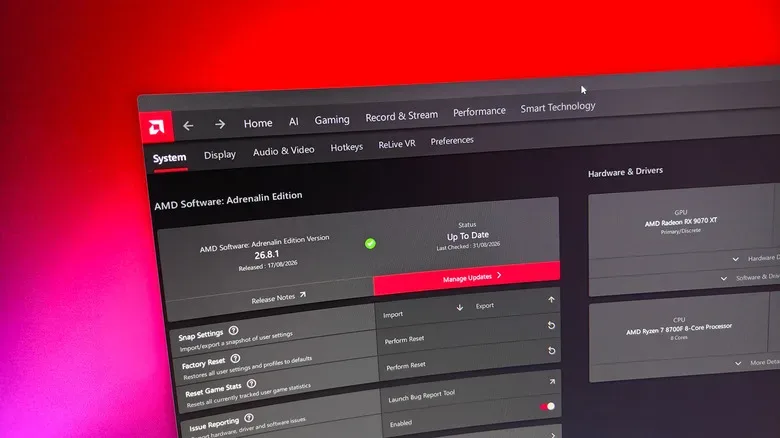
- AMD Software: Adrenalin Edition handles AMD graphics features and updates.
- Intel Graphics Software offers Intel graphics controls and update availability.
If no matching utility appears, it can be obtained from the relevant manufacturer’s official site. Once installed, it should recognize compatible hardware and indicate whether a newer driver is waiting. This approach avoids the classic PC-maintenance ritual of opening twelve browser tabs, forgetting why the first nine were opened, then returning to Device Manager in defeat.
NVIDIA: checking the Drivers tab
In the NVIDIA App, select Drivers from the navigation area. If a newer version is offered, choose Download and follow the installer prompts. NVIDIA’s download process can offer a driver-only installation or an installation that includes the companion application. Pick the option that suits the PC rather than assuming every utility must remain installed forever.
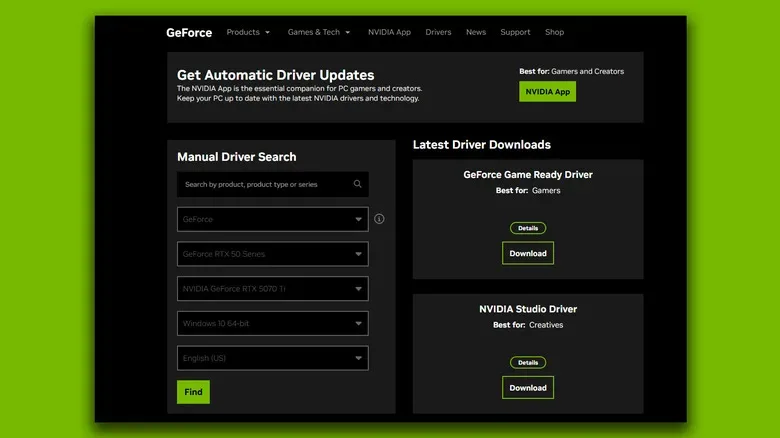
For a manual NVIDIA download, use NVIDIA’s official Driver Updates page and identify the card by product name and series, or use its selection menus. The available Game Ready Driver is the standard option described for current game support. Download the executable, run it, choose the preferred installation setup, and continue through the installer.
AMD: Adrenalin and Install Manager
With an AMD GPU, open AMD Software: Adrenalin Edition. Select the settings cog in the upper-right portion of the app, then choose Manage Updates. That opens AMD Install Manager, the separate utility that handles the actual update process. If an update is pending, select Install.
The extra handoff between utilities can feel unnecessarily elaborate, like needing a second receptionist to ask whether you would like to enter the building. Still, it provides a direct route to AMD’s current driver options. A manual download from AMD’s official driver pages is also useful when a specific version is needed or when the companion software is not wanted.
Intel: look for Install All
Intel Graphics Software makes the update choice comparatively direct. Pending graphics-driver updates are presented with an Install All button. Choose it and follow the on-screen instructions. This is especially useful for systems relying on Intel integrated graphics, though the Device Manager check remains helpful for confirming exactly what Windows detects.
What to expect while the driver installs
During a graphics-driver installation, the display can blink, go black briefly, resize, or flicker several times. That behavior is normally expected because Windows is switching graphics components while the driver changes. Avoid assuming the monitor has staged a coup halfway through the procedure.
Wait for the installer to report completion. A confirmation message should indicate that the current driver has been installed. A restart is not always mandatory, but restarting Windows afterward is reasonable and can ensure all related components load cleanly. Save work and close games before beginning, since a display reset in the middle of a match or project is not an achievement anyone needs.
For a broader Windows gaming setup check, it can also help to review other PC basics such as connection performance and download needs. Our guide to what home internet speed is good for gaming, streaming and big game downloads covers the network side of keeping big installs and online play from becoming their own bottleneck.
When the newest driver is not the best driver
In general, install the latest suitable driver when it addresses the game or problem in front of you. New versions can improve performance, add support for new releases, and correct known errors. Yet new software can also introduce trouble. A game may begin crashing after an update, a program may show visual artifacts, or performance may unexpectedly dip.
Windows has begun automatically reverting drivers in some cases involving problematic releases, but it is still valuable to know that older drivers can be installed manually. This is where official manufacturer download pages become particularly useful: they can help locate an earlier version when a rollback is necessary. Keep a note of the version that worked well before making major changes, especially if the PC is stable and configured for a particular game or application.
Do not confuse “latest” with “universally perfect.” If everything works, there is no urgent need to turn driver maintenance into a weekly hobby. If a specific game has a known issue, look for its recommended driver version and use official release information where available. When instability starts immediately after an update, returning to a previously reliable release can be a practical fix while waiting for a newer correction.
A low-drama GPU driver routine
The best ongoing strategy is modest: check the GPU maker’s app when installing a major new game, when solving graphics problems, or every so often as part of general PC upkeep. Use Windows Update for its convenient baseline coverage, but use AMD, Intel or NVIDIA’s official channels when freshness matters. Confirm the GPU model before downloading, close active work before installation, expect a few display flickers, and restart if it seems appropriate.
That is the whole quest. No screwdriver, no case opening, no mysterious registry ceremony—just the right driver from the right maker, installed with enough patience to let the screen blink its way back to normal.