PC gaming has no shortage of settings that sound as though they were discovered behind a false wall in the Registry. MSI mode is one of them. It gets presented in tweaking circles as a magic switch for lower latency, smoother games, and a graphics card suddenly motivated to produce extra frames. The less exciting reality is also the useful one: MSI mode is a method for Windows hardware to send interrupt requests to the CPU. It can matter for system responsiveness in certain configurations, but it is not a free GPU upgrade.
There is an immediate naming trap, too. In this case, MSI means Message Signaled Interrupts, not the PC hardware brand. The feature originated in the PCIe 2.2 specification and was incorporated into Windows starting with Windows Vista. Its job is rooted in the unglamorous machinery beneath every game: allowing a device such as a graphics card to alert the processor when it needs attention.
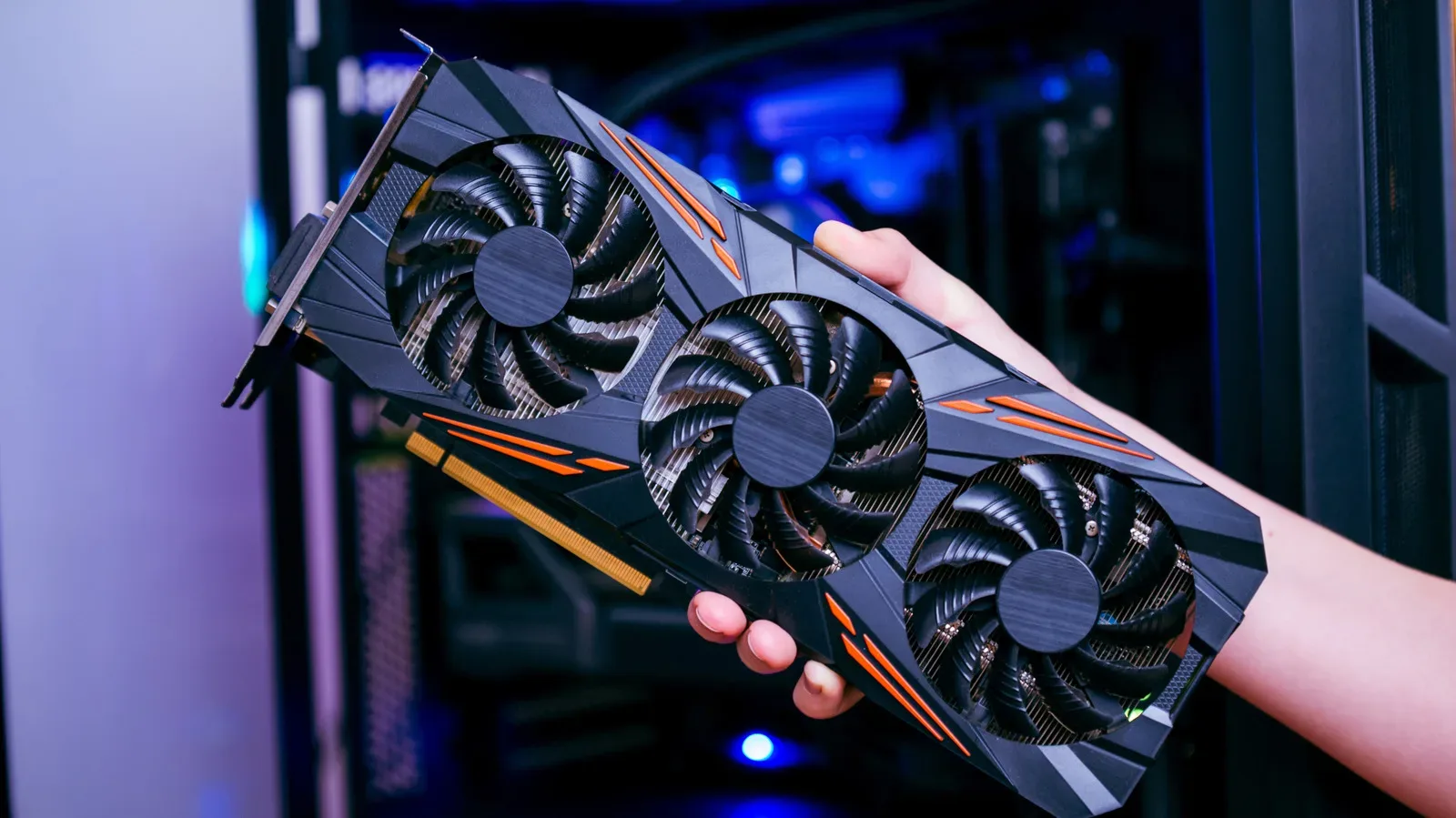
For someone chasing better gaming performance, the distinction matters. A change to interrupt delivery may reduce waiting or help frame delivery feel more consistent when a system has an interrupt bottleneck. It does not make a GPU’s shaders faster, create more memory bandwidth, or automatically raise average frame rates. Before treating an obscure Windows adjustment as a cure-all, it is worth remembering that a game can be limited by many other things: the CPU, GPU, memory, storage behavior, drivers, game engine, or the settings selected.
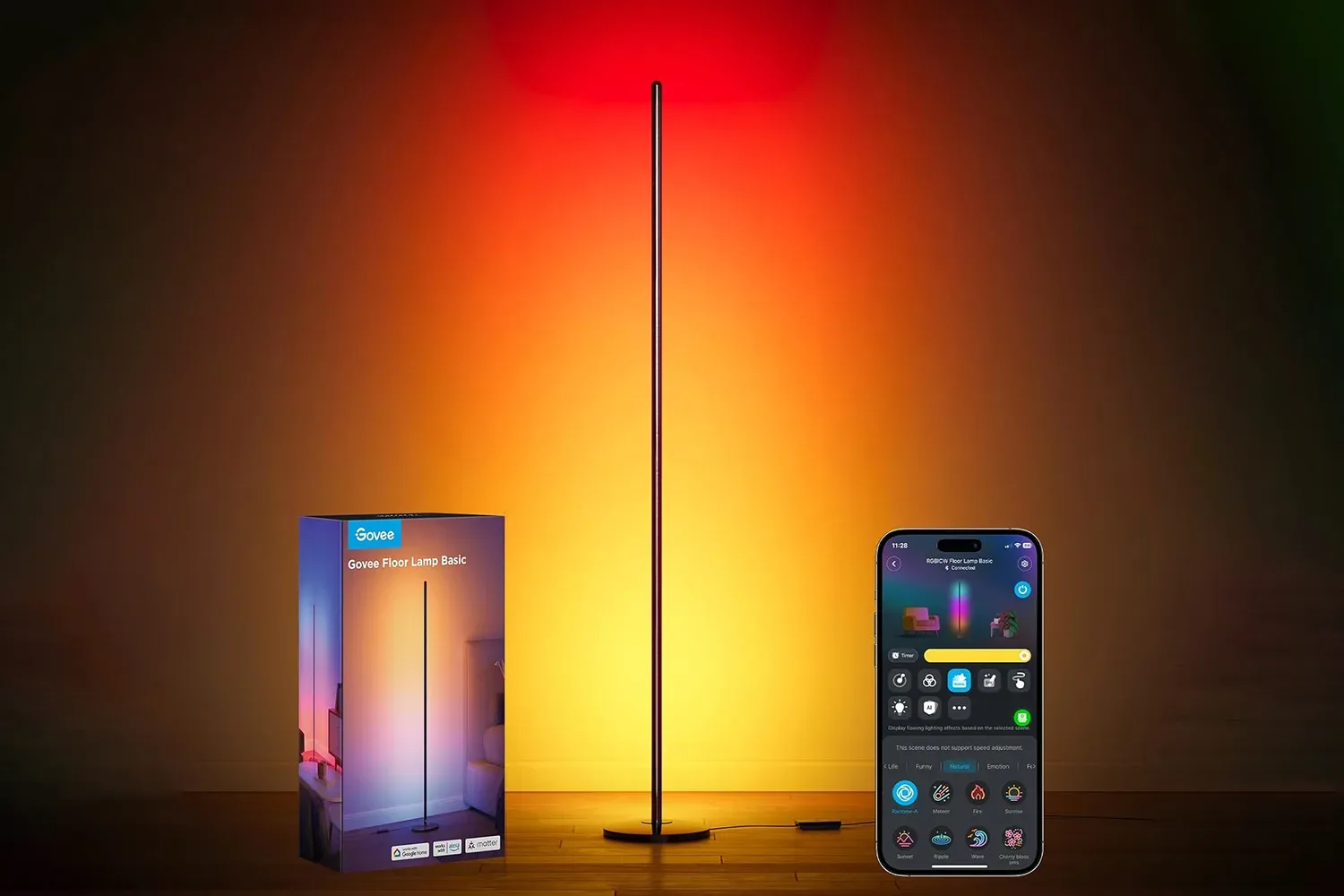
That is why a practical setup improvement—whether it is reducing clutter around a desk or adding ambient lighting with something like this gaming-setup lighting option—should not be confused with a technical performance claim. MSI mode is deeply technical, and it comes with a specific purpose rather than a broad promise.
What an interrupt is doing in the first place
The CPU continuously executes instructions, but it also needs a way to react when hardware requires service. A graphics card, storage controller, network adapter, and other components can issue an interrupt request, generally shortened to IRQ. Think of it as a device raising its hand and telling the processor that an event needs handling.
The older approach uses physical, line-based interrupts. There are only so many physical interrupt lines available, so multiple devices may have to share one. When several pieces of hardware are using the same route, Windows and the CPU have more work to do establishing which device needs attention. In a busy scenario, that sharing can add delay.
Message Signaled Interrupts take a different route. Instead of depending on a dedicated hardware line, a compatible device signals an interrupt by writing a small value to a designated memory address. The message identifies its sender, so its interrupt traffic does not face the same ambiguity created by shared physical lines. This is the central appeal of MSI: cleaner, more direct identification of interrupt events.
PCI 3.0, introduced in 2010, added MSI-X, an extended form that can support more separate messages. On Windows 10 and Windows 11, Windows uses MSI-X by default when a device supports both MSI and MSI-X. It is a sensible progression for a PC full of components that all need to communicate promptly without taking turns shouting down a crowded hallway.
Why gamers associate MSI mode with latency
A game is more than its average frames per second. Frame pacing—the consistency of the time between displayed frames—can heavily influence whether motion feels smooth. Input latency also shapes how quickly an action on a controller, mouse, or keyboard seems to translate into the game. Interrupt handling is one small part of the overall chain involved in those experiences.
On a system where traditional line-based interrupts are congested, moving a device to MSI may reduce the time spent waiting for its requests to be serviced. With a graphics card, that could mean more consistent behavior and reduced latency in the particular situation where interrupt contention was contributing to a problem.
MSI mode can improve the path by which a device gets the CPU’s attention. It does not increase the graphics card’s raw rendering capability.
That last point deserves emphasis because it separates realistic expectations from the internet’s favorite “one weird setting” story. An older GPU does not gain average FPS merely because MSI is enabled. The card still has the same hardware resources and still renders the same workload. At most, the interruption process can be handled with less contention. The improvement, if a system sees one, is about responsiveness or steadiness rather than a universal benchmark leap.
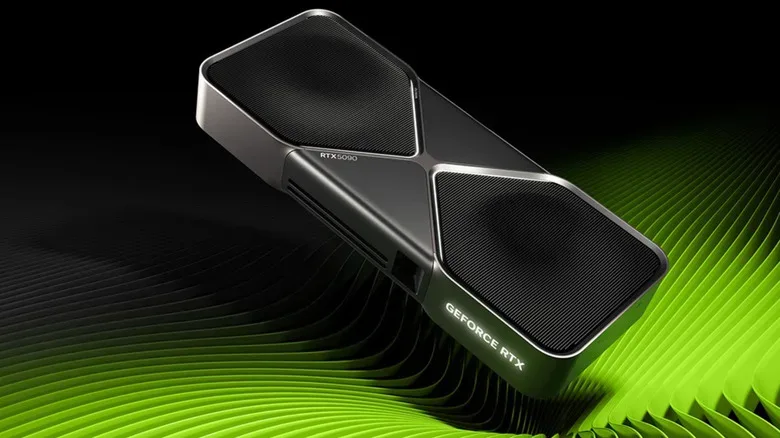
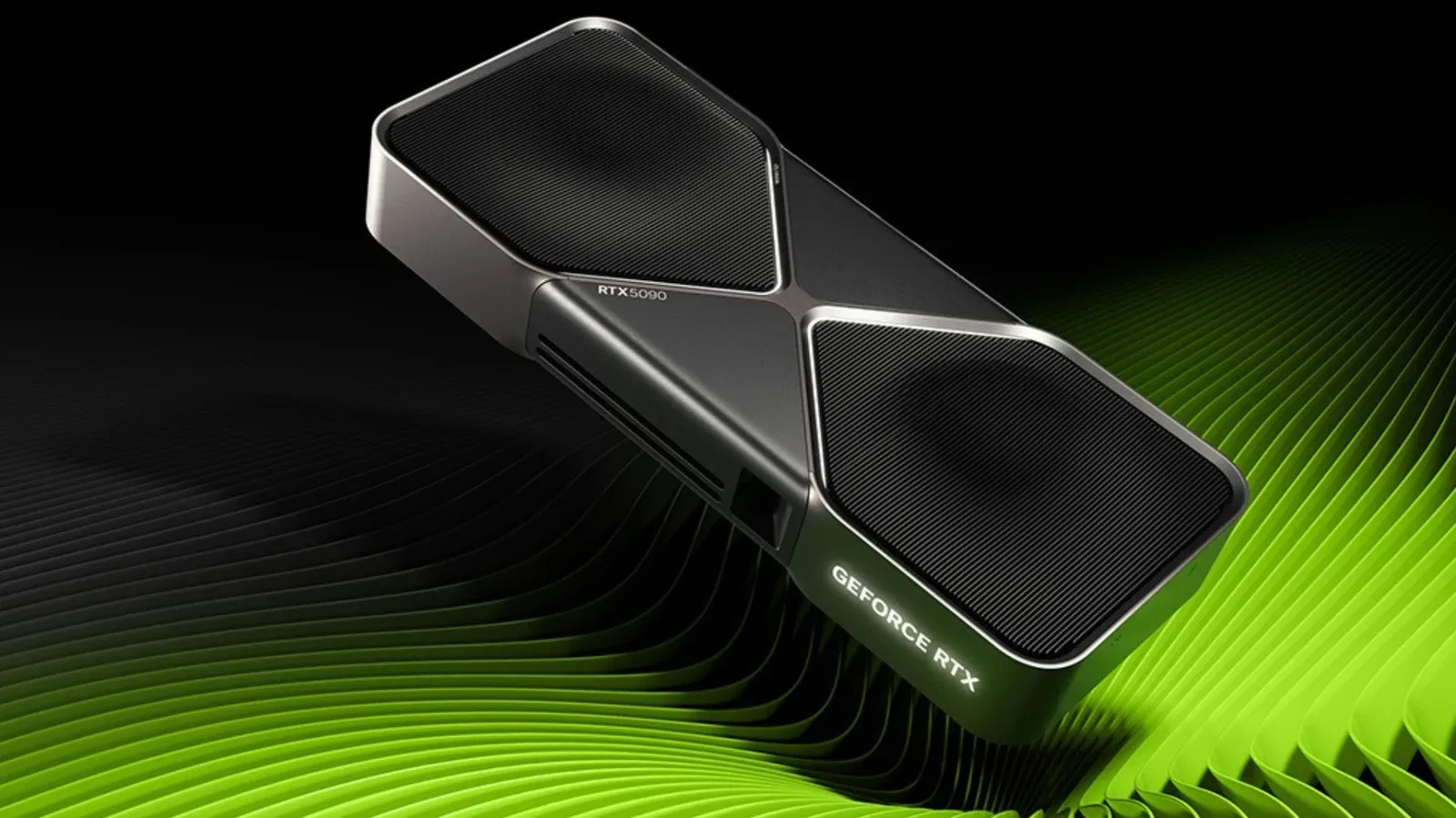
For recent graphics hardware, there may be nothing to gain because the driver has already selected the appropriate mode. Current AMD graphics drivers generally enable MSI, and many recent NVIDIA models do as well. RTX 5090 drivers, for example, enable it in most cases. A person following a guide to force MSI on without checking their present configuration could be changing a setting that is already working as intended—or overriding a choice made to avoid a known compatibility issue.
The Registry setting is not a performance menu
MSI support is controlled through a Registry value called MSISupported. During installation, the hardware manufacturer’s driver is responsible for writing that value. That is an important detail. The setting is not simply hidden because manufacturers forgot to put a large “More Frames” button in their control panels. A driver can make a deliberate compatibility decision for a particular device.
If MSI is disabled by default for a graphics card or another component, it is risky to assume the choice is an error. Forcing it on where the vendor has not enabled it may lead to crashes, driver timeouts, or a device that stops responding until the adjustment is reversed. That is a poor bargain for an unproven reduction in latency—and an especially frustrating way to turn a quick gaming session into a Windows recovery exercise.
The risks are not theoretical just because the setting is often discussed in relation to GPUs. A documented Windows 10 storage issue involved certain SSDs using the default StorAHC.sys driver. With MSI enabled for the affected controller, reads and writes could stop completing, while Task Manager reported disk use stuck at 100 percent. The remedy for that affected controller was to turn MSI off. The episode is a useful reminder that interrupt behavior reaches beyond the graphics card and that compatibility beats folklore.
When should a PC gamer leave MSI mode alone?
For nearly everyone, the answer is: by default. If a system is stable, games perform as expected, and the GPU driver has installed normally, there is no supported evidence here for treating MSI changes as routine optimization. Modern drivers often configure the mode already, while manual overrides add an avoidable variable to troubleshooting.
A good rule is to distinguish a confirmed problem from a vague hope. If the aim is “my GPU should render faster,” MSI mode is not the right lever. If a specific device is experiencing unusual interrupt-related behavior, the safer path is to investigate driver updates, manufacturer guidance, and the exact device involved rather than applying a generic Registry modification to every component in sight.
- Do not expect higher average FPS: MSI does not add GPU horsepower.
- Expect possible consistency benefits only in relevant cases: reduced interrupt contention can help latency or frame pacing where shared lines are the issue.
- Assume modern drivers may already use it: this is common with current AMD drivers and many recent NVIDIA cards.
- Respect a disabled default: it may reflect a compatibility decision, not a missed tweak.
- Be cautious with Registry edits: instability, driver timeouts, and unresponsive devices are possible if the hardware implementation is problematic.
A better way to read “hidden tweak” advice
MSI mode is real, useful technology, but it is not a general-purpose gaming accelerator. Its real value is architectural: it lets compatible hardware send distinct, message-based interrupt notifications instead of competing over limited physical interrupt lines. In the right conditions, that can reduce waiting and make response behavior more consistent.
For Windows 10 and Windows 11 gaming PCs, though, the most responsible assumption is that the driver and operating system have already made the sensible choice unless there is a clear, device-specific reason to investigate further. A lower-latency path is not the same thing as a faster graphics processor. Leave the mythical FPS treasure hunt to games where hidden walls actually contain treasure.