Choosing home internet is less about chasing the biggest number on an ISP advert and more about avoiding the moments that make everyone in the house unhappy at once: a game patch crawling along, a video call turning blocky, a 4K stream buffering, or an online match reacting a fraction of a second too late.
For gaming households, a “good” connection has three parts: enough download bandwidth for games, streams and updates; enough upload bandwidth for calls, cloud backups and broadcasting; and consistently low latency for real-time play. The right target also depends on how many people share the network and what they do simultaneously.
A single person who mostly plays online games and watches video may be perfectly content with 100 Mbps. A busy home with multiple players, remote work, 4K streaming and giant PC game downloads will usually benefit more from 300 Mbps or above. But the advertised plan speed is only the start: Wi-Fi placement, router hardware, Ethernet connections and the distance to a game server can matter just as much.
First, separate Mbps from MBps
Internet plans are almost always sold in megabits per second, abbreviated Mbps. File managers and game launchers often display transfer rates in megabytes per second, shown as MBps or MB/s. The capital B makes an important difference: one byte contains eight bits.
To roughly translate a plan’s advertised Mbps into the maximum megabytes per second a download could reach, divide by eight. A 300 Mbps connection works out to 37.5 MBps under ideal conditions. As a simple illustration, a 5GB update at that rate would take roughly two minutes and 13 seconds. Actual downloads can be slower because the game platform’s servers, your Wi-Fi setup, other household traffic and network overhead all enter the picture.
This distinction explains why seeing a launcher download at 25 MB/s does not mean an 800 Mbps plan is underperforming. It corresponds to about 200 Mbps before accounting for overhead. Comparing like with like prevents a lot of needless router troubleshooting.
Download, upload and ping each solve different problems
Download speed is data arriving at your devices. It determines how quickly a huge update can be fetched and how much room there is for several people to stream, browse and download at the same time.
Upload speed is data leaving your home. It matters for video conferencing, uploading clips, game streaming, sending large files and cloud backups. Cable plans commonly put much more capacity toward downloads than uploads. Fiber connections, by contrast, often offer matching—or close to matching—upload and download rates because the underlying network has fewer of cable’s bandwidth constraints.
Related coverage includes What Home Internet Speed Is Good Enough, and How to Test It.
Ping, also known as latency, is measured in milliseconds (ms). It reflects how long data takes to travel to a destination and return. Lower is better. A high download number cannot erase poor latency in a competitive shooter, fighting game, racer or co-op title, because those games need quick, frequent exchanges rather than massive files.
It is also worth distinguishing latency from consistency. Jitter describes how much latency varies over time, while packet loss means some transmitted data does not arrive successfully. Either can turn an apparently decent connection into one that stutters during a match or produces awkward pauses on calls.
Reasonable home-speed targets
There is no universal package that fits every household, but a few practical tiers make comparison easier. These are planning targets rather than hard rules, and upload speed deserves special attention for anyone who works from home or broadcasts.
- About 100 Mbps: A solid minimum for one or two people. It should comfortably cover everyday use, online gaming, video calls and a stream, including 4K in many cases, provided the network is not overloaded by major downloads.
- About 300 Mbps: A sensible target for a family or shared home. It leaves much more breathing room when one person is updating a game while others stream, attend calls or play online.
- 500 Mbps and above: Most useful for power users and larger households that regularly download very large games, move substantial files, maintain several active streams or simply want shorter waits when many devices are busy.
Individual applications do not always demand much bandwidth. Netflix lists 5 Mbps as a recommendation for 1080p and 15 Mbps for 4K. Disney+ lists 5 Mbps for HD, 8 Mbps for live content and 25 Mbps for 4K UHD. A 1080p Zoom call is listed at around 4 Mbps up and 3 Mbps down. HDR formats such as Dolby Vision can require more headroom.
The trouble is concurrency. A 50 Mbps service might handle one 4K stream well enough. It can feel far less capable when another person is in a video meeting, a PC begins a large update, a console is syncing captures and a child is playing online. Households should buy for the busiest likely overlap, not for one isolated activity.
For a deeper look at making the wireless part of that setup behave, see our guide to why 2.4GHz and 5GHz bands matter for gaming Wi-Fi.
Broadband availability is not equal everywhere
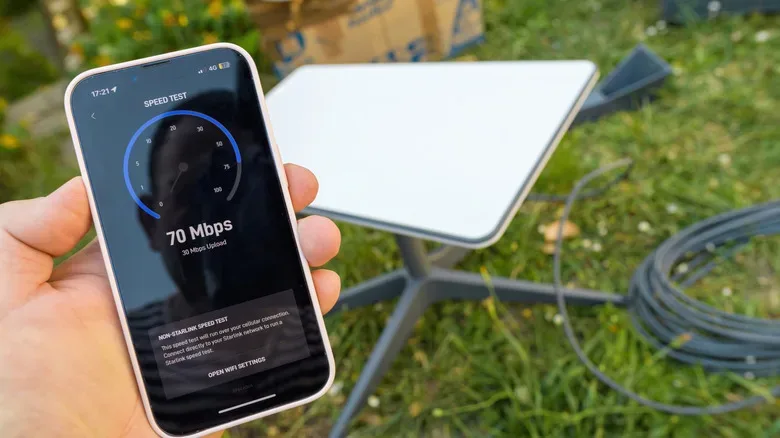
Location sets limits before comparison shopping even begins. In 2024, the FCC raised its benchmark definition of broadband to 100 Mbps download and 20 Mbps upload. Cable and fiber service can meet or exceed that baseline in many areas, but some rural homes may be limited to fixed 5G, satellite options such as Starlink, or older DSL infrastructure.
Fixed wireless and satellite can be hugely preferable to archaic DSL where wired alternatives do not exist, but they generally bring higher latency and lower speeds than cable or fiber. Those trade-offs are especially relevant to fast online games and live streaming. Always review a provider’s Broadband Facts label, the standardized Nutrition Facts-style information now required for home and mobile plans. It helps show the advertised speed, typical performance details, fees and data allowances where applicable.
How to run a speed test that actually tells you something
Start by checking the plan listed in your ISP account. You need to know the speed you pay for before deciding whether a test result is unexpectedly low.
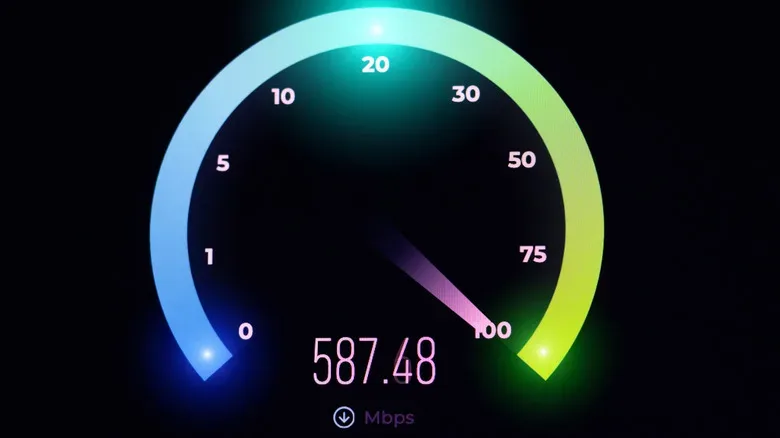
Speedtest.net provides a straightforward snapshot of download, upload and latency while idle, downloading and uploading. Cloudflare’s speed test can offer additional context by measuring performance with files of different sizes, along with jitter and packet-loss data. For a latency-focused check, Meter.net can test ping against more than 100 servers worldwide, including a mode that runs a broad set of locations at once.
One test is a clue, not a verdict. Use a repeatable method:
- Run the test from a computer connected by Ethernet to the router whenever possible. This best separates the incoming service from Wi-Fi limitations.
- Pause game downloads, cloud backups, streams and other intensive activity. Ask others on the home network to do the same for the cleanest baseline.
- Repeat tests at different times of day. Neighborhood demand can reduce available performance during busy periods.
- Run a second set over Wi-Fi in the room where the console or PC is used. The difference between wired and wireless results reveals how much the local network is affecting things.
- Record download, upload, idle ping, loaded ping, jitter and packet loss. Patterns across several days are more useful than a single peak number.
Game-specific latency needs separate interpretation. A nearby generic speed-test server can report excellent ping while a particular game feels delayed because its servers are farther away. Overwatch’s U.S. servers are located in Los Angeles and Chicago, for example. A player near Washington, DC may naturally see higher latency there than in a game with East Coast servers, such as Rocket League. That is a routing and geography issue, not necessarily evidence that the home plan lacks download speed.
Why your results can fall short of the package number
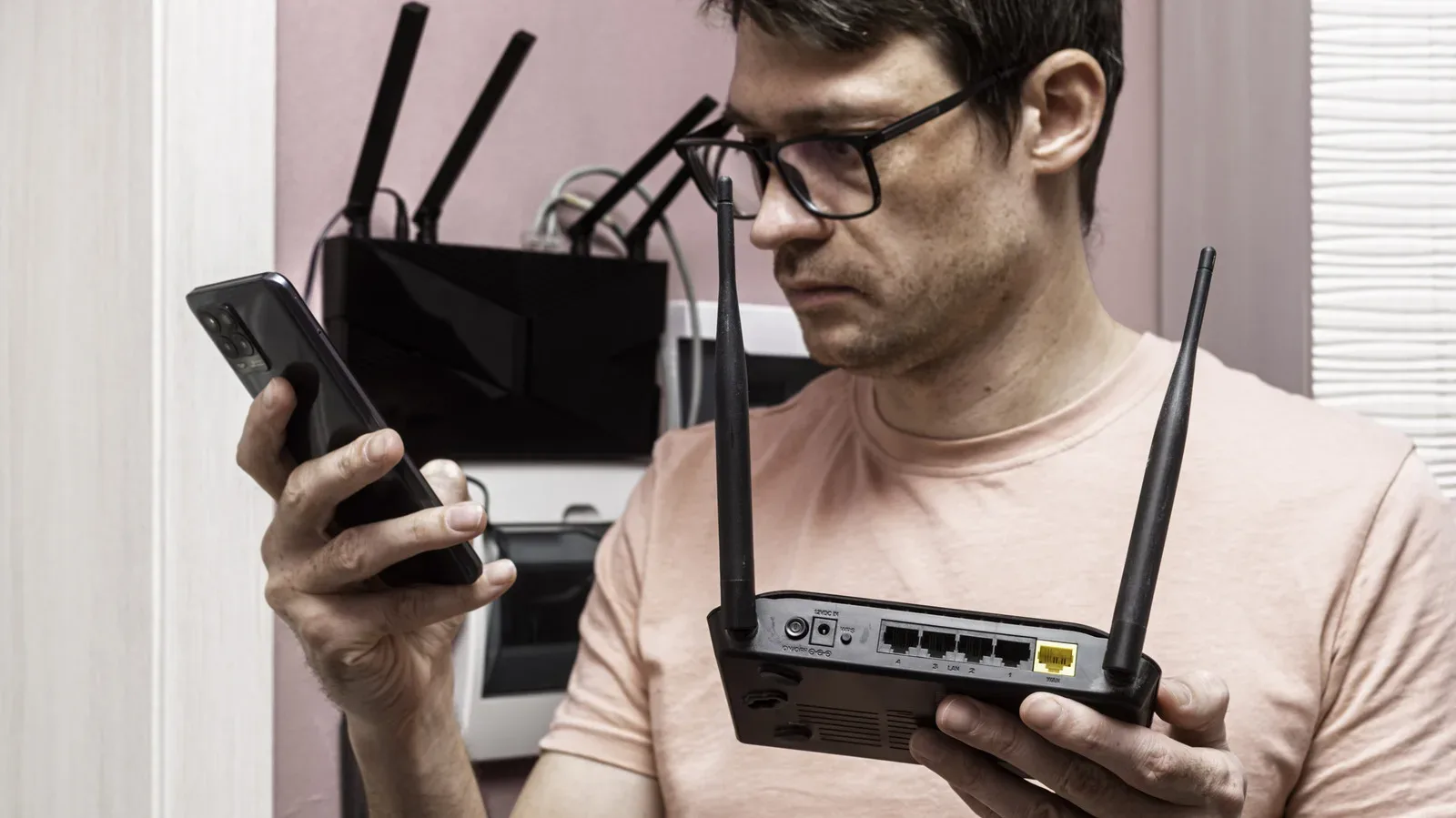
Wi-Fi is the most common reason a device does not approach the result of a wired test. Signal weakens with distance and walls, floors and furniture can reduce performance. Nearby wireless devices and neighboring networks can create interference. An old or low-end router with limited range or outdated wireless standards compounds every one of those problems.
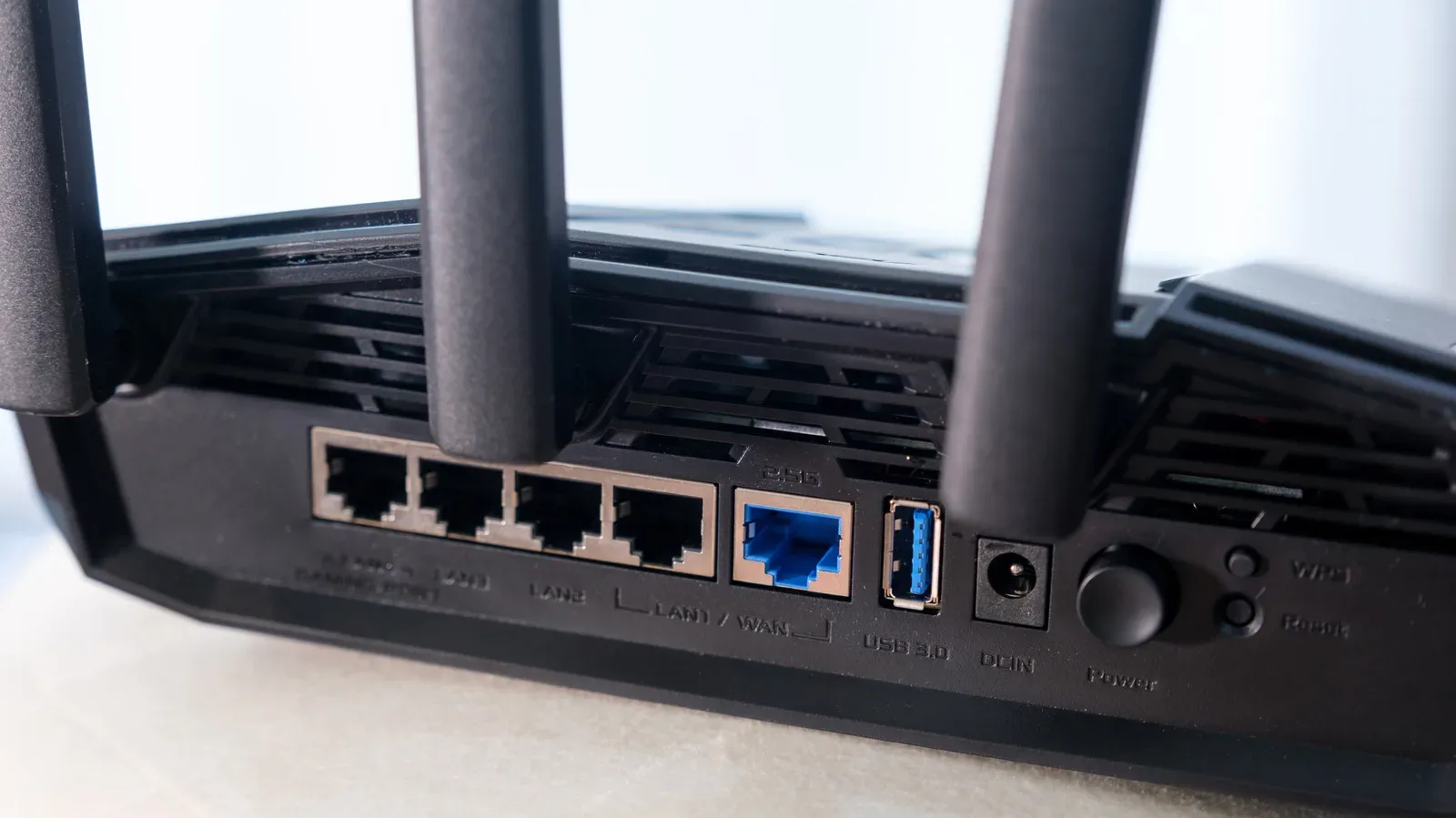
For phones, smart-home gear and casual browsing, Wi-Fi compromises may be invisible. For a work PC handling calls or a console used for online multiplayer, Ethernet remains the most dependable option for maximizing usable speed and minimizing latency. If a direct cable run is impractical, the key is to test alternatives carefully rather than assuming every room receives the same Wi-Fi quality.
A VPN can also lower throughput and raise ping because traffic has an extra routing step through the VPN provider’s servers. That does not make a VPN inherently unsuitable, but it should be considered when diagnosing a sudden drop in game responsiveness or download performance.
Finally, make sure the hardware can carry the plan you pay for. A modem limited to 400 Mbps cannot deliver an 800 Mbps service at full speed, regardless of router settings. ISP-supplied equipment is generally selected to suit the service tier, but owners of their own modem and router should confirm supported speeds and ports. The best package in the world cannot overcome a bottleneck sitting on the shelf beside it.
Use the data to solve the right problem
If a wired test is consistently much lower than the plan’s expected performance at several times of day, the issue may be worth raising with the ISP. If wired performance is healthy but the gaming room is slow, focus on Wi-Fi coverage, router placement, hardware capability or an Ethernet solution. If speeds are fine but only one title has poor responsiveness, test latency to that game’s region and consider server distance before paying for a faster tier.
That approach keeps the purchase decision grounded in what affects play. More Mbps is useful when a household is competing for bandwidth or waiting on enormous installs. Better local networking and lower latency are often the more meaningful upgrades when the problem is match-to-match reliability.