When a multiplayer match starts stuttering just as the household TV begins streaming in 4K, it is tempting to blame the game, the console, or the internet provider. Sometimes one of those is the culprit. But the traffic jam may also be happening much closer to home: on the Wi-Fi router.
A dual-band router broadcasts wireless networking on two frequencies simultaneously: 2.4GHz and 5GHz. Think of it as having two routes available instead of asking every phone, smart device, laptop, TV, handheld, and gaming system to crowd onto one. The two bands are not identical, and that is exactly why they are useful. One is better at reaching farther through a home; the other is built for greater wireless capacity and faster connections over shorter distances.
That distinction matters in homes where data use is heavy. The average U.S. household uses more than 700GB of data monthly, and modern entertainment can make that figure feel very believable. Game downloads, patches, cloud saves, voice chat, 4K video, remote work, security cameras, and a connected collection of smart-home accessories all compete for a reliable route to the internet.
For players trying to keep a PC or console stable while the rest of the home is online, dual-band Wi-Fi is less about magic speed and more about sensible traffic management.
What the two Wi-Fi bands actually do
The 2.4GHz and 5GHz labels describe radio-frequency bands used by the router. A dual-band model makes both available at the same time, allowing compatible devices to use the connection that best suits where they are and what they need to do.
2.4GHz: the long-distance specialist
The 2.4GHz band generally travels farther and handles walls and other household obstacles more effectively. That makes it a practical option for a device on the other side of the house, upstairs, or in a room where dense surfaces weaken a signal.
It is especially useful for lower-demand devices where a dependable connection matters more than maximum speed. A security camera positioned far from the router is a straightforward example. Many smart-home devices also fit this profile.
The trade-off is that 2.4GHz is the slower of the two bands and can be busier. Many devices use it by default, so it may become crowded in a home with lots of wireless gear. It can still be the right choice when range is the priority, but it is not automatically the best lane for every task.
Related coverage includes What a Dual-Band Router Does for Home Wi-Fi.
5GHz: more capacity for demanding connections
The 5GHz band offers higher wireless capacity and faster speeds. It is typically the more appealing Wi-Fi option for a gaming PC, a console, or a television streaming at its highest 4K setting—particularly when the device is relatively close to the router and the signal does not have to cross several thick barriers.
Its weakness is reach. A 5GHz signal does not travel as far as 2.4GHz and can struggle more with dense obstacles. A setup that feels excellent in the room beside the router may be less reliable in a distant bedroom, basement, or back room.
That is the central dual-band compromise: 2.4GHz favors coverage, while 5GHz favors speed and capacity. Having both means a home does not have to force every device into the same imperfect choice.
Why this can help a gaming setup
Gaming does not happen in isolation. A match of Helldivers 2 or Dota 2 might be running while someone is watching video, another person is on a work call, and several mobile devices are refreshing in the background. A dual-band router can distribute compatible devices between its two frequencies rather than concentrating all that activity on one band.
For example, a gaming rig near the router may benefit from joining 5GHz, where it can take advantage of the band’s additional capacity. A security camera at the far edge of the home may be more dependable on 2.4GHz. The point is not that every device must be assigned by hand. It is that the router has more than one path available for matching devices to changing conditions.
Many dual-band routers handle this automatically. A router may decide which frequency is the better fit for a compatible device, and some can move devices between bands as conditions change. That is convenient, though it also explains why the exact behavior can differ from one router to another.
Gaming-oriented routers can add device-prioritization options. In principle, that lets a household put a console or gaming PC ahead of less time-sensitive traffic, reducing the chance that a major download or another device’s activity monopolizes available bandwidth. It is a useful convenience because it can avoid the need to manually manage every connected item.
For more gaming setup help, Joking Joystick’s coverage of GTA 6 PlayStation Store timing clues is a reminder that network and platform details can become part of the launch-day conversation.
Dual-band is helpful, not a guaranteed fix
A router with two bands can reduce local Wi-Fi bottlenecks, but it cannot create internet service that is not there. If an internet plan is weak for the number of people using it, a dual-band router cannot turn it into an unlimited high-speed connection. Likewise, poor router placement and substantial physical obstructions can still undermine wireless performance.
That is an important expectation to set before replacing hardware. A shiny dual-band or tri-band label does not erase the effects of a router placed in an inconvenient location or a signal that has to pass through thick obstacles. It gives the home network more flexibility; it does not repeal the limits of distance, walls, and the underlying internet connection.
Useful rule of thumb: choose 2.4GHz when distance and signal reach are the main concern, and favor 5GHz when a nearby device needs greater speed or capacity.
For players and 4K streamers able to connect directly to the router, Ethernet remains the option for maximum speed and connection quality. A cable is not always practical, especially for devices in another room, but it removes the wireless portion of the journey altogether.
How to check whether a router is dual-band
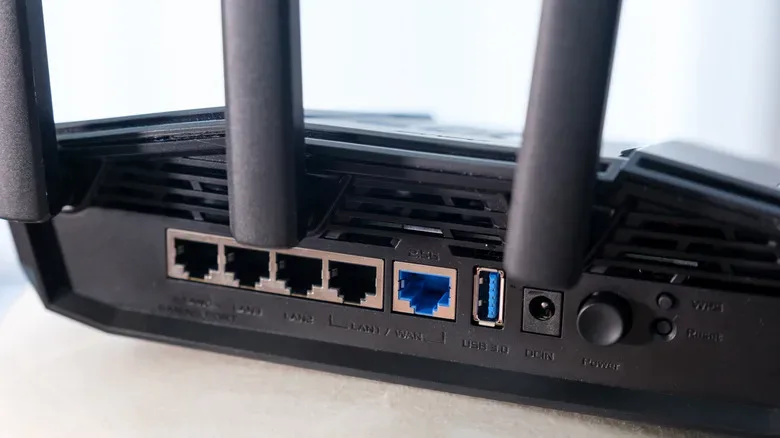
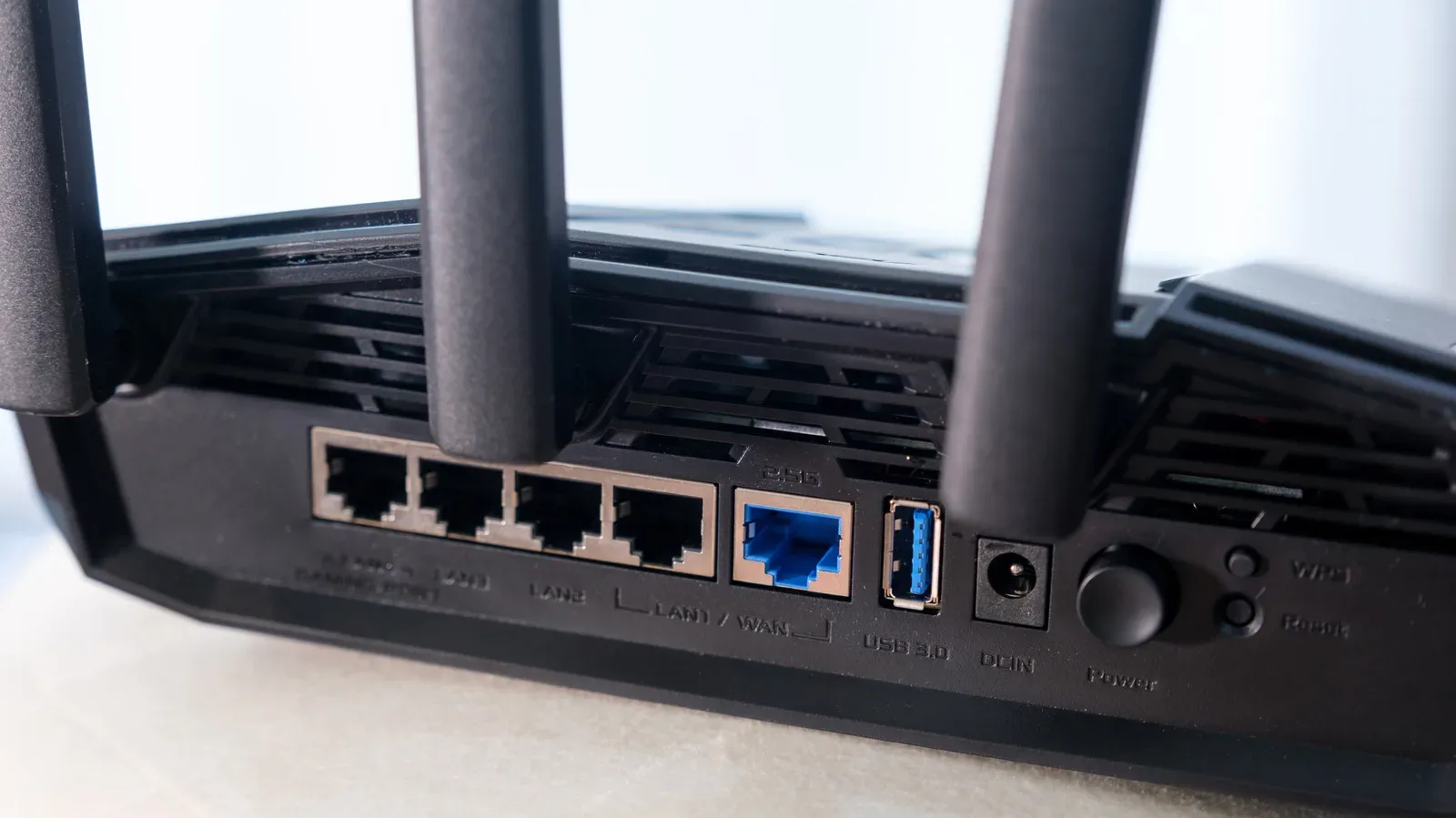
The quickest place to start is the physical router. Check the label on its underside or back panel. Manufacturers commonly list supported bands and may explicitly describe a unit as dual-band or tri-band. A router made within roughly the last decade has a good chance of being dual-band, although checking the actual model is more reliable than assuming.
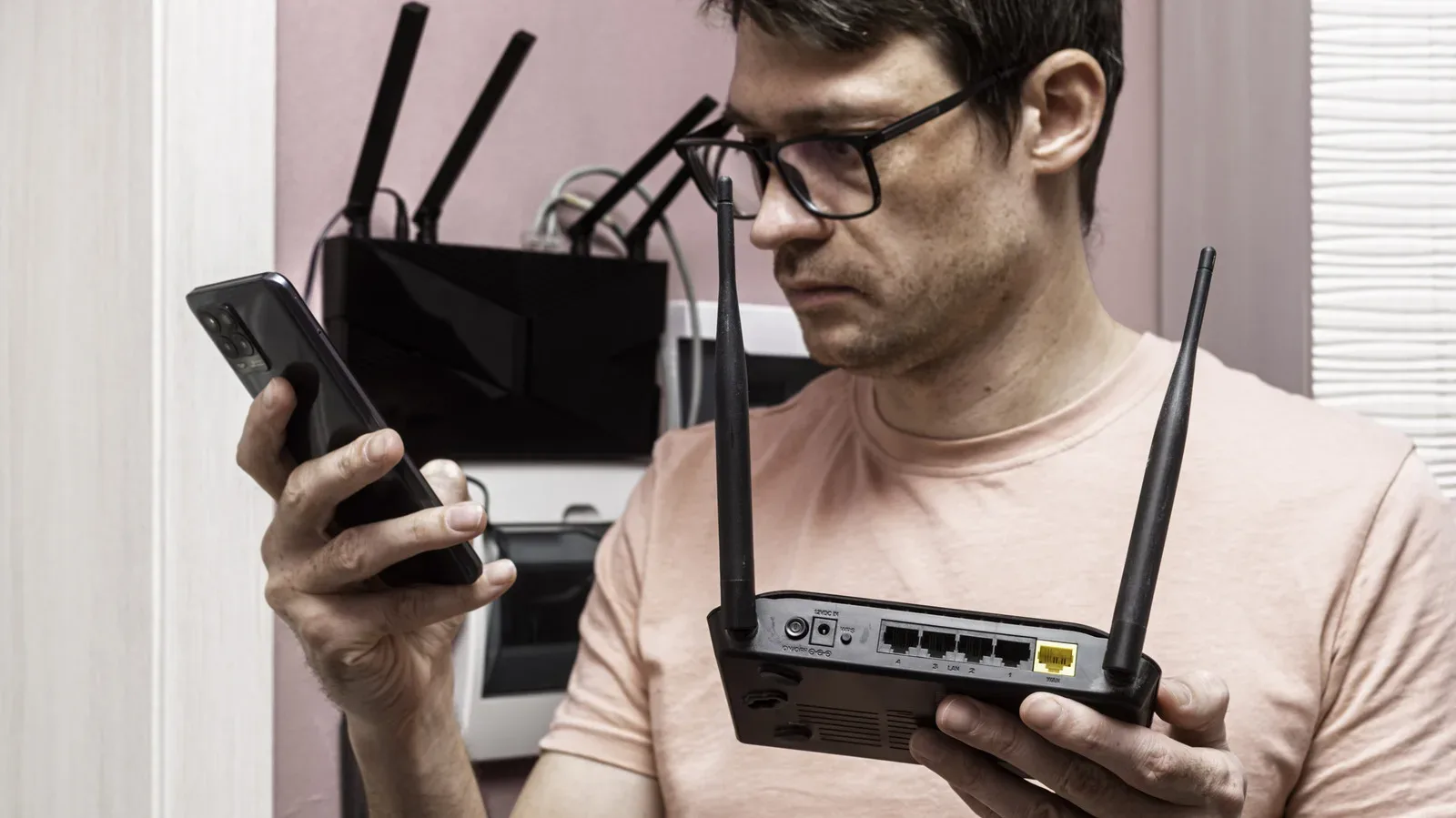
A phone or tablet can also offer a clue. Open the available Wi-Fi networks list and look for separate network names that identify 2.4GHz and 5GHz. A household might see names such as “Home WiFi” with band information appended, while other routers make the bands more obvious. If both frequencies appear, the router is dual-band.
However, seeing only one network name does not prove the router is single-band. Some hardware presents a single name and silently directs devices to the frequency it considers appropriate. In that arrangement, both bands may be operating even though there is only one familiar network listed on a phone.
A third visible option may indicate a tri-band router. That extra band is often 6GHz or another 5GHz band. Tri-band hardware expands the number of available wireless lanes, but the same practical limits remain: it cannot compensate completely for poor placement, thick obstructions, or inadequate internet service.
The dependable verification method
- Find the router’s brand and model number on its label.
- Check the model’s specifications from the manufacturer or through a web search for that exact number.
- If necessary, use the local administration address printed on the label, sign in with the appropriate credentials, and inspect its wireless settings or specifications.
The router label may include a temporary username and password alongside that local administration address. Treat those details as sensitive and change default credentials when appropriate; they are not information to share publicly.
Making the choice without overthinking it
For most households, dual-band connectivity is a basic and useful foundation. Let automatic band selection do its work unless a particular device has a clear problem. If a distant device drops out, 2.4GHz is the natural band to consider because reach is its strength. If a nearby PC, console, or 4K television needs more speed and the signal is strong, 5GHz is generally the better fit.
The important part is understanding that Wi-Fi performance is a balance between range, capacity, placement, interference, connected-device demand, and the internet plan itself. Dual-band routers provide a meaningful way to spread that demand across two different frequency bands. For a busy game night, that extra room can be the difference between every device fighting for one lane and a home network that has a little breathing space.