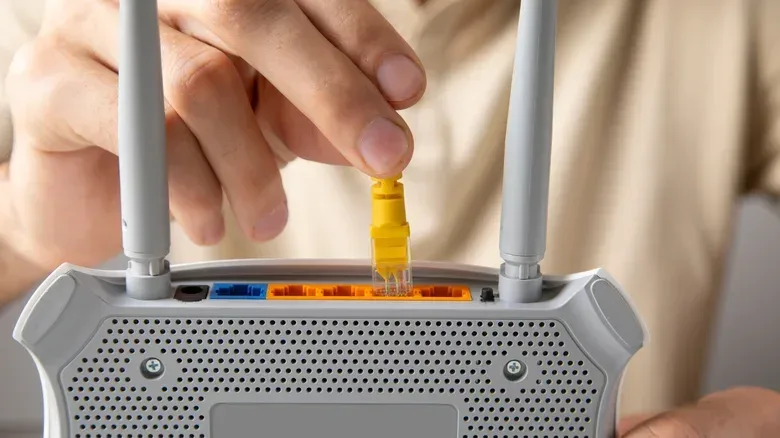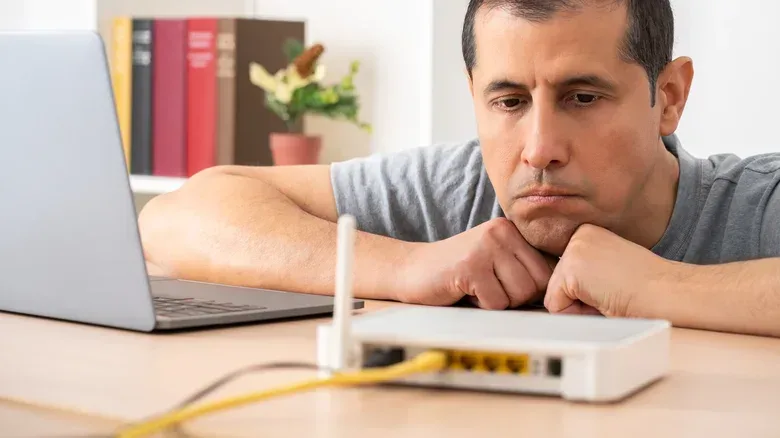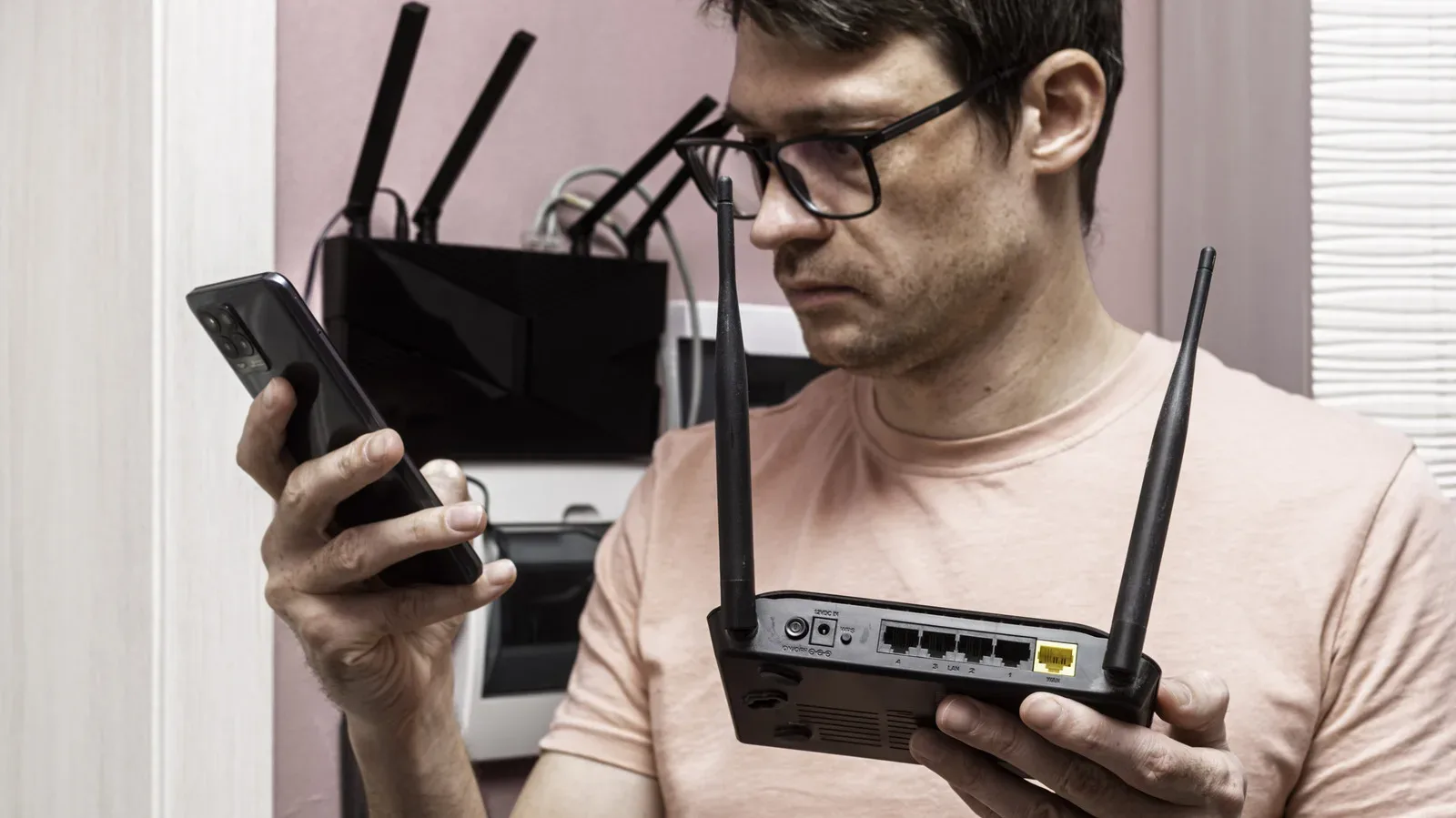
A wired connection can be a welcome fix when a gaming PC is suffering from Wi-Fi range, interference or crowded wireless bands. Ethernet removes several variables that can affect a wireless connection, which is why plugging directly into a router is often worth considering for unstable online play or streaming.
But the familiar Ethernet connector has one small mechanical catch: literally. Its light plastic plug uses a flexible protruding tab to lock into the port. Normally, pressing that tab releases the cable immediately. If the plug will not come free, yanking it is the move most likely to turn a minor nuisance into a broken latch, a damaged port, or both.
The good news is that a stuck Ethernet cable is generally a rare issue, and there is a cautious order of operations to try before escalating it. The important rule is simple: release the latch and relieve pressure around the plug; do not try to win a tug-of-war with a connector designed from light plastic.
What is catching inside the Ethernet port?
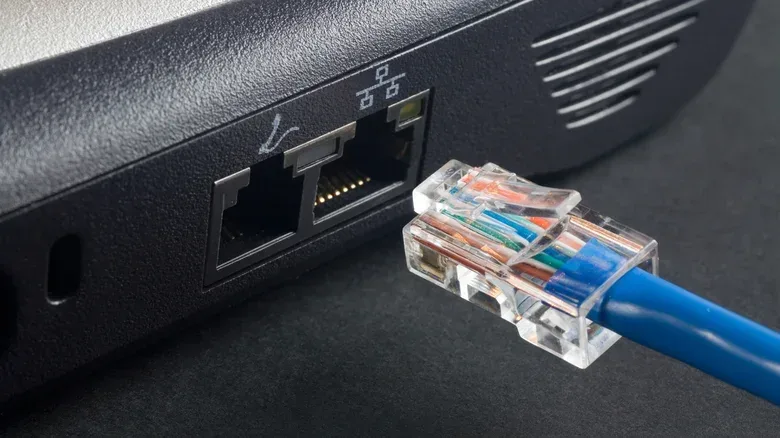
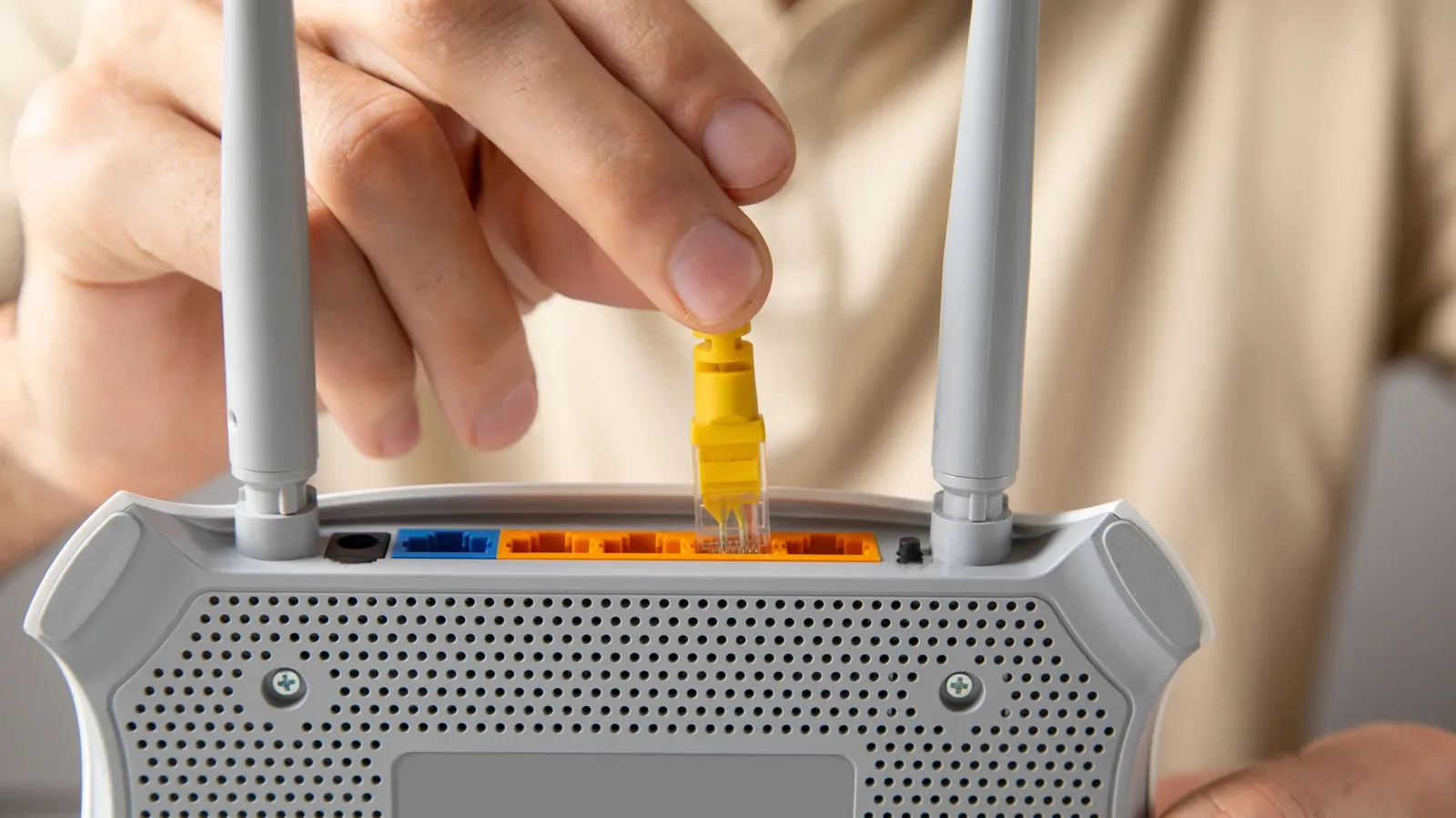
An Ethernet cable ends in a modular plastic connector that locks into place with a springy tab on top. When inserted, that tab catches in the port so normal movement does not disconnect the cable. Pressing the tab down should move it out of the way and allow the connector to slide out.
A cable that feels stuck may have a tab that is not fully depressed, a connector that is sitting under slight pressure, or a latch that is otherwise refusing to clear its catch. That is why simple force is a poor answer. Pulling while the latch remains engaged can snap the tab. In a worse outcome, broken plastic may remain behind and stop a later cable from locking properly. Pulling hard also puts the connector’s wiring at risk, and risks damage around the port’s data and power contacts.
This is not a situation where a stronger grip equals a better solution. Treat the plug and the socket as a matched pair that need to be aligned and released.
Start safely: power down and stabilize the device
Before working on the cable, turn off the device it is connected to. This creates a calmer, safer setup for working close to the port and avoids attempting delicate movement while the hardware is in use.
Next, support the frame of the device with your other hand. Whether the cable is connected to a PC, router, console or streaming device, holding the chassis provides stability and resistance while you work the plug. It also helps prevent the device itself from shifting as you apply a controlled pull.
Do not pull on a loose length of cable or treat the cable as a handle. Work at the connector itself, with enough light to see where the tab sits. The objective is a small, deliberate movement—not a sudden extraction.
The careful removal sequence
- Press and hold the locking tab. Use a finger to push the plastic tab down as fully as possible. Keep it pressed throughout the attempt rather than tapping it and then pulling.
- Gently move the connector up and down while pulling. With the tab held down, carefully flex the connector in one direction and then the other as you apply a light outward pull. The movement can help the latch clear its retaining point.
- Try a slight inward press first if it still will not release. Keep the tab depressed, press the connector a little farther into the port, then attempt the same gentle pull. This may reduce the pressure that is keeping the latch caught.
- Keep holding the device frame. Maintain support on the hardware rather than allowing the port area to take all the strain.
These steps are intentionally unglamorous. A stuck connector is a mechanical problem, so the useful response is to manage the latch and alignment with patience. Repeatedly increasing force does not address either one.
Using a small tool: possible, but only with care
If fingers cannot keep the tab fully depressed, a small flathead screwdriver or even the tip of a pen may help press it down. This is a precision assist, not permission to pry.
Position the tool only to help hold the tab down, then pull the connector carefully. Be mindful of the bottom of the port: even though the latch area itself should not contain damageable pins, a tool or connector that slips during removal could scrape the contacts below. The less leverage and pressure used, the better.
It is also worth stopping if the attempt requires awkward angles, poor visibility or repeated probing. The fact that a tool can reach the latch does not mean every port location is safe to work on without a higher chance of collateral damage.
Why pliers are the wrong default tool
A pair of pliers may sound like the obvious answer when a plug refuses to move, but it is a high-risk choice. The clamping force needed to get traction can crush or break the lightweight plastic connector. One side of the tool can also end up uncomfortably close to the port’s contacts.
Even if pliers eventually remove the cable, they can leave a damaged plug or port behind. That is a poor trade for a problem that usually calls for latch control rather than raw force. Avoid them.
When to stop trying
Ethernet ports do not include an emergency release mechanism. If careful attempts with the latch held down have not worked, there is no special button or universally safe escalation that will transform the situation.
At that point, leaving the cable connected is often the least damaging option, particularly if another port is available or the cable is not urgently needed elsewhere. If the port must be freed, contact the device’s technical support or use a local repair service. A professional assessment is preferable to breaking the latch, stripping wiring, or scraping the port in an attempt that becomes harder to reverse.
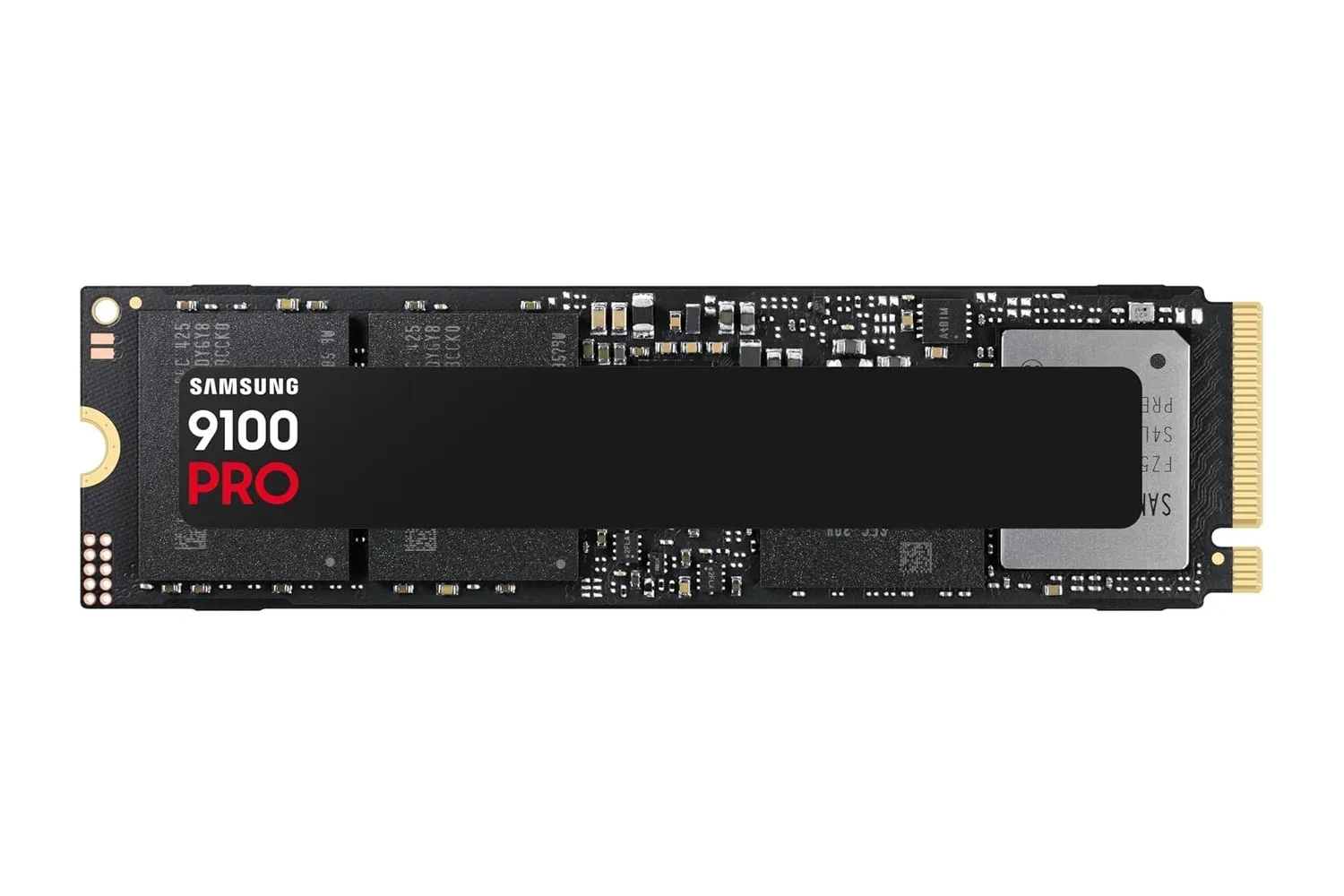
This advice is especially practical for a desktop gaming setup that has other networking options. A temporary wireless connection may be less elegant than wired networking, but it is better than turning a stubborn connector into a hardware repair. Players building or refreshing a desktop can also keep the wider setup in mind; fast storage and a stable network solve different problems, as our look at the Samsung 9100 PRO 1TB SSD for new PC builds illustrates.
Ethernet is useful, but check the port speed too
For gaming or streaming hardware close to a router, Ethernet can avoid wireless range limitations, interference and congestion. A Cat6 or Cat7 cable can be a sensible wired option when a PC’s Wi-Fi connection is erratic.
That does not mean every Ethernet-equipped device will automatically be faster than Wi-Fi. Some streaming hardware uses 100-megabit Ethernet rather than gigabit Ethernet. In that situation, its wired port can impose a lower ceiling than the device’s Wi-Fi connection. The lesson is to check the capability of the specific port, not just assume that a cable always represents the fastest path.
Gigabit Ethernet refers to a connection speed of up to one gigabit per second. A 100-megabit port has a markedly lower maximum. Those figures describe the link capability rather than guaranteeing real-world performance, but they matter when choosing between wired and wireless options.
Wi-Fi is a legitimate fallback, not a failure
Modern Wi-Fi is not automatically a consolation prize. Wi-Fi 6 and Wi-Fi 7 can reach gigabit-class speeds comparable to Ethernet and, in some cases, faster. Wireless still has real challenges: physical range, interference and congestion do not disappear just because a newer standard is available. Yet those constraints often have to be managed anyway, particularly for products that do not have an Ethernet jack at all.
A smart bulb, for example, has no realistic room for an Ethernet port. Many other connected products similarly rely on Wi-Fi by design. For a PC or console, a wired connection remains useful when it is practical and the port is capable enough. For devices farther away, Wi-Fi may be the more sensible option simply because running cable across rooms or through a house is inconvenient.
The stuck-cable incident itself should not be treated as proof that Ethernet is unreliable. These connectors are designed to be removed easily, and many people will never encounter one that jams. The useful preparation is knowing the boundary: press the tab, make small controlled movements, avoid destructive tools, and let support or a repair shop handle the problem if the plug still will not release.