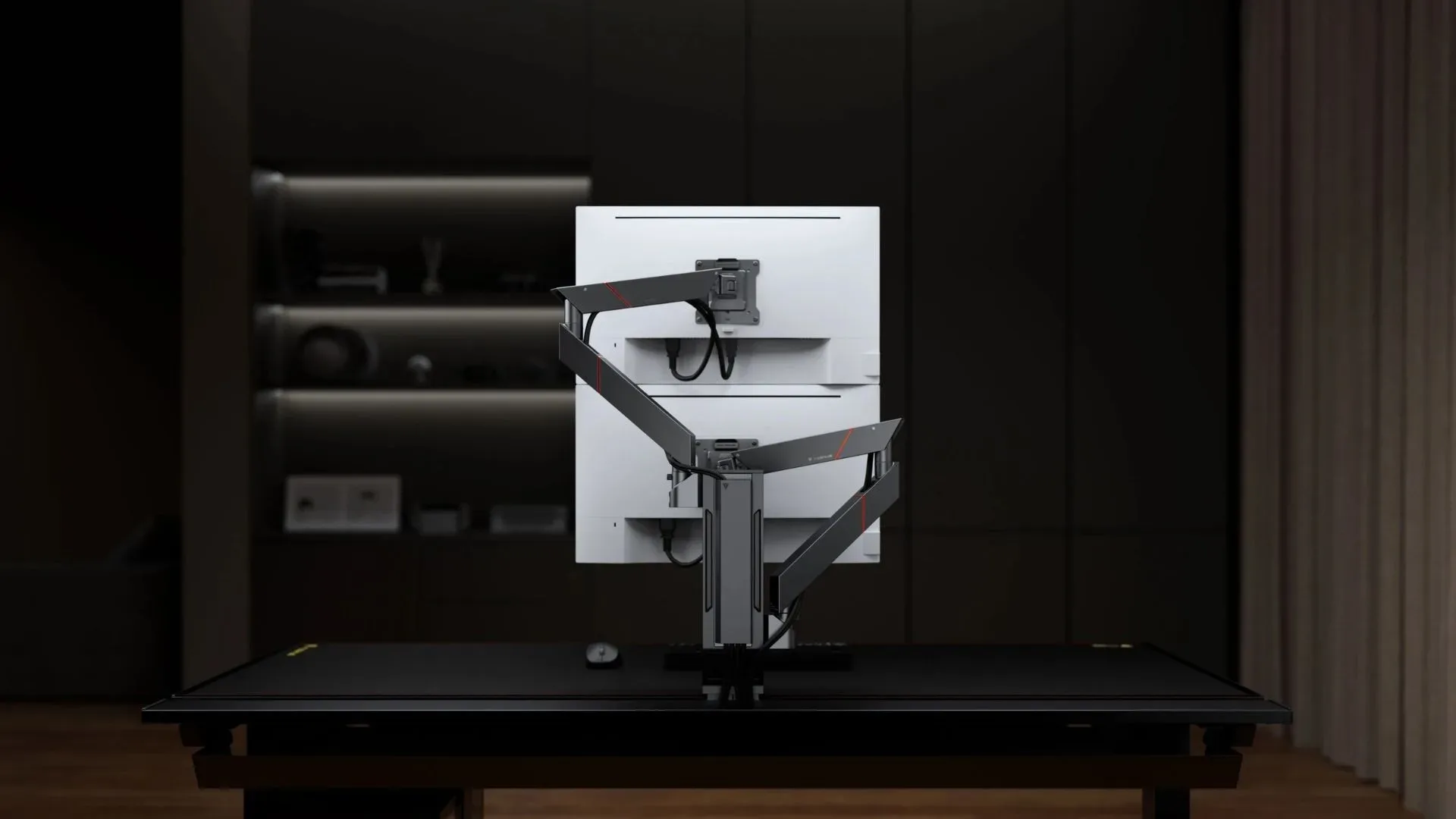
For a dual-monitor gaming or work desk, the most important upgrade may not be a new chair, a bigger desktop, or another RGB accessory. It may be the direction in which the second screen asks your head to travel.
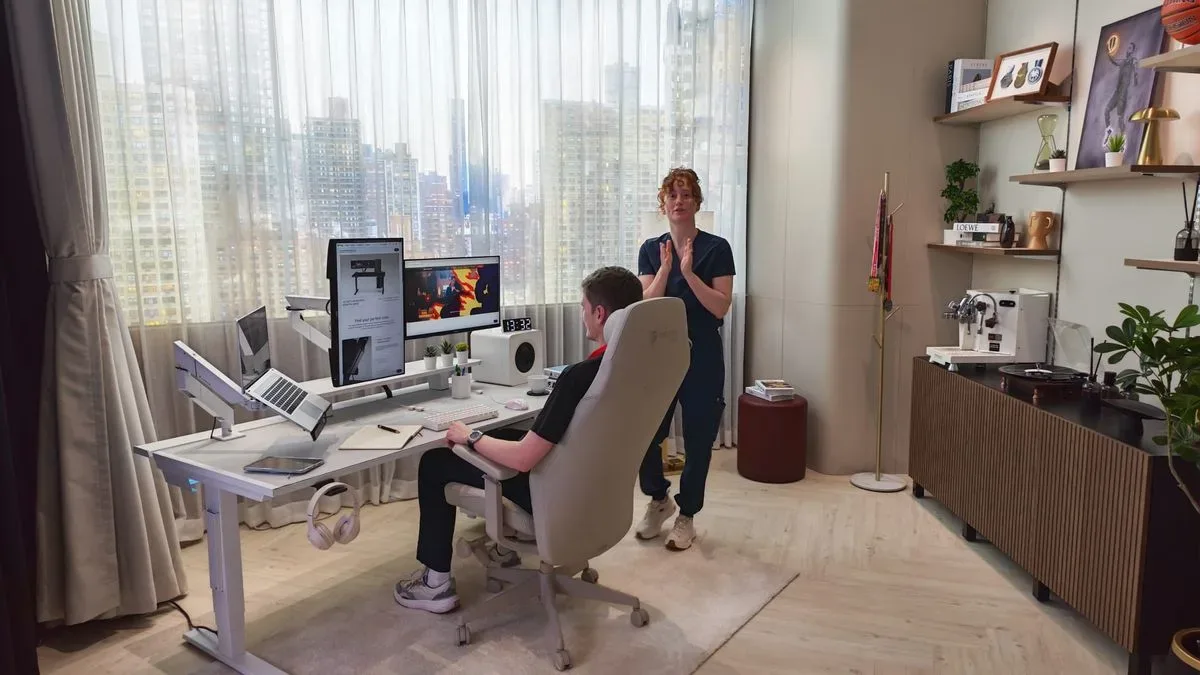
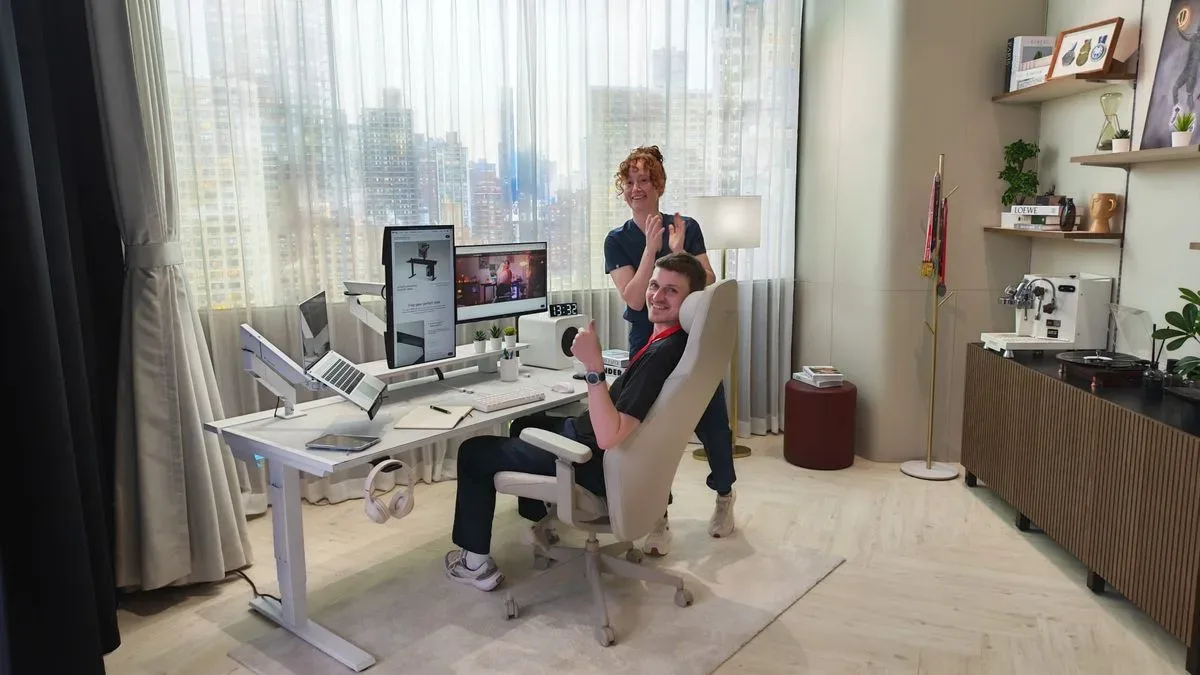
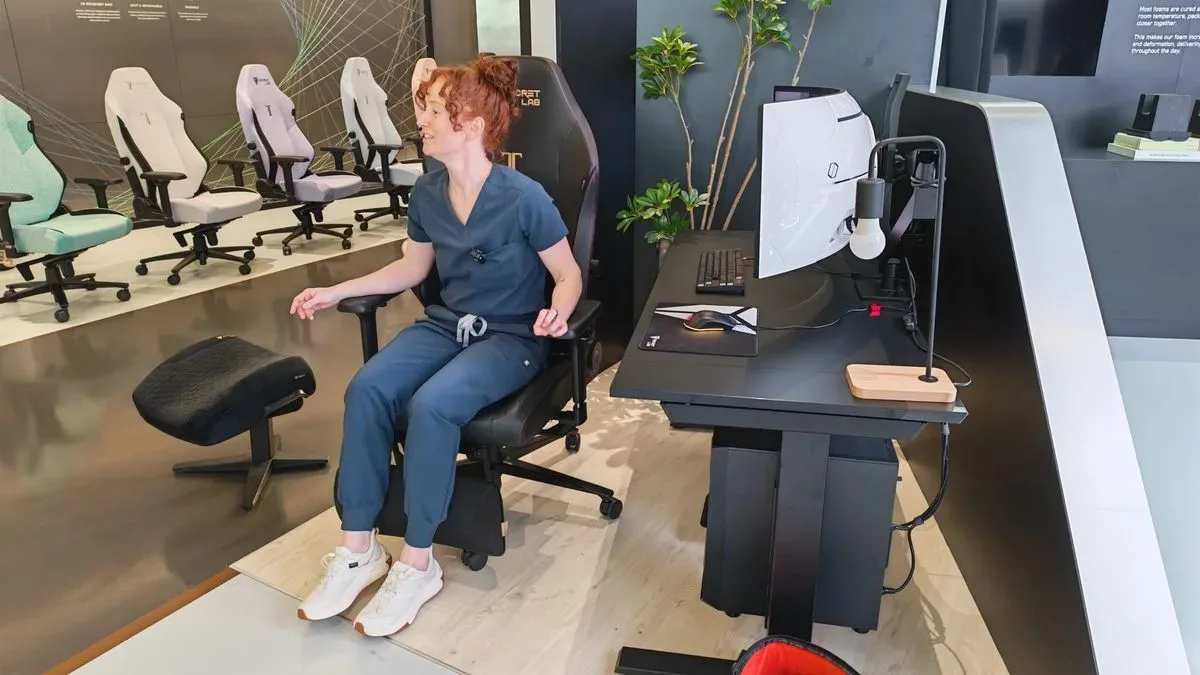
A user dealing with persistent pain and tension on the right side of the neck and shoulder was advised to move a vertically oriented secondary monitor from the right-hand side of the desk to a position above the primary display. The recommendation came from Dr. Lindsey “GamerDoc” Migliore, a licensed physician and esports medicine specialist who applies sports science, ergonomics and performance-medicine principles to gaming setups.
The user was initially skeptical. The desk already had a main screen and a portrait-oriented screen to the right for smaller, frequently checked applications such as Slack and Spotify. But the side placement meant repeatedly turning toward the same side. The pain was on that same side, making the layout an obvious starting point for an ergonomics conversation.
After switching to a stacked arrangement and using it for roughly five or six months, the user reported a substantial difference in the neck tension they carried. That is one person’s account, not proof that a vertical monitor stand will solve everyone’s discomfort. It is nevertheless a useful reminder that a familiar desk layout can create a very repetitive movement pattern over long gaming and working sessions.
The simple change: put the second display above the first
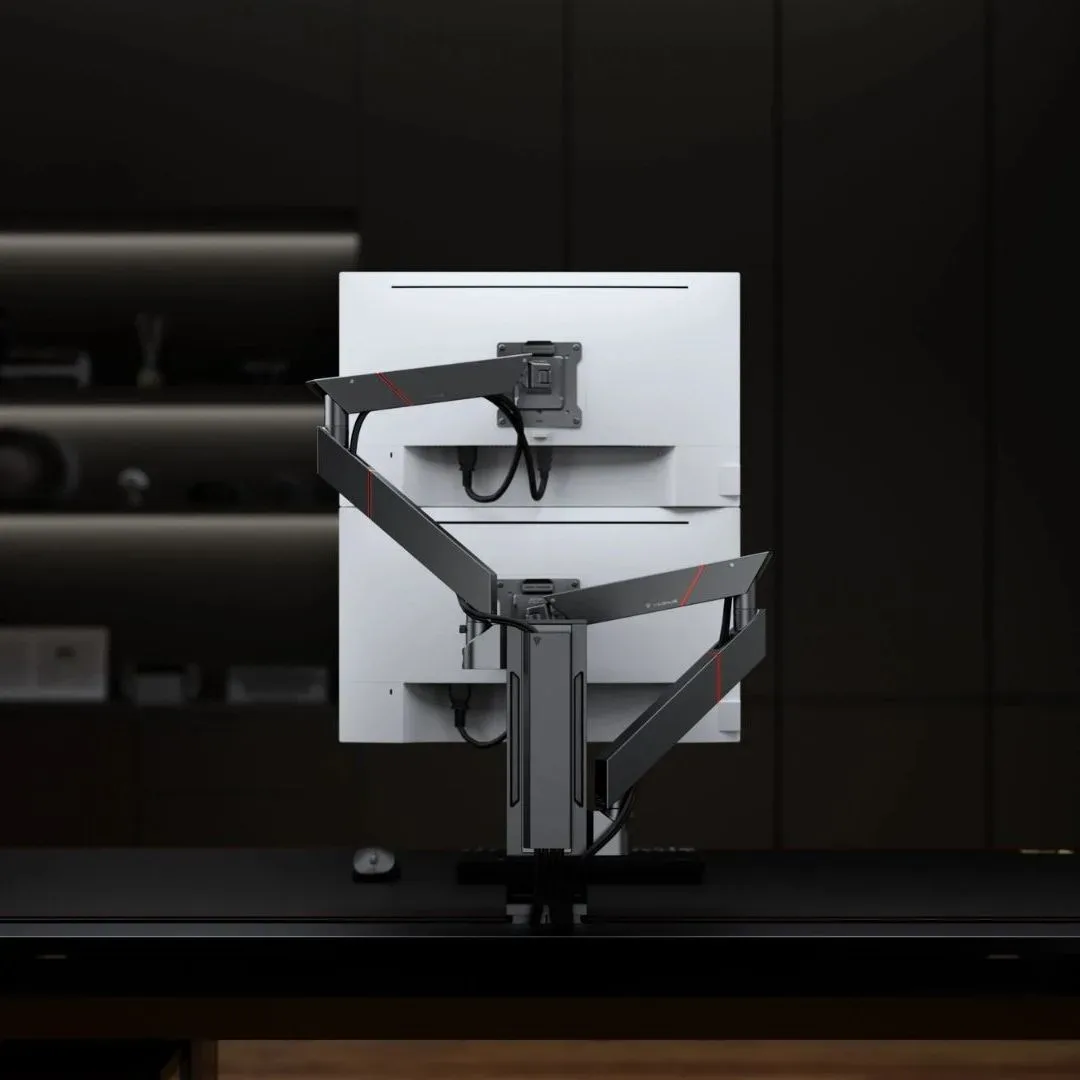
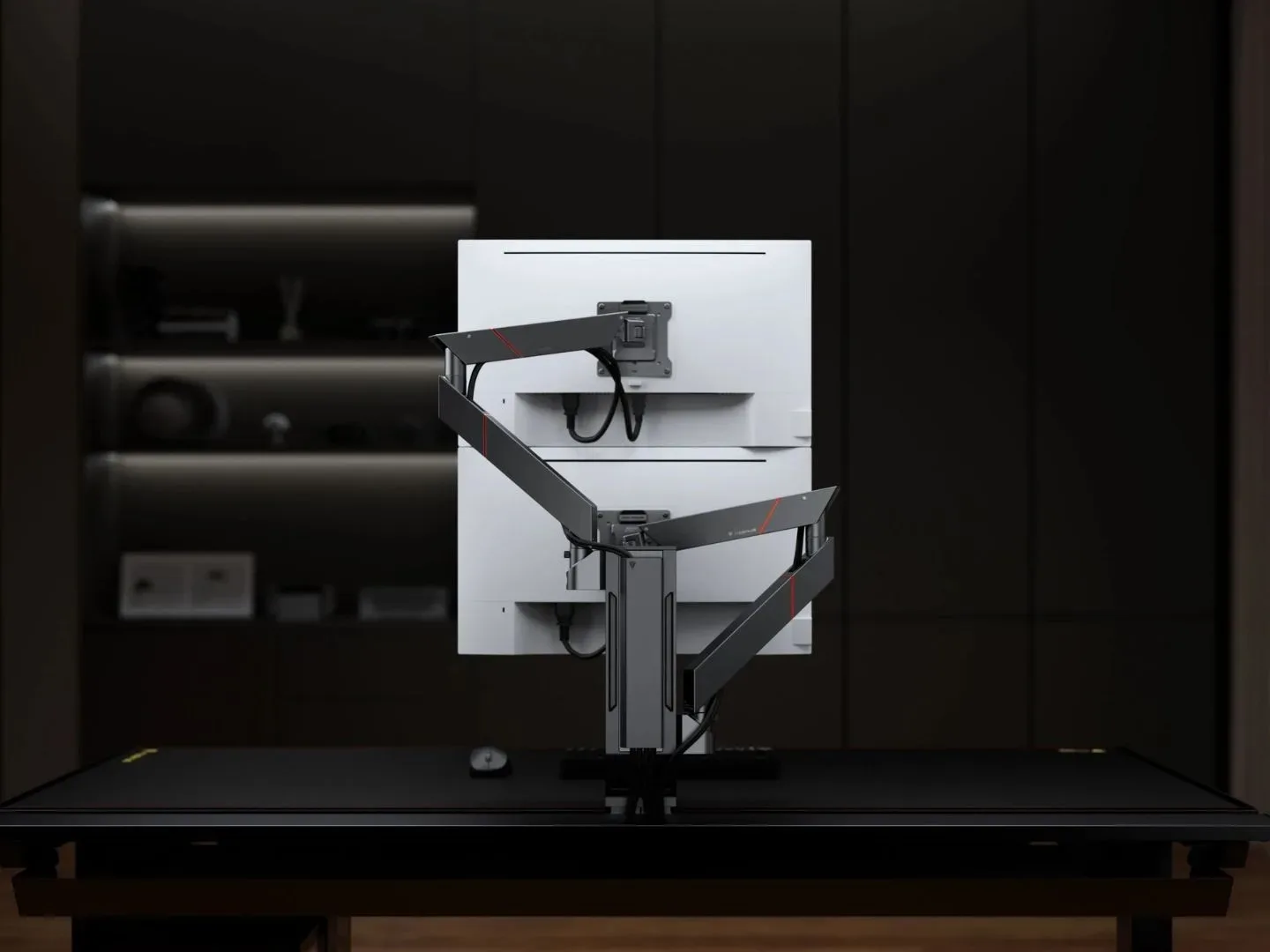
In this case, the original setup positioned the auxiliary display to the right. The replacement layout stacked the displays, with the second screen above the primary monitor. The intended practical effect was to replace a frequent rightward neck turn with upward glances.
That distinction matters because the secondary screen was not merely decoration. It held communications, music controls and other smaller applications: precisely the sort of content that can invite dozens of brief checks in a day. A movement that feels insignificant once can become part of the desk’s default rhythm when repeated throughout work, play and downtime.
Ergonomics is the discipline of fitting tasks, equipment and environments to people. In a desk context, it is less about finding one universally perfect posture than noticing the demands a layout repeatedly makes: where the eyes land, which way the head turns, how far the arms reach, and whether an arrangement forces the body to hold one position or make the same movement over and over.
The reported benefit here was not that looking upward is universally ideal, nor that a monitor arm is a medical treatment. It was that a centered, stacked arrangement reduced one individual’s habitual one-sided craning. That is an important, narrower claim—and a far more useful way to think about the lesson.
Related coverage includes A Vertical Monitor Setup Helped Ease One Gamer's Long-Term Neck Strain.
Why monitor placement can matter more than chair marketing
Gaming chairs can offer headrests, lumbar cushions and adjustment options, but they cannot stop a player from repeatedly looking away from the center of the desk. A chair addresses where someone sits; monitor placement addresses where attention goes. Both can affect a setup, but they do not solve the same problem.
For people with two screens, a quick audit can reveal whether the layout is working against them. Which display is viewed most often? Is the primary display directly ahead? Is the second screen for occasional reference, or is it a constantly active chat, browser, music or stream-control panel? And, critically, does the desk encourage repeated turns toward just one side?
A portrait monitor is especially easy to place on the far left or right because it fits neatly beside a landscape display. That can be convenient for documents, chat windows and vertically scrolling feeds. Convenience, however, is not the same as suitability for every user. If it becomes an always-on information hub, its location deserves more consideration than the usual “put it wherever it fits” approach.
Questions worth asking before buying hardware
- Which screen receives the most frequent glances during a normal day?
- Is the main display centered in front of the usual seating position?
- Does a side display require a repeated turn to one direction?
- Could less-used apps be moved, consolidated or checked less often?
- Would a stacked layout actually suit the desk depth, screen sizes and viewing habits?
- Can the desk safely accept a clamp-mounted arm or stand?
These questions are useful because they focus on behavior before equipment. A monitor arm can make repositioning possible, but it does not automatically make a screen arrangement sensible. The best layout is the one that supports the actual tasks performed at that desk.
What a vertical monitor stand changes—and what it does not
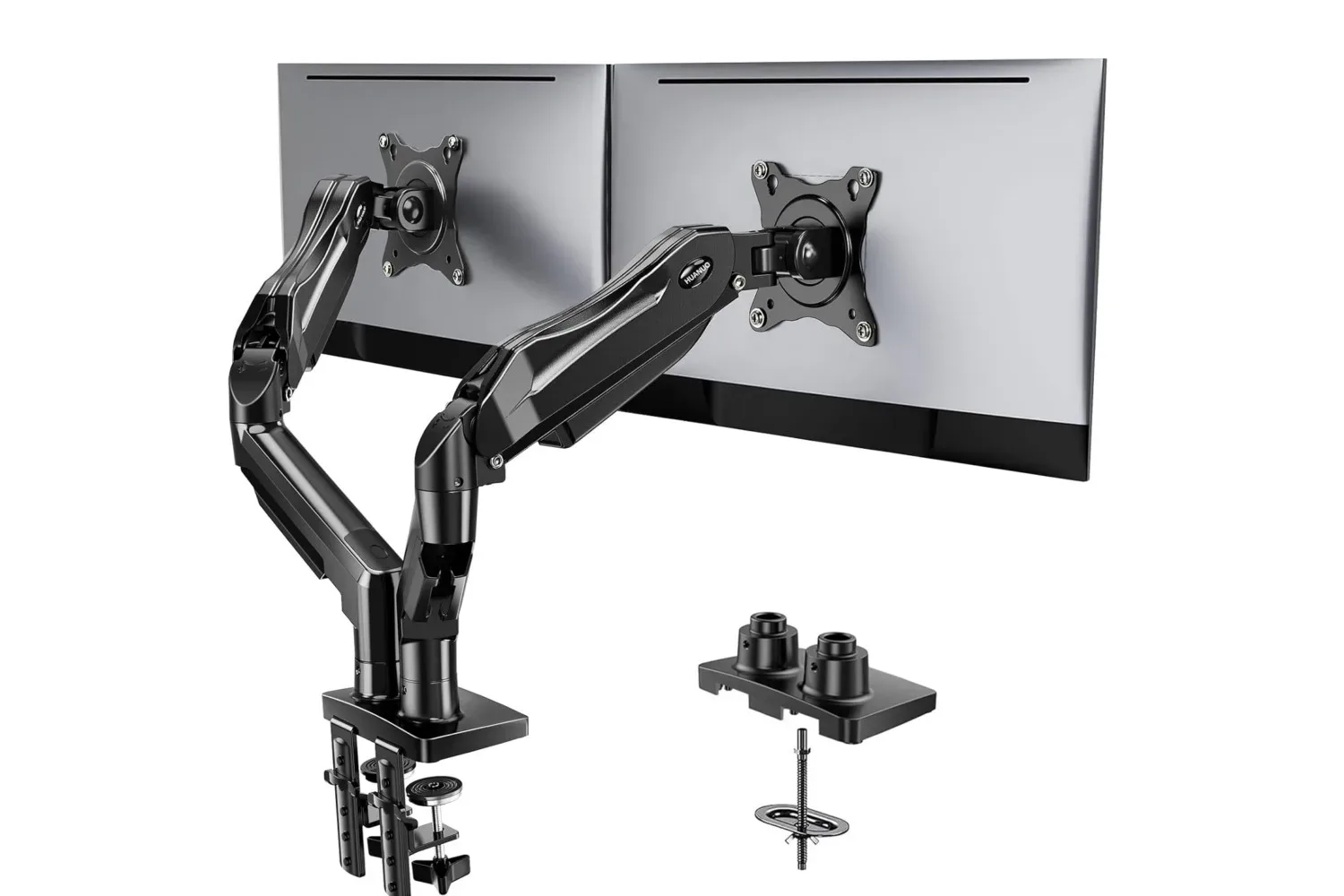
A vertical monitor stand, in this context, is a mounting system designed to position displays one above another. It can free desk surface, give a secondary screen a more central location and make a stacked layout easier to achieve than it would be with the monitors’ bundled stands.
The setup described used Secretlab’s Vertical Monitor Stand. Its design can support more than a basic two-screen configuration: the stand has room for up to four extending arms, potentially accommodating displays alongside a tablet, camera or another accessory. That flexibility explains part of its appeal, but it is not necessary for someone whose only aim is to stack two screens.
It is also a premium option. Lower-cost vertical stands were cited from Standopia at $79.99 and AVLT at $99.99 through Amazon. Those figures establish that alternatives exist, but shoppers should not assume every arm has the same load limit, range of movement, clamp design or compatibility. A stand should be chosen for the monitors and desk actually in use, rather than for the largest theoretical setup it can create.
The Secretlab hardware can be used with worktops other than the company’s own Magnus desk if the desk meets its minimum thickness requirement for secure clamping. That compatibility point is significant for PC players who want to change their monitor positioning without replacing an entire desk. At the same time, it is a requirement to verify rather than an assumption to make: clamp mounting relies on the desk being an appropriate thickness and providing a safe surface for the installation.
Weight limits are not a minor specification
The setup later changed again when the main display became a heavier OLED monitor. That required adding Secretlab’s Heavy Duty Monitor Arm, described as suitable for a load above 8kg. This is the kind of detail that should shape a purchase before an arm reaches the desk.
A load limit is the maximum weight a mount is designed to hold. It is not a decorative number. A screen that exceeds an arm’s rating may not remain where it is placed, and using incompatible hardware can undermine the stability that monitor mounting is supposed to add.
The Heavy Duty Monitor Arm and the Vertical Monitor Stand also cannot be mixed and matched by attaching the stronger arm to the vertical stand. That limitation may matter for anyone planning a stack with one notably heavy display. The prospective configuration should be mapped out in advance: screen weights, mounting patterns, desk-clamp requirements, desired height and whether the selected components physically work together.
For a gaming desk, this is especially relevant as OLED monitors and larger displays become more common. A layout may look straightforward in a product image, yet a heavier primary screen can narrow the practical hardware choices considerably.
Practical implications for a gaming-and-work desk
The underlying lesson is not that every player should stack monitors. A side-by-side arrangement remains sensible for many workflows, including setups where both screens receive sustained attention or where a user needs a broad horizontal workspace. The more targeted takeaway is that a screen used for frequent, short checks may be a good candidate for a central position rather than an extreme side position.
Stacking also brings trade-offs. The upper display is farther from the natural line of sight than a neighboring screen, and screen size, desk height and available adjustment range all influence whether the arrangement feels workable. It may be excellent for chat, music, status windows or reference material, while proving less attractive for tasks requiring long, uninterrupted focus on both panels. The right answer depends on the purpose of the second monitor.
Before investing in a stand, it can be useful to temporarily test the idea where safe and feasible, or at least consider where each display would sit relative to the player’s usual seat. The aim is not to chase a fashionable “battle station” silhouette. It is to make deliberate choices about the physical pattern created by the setup.
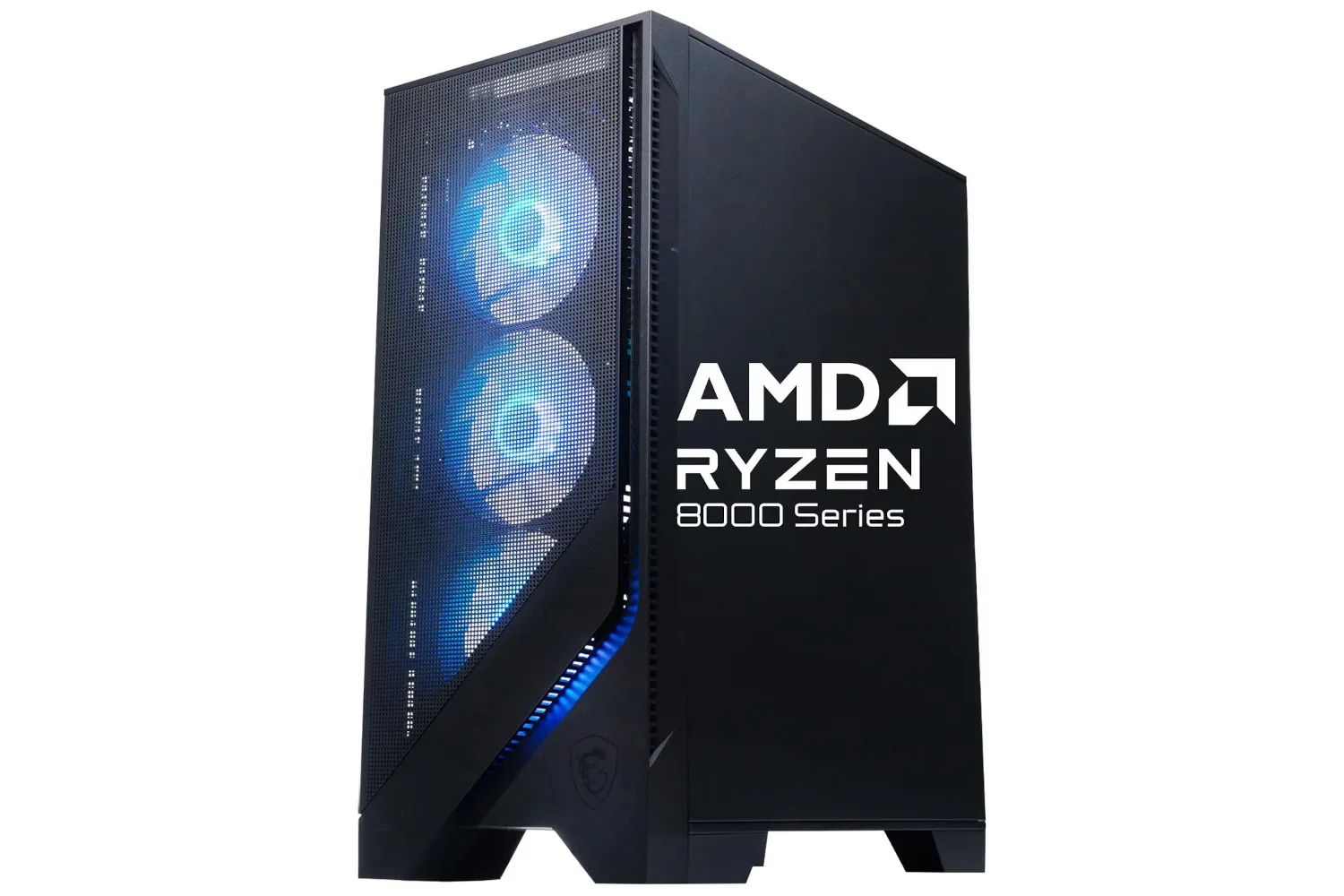
That consideration extends beyond monitor arms. Someone upgrading the rest of a PC area may also be comparing system options, including machines such as the MSI Codex Z2 gaming desktop, but desk ergonomics should be treated as its own decision rather than as an afterthought to PC hardware.
Equipment is not a cure
The person who experienced improvement did not credit the monitor change alone. They also resumed exercise and gym work, and explicitly noted that this work likely contributed significantly. That caveat is essential. A desk, chair or monitor arm cannot be presented as a cure for pain, and a personal improvement should not be turned into a diagnosis or universal prescription.
What the account does support is a measured conclusion: layout changes can be worth considering as one part of an overall approach to comfort. If discomfort is persistent, severe or concerning, a qualified health professional is better placed to offer individual guidance than a product page or a viral desk-setup recommendation.
For everyone else, the low-drama insight is still valuable. Watch what your head is doing during the ordinary parts of a gaming day—not only during a long session, but each time you glance at chat, switch a song, answer a message or check a guide. A monitor arrangement that reduces needless one-sided movement may be a more meaningful upgrade than it first appears.
Shop the products
Check current price, model and availability at the retailer.