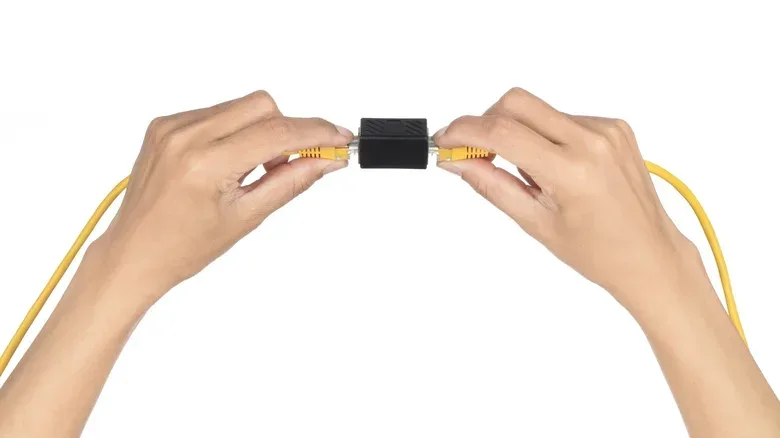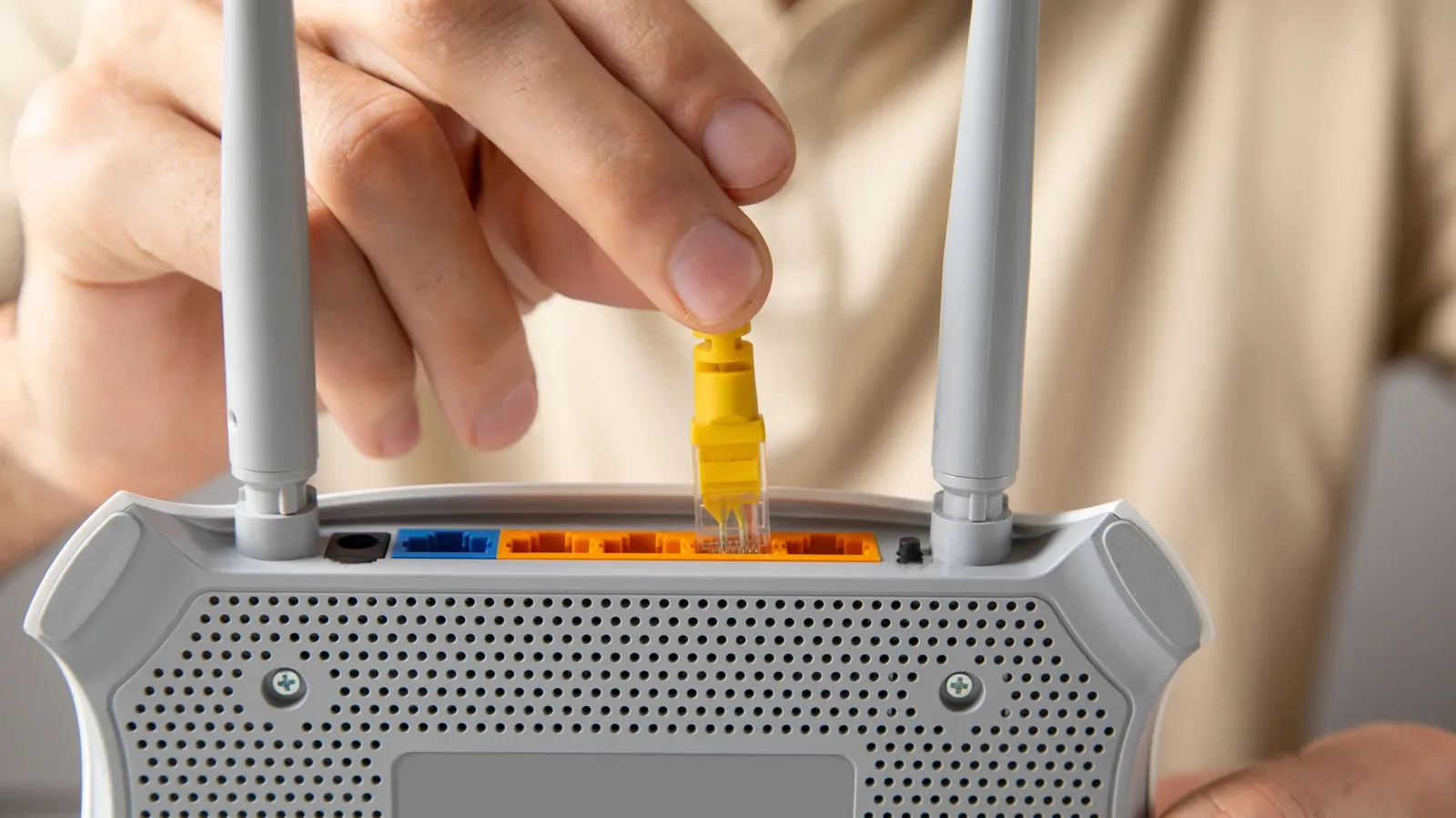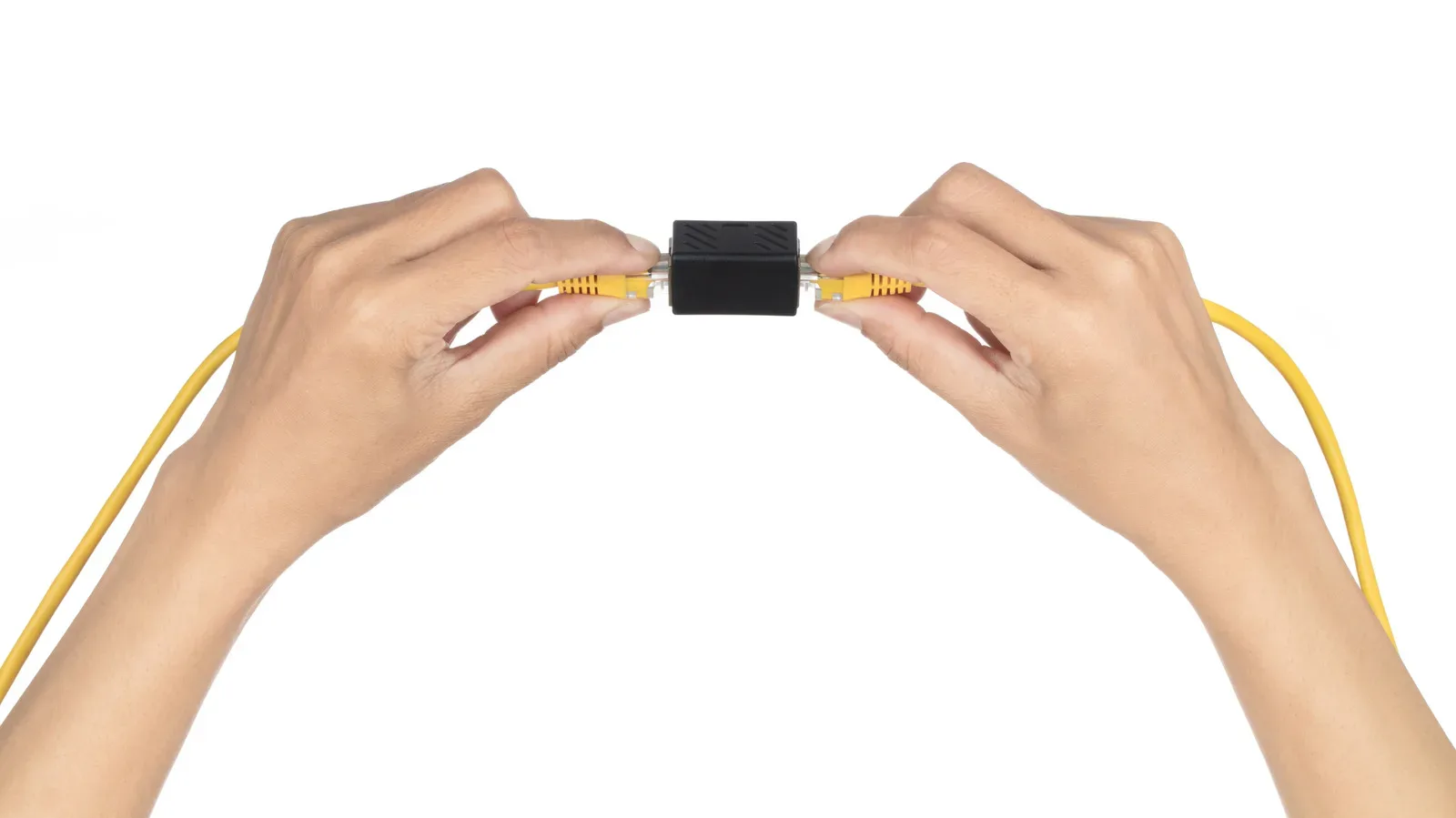
A desk move, a rearranged entertainment center, or one newly added console can expose an irritating truth: the Ethernet cable that was exactly long enough yesterday is now a few feet short. Joining it to another cable with an RJ45 coupler is tempting because it is cheap, compact, and requires neither configuration nor a spare wall outlet.
That option is not automatically wrong. A good coupler and good cables can work without a noticeable hit to an internet connection. But a coupler is a physical join, not a network upgrade. It does not boost the signal, create a fresh Ethernet run, or erase the distance already covered by the cable. For a temporary extension, it may be entirely reasonable. For a long-term gaming or home-theater installation, a single correctly sized cable is usually the cleaner answer. If the real need is additional wired ports at the far end of an existing run, a small network switch is generally the more useful piece of hardware.
What an Ethernet coupler actually does
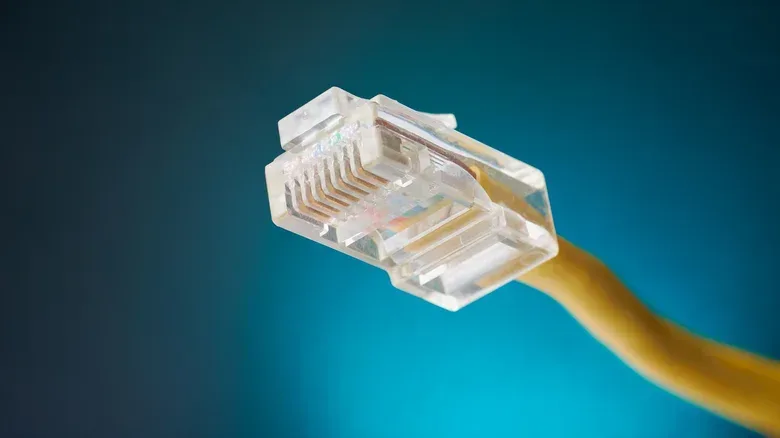
An Ethernet coupler is a small adapter with two RJ45 sockets. RJ45 is the familiar connector used on standard wired Ethernet patch cables. Plug one cable into each side and the coupler physically joins them into one longer path.
Its simplicity is its appeal. There is no setup screen, no management app, no power brick, and no requirement to change router settings. A quality unit should not inherently make a connection slow. But it is important not to expect it to do more than join the ends together.
In particular, a coupler does not:
- amplify or regenerate the Ethernet signal;
- turn two cable sections into separate network links;
- add more device ports; or
- restart the maximum supported cable distance.
That distinction matters when diagnosing a wired connection that begins to misbehave after a room reshuffle. The adapter may be innocent, but it is still one more contact point in the chain between a router and a PC, console, TV, streaming box, or access point.
Why one more connection can become one more problem
Every plug-and-socket connection is a potential place for poor contact, movement, or component quality to affect a link. A coupler that gets bumped behind a desk, an unevenly made adapter, or a cable that is not sitting firmly in its port can create an intermittent issue that is particularly annoying to isolate.
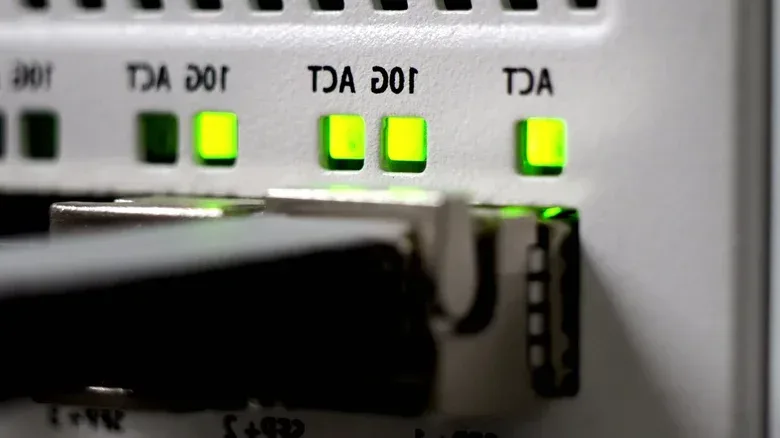
The symptoms need not be a complete loss of internet access. Problems can show up as sporadic disconnects, transmission errors, or a connection negotiating at 100 Mbps rather than 1 Gbps. Negotiation is the process through which connected Ethernet hardware agrees on a link speed it can both sustain. If a Gigabit-capable setup lands at 100 Mbps after a change in cabling, the physical cable route and its joins are sensible places to inspect before blaming a router or calling an internet provider.
A straightforward troubleshooting move is to remove the coupler and test with one known-good cable where practical. If the issue disappears, the added join, one of the two cable segments, or the way the connector is seated deserves closer attention. That does not prove every coupler is unreliable; it simply avoids treating a new physical connection as invisible.
There is also a practical installation concern. Pulling a cable tight around furniture puts strain on both the cord and its plugs. Leave some slack rather than creating a rigid, tensioned route behind a PC desk or media unit. Buying a premium cable category will not compensate for poor routing or a stressed connector.
The 100-meter limit still applies
The larger technical constraint is total length. A copper Ethernet channel has a standard limit of 328 feet, or 100 meters, including patch cords. “Including patch cords” is the crucial detail: the sum of the connected cable sections counts. A coupler does not wipe the slate clean.
Joining two 200-foot cables, for example, produces a route beyond that 328-foot limit. The fact that the cable has a join in the middle does not make each side a separate compliant run. It remains one extended copper path.
This is also why a coupler should not be treated as a cure for a marginal long-distance connection. It has no active electronics to renew the signal. It merely connects conductors from one cable to the next.
Testing by trueCABLE using Cat6 and Cat6A cable combinations, couplers, and a Fluke DSX-8000 cable tester illustrates the broader point without establishing a universal magic number. Setups using three couplers generally passed, although one result was classified as a marginal pass and therefore technically failed. Four-coupler configurations failed in that testing. Those results apply to the particular cables and adapters examined, not every possible product mix, but they reinforce a sensible installation principle: avoid stacking joins unless there is a compelling reason.
For one PC or console, use one suitably long cable
If a single computer or console is the destination, the least complicated solution is usually one Ethernet cable long enough to complete the route. It removes the adapter from the chain, avoids an additional failure point, and requires no power.
For a typical Gigabit connection, good Cat5e or Cat6 cable can be sufficient. Gigabit, commonly written as 1 Gbps, means one gigabit per second at the network-link level. It should not be confused with the speed of an internet plan; a local wired link can be 1 Gbps even when the broadband service is slower.
Cat8 is not a magic repair for cable-management problems. The first question is not simply which category has the biggest number. It is whether the cable is sound, the connectors are well seated, the overall route is within the relevant limit, and the arrangement suits the number of devices that need a wired connection.
A single longer cable is especially appealing when the current cable has not been permanently routed. If it is easy to replace now, doing so can prevent an adapter from becoming a hidden point of failure under a desk later. The same care applies to PC accessories more broadly: before testing a questionable peripheral in a system, consider the risks, as with an external hard drive that has been dropped.
For several devices, use an unmanaged switch
A different solution makes more sense when one cable already runs to an entertainment center or another device cluster and multiple products now need wired access. A small unmanaged network switch expands that one incoming Ethernet connection into several ports.
The basic setup is simple: connect the incoming Ethernet cable to one switch port, then connect devices to the remaining ports. With a five-port model, one port is consumed by the link back to the router, leaving four for devices such as a TV, console, and streaming box.
“Unmanaged” means the switch is designed to work without user configuration. It is not the same thing as a coupler. Rather than simply extending one physical cable path, the switch creates separate Ethernet links. Each link has its own distance limit, which is a major reason this architecture is more appropriate for distributing a connection at the end of a run.
Basic unmanaged five-port Gigabit switches are available for around $15, making the extra flexibility fairly inexpensive. The trade-off is power: unlike a passive coupler, the switch needs an outlet. It also has a speed ceiling. A 1 Gbps switch will limit transfers through it to 1 Gbps even if connected cables support faster standards.
That last detail is most relevant for local transfers between capable devices. It is not automatically a drawback for every gaming setup, because the broadband service itself may be below 1 Gbps. Still, the switch should be chosen with an understanding of what it can pass rather than solely because its port count fits the shelf.
Power over Ethernet needs the right equipment
One more distinction matters for security cameras and wireless access points: Power over Ethernet, or PoE. PoE allows compatible networking hardware to receive electrical power through its Ethernet cable, reducing the need for a separate nearby power adapter.
A standard non-PoE switch does not provide PoE simply because it has Ethernet ports. If a camera or access point requires power through the network cable, the installation needs either a PoE-capable switch or a PoE injector. An injector is used to add power to the Ethernet connection for a compatible device; a coupler and ordinary switch do not substitute for that functionality.
This is a case where identifying the device’s requirements before rearranging cabling can prevent confusion. A network link may be present while the endpoint still fails to operate because it is missing the power it expects over Ethernet.
A practical choice guide
The best option follows from the actual job, not from which small adapter is closest to hand:
- One device and a cable that is a little short: a coupler can serve as a quick extension, especially if the total route stays within the 100-meter copper channel limit. For a permanent layout, prefer one longer cable.
- An existing cable route that now feeds several devices: use an unmanaged switch at the destination to add ports and create separate Ethernet links.
- A camera or access point that is meant to receive power through Ethernet: use PoE-capable equipment or a PoE injector, not a standard switch alone.
- New dropouts or an unexpected 100 Mbps link: remove the coupler where possible and test a known-good cable before escalating to router resets or provider support.
- A very long route: calculate the full connected cable length. Splitting it with a coupler does not bypass the 328-foot maximum.
The modest RJ45 coupler remains useful because it solves one narrow problem very easily: joining two Ethernet cables. The trouble begins when it is expected to solve distance, port-count, signal, or power problems that require a different tool. One uninterrupted cable is the tidy answer for a single endpoint; a switch is the practical upgrade when a single run has become a small wired hub.