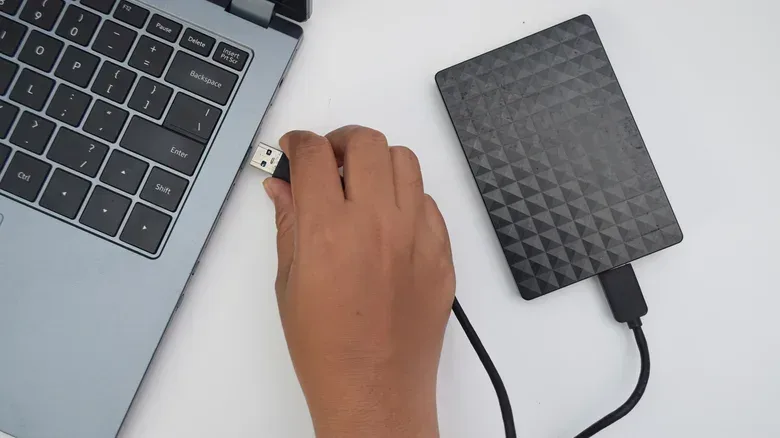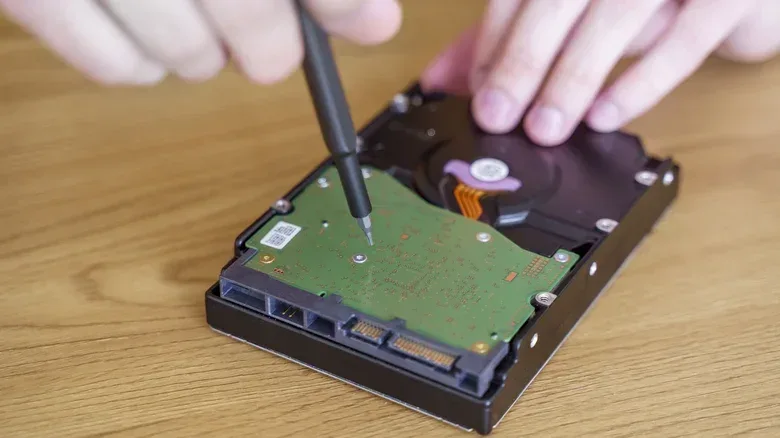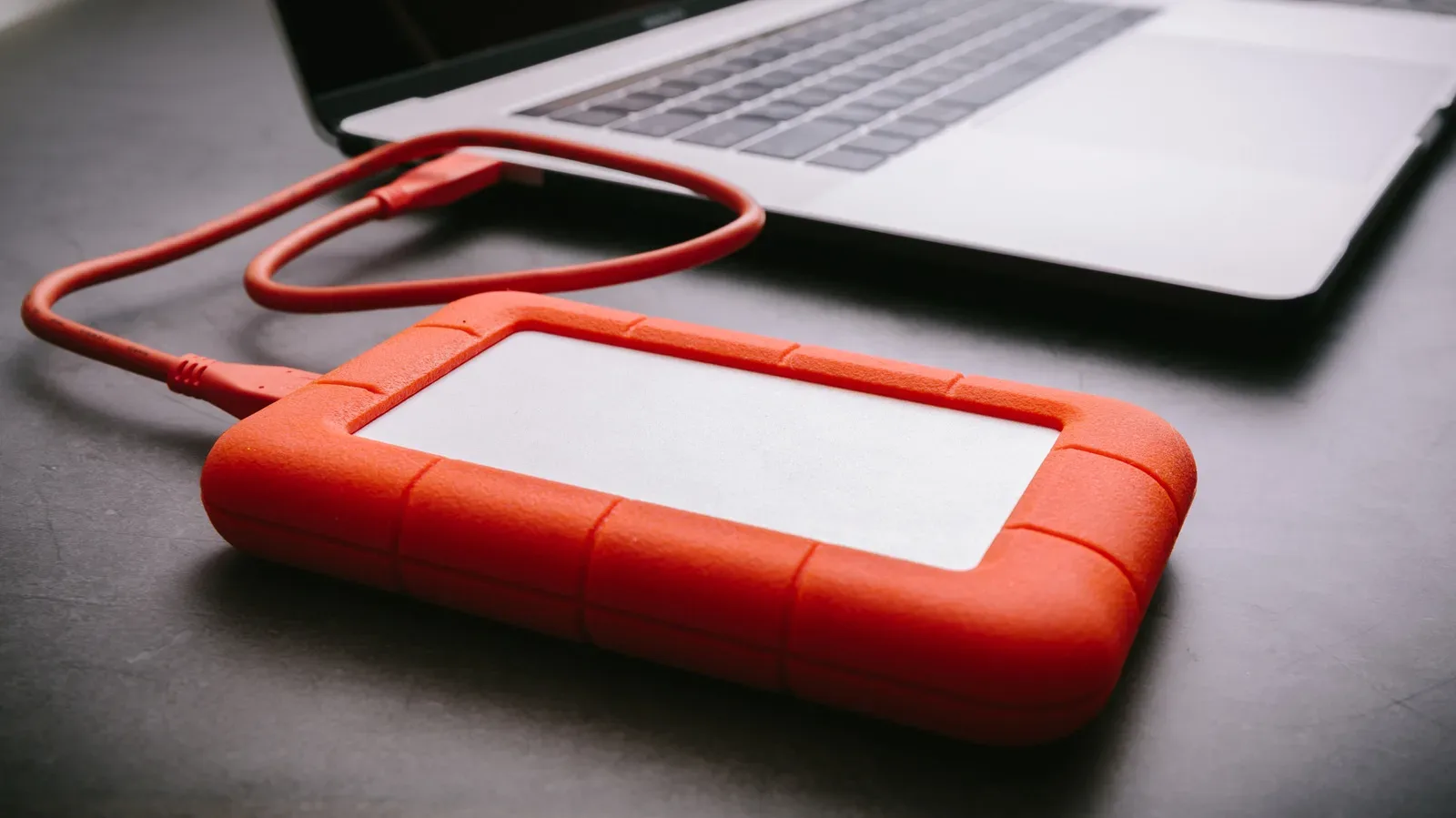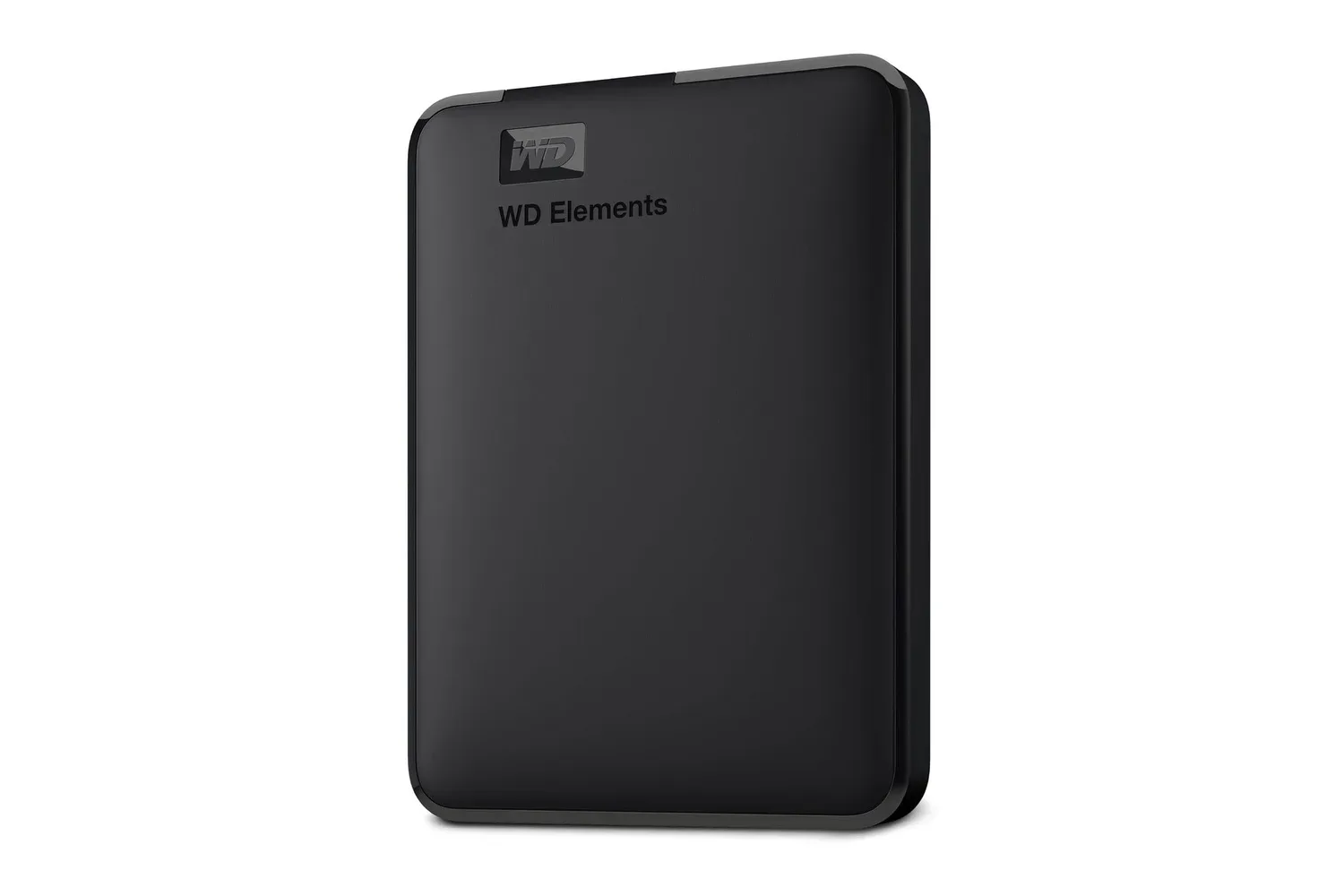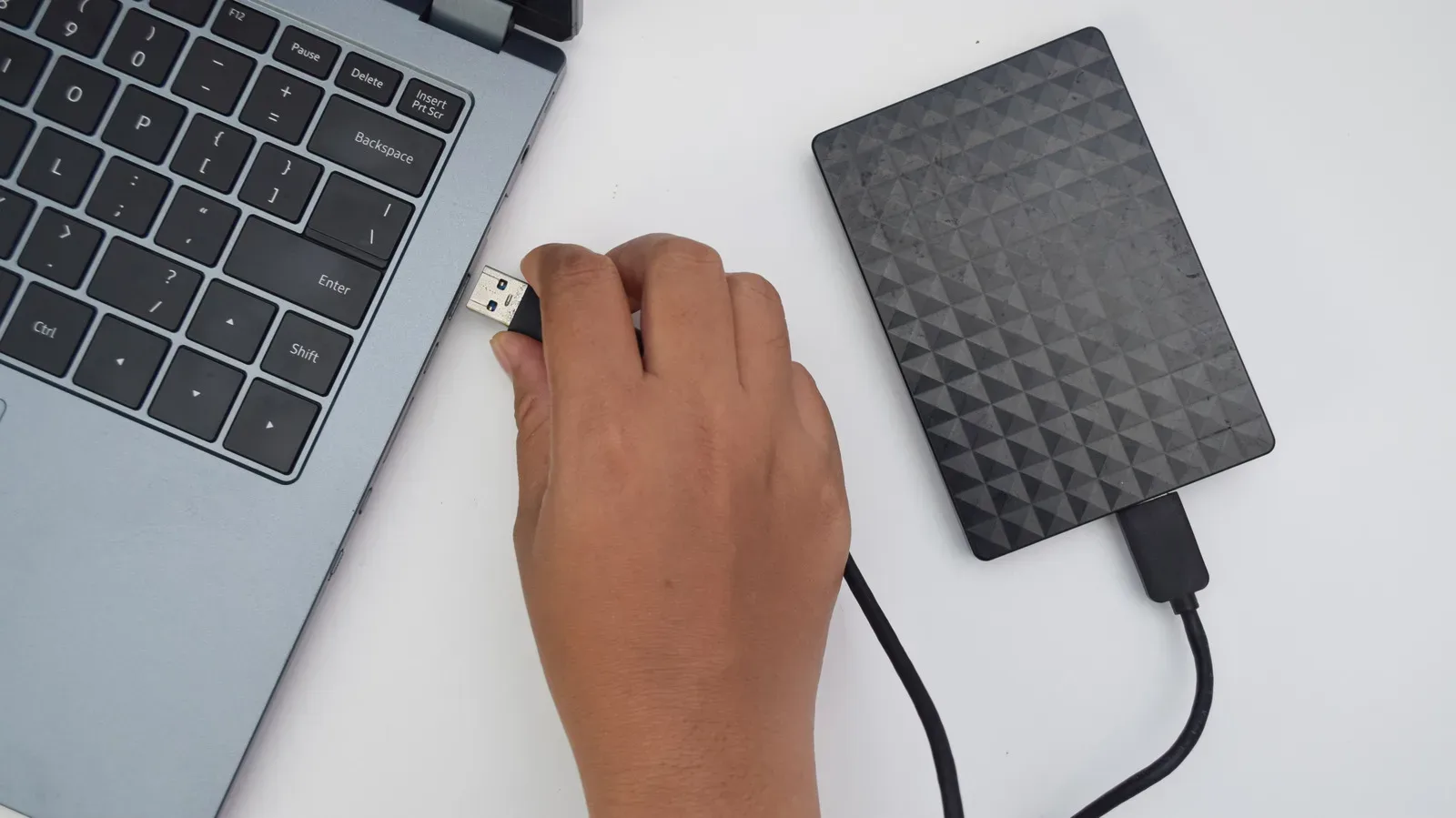
There is a particular kind of panic reserved for dropping an external hard drive: the drive hits the floor, everything looks fine on the outside, and your brain immediately proposes the obvious test. Plug it in. Check whether the files are still there. Carry on.
That instinct is understandable. It can also be the worst move for a conventional external hard disk drive, or HDD. A damaged drive does not necessarily lose its data at the moment of impact. But powering it on can make a small mechanical problem much worse, potentially converting data that was still readable into data that is permanently gone.
For anyone keeping game captures, save backups, old PC installs, projects, screenshots, or an archive of games on an external HDD, the useful rule is simple: after a serious knock or fall, treat the drive as damaged until it has been assessed. Do not make the first response a frantic boot test.
This warning is specifically important for hard drives with spinning disks. An external SSD has no moving read/write assembly or spinning platters, but an HDD is a mechanical device inside a protective enclosure. The enclosure may look reassuringly solid. The precision hardware inside is not remotely designed for an unplanned meeting with a desk corner.
Why a hard drive can be harmed even when its case looks normal
A typical external HDD stores information on circular magnetic platters. The drive spins those platters at high speed—commonly 5,400 or 7,200 revolutions per minute—while read/write heads move across them to access data.
The crucial point is the tiny clearance involved. The heads and platters normally operate only nanometers apart. A nanometer is an extremely small unit of length, and that narrow operating gap is part of why HDDs can read and write data at all. It also means a fall can misalign a component enough to create a serious risk when the drive begins spinning again.
Some drives may also contain glass components. So the question after a drop is not only whether the plastic or metal shell has cracked. A drive can look ordinary externally while an internal part has shifted, been damaged, or left in a condition that is unsafe to run.
That is the key distinction between an impact and a failure made visible by use. The fall may have caused the initial issue. Starting the drive can cause the severe one.
What powering up a damaged HDD can do
When an HDD is powered on, its platters rapidly spin and the heads are put back to work over the surfaces that hold the data. If a head was knocked out of alignment, it may contact or scrape a platter rather than operating safely above it.
A scratch on a platter’s magnetic surface is not a cosmetic blemish. It can mean permanent data loss in that area. The longer the drive remains running under those conditions, the more opportunity there is for damage to spread.
There is a compounding problem, too. Material created by an initial scratch can become debris inside the drive. As the platter continues spinning, that debris can interfere with additional areas of the surface and other internal parts. What began as a localized fault can therefore become broader contamination and broader loss.
The stakes are especially high if the drive was operating when it fell. In that scenario, its platters and heads were already active during the impact. A fall while the drive is idle is not something to dismiss, but a fall while it is running warrants even more caution.
The sensible goal after an impact is not to prove the drive works as quickly as possible. It is to avoid creating more damage before the important files are safe.
Why repeated attempts are a bad bargain
A drive that fails to mount can tempt an owner into a sequence of retries: unplug, reconnect, restart the computer, swap ports, try again. With a possibly damaged mechanical HDD, each attempted spin-up may be another chance for a damaged head to scratch a platter.
That trade-off is particularly poor when the contents are irreplaceable and there is no backup. The user may gain a few seconds of apparent activity—or no useful access at all—while reducing the amount of data that a recovery specialist could potentially retrieve.
Professional data recovery can involve replacing damaged components with donor parts and reading data from the platters bit by bit. That process is already delicate. Additional platter damage makes it harder, because scratched areas may contain information that no part replacement can restore. The practical takeaway is not that recovery is guaranteed; it is that unnecessary power cycles can shrink the recoverable portion of the drive.
Do not try to solve the problem physically at home, either. Tapping, shaking, opening, or freezing the drive can worsen its condition. These actions do not provide a reliable diagnosis, and they introduce extra risk to hardware that may already be compromised.
The safest response when the data matters
If an external HDD has fallen or taken a serious hit and the files on it matter, especially if they are not backed up, leave it disconnected. If it is still connected after the impact, unplug it immediately.
The safest way to establish the drive’s condition is a professional evaluation. An established data recovery service is the cautious option when the contents have meaningful personal, creative, or archival value. That may feel less satisfying than immediately connecting a USB cable, but it prioritizes the data rather than the urge for instant confirmation.
This is a useful moment to separate two questions that are often mashed together in a crisis:
- Can the drive be used normally again? That concerns the drive’s reliability as hardware.
- Can the important files be recovered? That concerns preserving the information before further mechanical damage occurs.
If the data is valuable, the second question should come first. A drive is replaceable. A personal archive or the only copy of a project may not be.
If you accept the risk of a single test
There may be cases where the files are not critical, are backed up elsewhere, or the owner knowingly decides to take the risk. In that case, a careful single test is a more restrained approach than repeatedly reconnecting the drive.
Listen as it spins up. Clicking, beeping, grinding, or repeated restarting are warning signs. If you hear any of them, unplug the drive immediately. Do not keep it powered in the hope that it will settle down on the next attempt.
If the drive mounts and appears to operate normally, do not treat that as proof that it survived unharmed. Instead, use the available access window to copy the most important files somewhere safe immediately. Prioritizing matters: move the files that cannot be replaced before attempting broader housekeeping, tests, or large transfers that may keep the drive running longer.
For a gaming archive, that could mean personal saves, recordings, screenshots, mod files, configuration backups, or locally stored project material first. The exact contents differ from one setup to another, but the logic does not: recover the unique material before anything that can be downloaded or recreated.
Only after the key files are copied should you consider diagnostic checks. This order is important because a diagnostic result is not a backup. It is information about the drive, while the urgent task is moving the data away from a device whose condition is now uncertain.
SMART data: useful warning system, not a clean bill of health
One diagnostic option is SMART data, the drive’s built-in health-monitoring information. Tools such as CrystalDiskInfo can read this data and report potential warning signs.
In practical terms, warnings involving reallocated sectors or pending sectors should be taken seriously. A sector is a portion of storage space on the drive. Reallocated-sector warnings indicate that the drive has had to move data away from problematic areas, while pending sectors flag sectors that are not currently considered dependable. Either warning is reason to regard the HDD as unreliable and move remaining data to another safe location.
SMART is useful, but it has limits. Some USB enclosures cannot pass SMART information through to the computer, meaning the diagnostic tool may not be able to see the drive’s monitoring data at all. And even when SMART checks show no warning, a pass is not a guarantee that the HDD will remain healthy. It is encouraging information, not an all-clear certificate after an impact.
That distinction matters because a drive can seem fine during a brief test yet still be a poor candidate for continued trust. Once the important files are copied, the prudent stance is to regard a dropped HDD as suspect rather than returning it immediately to duty as the sole home for valuable files.
A practical damage-control checklist
- Stop using the drive after a serious fall or impact. If it is connected, disconnect it.
- Do not shake, tap, open, or freeze it. Avoid improvised mechanical “fixes.”
- Decide how much the data matters. If it is unique or unbacked-up, seek professional evaluation before powering it on.
- If you knowingly choose a test, make it one careful test. Listen closely during spin-up.
- Unplug immediately for clicking, beeping, grinding, or repeated restarts.
- If it mounts normally, copy essential files first. Do that before diagnostics or routine browsing.
- Check SMART data afterward when available. Reallocated or pending-sector warnings mean the drive should not be trusted.
- Move the remaining data elsewhere. A successful copy is the priority; a passed check does not erase the risk.
Better habits for drives that hold your archive
The easiest recovery situation is the one that never becomes urgent. Avoid moving an external HDD while it is running, and eject external drives properly before disconnecting them. Both habits reduce the chance of problems during ordinary use.
Storage also deserves some attention. If an older drive is being retired but kept as an archive, store it properly rather than leaving it loose in a place where it can be knocked, crushed, or repeatedly moved. Preservation is not only about keeping old files; it is also about keeping the medium that holds them in a stable condition.
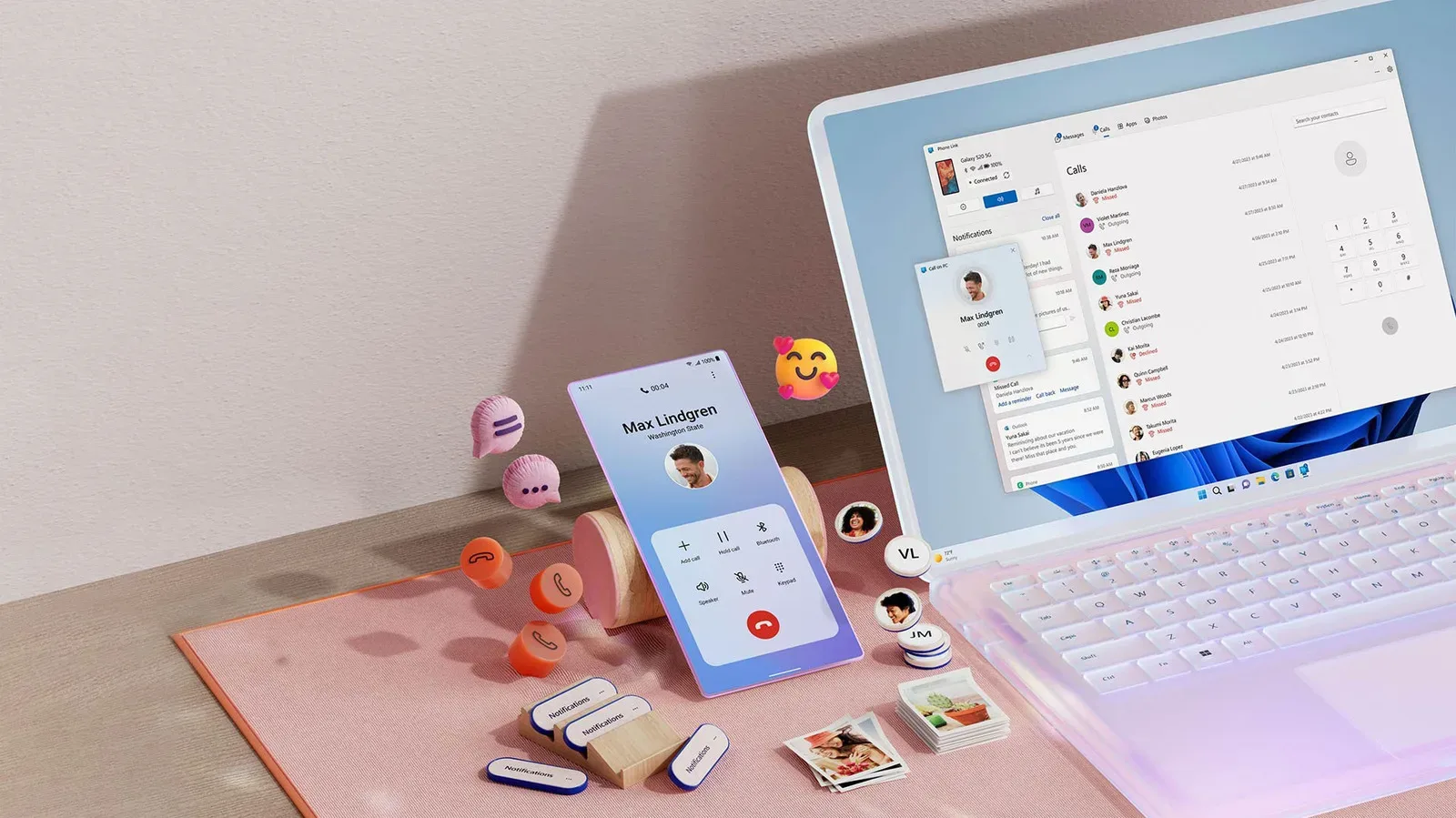
PC users managing a wider setup can also keep routine device tasks organized through tools and workflows such as those covered in using Phone Link for calls on a Windows 11 PC. But no software convenience changes the physical reality of a spinning hard drive: once an HDD has taken a hit, restraint is often the most valuable tool available.
The enclosure may have survived the drop. The right next move is to give the fragile mechanism inside the benefit of the doubt.