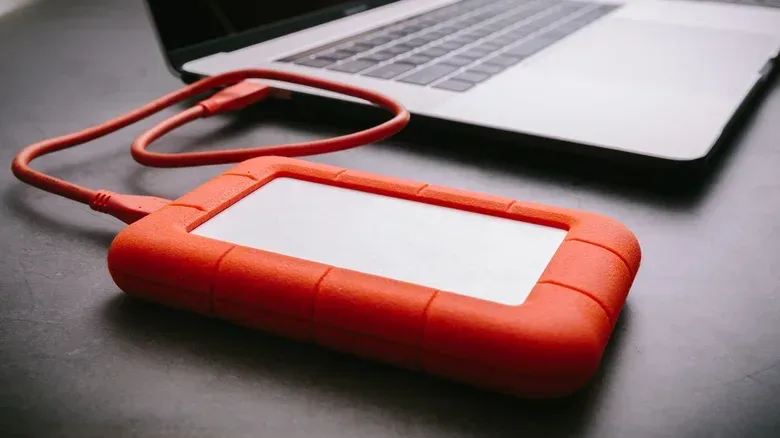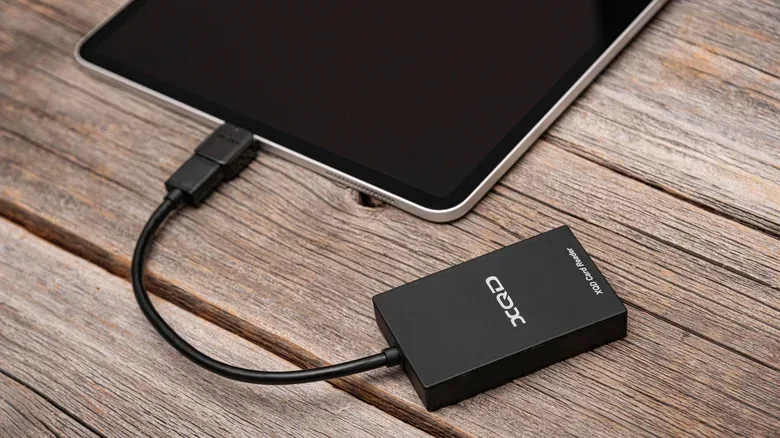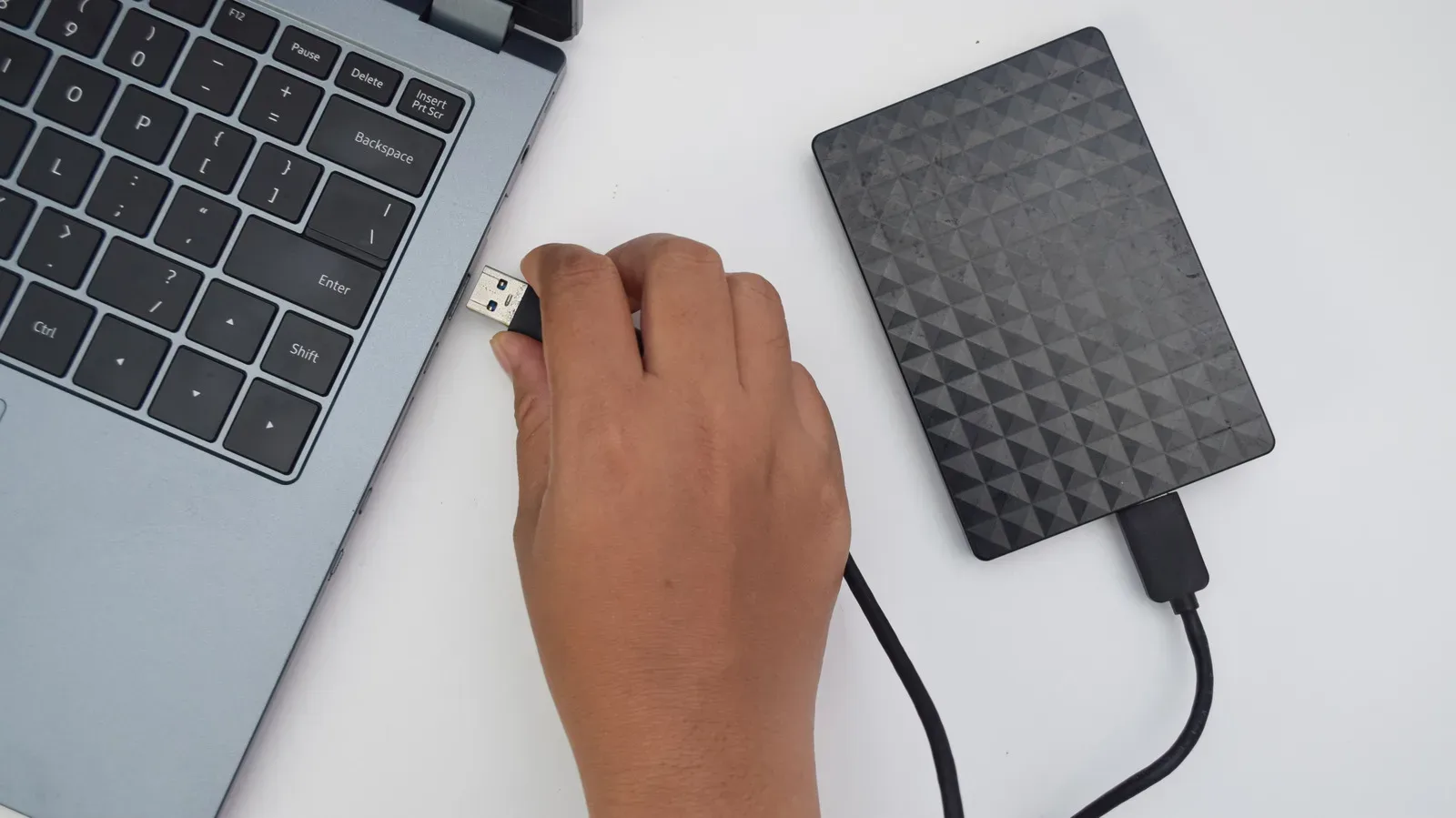
There are few modern gaming-PC rituals more deflating than installing a new drive, seeing a number below the one on its box, and immediately wondering whether several dozen gigabytes disappeared during shipping. A 1TB drive that Windows presents as roughly 931GB looks like a bad deal at first glance. Likewise, a 512GB drive can appear as about 477GB accessible in Windows.
The good news is that this difference does not normally mean part of the physical drive is absent or broken. It is chiefly a disagreement over how to count the same quantity of data. The less good news is that the number displayed by the operating system is still the number a person has to plan around—particularly when individual PC and console games can exceed 100GB, often with extensive downloadable content and continuing updates.
There is a second, separate reason a device has less free space than its capacity label suggests: it needs an operating system before it can do anything useful. That software, plus the temporary working room devices need to stay responsive, is real consumption of storage. Together, the measurement mismatch and the operating-system footprint explain much of the gap between the capacity shoppers see in a listing and the space available for games, captures, apps and downloads.
The 1TB-to-931GB mystery is a counting mismatch
Storage manufacturers commonly state capacity in decimal, or base-10, units. In that convention, one kilobyte is 1,000 bytes and one gigabyte is 1 billion bytes. A 1TB drive is therefore marketed as 1 trillion bytes. This follows the familiar metric-style approach used for many everyday measurements.
Windows often reports capacity using binary quantities, where each step is based on 1,024 rather than 1,000. In this system, the amount commonly called a gigabyte is 1,073,741,824 bytes. The same trillion bytes are still on the 1TB drive; Windows is simply dividing that total into larger groups when it produces the figure shown to the user.
That is why the displayed number declines as capacity rises. The discrepancy is not 69GB of secretly reserved game space. It is the result of two labels describing the same underlying byte count with different rulers. At 1TB, a decimal-capacity drive can show around 931GB in Windows. At 512GB, around 477GB is an expected-looking result under the same convention.
Mac systems use decimal capacity reporting, so a 1TB drive can appear as the full 1TB there. Neither display alters the hardware. Plugging the same external drive into systems that use different conventions can therefore make its capacity look different even though no files were created, deleted or moved.
Why the terminology remains confusing
There are technically more precise binary terms: kibibyte (KiB) and gibibyte (GiB). A kibibyte represents 1,024 bytes, while a gibibyte represents 1,073,741,824 bytes. In principle, calling Windows’ 931 figure “GiB” would make the distinction clearer: the drive could be sold as 1TB in decimal units and displayed as roughly 931GiB in binary units.
Related coverage includes Why a 1TB Drive Can Show Up as 931GB in Windows.
In practice, those terms have not become normal in consumer interfaces. Windows 11 still commonly presents file sizes with labels such as KB and GB. That makes the apparent shortfall feel more suspicious than it is, because the familiar labels conceal a different definition beneath them.
For shoppers, the practical rule is simple: compare the byte count or expect the platform’s convention to shape the displayed result. Do not treat the number printed on a drive’s packaging and the number in a Windows storage panel as directly interchangeable units, even when both say “GB” or “TB.”
Usable space falls further once an operating system enters the picture
Math explains why a blank drive may look smaller in Windows. It does not explain why a new phone, laptop, tablet or console has even less free space after first boot. For that, look at the preinstalled operating system.
An OS is the foundational software that runs the hardware, launches apps and games, manages files, and provides the interface used to control the device. It cannot be optional on a normal consumer device. Its storage use comes out of the capacity available to the owner.
The impact can be substantial. iOS 27 uses more than 22GB in decimal terms on a 128GB iPhone 16 Pro. A gaming laptop can have Windows 11 occupying more than 81GB in binary terms. These figures should not be treated as universal footprints for every configuration, but they illustrate why a device’s usable starting space can be far below the number emphasized in its product name.
That distinction matters when choosing storage for game libraries. A 128GB device does not offer 128GB solely for games and personal files. First, a platform may display the hardware’s decimal capacity through a binary-style lens. Then its system software claims a meaningful portion of what remains. A capacity that sounds adequate for a handful of large downloads can become restrictive quickly.
This is also why 64GB devices have become effectively extinct and 128GB is increasingly difficult to live with. Apps, media and operating systems continue to grow, while large games can demand more than 100GB apiece. Storage is not merely a purchase-specification number; it is the active budget that determines what can remain installed at the same time.
Free storage is also working space
Not all of the remaining capacity is equally safe to fill. Operating systems use temporary working areas, including cache and swap space.
A cache holds temporary data so the system or an app can retrieve it more efficiently later. Swap space is storage that can serve as overflow working room when memory pressure makes it necessary. The precise behavior varies by platform, but the central point is the same: a device needs room to handle temporary operations, not just permanent game installs and media files.
Some of this space may not appear as permanently unavailable. That can create a false sense that every final gigabyte is fair game. When a drive becomes too crowded, disappearing room for caches and swap activity can hurt performance and contribute to freezing or crashing apps. A device with a nearly full storage meter is not necessarily a device using its storage efficiently.
This is especially relevant to PC players who maintain several huge games, record clips, keep mod files, or retain installers and downloads. The storage panel can look comfortably full right up to the moment an update requires additional room to unpack files or the system needs temporary workspace. Capacity planning should leave a margin rather than assuming that “free space” only has value once it is large enough for another complete game.
How to shop and manage a game library without being blindsided
There is no universal capacity target in the information available here, because game sizes, operating-system footprints and personal habits vary too widely. But a few decisions make the numbers easier to interpret.
- Plan from usable capacity, not the headline label. On Windows, expect a decimal-marketed drive to display a smaller GB figure. Then account for the space occupied by the operating system if the drive is also your system drive.
- Overestimate instead of matching today’s library exactly. Games, downloadable content, apps and system software can grow. Buying only enough room for the files currently installed leaves little flexibility.
- Keep a buffer of free storage. Cache and swap needs mean a nearly full device can suffer even when it technically has enough room to hold its existing files.
- Separate “drive capacity” from “available storage.” The former is the hardware’s rated total. The latter is what remains after measurement conventions, system software and stored data enter the equation.
- Review what you keep installed. Avoiding waste is one of the few ways to protect usable space without changing hardware. Old downloads, unneeded apps and games no longer in rotation all compete with current needs.
The wider PC picture makes that caution more valuable. Storage has become more consequential as software grows and demand for drives has put pressure on pricing. Storage-related component costs are also part of the concern surrounding hardware pricing, as explored in the debate over memory costs and potential console pricing. No buyer can eliminate the decimal-versus-binary difference, but understanding it prevents a normal conversion from being mistaken for a hardware defect.
What should actually trigger concern?
A lower Windows capacity figure by itself is not evidence of lost storage. The 1TB-to-roughly-931GB example is the expected consequence of decimal labeling and binary-based reporting. A 512GB drive showing roughly 477GB follows the same logic.
The useful question is whether the displayed capacity is broadly in line with that conversion, and then whether installed software explains the free-space total. An operating system takes up storage, and temporary system needs make it wise not to fill every remaining byte. Once those factors are considered, the apparent gap is often less a mystery than an unavoidable compromise of modern devices.
It is still reasonable to be disappointed by how little room is left for a library after the system is installed. The capacity pressure is real. But the decimal number on the box, the binary-style number in Windows, and the free-space number after an OS boots are three different figures. Treating them as different stages of the same storage budget is the best defense against an unpleasant install-day surprise.