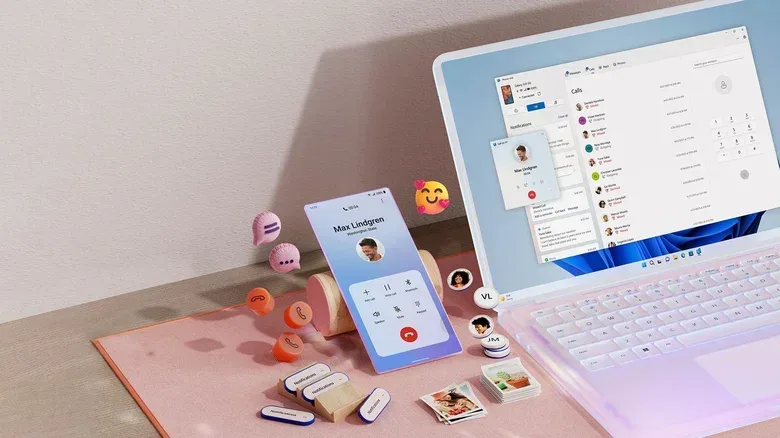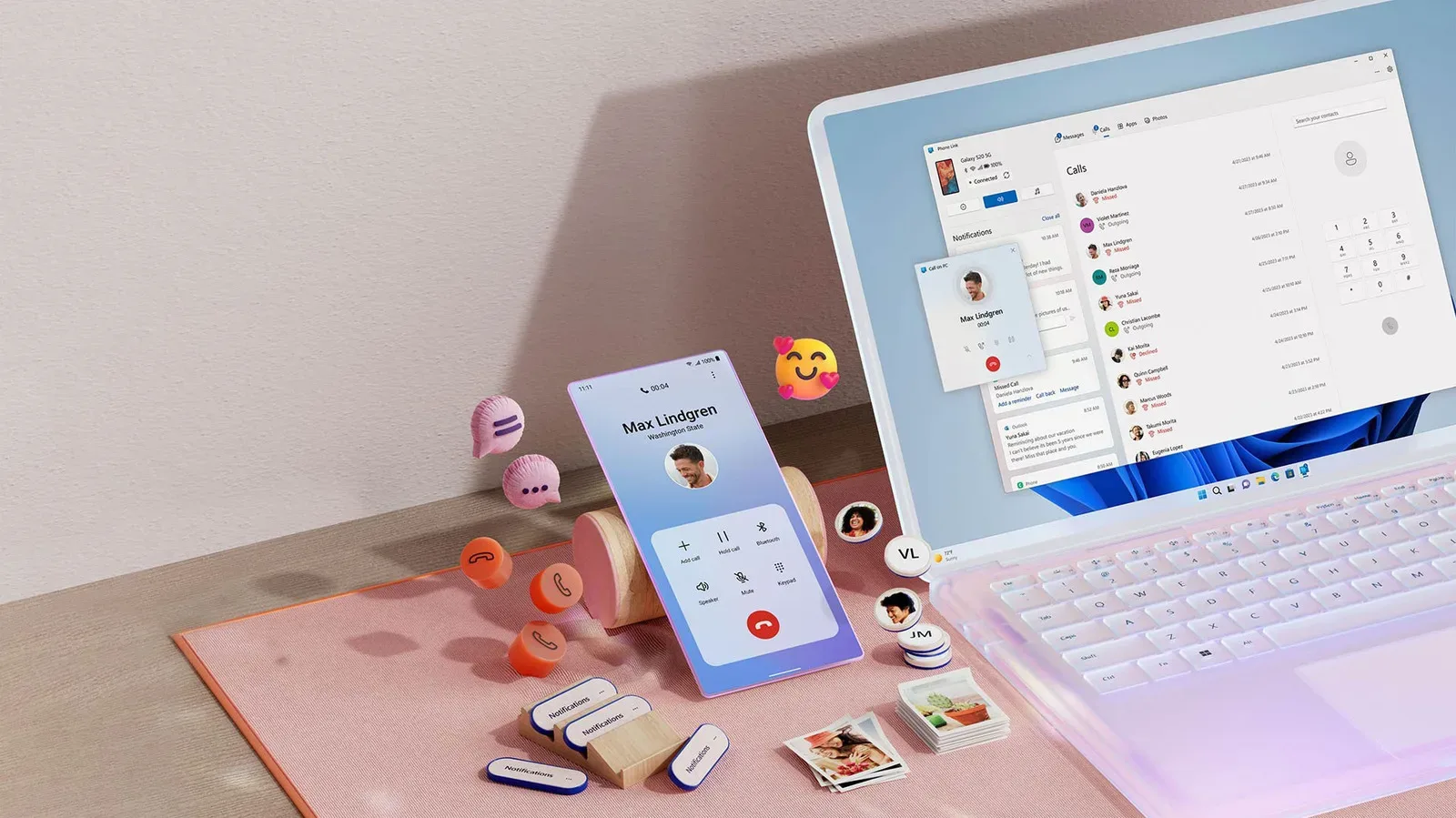
Desk setups are built for doing several things at once: a game launcher or work window on one display, a headset within reach, and a keyboard ready for a quick reply. A conventional phone call can feel oddly disruptive in that environment. Windows 11’s Phone Link is intended to reduce that interruption by letting a paired phone handle its normal calls through the computer.
The important distinction is that this is not a separate internet calling service or a replacement number. If the goal is to make ordinary calls using the number already attached to an iPhone or Android device, Phone Link is the relevant Windows tool. Apps such as WhatsApp can provide voice calling through their desktop apps, while Google Voice can make calls from a separate number, but those are different arrangements.
Phone Link also brings messaging and notification functions to the PC. Its broader usefulness depends heavily on the phone platform: iPhone support covers the essentials, while Android devices receive a noticeably deeper set of controls. In either case, the setup is worth understanding before treating the PC as a phone-call station.
What Phone Link does—and what it does not do
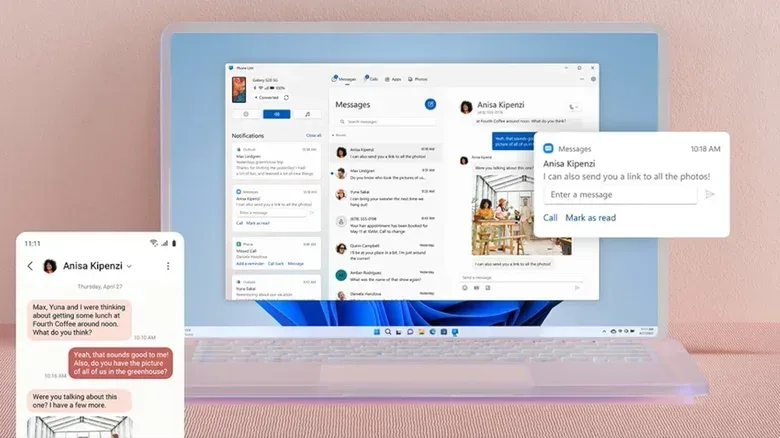
Phone Link is included with recent versions of Windows 11. It acts as a bridge between the PC and the phone rather than moving a mobile number permanently onto the computer. Once the two devices are paired, the Calls tab in the Windows app can be used to search synced contacts or enter a number manually with a dial pad. Incoming calls can appear on the PC as well.
That arrangement is useful for anyone who routinely wears headphones at a desk, since the headset can provide both private audio and an available microphone. It can also make the basic act of placing a call less disruptive when switching between windows or managing a longer task.
It does not mean the phone can be ignored. Keeping it nearby is sensible for signal quality. Phone Link is built around the connected handset, so the phone remains a material part of the call setup even when the conversation is taking place through the PC.
For gamers and PC users who are also thinking about screen-side privacy, the same general rule applies here as it does to connected TVs and devices: look at what is being surfaced before leaving every default enabled. Our guide to turning off ACR on a smart TV explores that broader habit from a different angle. Phone Link’s notification options give users practical control over what personal material appears on the desktop.
Start by updating Windows and Phone Link
Before pairing either kind of phone, check that the app is current. Open the Microsoft Store, select Downloads from the left side, and choose Check for updates. Update Phone Link if an update is available.
It is also sensible to check the wider operating system through Settings > Windows Update, particularly if the PC has not been updated for a while. This is not a glamorous step, but it avoids beginning a device-pairing process with an outdated app or Windows installation.
Pairing an iPhone with a Windows 11 PC
Open Phone Link from the Start menu and choose iPhone. The Windows app displays a QR code. Scan that code with the iPhone to start the phone-side process, which includes installing the Link to Windows app for iOS and pairing the devices over Bluetooth.
Bluetooth must be enabled on both the iPhone and the PC. That requirement is central to the connection, not a background option to skip. When Phone Link presents its pairing code on the PC, select Pair.
After pairing, iPhone Bluetooth settings provide another useful checkpoint. Go to Settings > Bluetooth, tap the information icon beside the PC’s name, and adjust options there, including contact syncing. Contact syncing matters because it determines whether Phone Link can offer the convenience of searching people by name instead of making every call a manual number entry.
What iPhone users can expect
On an iPhone, Phone Link supports calling, texting, and viewing or dismissing phone notifications. Those are the core features many people need from a desktop companion, especially if the central objective is answering a call without picking up the phone.
The controls for these functions live in the Windows app: open Settings using the gear icon, then select Features. This is the place to turn supported functions on or off rather than assuming every element of phone activity needs to be mirrored to a desktop screen.
The limitation is comparative, not necessarily disqualifying. iPhone integration is more basic than Android integration, but it still covers the primary call workflow: use the PC to make and receive calls tied to the existing phone number.
Pairing an Android phone with Windows 11
The Android route is broadly similar. The pairing process can be started from the Link to Windows app on the Android device, or from Phone Link on the PC. The destination is the same: a connected phone and computer with the permissions needed for the features the user wants.
Android devices can pair to Windows over Wi-Fi or cellular, but Bluetooth is still required for calls. That distinction is easy to miss. A phone may otherwise appear connected, yet calling specifically still depends on Bluetooth being available.
Grant requested permissions only when the corresponding feature is wanted. Permissions are what enable the extra communication, notification, and phone-management functions, so declining them can limit the experience. Conversely, approving them means choosing to expose more phone information and controls to the PC.
Android’s broader feature set
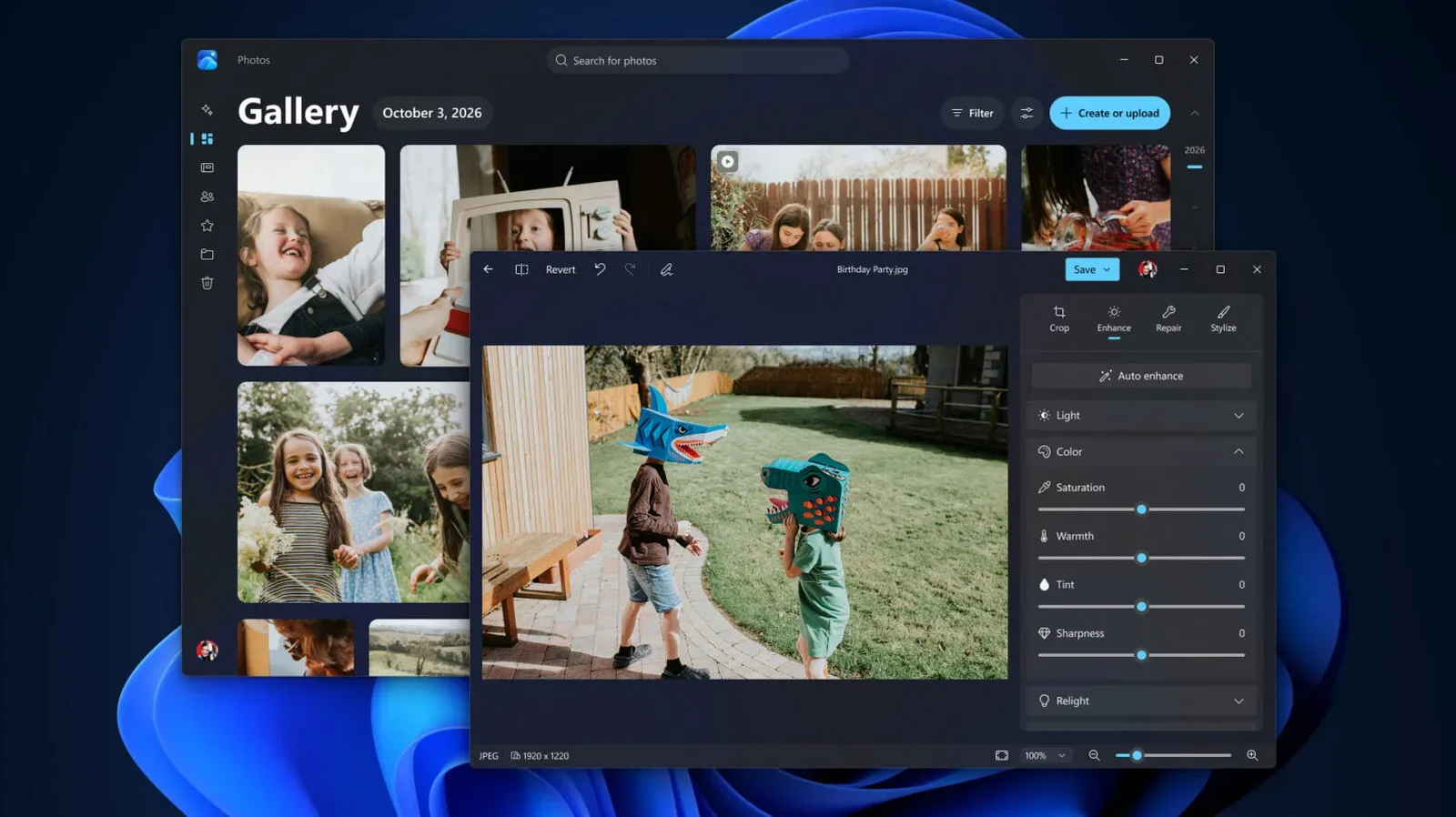
Android users receive more than the baseline calls, texts, and notification handling. Phone Link can show and copy the most recent 2,000 photos from the camera roll. This is particularly useful for a one-image task, such as placing a recent screenshot or photo in a document or copying it into a personal folder, without directly synchronizing an entire Google Photos library to a storage drive.
Additional Android-only controls include putting the phone into Do Not Disturb, muting it while it is playing audio, and using Now Playing music controls. Do Not Disturb is a setting that suppresses interruptions, while Now Playing controls let the PC manage music playback on the connected phone. Together, these extras make Android’s implementation feel more like a remote control center for the handset rather than a narrowly focused call-and-text window.
That gap is important when choosing expectations, not necessarily when deciding whether to use Phone Link. Someone with an iPhone may find the core communication tools sufficient. An Android user who frequently moves photos, controls music, or wants to silence the phone without reaching across the desk has a stronger incentive to make Phone Link part of the regular workflow.
Making and receiving calls after setup
Once pairing is complete, open Phone Link and go to the Calls tab. Search a synced contact to place a call quickly, or use the dial pad for numbers that are not in the contact list. For incoming calls, the setup should allow them to come through on the computer without an extra action in the app.
A headset is the practical accessory that makes this setup most comfortable. A gaming headset or comparable headset keeps the call from being broadcast to other people nearby and ensures a microphone is immediately available. The hardware does not alter the phone connection itself; it simply turns the desktop into a more natural place to hold a conversation.
For reliable calling, keep the phone close enough to maintain a clean connection. The PC may be the interface being used, but the call still depends on the paired mobile device and Bluetooth for the calling function.
Control notification clutter and private previews
Phone Link is designed to bring information forward, which can be useful until it becomes noise. On either iPhone or Android, open Settings > General in Phone Link to refine how the app behaves on the PC.
Two options deserve attention. One controls how much private data appears in banners. A banner is the brief on-screen alert that can appear for a new message or notification. Reducing the data shown there can be appropriate on a shared screen or whenever others can see the display.
The other concerns numbered badges for unread messages and notifications. These counts can make a desktop look as if it has fresh activity when the alert is actually old material that has been sitting on the phone’s lock screen. Phone Link treats items as unread until they are specifically checked or dismissed, so a badge is not always a reliable signal that something new has just happened.
For that reason, notification mirroring works best as a deliberate selection of information, not an all-or-nothing flood of every alert. Calls and a handful of important notifications may be the ideal balance for one person, while another may want messaging, camera-roll access, music control, and more. Phone Link supports both approaches, but Android users in particular should take a moment to decide which permissions and features are genuinely useful.