A wired connection is supposed to be the easy answer: plug in Ethernet, avoid Wi-Fi interference, and get on with the download, game update, or local file transfer. So when a computer connected to a gigabit service reports roughly 90 Mbps in a speed test, the cable is an obvious suspect. It is also only one suspect.
That distinction matters because an online speed test is a measurement of a whole route, not a verdict on a short patch cable. It includes the computer, its Ethernet adapter, the cable, a router or switch, the broadband connection, and the remote test server. A disappointing result can point to a problem, but it cannot isolate the cable by itself.
The more useful first question is narrower: what speed did the computer and the network device negotiate with each other? That number is the local Ethernet link speed. It will not reveal an internet plan’s real-world performance, and it does not prove a cable’s maximum capability. It does, however, provide a quick way to determine whether the connection has established a 100 Mbps or 1 Gbps link before the internet enters the picture.
Start with the negotiated Ethernet link speed
“Link speed” describes the connection between the computer’s Ethernet interface and the router or network switch at the other end of the cable. A reading of 1 Gbps means those two devices have agreed on a gigabit connection. It does not mean a download will reach 1 Gbps, since the internet service and everything beyond the local network may be slower.
Conversely, a 100 Mbps link gives a strong reason to investigate locally if gigabit networking is expected. It tells you the connection has fallen into, or been limited to, the slower mode. The cause may be the cable, but it could just as readily be an older port or adapter.
Finding the link speed in Windows
In Windows 11, open Settings, choose Network & internet, select Ethernet, and look for Link speed (Receive/Transmit).
There is also a route that works on Windows 10 and Windows 11:
- Press Windows + R.
- Enter ncpa.cpl.
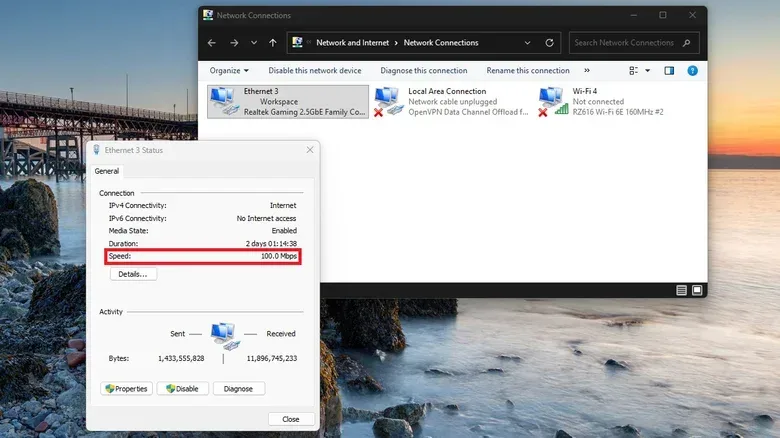
- Right-click the Ethernet adapter and choose Status.
- Read the value in the Speed field.
This is the negotiated connection rate, not a live throughput meter. In other words, it shows the kind of road the two local devices agreed to use, not how much traffic happens to be traveling on it at that moment.
Finding the link speed on a Mac
On a Mac, open System Settings, then go to Network and choose Ethernet. If the machine uses a USB Ethernet adapter, select that adapter instead. Open Details, choose Hardware, and check Speed.
Leave the configuration on Automatic. Manually forcing a speed can cause connection problems, which makes troubleshooting harder rather than clearer. Automatic negotiation lets the two ends select a compatible mode; the goal here is to observe that outcome and identify why it may be lower than expected.
What a 100 Mbps result does—and does not—tell you
If the computer reports 100 Mbps while you anticipated 1 Gbps, do not immediately replace the cable. First verify that every active component in the path can do gigabit Ethernet. A router LAN port capped at 100 Mbps will hold the link at 100 Mbps regardless of whether the cable jacket says Cat5e or Cat6. The same applies to a USB Ethernet adapter with only 100 Mbps capability.
This is a practical limitation with outsized consequences. Replacing a cable connected to a 100 Mbps port cannot create a gigabit link. It may produce a shinier cable and exactly the same result.
There is another important limitation in the other direction: seeing 1 Gbps is encouraging, but it is not a complete health certificate for the cable. It shows that the cable and hardware negotiated gigabit at that time, not the maximum speed the cable could sustain under every condition or over another length. It also does not diagnose a slow broadband connection.
Read the cable jacket, not the connector
Ethernet connectors can look nearly identical across cable categories, so the useful clue is typically printed along the cable’s outer jacket. Common markings include Cat5, Cat5e, and Cat6.
For a 1,000 Mbps, or 1 Gbps, connection, both Cat5e and Cat6 support gigabit Ethernet. Cat6 is therefore more than sufficient for a gigabit link. But category labeling should not be treated as a simple, universal speed ceiling. Older cables can sometimes handle higher speeds on short runs, and success on a short connection does not establish that identical performance at a longer distance.
The useful takeaway is modest: the printed category offers context, while the actual negotiated link and controlled tests tell you more about the connection in front of you. It is also worth remembering that cables are only one component in a network chain—an especially relevant point for anyone maintaining older PCs or adapters alongside newer equipment. Our look at a 68030-powered Amiga project, for example, is a reminder that vintage-computing setups can involve hardware expectations very different from a modern gigabit desktop.
Why a cable fault can make gigabit fall back to 100 Mbps
The wiring difference between conventional 100 Mbps Ethernet and gigabit Ethernet helps explain why an imperfect cable may still appear to work. Gigabit Ethernet uses all four twisted wire pairs inside the cable. Conventional 100 Mbps Ethernet uses two pairs.
A damaged conductor, a compromised connector, or a loose connection can therefore interfere with the gigabit negotiation while leaving enough of the connection intact for 100 Mbps networking. This is why an Ethernet cable can seem functional yet establish a much slower link than expected. The symptom is not proof by itself, but it is technically consistent with a cable or connector issue.
It also explains why wiggling cables at random is less useful than a disciplined comparison. An intermittent fault can create misleading results. Change one thing, observe the negotiated rate, and then restore the setup if necessary to confirm the pattern.
A low-cost isolation routine
The clearest first-pass diagnostic requires no specialist tester. Keep the same computer and the same router or switch ports, then substitute a short cable that is known to work correctly.
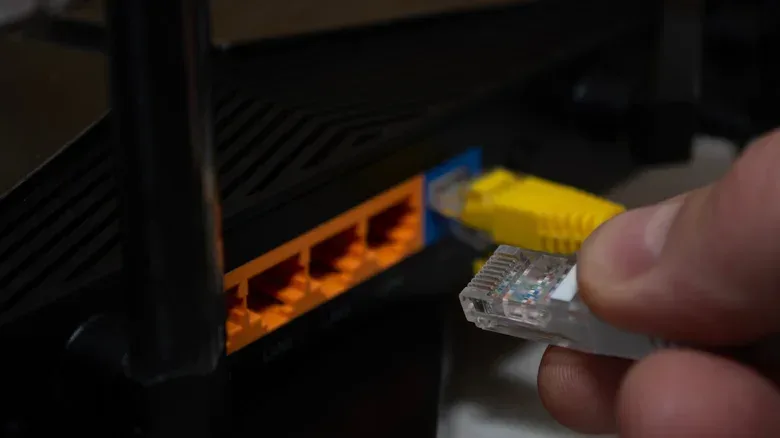
- Reseat both connectors. Disconnect and firmly reconnect the cable at the computer and at the router or switch.
- Check the link speed again. If it is still 100 Mbps, note the result before changing anything else.
- Swap in a short, known-good cable. Keep both endpoints and all other equipment unchanged.
- Check the negotiated speed once more. A move from 100 Mbps to 1 Gbps makes the original cable or its connectors a strong suspect.
- If nothing changes, investigate the hardware. Check the router or switch port specification, the USB Ethernet adapter if one is being used, and adapter settings before buying a replacement cable.
This procedure is useful because it controls the variables that matter. If the only changed item is the cable and the negotiated speed changes, the evidence is meaningful. If the link remains at 100 Mbps with a known-good cable in the same ports, spending money on another cable is less likely to solve the issue.
Do not confuse this with proof of a cable’s formal rating or long-run performance. It is a sensible way to identify the likely cause of a specific connection’s behavior, which is usually the decision needed before replacing hardware.
Use iPerf3 to test the local network, not the ISP
When a more direct performance measurement is needed, iPerf3 can test throughput between two wired computers on the local network. This avoids the broadband provider and remote speed-test server, making it better suited to a question about local networking equipment.
Install iPerf3 on both computers and turn off Wi-Fi so the test is not accidentally using a wireless route. On one machine, run:
iperf3 -s
That starts the server. On the other machine, run:
iperf3 -c SERVER_IP
Replace SERVER_IP with the local IP address of the computer running the server. The resulting measurement reflects throughput between those two systems over the local wired network, rather than the speed of the internet connection.
For cable troubleshooting, repeat the test after swapping cables while keeping the computers, ports, and broader configuration the same. The comparison is more informative than a single result. If a known-good short cable changes both the negotiated link speed and local throughput, that is persuasive evidence that the original cable or its terminations deserve attention. If results remain unchanged, the search should move to port capabilities and adapter configuration.
What basic testers can actually prove
A multimeter or a simple cable tester can be helpful, but it answers a narrower question than many buyers expect. These tools can find some wiring faults. They cannot determine the maximum data rate a cable supports.
Verifying whether a cable meets cabling standards requires specialized cable qualification equipment. Certification testers are designed to verify compliance with those standards. For an ordinary home-network slowdown, the link-speed check, a known-good cable swap, and a controlled iPerf3 comparison are typically the more practical sequence.
The key is to match the test to the claim. An internet speed test cannot condemn a cable. A 1 Gbps negotiated link cannot promise 1 Gbps internet downloads. A continuity-style tester cannot certify a cable’s maximum throughput. Once those boundaries are clear, a frustrating 100 Mbps result becomes a manageable troubleshooting problem rather than an excuse to replace every cable in sight.