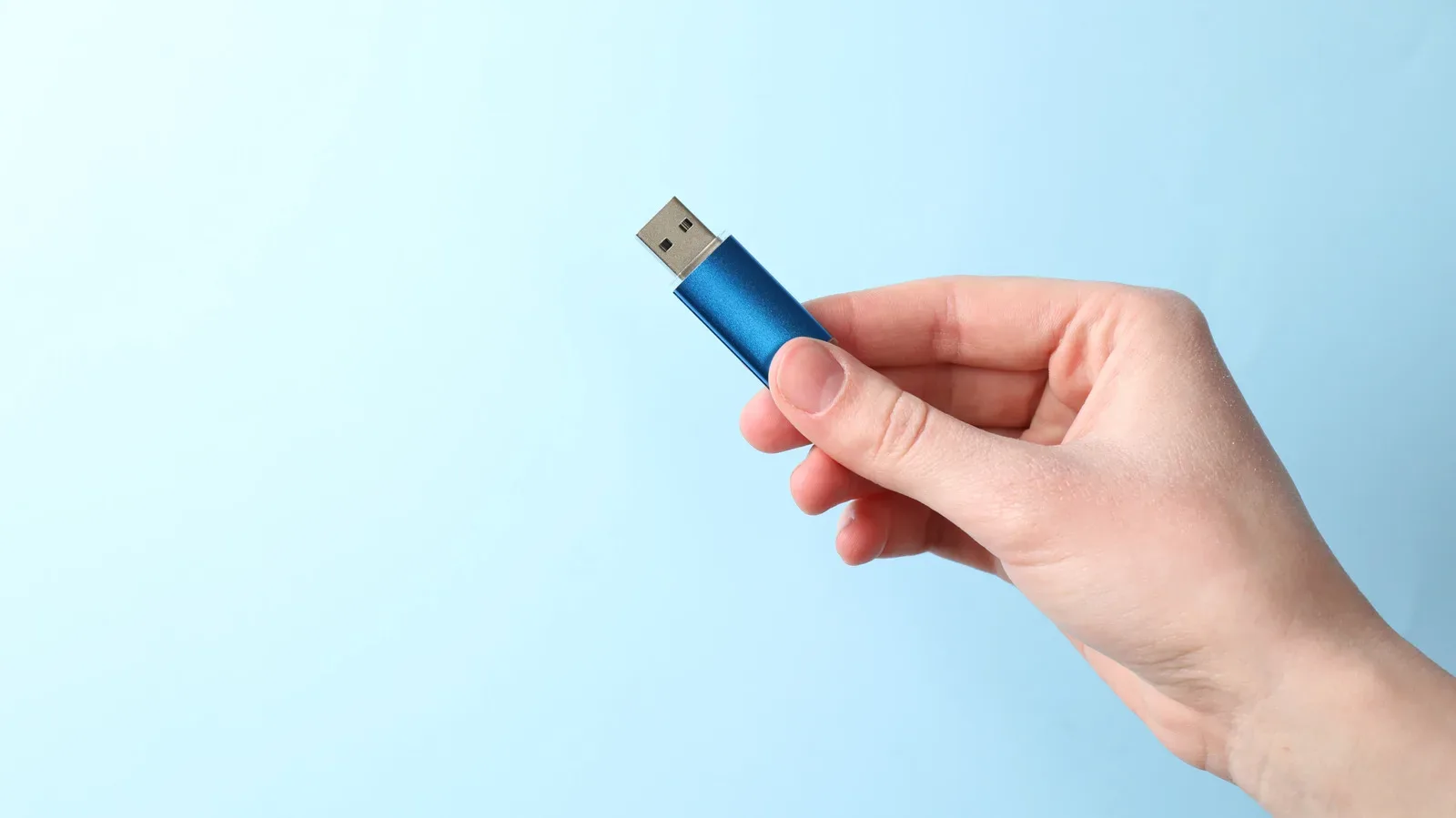
That abandoned USB flash drive in the junk drawer may be too small for a modern photo archive, but it is not automatically obsolete. A capacity once considered extravagant can still be plenty for a narrowly focused job: holding a recovery environment, carrying a few lightweight applications, keeping an encrypted password vault offline, or providing files to devices on a home network.
The useful shift is to stop judging an old drive as general-purpose storage. Treat it instead as a tiny, removable piece of hardware with a defined purpose. That makes its limited capacity less of a flaw—and can keep it out of a landfill a little longer.
There are caveats. Old storage can fail, so it should not become the only home for irreplaceable files. Some of these projects also require router features, software configuration, or a working understanding of security boundaries. Still, for a spare thumb drive or external USB disk, the following eight ideas offer practical directions ranging from simple reuse to an involved weekend project.
1. Turn a router USB port into local network storage
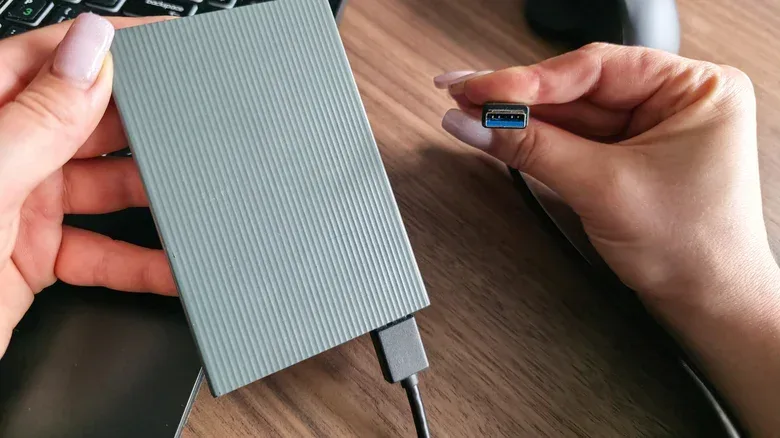
A NAS, short for Network Attached Storage, is simply storage made available to other devices across a network. If a router has a USB port and supports file sharing, an external drive connected to it can act as a basic household NAS. That can make a shared folder of photos, recipes, documents, books, or media visible to devices connected to the same home network.
The basic setup is straightforward in principle: connect the drive to the router, open the router’s settings in a browser, and enable its file-sharing option. The disk should then appear as a network volume on compatible local devices.
The distinction between a LAN and a WAN matters here. A local area network is the group of devices communicating through the home router. A wide area network generally refers to connectivity beyond that local network, including the internet. A local-only share is useful precisely because it need not expose the files publicly. Router controls may also allow access to be limited to selected devices on the LAN.
This is a sensible role for a larger old external disk, especially for material that several people in one home may want to reach. It is not a substitute for a robust backup plan, and it depends on the router supporting the feature. It is, however, a private alternative to putting every small shared file into a cloud service.
Network performance will depend on the router, its USB implementation, Wi-Fi conditions, and the device reading the files. If transfers are unexpectedly slow, it is worth separating the storage question from the network question; a 100 Mbps Ethernet reading is not automatically a cable verdict, for example.
2. Build a carefully controlled remote file share
Local sharing is one thing; reaching files while away from home is another. A USB drive can be part of a simple self-hosted sharing setup when paired with a home computer and file-serving software. HFS, meaning HTTP File Server, is presented as a free option that works on Windows and macOS. Once the computer sees the shared USB storage, its network path can be supplied to HFS so the files can be served from that machine.
This approach has two central operational limits. First, the home computer must remain switched on with HFS running. Second, making a folder internet-accessible requires deliberate security choices. A cute pet-photo gallery and a folder containing identity documents plainly do not carry the same risk.
ngrok is one tool described for providing a secure web link to the local service. It requires command-line setup, and it too needs to be running when the files are meant to be available. In practical terms, the USB drive is only one link in a chain: storage, a powered home computer, file-server software, and secure access tooling all need to work together.
The best use case is selective sharing, not turning an entire personal archive into a publicly reachable directory. Keep sensitive material out of the shared folder, understand which folder is being exposed, and remember that remote availability is not the same as a backup.
3. Use the drive as a physical computer key
An old flash drive can also become a physical token for unlocking a computer. On Windows, USB Raptor can configure a thumb drive as a key by placing a small encrypted unlock file on it. With the drive inserted, the computer unlocks; removing it locks the system. Rohos offers a similar concept across Windows and macOS, though it requires a paid subscription, while USB Raptor is described as free and open source.
The appeal is easy to understand. A person must possess the physical device as well as interact with the computer. It can also avoid relying on a memorized master password or, worse, a weak one.
But a recycled USB stick should be viewed as a pragmatic extra layer rather than the strongest available form of hardware authentication. Dedicated FIDO2 security keys, including Google Titan and YubiKey products, use cryptographic keys for authentication and are presented as the more secure purpose-built alternative. Their cost starts at roughly $25 in the supplied material, whereas an existing USB drive costs nothing to repurpose.
There is a lifestyle trade-off, too. A physical key can be misplaced, forgotten, or left plugged into the computer. For someone who already has an old drive and wants a more tangible lock-and-unlock routine, it is a low-cost experiment. For higher-stakes protection, a dedicated security key deserves serious consideration.
4. Keep a bootable antivirus rescue drive ready
A flash drive can be more useful when a computer cannot reliably start or clean itself. Malware may interfere with the operating system, disable resident antivirus tools, tamper with vital processes, or persist after an attempted removal. Ransomware can also lock access to files. A bootable antivirus drive offers a different route: start the computer into security software that runs independently of the installed operating system.
For Windows, ESET SysRescue Live and Kaspersky Rescue Disk are named as portable rescue options that can be loaded onto USB storage. Booting from one lets the security environment scan for malicious code without depending on the compromised Windows installation.
That independence is the important technical idea. The operating system, often abbreviated to OS, is the software platform a computer normally starts into. If malware is active inside that environment, scanning from outside it may provide a cleaner opportunity to find and remove the threat.
Modern Mac hardware has a different constraint: Apple’s boot security protocols mean a bootable antivirus drive may not be an option. macOS Recovery is identified instead as the route for recovery work. The platform difference is important—there is no single USB rescue recipe that applies equally to every machine.
A rescue drive is preparation, not a promise that every infection can be fixed. But it gives a spare 1GB-class drive a sharply defined role and may be valuable at the exact moment normal tools are unavailable.
5. Donate suitable drives for offline learning
Not every reuse project needs to happen at home. Sugar Labs accepts flash-drive donations through Recycle USB, with a stated minimum capacity of 1GB. The drives are reformatted and loaded with Sugar-on-a-Stick, a lightweight operating system and learning environment intended to help young learners access activities involving maths, coding, and problem solving.
Sugar Labs has operated since 2008 and says it has served more than three million learners across 170 languages. The donation route gives old drives a functional second life rather than merely storing a few files no one needs. It is particularly relevant to anyone with several compatible sticks collecting dust rather than one drive worth keeping for a personal project.
Because the drives are reformatted, donors should ensure nothing remains on them that they want to retain. More broadly, donating hardware is an answer to a different question than home reuse: not “what can this tiny drive do for me?” but “where can its small capacity still make a practical difference?”
6. Host a small static website from USB storage
This is the most technical option on the list, and it is best suited to someone curious about home networking and the open web. A static website consists of files such as HTML and CSS rather than a backend application that dynamically generates pages. Those website files can live on a USB drive connected to a compatible router.
The router must be able to run a web server and serve files from USB storage. Firmware such as OpenWrt is mentioned as an example of the sort of setup that can include a web server. After configuring the web server to point to the site directory, the site should be reachable locally through the configured IP address and port.
Making that site public adds several requirements. A domain needs to point to the home public IP address, and the router must be configured to accept incoming requests. The internet provider may also affect whether this arrangement is practical.
Security is not optional here. HTTP is unencrypted, so it is not the desired public-facing option. HTTPS encrypts the connection, with an SSL/TLS certificate—such as one obtained through Let’s Encrypt—providing the necessary protection. The terminology can sound abstract, but the result is simple: HTTPS protects data in transit between a visitor’s browser and the website, while plain HTTP does not.
A USB-hosted site is unlikely to be the easiest publishing solution. Its value is the project itself: learning how a router, storage, web server, domain, port, and certificate relate to one another. It is a project that rewards patience, not a shortcut to hosting a major site.
7. Carry a compact library of portable apps
Portable applications run from removable storage rather than being conventionally installed on the computer in use. This can be handy when a preferred application is missing from a machine, when installation rights are restricted, or when the relevant task is modest enough for a flash drive.
Examples cited include portable Firefox, VLC, and LibreOffice. Microsoft Office and iTunes are not available in the same portable form, and many antivirus applications also cannot simply be launched from a stick. Directories such as PortableApps.com and PortApps.com can help identify compatible software, while the Awesome Portable GitHub repository is another resource for more experienced users.
On Windows, the PortableApps launcher can organize multiple portable programs in one place. On macOS, applications may be launched from USB storage through Finder, though Gatekeeper and runtime protections may block some software. An external SSD may be a better fit than a basic flash drive for heavier workloads.
There is also an important boundary to respect: a portable app does not override a workplace or university computer’s policies. The practical benefit is convenience on systems where it is permitted, not a method to bypass restrictions.
8. Create an offline encrypted password vault
A final use is to keep a password database on a flash drive with free encryption software such as KeePass. The core model is straightforward: passwords are stored in an encrypted file, and a master password decrypts that vault. The database stays on the physical drive rather than residing in a cloud-based service.
This may appeal to people who want a low-cost, offline approach or who prefer their passwords not to be stored remotely. It is clearly an improvement over writing passwords on sticky notes, but it comes with compromises. A conventional password manager can provide conveniences including autofill and automatic credential creation. An offline vault also creates a single physical point of failure: lose the drive or forget the master password, and access can be lost.
Cloud password managers are not made useless by the existence of an offline alternative. The material notes that password-management services have disclosed past hacks and vulnerabilities, including the 2022 LastPass breach involving customer vaults, but it does not follow that every user should abandon established managers. The real choice is about risk, convenience, recovery planning, and personal preference.
For an old USB stick, a KeePass vault is a focused use case that needs very little capacity. Just make sure the master password is strong and memorable—and do not treat the drive as the only copy of anything essential.
Match the project to the drive—and the risk
The simplest repurposing ideas are often the most durable: a portable app toolkit, an offline encrypted vault, or a Windows rescue drive each turns limited space into a specific utility. Larger external disks are better candidates for local network storage. The public web-hosting and remote-sharing projects have more educational value, but they also demand careful configuration and attention to access control.
Before choosing any of them, copy off files you still need, test whether the drive is readable, and decide whether its contents are recoverable if the hardware fails. A retired USB drive may no longer be a great place to dump everything, but it can still be a surprisingly good tool when given one clear job.