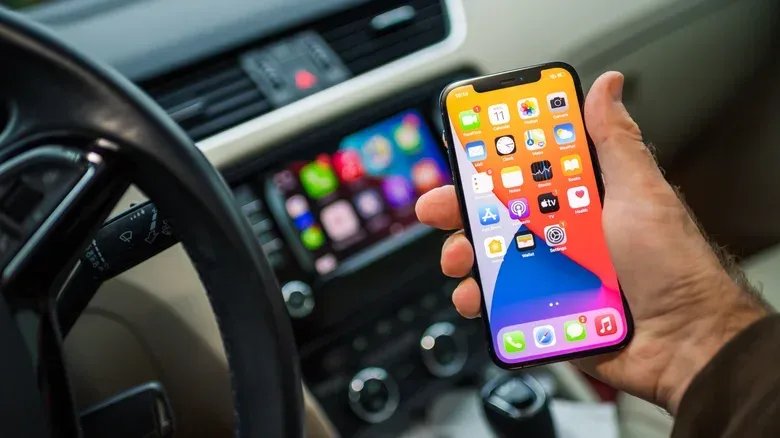
It is easy to treat the screen in a modern car as though it owns every feature displayed on it. With Apple CarPlay, that assumption can lead to a frustrating dead end: there usually is no separate “update CarPlay” button in the vehicle’s menus. CarPlay runs from the connected iPhone, which means its interface, app behavior and many improvements arrive through iOS updates.
That distinction matters for anyone wondering why a friend’s CarPlay setup has a newer playback view, different podcast navigation or improved wireless behavior while their own looks unchanged. The car still matters—particularly where a manufacturer must support a feature—but the phone is the starting point. Updating iOS is therefore the first practical step both for gaining newer CarPlay capabilities and for addressing many connection problems.
Why the phone, not the dashboard, gets the update
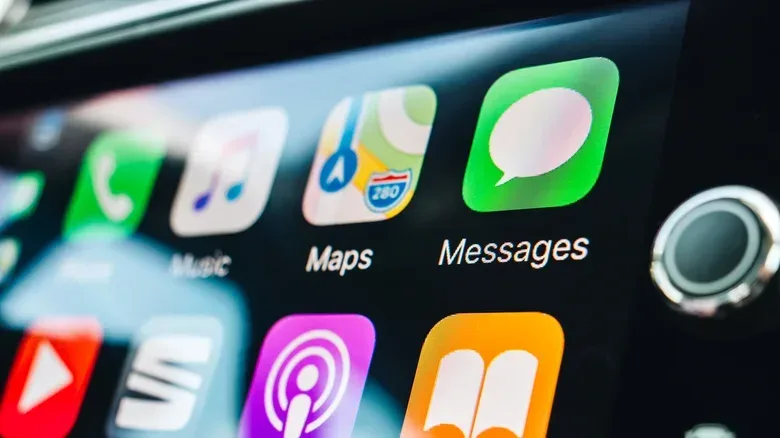
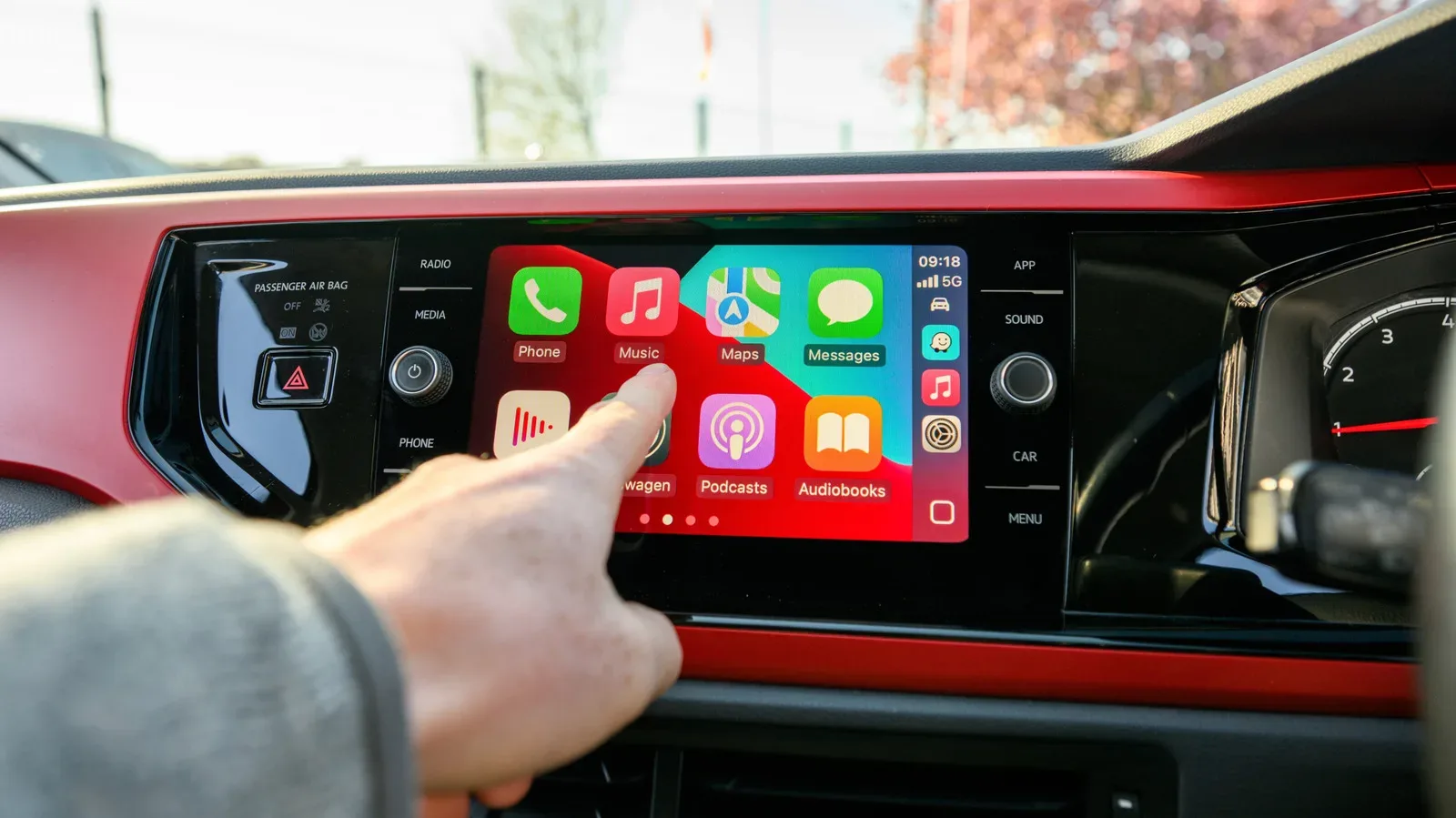
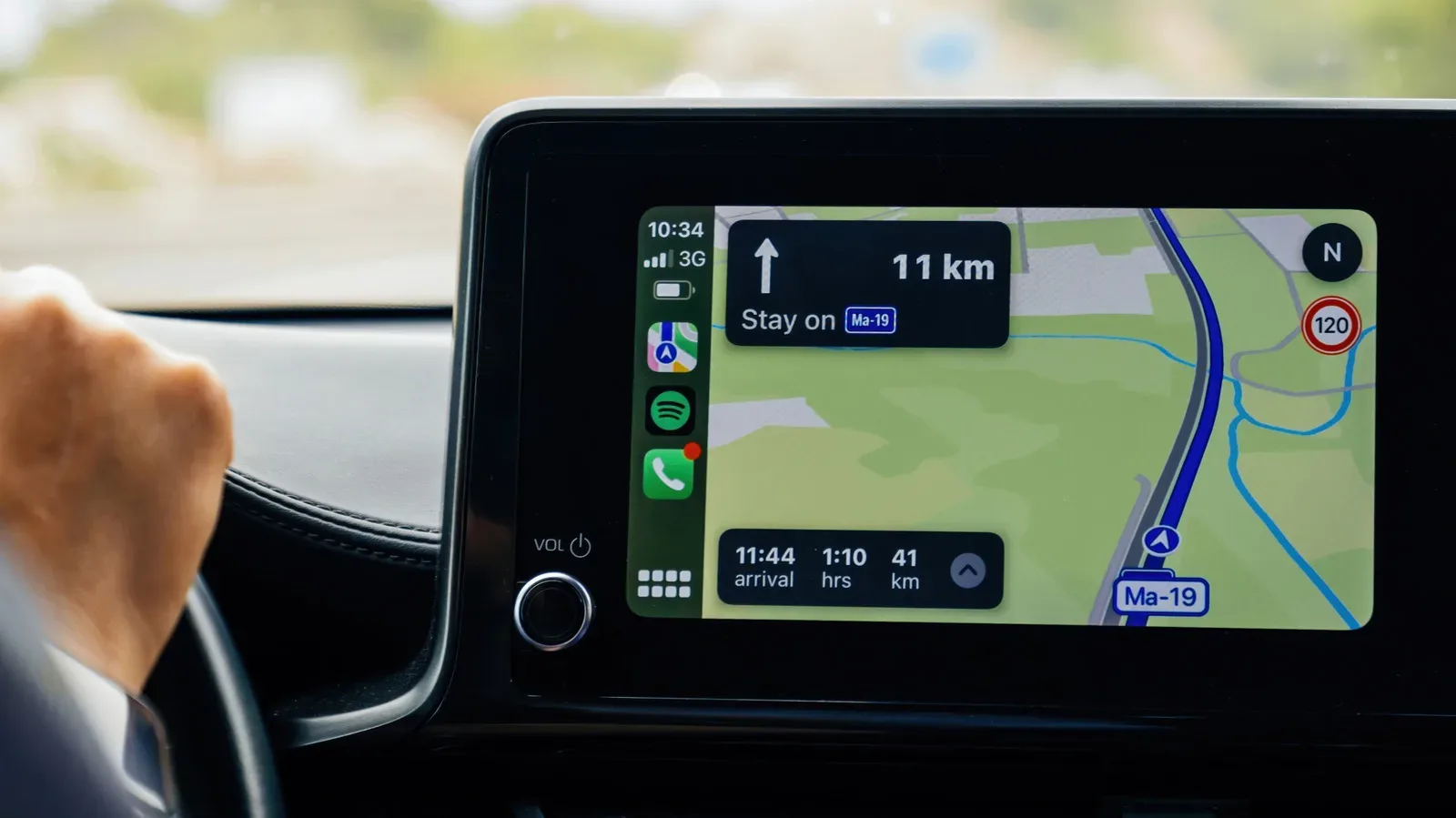
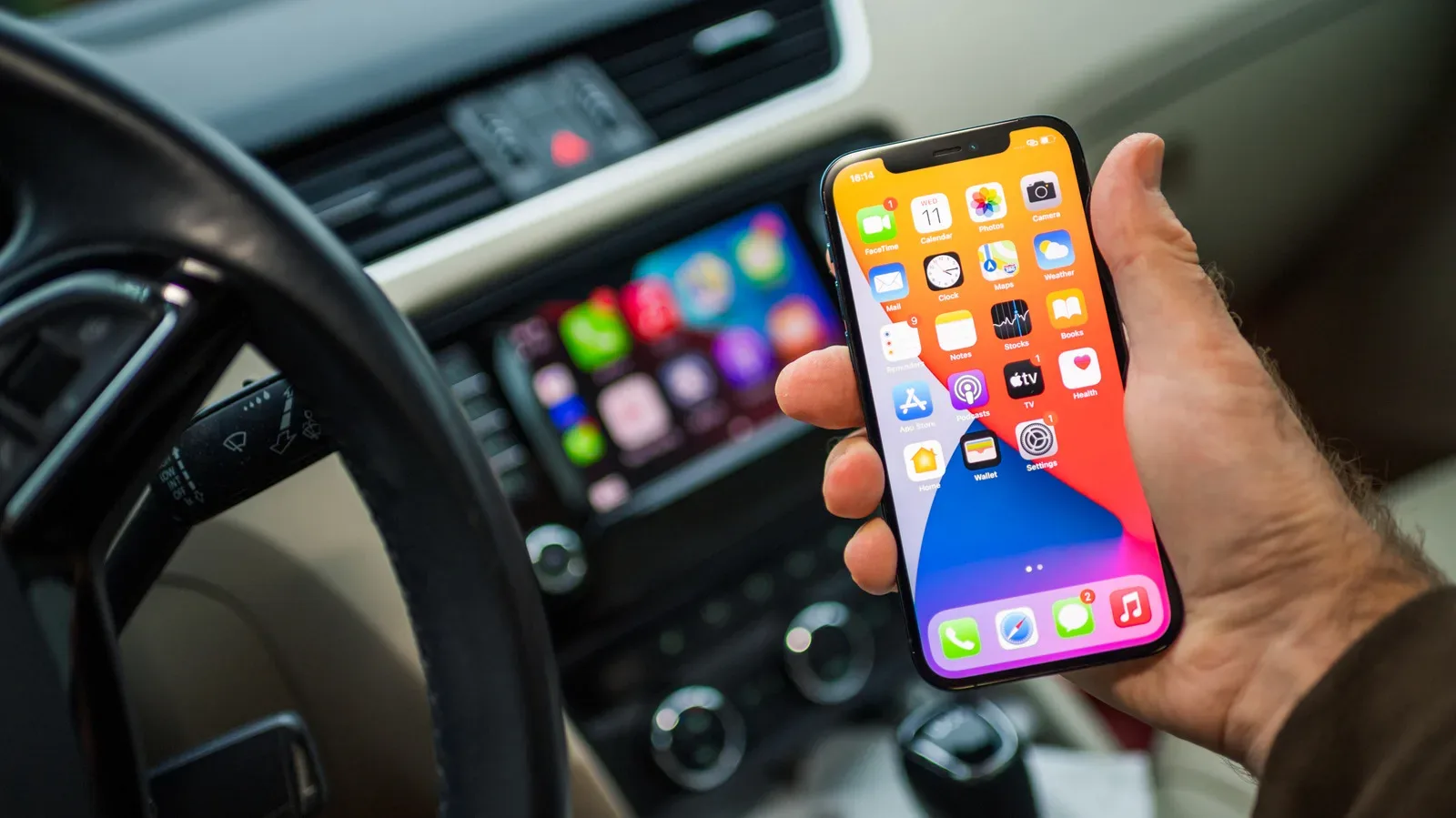
CarPlay lets an iPhone present selected information and apps through a vehicle’s infotainment display. Music, contacts and addresses are among the information it can bring to that screen. Since the iPhone is supplying the CarPlay software experience, updating the phone updates the CarPlay component that comes with it.
This does not mean the vehicle itself never needs an update. A car stereo can have its own firmware, and some CarPlay features depend on automaker support. But the two update paths serve different roles. iOS changes the phone-side CarPlay experience; stereo firmware concerns the vehicle hardware and its software. Treating them as interchangeable can make troubleshooting needlessly complicated.
For more context, explore Black Mirror: White Bear Graphic Novel Set for February 2027 Hardcover Release.
In practical terms, an owner should begin on the iPhone: open Settings > General > Software Update, check the installed iOS version and install an available update if appropriate. As of the supplied information, iOS 27.2.1, dated November 9, is the newest version. Devices running iOS 26 may be offered both a smaller iOS 26 update and the larger upgrade to iOS 27 as separate choices.
What iOS 27 adds to CarPlay
iOS 27, released September 14, introduced a collection of CarPlay changes centered on media and navigation. The additions are not all universal, so it is worth separating what is phone-led from what is conditional on the car.
More at-a-glance audio controls
The update adds an audio mini-player and a progress bar in the Now Playing view. A mini-player is a compact playback control that keeps the current audio visible without requiring a full-screen player. The progress bar gives a visual indication of how far a track, episode or other audio item has advanced. Neither change rewrites the purpose of CarPlay, but both are aimed at reducing the amount of screen navigation needed to understand what is playing.
Related coverage includes How updating your iPhone improves Apple CarPlay.
The usefulness is straightforward: podcast and music listeners can see playback status in a more immediate form. It is a quality-of-life change rather than a reason to treat the dashboard as a new device, but these small interface details are exactly the sort of improvement an older iOS version will not receive.
Route sharing with the vehicle’s screens—where supported
iOS 27 also includes route sharing with a car’s own screens. The limitation is important: this works only in cars whose automakers have added support. In other words, installing iOS 27 alone does not guarantee that every dashboard display will gain the option.
“Supported” here means that both sides of the connection are prepared for the feature. The iPhone can provide the updated CarPlay software, while the vehicle must be designed or updated to work with route sharing. If the option is absent after updating, that is not, by itself, evidence that the phone update failed. The car may simply not support it.
Video apps while parked
Video apps are another iOS 27 addition with a firm restriction: they are for use while the car is parked, and they require vehicle support. This is not an invitation to expect video playback during a drive. The parked-only condition is the central part of the feature, while automaker implementation remains a second gate.
That split is a useful reminder that CarPlay features can have three different statuses: available after an iOS update, available only with compatible phone hardware, or available only on compatible vehicles. Checking which category applies is more productive than assuming a single software installation unlocks everything.
Reliability and navigation improvements may be the bigger upgrade
New buttons and panels are easy to spot. Less visible improvements can be more valuable day to day. Apple says iOS 27 improves wireless CarPlay reliability as well as navigation heading and GPS accuracy.
Wireless CarPlay reliability refers to the consistency of the phone-to-car connection when a cable is not being used. Any improvement here matters because an unreliable connection can interrupt maps, calls and audio—the core reasons many people use CarPlay in the first place.
Navigation heading is the directional orientation shown by a navigation system: the direction it believes the vehicle is facing or moving. GPS accuracy concerns the precision of location information. Better heading and location behavior can make maps feel more trustworthy at the moments when a driver needs clear guidance. The supplied details do not quantify those improvements, so it would be wrong to promise a specific change in every car or area. Still, their inclusion is a strong argument for not judging an update solely by its visible new features.
iOS 27.2’s podcast and Siri changes
The October 26 release of iOS 27.2 adds further refinements. In Podcasts, the Home tab gains New Episodes and Continue Playing, replacing Up Next. For regular podcast listeners, that change shifts the starting point toward recently released shows and unfinished listening rather than a conventional queue label.
Siri also gains the ability to recall past conversations. There is a major eligibility caveat: this Siri capability requires an iPhone 15 Pro or newer. It is not a CarPlay-specific promise for every iPhone that can run the wider update, and it should not be confused with the general CarPlay additions described above.
That difference illustrates why software version and hardware compatibility have to be considered together. A user may be on the newest iOS release yet still not receive a feature reserved for particular devices. Conversely, an older iPhone may retain functional CarPlay while being unable to move to the version that introduced new CarPlay tools.
What skipping iOS 27 actually means
Skipping an update does not make CarPlay stop working. Existing CarPlay functionality remains available on the iPhone and car combination that already supports it. The trade-off is that the setup remains on its current feature set and misses later fixes and compatibility improvements.
iOS 27 requires an iPhone 11 or later, or a second-generation iPhone SE. CarPlay itself is listed as compatible with much older iPhones. That produces an understandable but sometimes confusing outcome: an older phone can continue to use CarPlay, yet it cannot receive iOS 27’s mini-player, progress bar, route-sharing additions, parked video-app support or the stated wireless and navigation refinements.
For buyers of a used car or a second-hand iPhone, this is particularly relevant. A vehicle’s CarPlay badge does not tell the whole story of what the current setup can do. The actual experience is constrained by the iPhone model, its installed iOS version and, for certain features, the automaker’s support.
A sensible troubleshooting order for CarPlay problems
When CarPlay acts up, begin with the least disruptive steps. The recommended sequence is not an exotic fix; it is a method for ruling out a stale software state and a misbehaving connection before moving to vehicle firmware.
- Update the iPhone. Check Settings > General > Software Update and install the appropriate available iOS version.
- Restart the iPhone and the car. Restarting both ends refreshes the phone and infotainment connection without erasing the pairing.
- Forget and set up the car again. On the iPhone, open Settings > General > CarPlay, select the car, choose Forget This Car, then complete setup again.
- Check the stereo firmware. This is the later step, not the first one. Consult the vehicle manual for its instructions and availability.
Forgetting the car removes the existing CarPlay association from the iPhone, so it should be approached as a reset of that relationship rather than a quick toggle. It can be useful after an update when the phone and vehicle do not reconnect cleanly, but it is sensible to try the simpler update-and-restart steps first.
The practical takeaway
CarPlay lives across two pieces of hardware, but its software evolution begins on the iPhone. iOS 27 brings media controls, supported-car route sharing, parked video apps and stated reliability and navigation improvements; iOS 27.2 adds podcast organization changes and a hardware-limited Siri enhancement. None of that means every feature will appear on every dashboard, but leaving the phone on an old release guarantees that its CarPlay experience stays old too.
The most useful habit is also the simplest: when CarPlay seems dated or unreliable, check the iPhone’s iOS version before hunting through the car’s menus. Then distinguish between a phone feature, a phone-model limitation and a vehicle-support limitation. That makes expectations clearer—and may save a lot of time spent looking for an update button the car never had.