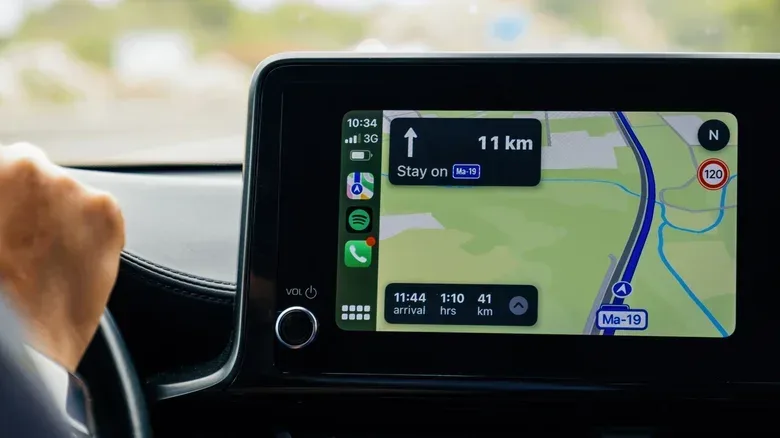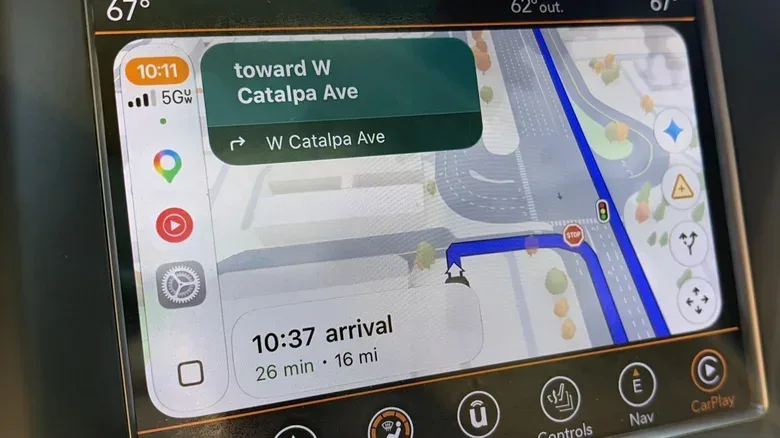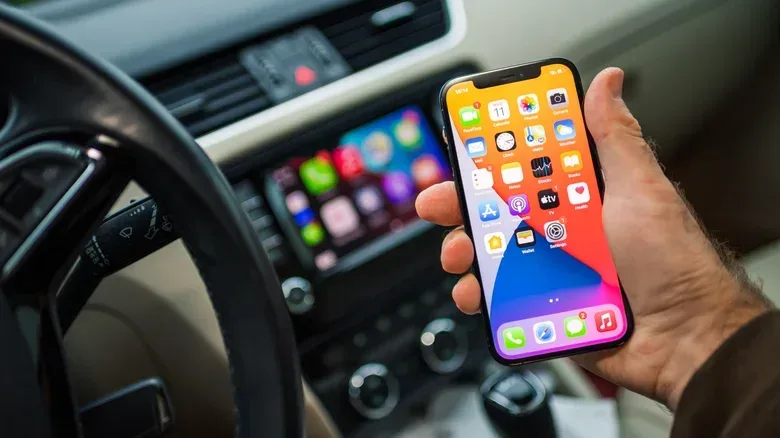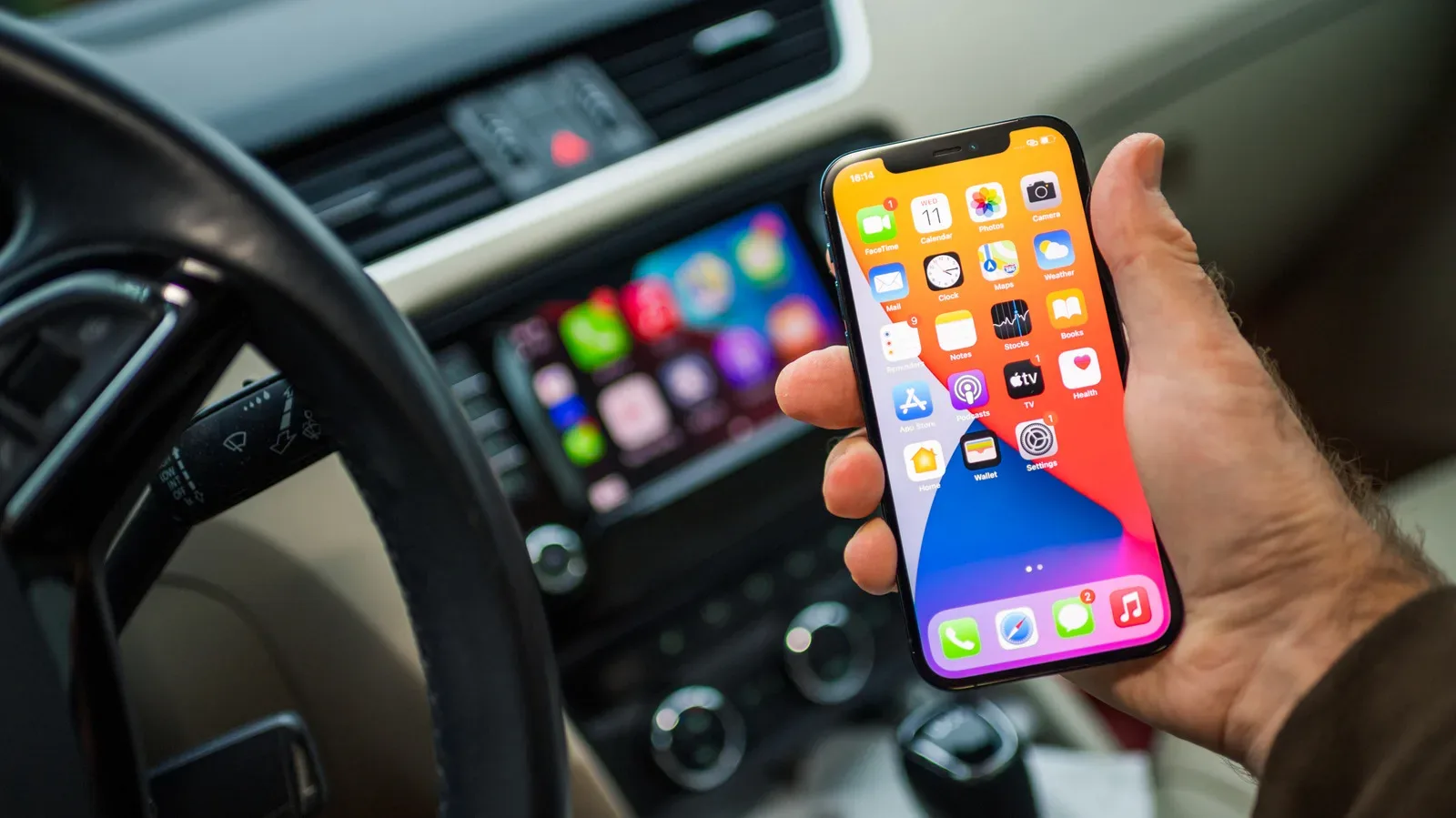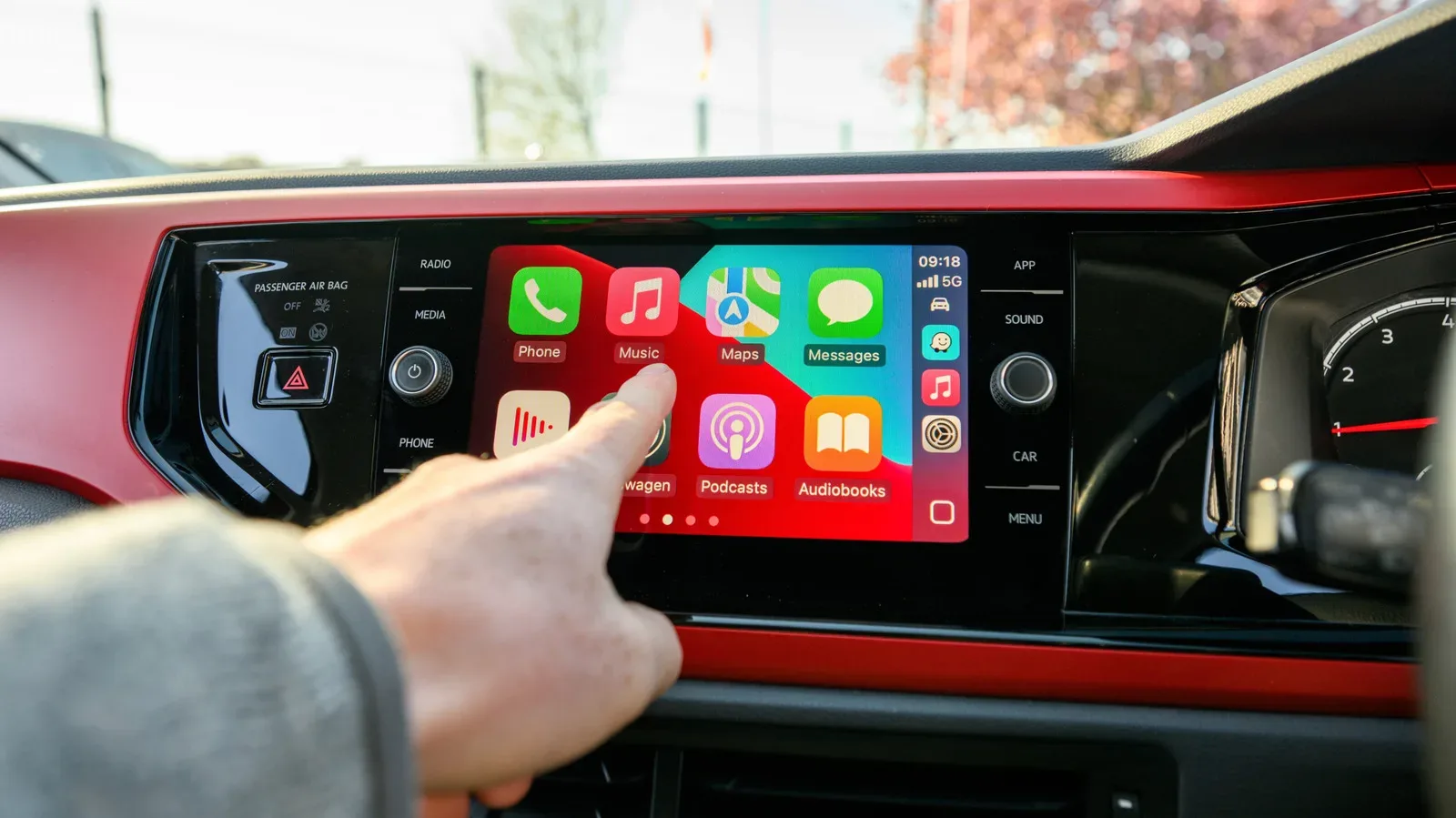
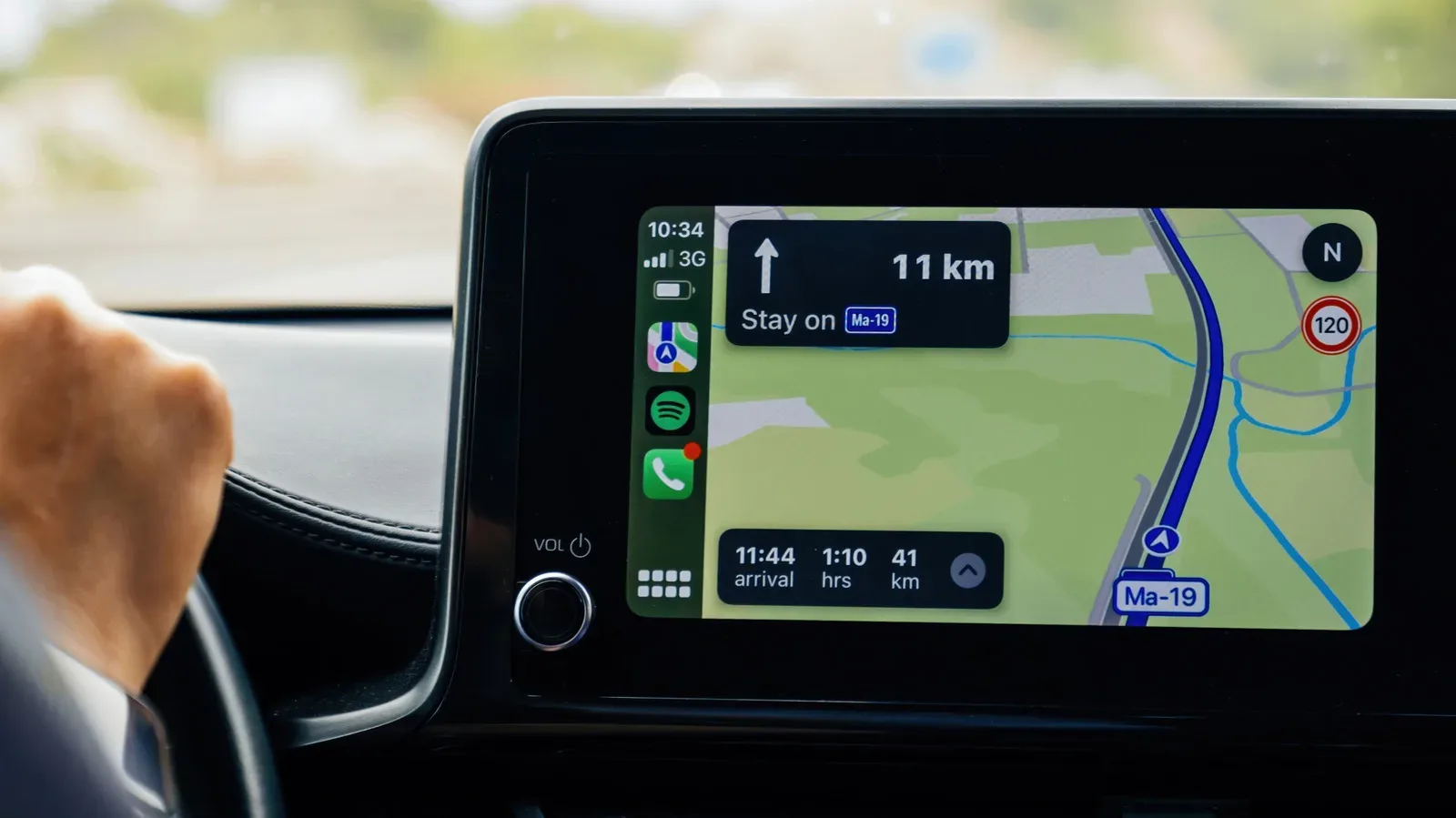
CarPlay is supposed to make a phone’s navigation easier to use in a vehicle: the route is placed on the car display, the next maneuver is made prominent, and voice directions can handle much of the rest. For some iPhone owners on iOS 27, however, the screen is doing an unhelpful impression of a badly arranged game HUD. Google Maps and Waze guidance banners can sit directly on top of the portion of the map drivers need to see.
The issue affects third-party navigation apps in CarPlay, rather than navigation on the iPhone itself. When a Google Maps or Waze route is active, cards showing information such as the next turn and estimated arrival time may cover the map instead of prompting it to shift out of the way. That can make turn-by-turn guidance awkward, and on smaller in-car displays it can make the visual map difficult to use at all.
Reports from drivers, developer discussion, and an acknowledgement from an Apple engineer point to iOS 27 as the underlying problem. That distinction matters. It means common advice aimed at a malfunctioning app—updating it, deleting and reinstalling it, or pairing the car again—is unlikely to repair this specific overlapping-banner behavior.
iOS 27 also brought new CarPlay capabilities, including video playback while parked. But the navigation problem is a reminder that a phone update can also change the software running a vehicle’s dashboard experience. For a broader overview of that relationship and related checks, see how an iPhone update can affect CarPlay.
What is actually going wrong with Google Maps and Waze?
The key technical detail is that third-party navigation developers do not have total control over their CarPlay layout. On the iPhone, Google Maps and Waze can construct their own interfaces. In CarPlay, they provide navigation information to Apple’s system, which draws standardized interface elements on the vehicle display.
Those elements include the navigation cards or banners that surface the upcoming maneuver and ETA. ETA means estimated time of arrival: the projected time a driver will reach a destination. The cards are useful because they present critical route information in a consistent location, but they also need to coexist with the map.
That is where the safe area comes in. In interface design, a safe area is the portion of a display that an app can treat as unobstructed and usable. It accounts for system-controlled controls, display boundaries, and other content that sits above the app. A navigation app should receive information about the space occupied by CarPlay’s banners, then reposition the map’s focal area so the route remains visible.
In this iOS 27 bug, CarPlay appears not to report that safe area properly to third-party navigation apps. The result is not simply an unusually large banner. The apps are missing the layout information needed to move the map away from the banner, leaving route detail hidden beneath it.
Related coverage includes iOS 27 CarPlay bug obscures Google Maps and Waze.
That also explains why blaming Google Maps or Waze alone misses the bigger picture. Both apps rely on the same CarPlay framework for this part of the display. If the system template’s safe-area behavior is wrong, two otherwise separate navigation apps can show the same visual failure.
Why Apple Maps avoids the overlap
Apple Maps does not appear to be affected by this particular issue. Its CarPlay interface is native to Apple’s own software rather than being rendered through the third-party navigation template that Google Maps and Waze use.
That does not prove every Apple Maps feature will suit every driver, nor does it mean drivers must permanently swap mapping services. It does make Apple Maps a practical temporary alternative for anyone whose normal CarPlay map is routinely obscured. The important limitation is that this is a workaround for the layout bug, not a demonstrated fix for Google Maps or Waze.
The distinction is useful when diagnosing the problem. If Apple Maps is readable while Google Maps and Waze both place their guidance information over the route, the pattern is consistent with the iOS 27 third-party-template issue. If no navigation app appears, or CarPlay does not connect at all, that is a different problem with different troubleshooting steps.
Screen size changes how severe the bug feels
Not every affected car display will look equally broken. Wider screens have more horizontal room for the map, so drivers may still be able to see enough of a route even when an instruction card covers part of the display. On compact infotainment units, the same card consumes a larger share of the usable map area.
This is not merely cosmetic. A map is most valuable when it provides context around an upcoming maneuver: lanes, nearby intersections, the approach to a turn, or the broader shape of a complicated interchange. If the card hides the center of that view, a driver may be left with only a spoken command and a partial picture of where it applies.
That is why a workaround reported as tolerable on one vehicle may be inadequate on another. CarPlay is running from the same iPhone, but the dashboard display’s proportions and size can determine whether the overlapping content is a nuisance or a serious obstacle to reading the route.
What is worth trying now
The available options are limited, but there is one setting that may reduce the obstruction for some vehicles. On the CarPlay display, open Settings, choose Display, and turn off Smart Display Zoom.
Reports indicate that disabling Smart Display Zoom can make the on-screen banners smaller on some car systems. It is not a universal cure, and it does not restore the expected safe-area behavior. Still, it is a low-risk adjustment to try before changing apps or spending time on more disruptive troubleshooting.
If the map continues to be covered, consider temporary changes to how navigation is used:
- Rely more heavily on voice guidance. Spoken instructions can reduce the need to keep looking at the map, although they do not replace the value of a clear route display in every situation.
- Use the iPhone display when appropriate and lawful. This can provide an unobscured map view, but drivers should not handle a phone while operating a vehicle and should follow local rules.
- Try Apple Maps in CarPlay. Its native interface is not affected by the reported third-party template problem.
- Disable Smart Display Zoom. This may shrink the banners on certain vehicles, even though it is not a complete repair.
The safest practical approach is to set the route and make any settings changes before driving. A compromised map display is frustrating; attempting to diagnose it while moving is worse.
What probably will not fix this particular symptom
It is easy to reach for the standard checklist when an app looks wrong. In this case, the evidence suggests several familiar steps are unlikely to change the overlapping cards:
- Updating Google Maps or Waze
- Reinstalling either navigation app
- Removing and re-pairing the car solely to address banner overlap
Those actions can be useful for other faults. In particular, they may be relevant when an app fails to appear in CarPlay at all. But they do not address an iOS-level failure to provide third-party apps with the right safe-area information once the app is already running.
If Google Maps or Waze is missing entirely from CarPlay, check the iPhone’s CarPlay app list instead. Go to Settings > General > CarPlay, select the vehicle, choose Customize, and confirm that the desired navigation app is enabled. That is a visibility setting, not a fix for the map-and-banner layout defect, but it is the appropriate check for the separate problem of an absent app.
Why this needs an iOS fix
The strongest evidence points to a platform-level correction being required. An Apple engineer has identified the behavior as a known iOS 27 issue in developer discussion. The bug was still present in the first iOS 27.3 developer beta, so it has not yet been resolved in that early test release.
That does not establish a public fix date. Acknowledgement of a known bug is encouraging, but it is not a release promise, and a developer beta is not a guarantee of what will appear in the final version. Drivers should therefore plan around the issue rather than assume the next update will eliminate it.
There is a broader technical lesson here. CarPlay’s standardized templates are intended to keep in-car interfaces consistent and limit the amount of custom interface design navigation apps can introduce. That system can be beneficial, but it also creates a dependency: if the template or its layout reporting fails, multiple apps built around it can fail in the same way. The shared behavior of Google Maps and Waze is precisely why the issue looks like an iOS problem rather than two unrelated app bugs.
Until Apple changes the underlying behavior, the sensible choices are modest ones: check Smart Display Zoom, use voice cues, switch temporarily to Apple Maps if it meets your needs, or use the phone’s map view without interacting with it while driving. It is not the elegant dashboard experience iOS 27 was meant to improve, but it is a clearer route through the current CarPlay detour.