Waze is frequently treated as the map app you open when the roads have decided to become a live-service game with too many random encounters. Its central appeal is straightforward: it is built around reports from people on the road, including traffic congestion, crashes, potholes and police activity. That crowdsourced approach makes the app feel distinct from Google Maps, even though Google has owned Waze since 2013.
But the real-time reports are only the beginning. Several useful functions sit a little deeper in Waze’s menus, from using an existing address in a phone contact to setting a planned arrival time and receiving a suggested departure window. There is also a highly Waze-like customization option: drivers can replace ordinary navigation prompts with recordings from themselves, friends or family. It is practical, personal, and potentially chaotic if someone records every prompt as a pirate.
Here is what these features do, where to find them, and the permission and safety considerations worth understanding before turning the next commute into a personalized dashboard adventure.
Navigate to saved contacts without repeatedly entering addresses
For destinations that belong to friends or family, Waze can use an address already stored in the phone’s contacts. Rather than typing or pasting a full street address every time, open Waze, swipe up, scroll to Drive to friends & family, and search for the contact’s name. If that contact has an address saved, Waze can begin navigation with a tap.
The convenience is clearest for repeat destinations: a relative’s house, a friend’s apartment, or any address that is reliably attached to a contact card. It reduces a small but familiar bit of pre-drive friction—the moment when a navigation app is asking for information the phone already has.
There is an important trade-off. The feature requires permission for Waze to access contacts. That does not mean every driver will want to grant it, and choosing not to is entirely reasonable. A manual destination search remains available for people who prefer to keep contact data separate from their navigation app.
How to turn the contacts permission back off
Permissions are not a permanent vow. On an iPhone, the supplied path is Settings > Apps > Waze > Contacts, then choose None. On Android, use Settings > Apps > See all apps > Waze > Permissions > Contacts, then select Don’t Allow.
This is a useful distinction between a feature and a requirement. Contact access is necessary for contact-based destination lookup, not for Waze to function as a navigation app generally. Drivers can choose the convenience level that fits their own privacy comfort zone.
Related coverage includes Waze Features to Set Up Before Your Next Drive.
Make the map feel less like a map and more like yours
Waze’s interface has long leaned into personality. Under Settings > View profile > Mood, users can select a Mood, which changes the avatar shown to other Waze users. It is a small social layer rather than a routing tool: the road does not become less crowded because an avatar looks grumpy, but at least the avatar has correctly assessed the situation.
Waze also offers sidekicks, which can change the vehicle icon, avatar and navigation voice as part of a themed presentation. These options do not alter the route itself. Their value is customization: they allow people to make an app used constantly for routine travel feel a little less generic.
That distinction matters. Customization is cosmetic or experiential; it should not be mistaken for an improvement to route accuracy, traffic reporting or driving safety. The practical advantage is simply that drivers can choose an interface and voice presentation they find more pleasant or easier to live with.
Record a custom navigation voice, one prompt at a time
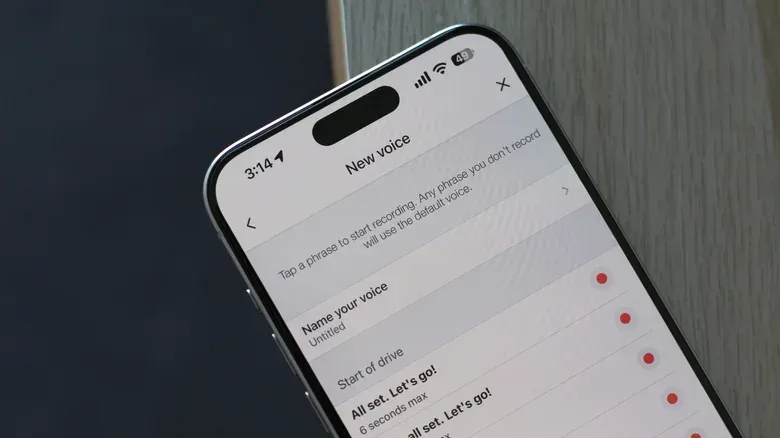
The deeper customization feature is Waze’s custom voice recording tool. Go to Settings > Voice and sound > Current voice. Alongside preset voices, select New voice to record a set of navigation directions.
Waze provides 39 prompts to record, and each has a maximum length of six seconds. The set includes routine instructions such as turns, as well as alerts involving hazards and speed cameras. A complete set therefore takes more effort than recording one cheerful “turn left,” but completing it avoids a sudden handoff from a familiar voice to the standard navigation voice halfway through a trip.
If a user leaves any line unrecorded, Waze uses the default voice for that instruction. That fallback is functional, but it may be jarring. A drive can go from a child or partner delivering a custom turn instruction to a standard digital prompt without warning. Anyone making a themed voice pack should either record all 39 prompts or accept that the default voice is a surprise guest star.
What text-to-speech means here
Text-to-speech, often shortened to TTS, is the technology that turns written route directions and alerts into spoken audio. In this setting, it is the voice system that delivers navigation guidance. Waze includes a search code, ##@cctts, that clears the app’s text-to-speech cache and may help with certain voice-navigation problems.
A cache is stored temporary data intended to help software work efficiently. Clearing it can sometimes address an issue, but it is a troubleshooting action rather than a regular customization step. If spoken instructions are working normally, there is little reason to change anything merely because the button exists. The same basic rule applies to most diagnostic tools: they are not collectible achievements to unlock; they are tools for a specific problem.
Custom voices also deserve a common-sense driving caveat. Record, select and test them before a trip, not while handling the wheel. Spoken directions should support attention on the road, not create a reason to fiddle with menus during movement.
Plan an arrival time instead of only reacting to the present
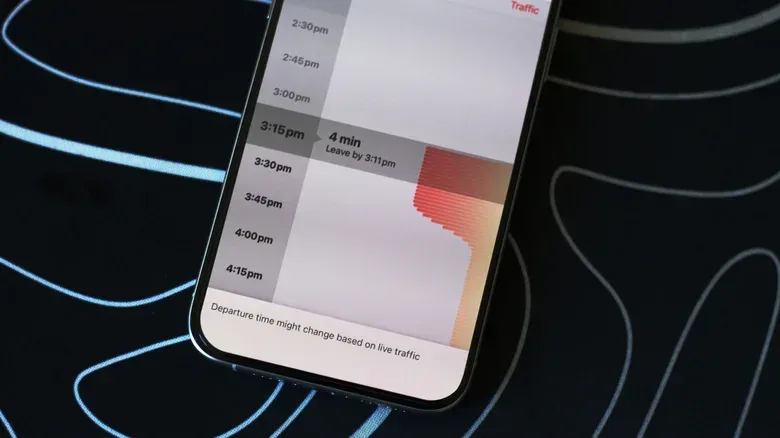
Waze can also plan future drives. Search for a destination as usual, then select Leave later instead of Go now. The app allows an arrival time to be chosen in 15-minute increments and displays expected traffic levels alongside the available timing.
The feature can be useful for a commute later in the day, an appointment, or any journey where arriving by a specific time matters more than leaving immediately. Waze can recommend when to depart using expected traffic along the selected route. The driver can change both the starting point and day of the week when planning farther ahead, then press Save to add the journey to planned drives.
Saved trips can be viewed through the hamburger menu under Plan a drive. Waze can also connect to a calendar so events with locations can appear automatically as planned drives.
Expected traffic is a forecast, not a force field
The key word in the planning tool is expected. The feature is designed around anticipated traffic conditions, giving the driver an informed suggestion about departure time. It cannot eliminate uncertainty. Road conditions can change, and a planned drive should be treated as decision support rather than a guarantee of arrival.
That makes the feature most valuable as an organizing tool. It can turn “I should probably leave at some point” into a saved trip with a target arrival time and an expected-traffic view. For recurring trips, that is a meaningful quality-of-life improvement even without treating the suggested timing as absolute.
Two search codes, and a reason not to go code hunting
Waze also recognizes certain codes typed into its search bar. One, ##@morph, unlocks a monster Mood avatar. It is a harmless bit of hidden profile flair for anyone who wants their public road presence to look a little more creature-feature than commuter.
The other, ##@cctts, clears the text-to-speech cache and may resolve some voice-guidance issues. It has a purpose, but it is not a general performance booster and should not be treated as one.
Other codes exist, including ones intended for diagnostics and troubleshooting. The sensible approach is restraint: use a code when its purpose is understood and relevant to an actual issue, and do not toggle technical settings simply because the search bar has become a secret passage. Navigation apps are most useful when they are dependable, not when every pre-drive check becomes a menu expedition.
A better pre-drive setup in five steps
- Decide whether contact lookup is worth the permission. Enable Contacts only if quick access to saved addresses is useful to you.
- Choose a Mood or sidekick before departing. These are profile and presentation choices, not route tools.
- Set a voice you can understand clearly. If recording a custom pack, cover all 39 prompts to avoid default-voice interruptions.
- For timed trips, use Leave later. Pick an arrival time, review expected traffic and save the planned drive.
- Leave diagnostic codes alone unless there is a reason. The monster avatar is optional fun; cache clearing is troubleshooting.
The broader appeal of Waze is not that every tucked-away option must be enabled. It is that the app gives drivers choices: a faster way to reach an address already saved in their phone, a route-planning workflow for future appointments, and a level of personalization that conventional navigation software often avoids. The best setup is the boringly effective one—configured before the car moves, easy to understand, and focused on keeping the next drive simple.
For another reminder that app and device upkeep can matter as much as flashy new features, see our guide to Google Pixel update deadlines and security support.