An iPhone can run games, stream music, take photos and handle a group chat that refuses to sleep, but its least glamorous job still matters: making a clear phone call. When a voice turns metallic, words vanish in bursts, calls drop, or background sound overwhelms the conversation, the cause is not always the microphone itself. Signal strength, network selection, software, accessories and even the phone case can each be part of the problem.
The useful approach is to avoid changing everything at once. Start by identifying which side of the call has the issue. Can the other person hear you poorly, can you not hear them, or is the entire call unstable? Does it happen in one location, only with wireless headphones, or on every call? Those distinctions make the following checks much more meaningful.
First: make the quick checks while the call is happening
Before diving into settings, check the immediate basics. Make sure call volume is actually high enough and confirm whether speaker mode is on or off as intended. A deceptively simple output or volume issue can resemble a much bigger failure.
Then look at the cellular signal indicator. Low bars are a strong clue that the phone is struggling to maintain a stable cellular connection. Moving near a window or into a more open area may help, particularly if walls or metallic finishes on glass are interfering with reception. This is not a permanent remedy for poor coverage, but it is a fast way to test whether the environment is the main factor.
Use Voice Isolation when the other caller cannot hear you over noise
iPhone users with an iPhone XR, XS, or a newer model running iOS 16.4 or later can try Voice Isolation during a call. The feature uses machine learning to reduce environmental sound so that the caller’s voice is easier for the person on the other end to understand.
That distinction is important. Voice Isolation works on your outgoing voice; it does not repair muffled incoming audio from the other person. If their voice is the issue and they use an iPhone, ask them to enable the setting on their device.
- While on a call, swipe down from the top-right corner to open Control Center.
- Select the Phone Controls banner near the top.
- Under Audio & Video, open the Mic Mode options.
- Choose Voice Isolation.
There is also an Automatic option, which lets the phone determine what is most appropriate. Voice Isolation is especially worth testing where there is persistent surrounding noise. Think of it as a voice-processing tool, not a cure for weak reception, faulty earpieces or a bad connection on the other person’s end.
Force a fresh cellular connection after a bad or dropped call
A poor call may be tied to the network connection currently chosen by the phone. A nearby cellular tower can be congested, and an iPhone may be attached to a weaker or more distant connection even where a better one is available. If a call is already failing, end it before resetting that connection.
- Open Control Center by swiping down from the top-right.
- Turn on Airplane Mode.
- Wait 10 seconds.
- Turn Airplane Mode back off.
This makes the iPhone reconnect to the cellular network. It cannot create coverage where none exists, but it can give the device a chance to establish a better link than the one it had. Make a follow-up call in the same place. If the difference is immediate, connectivity is a more likely explanation than a persistent speaker or microphone fault.
Consider Wi‑Fi Calling in cellular dead spots
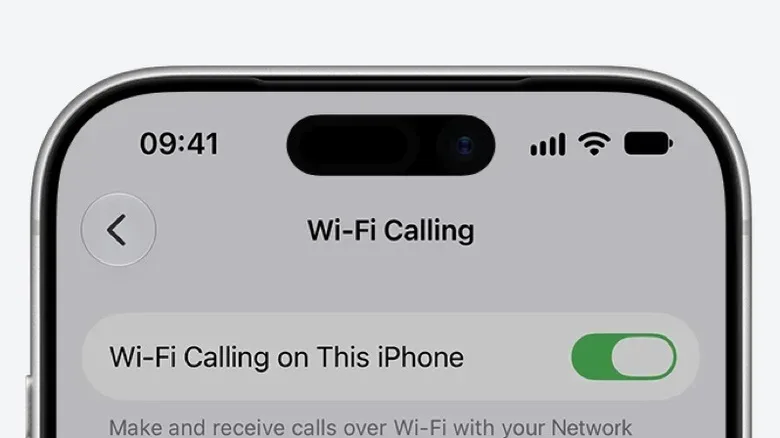
Wi‑Fi Calling routes the call through a Wi‑Fi connection rather than relying exclusively on a weak cellular signal. It is a practical option for rooms or homes where mobile reception is consistently poor but Wi‑Fi is usable.
To enable it, go to Settings > Apps > Phone > Wi‑Fi Calling, then switch on Wi‑Fi Calling on This iPhone.
In principle, a Wi‑Fi call can transition back to the cellular network when you leave Wi‑Fi range. In practice, that handoff is not flawless, so moving out of range can still result in a dropped call. For a stationary call in a low-signal area, however, Wi‑Fi Calling is one of the most direct alternatives to cellular trouble.
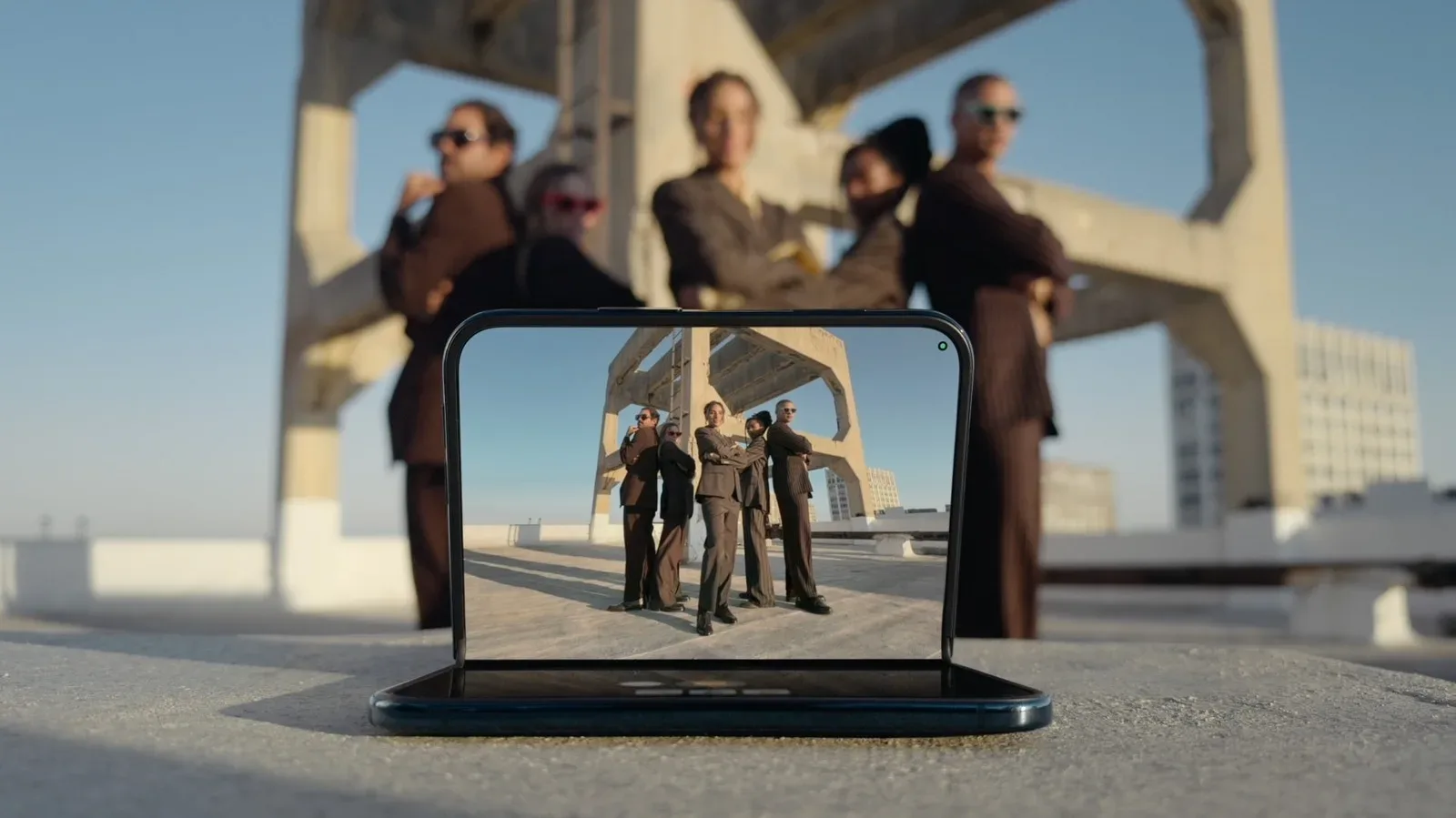
For readers tracking Apple hardware developments more broadly, Joking Joystick has also covered an iPhone Duo concept focused on group selfies. Whatever form future devices take, dependable voice communication remains a core, practical test for any phone.
Keep iOS and carrier settings current
Software is an easy variable to eliminate. Check for an iOS update at Settings > General > Software Update. System updates can contain fixes that affect calling and connection behavior.
Also check for a carrier settings update. Carrier settings are configuration updates related to how the iPhone works with the mobile network. Open Settings > General > About and wait briefly. If an update is available, a prompt should appear within about 15 seconds; choose Update.
The two updates serve different jobs. iOS is the phone’s broader operating system, while a carrier settings update is more specifically tied to mobile-network configuration. Checking both avoids assuming that being current on iOS automatically means carrier settings are current too.
Restart, then inspect the physical setup
Restarting the phone remains a reasonable step if it has not been restarted recently. It is simple and non-destructive, and it can clear a range of temporary issues. If the iPhone uses a physical SIM, turn the phone off before removing the tray. Use a paper clip to inspect for dust or a SIM that does not appear to fit securely, then reseat it.
Test the microphone separately
Use the Voice Memos app to make a short recording, then play it back. Clear playback is useful evidence that the microphone is capable of capturing your voice clearly in that test. It does not prove that every call-quality component is perfect, because calls also depend on network conditions, audio output and the other participant’s connection. But it helps narrow the problem.
Next, carefully clean the speaker grille and earpiece using a soft brush. Debris around those openings can affect what you hear. Try a call with the case removed as well. Thick cases or cases containing metal can affect antenna performance, so a short case-free test can reveal whether the accessory is contributing to bad reception.
Try speakerphone, too. If the sound changes substantially between the earpiece and speakerphone, record that result. It provides a clearer description of the issue if you later decide that the phone needs professional attention.
Rule out Bluetooth congestion and headset issues
Wireless headphones, including AirPods, operate in the crowded 2.4GHz band. Other devices using that band can include keyboards, mice, microwaves and baby monitors. When the band is congested, call audio over Bluetooth may degrade.
Make one test call without the headphones. If the call becomes clearer, the issue may lie in the headset connection or local wireless congestion rather than the iPhone’s built-in call hardware. The reverse test is just as useful: if you normally call without headphones, try them and compare their microphone performance with the internal microphone.
These are controlled comparisons rather than guarantees. A single better call does not establish a permanent cause, but repeated results under the same conditions are much more informative than a vague impression that calls “sometimes” sound bad.
When a hardware issue is more plausible
If poor quality persists across locations, after software and carrier checks, without Bluetooth accessories, and with the case removed, a hardware issue becomes more credible. Some iPhone 12 and iPhone 12 Pro devices experienced earpiece failures that were addressed through a service program that has since closed. Older iPhones with Intel modems, including the iPhone XR, XS and 11, may also have weaker signal strength.
Contacting Apple is appropriate if the troubleshooting steps do not isolate an environmental or settings problem. Be prepared for the possibility of an in-store paid appointment. The most helpful description is specific: whether the failure affects incoming sound, your outgoing voice, signal stability, earpiece playback, speakerphone, Bluetooth calls, or some combination of those.
A sensible order for troubleshooting
- Check volume, output mode and signal bars during the call.
- Move to a more open location or near a window if signal is weak.
- Enable Voice Isolation if others cannot hear you over background noise.
- After ending a failed call, cycle Airplane Mode for 10 seconds.
- Enable Wi‑Fi Calling where indoor cellular coverage is poor.
- Install available iOS and carrier settings updates.
- Restart the iPhone and inspect a physical SIM, if present.
- Record a Voice Memos clip, gently clean the earpiece and grille, and test without the case.
- Compare calls with and without Bluetooth headphones.
- Seek service if the problem persists consistently across these tests.
Clear calls depend on several pieces working together, which is why a methodical process beats a single magic toggle. Start with the connection and the current call settings, move through software and accessories, then treat a lasting, repeatable fault as a potential hardware concern.