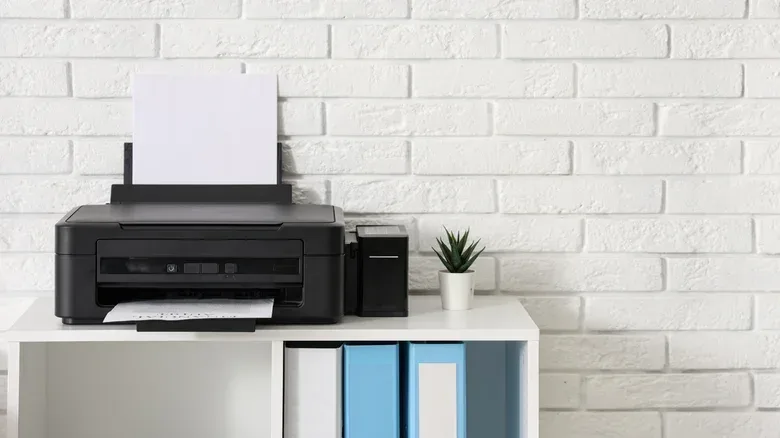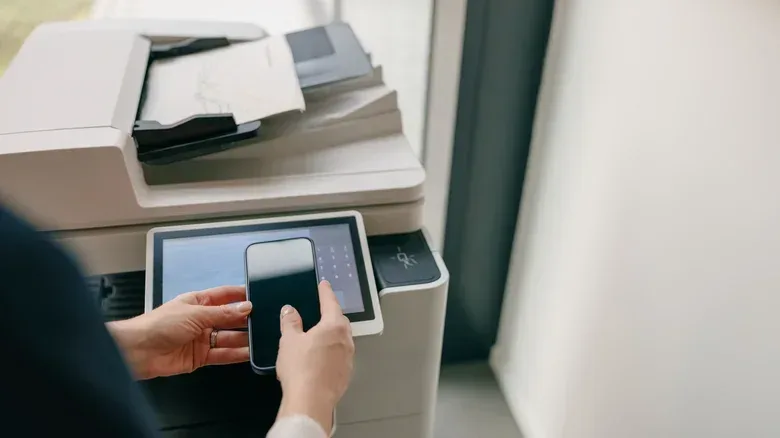
There is a particular kind of printer problem that feels like it should have a brutally simple answer: connect the phone to the printer with a cable, press Print, collect paper. If the printer has a USB port, the iPhone has a charging/data port, and an adapter can join them, surely this ought to work.
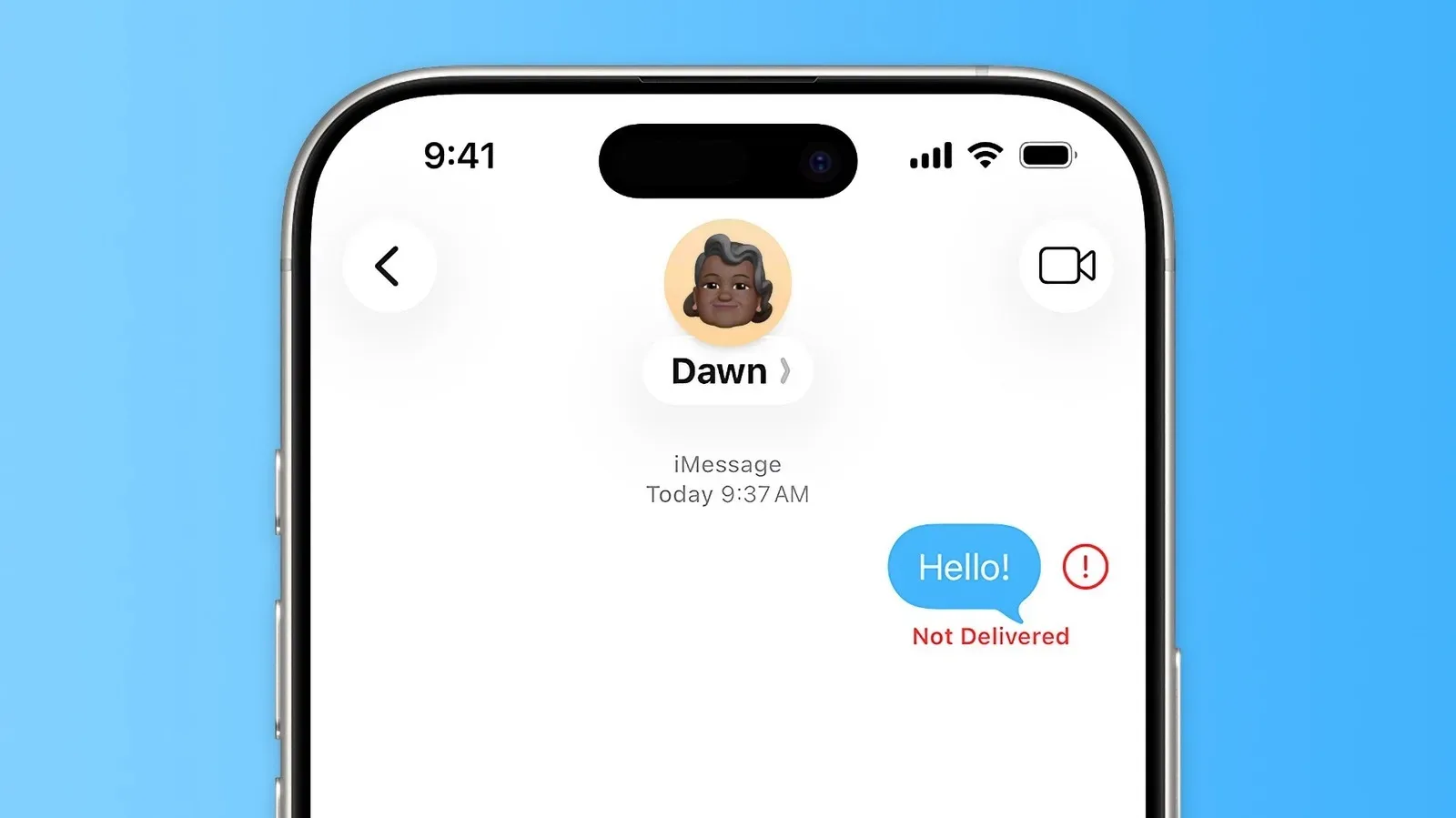
With an iPhone and a typical older USB printer, it generally does not. The important distinction is that a physical connection is not the same thing as a working printing connection. An adapter may enable the devices to be plugged together, but iOS still needs a way to identify the printer and tell it exactly how to produce a page. That missing layer is why the cable route tends to end in frustration rather than ink.
The iPhone and iPad have supported AirPrint, Apple’s wireless printing standard, since late 2010. That history helps explain the shape of the platform’s printing experience: Apple’s mobile devices are built around finding a compatible printer on a network, not around loading a unique USB driver for every printer a user might connect.
The cable is not necessarily the problem
It is possible to connect an iPhone to USB accessories through special adapters that enable USB On-The-Go, often shortened to USB OTG. In plain language, OTG allows a phone or similar mobile device to communicate with certain USB peripherals rather than behaving only as a device that connects to a computer.
But USB OTG does not turn every attached device into something iOS can use. It establishes a possible hardware link. Printing still requires both sides to speak a compatible language.
That is where drivers enter the picture. A printer driver is software that translates a document, photo, or webpage into the instructions a particular printer model expects. Printers vary in the data and settings they support, so desktop operating systems commonly rely on manufacturer-provided drivers. A computer user can often download the appropriate software from a printer maker’s website and install it locally.
iOS and iPadOS take a different approach. They do not offer native support for the wide range of printer drivers associated with wired USB models. This is an intentional platform decision: accommodating the huge variety of device-specific drivers would be difficult to manage on mobile operating systems. The consequence for an older printer is straightforward. Plugging it into an iPhone does not give the phone the knowledge required to operate it.
What an adapter can and cannot do
- An adapter can: create the physical USB connection needed for the iPhone and printer to be attached.
- An adapter cannot: supply iOS with the printer-specific driver support it lacks.
- Result: the phone may be physically connected to the printer without gaining a usable direct-print option.
This distinction matters when troubleshooting. Replacing cables, trying another USB adapter, or reconnecting the hardware may be sensible for a known-compatible accessory. It is not, by itself, a solution to the fundamental limitation of an iPhone connected directly to a conventional USB printer.
AirPrint is the route iPhone printing was designed to take
AirPrint avoids the traditional “find, install, and maintain a driver” model on the phone. With a compatible printer available wirelessly, the iPhone or iPad can use the built-in print workflow instead of attempting to manage an individual USB printer over a cable.
For someone choosing a printer specifically because they want to print from an iPhone, AirPrint compatibility is therefore more important than the mere presence of a USB port. USB remains useful in many printer setups, especially when a computer is involved, but it does not signal direct iPhone support.
Wireless printing also does not require every printer in existence to be AirPrint-native. HP and Canon, for example, offer standalone apps that can provide wireless printing options for some non-AirPrint printers. There is a practical limit: support catalogs reach back only so far. As wireless printing became the dominant expectation, many owners of older models were left with fewer phone-first choices.
That is especially relevant for a printer that remains perfectly functional in a home office. A device can still print reliably from a desktop or laptop while being a poor match for an iPhone. The problem is not necessarily an iPhone defect or a failed printer. It is a compatibility gap between an older, driver-dependent USB workflow and a mobile system designed around wireless standards.
Why an app on the phone does not fix direct USB printing
It is tempting to assume that an app can fill in any missing feature. In this case, the limitation is deeper than a missing button in the print menu. An app would still need a workable way for iOS to communicate with the attached printer and handle the printer-specific requirements that drivers normally address.
Some Android apps support direct USB printing, but equivalent apps for direct USB printer printing do not exist on iPhone. That difference can be surprising to people who have used the same older printer with another kind of phone. The presence of an adapter and a USB cable does not make the two mobile platforms behave alike.
There are apps that can still play a role in an iPhone-to-old-printer workflow, including PrintCentral Pro, PrintDirect, and PrintCast. Their usefulness comes with a key qualification: they rely on a computer as an intermediary. The phone is not directly controlling the USB printer. Instead, the computer receives the job and sends it onward through its own USB connection and printer setup.
That difference is worth spelling out because it prevents a common misunderstanding:
- The iPhone sends a document or image to software or a service path associated with a computer.
- The computer, which can use the printer’s installed driver, prepares the print job.
- The computer sends the job to the USB printer.
In other words, the computer supplies the driver-aware part of the chain. It is not a workaround that removes the computer; it is a workaround that makes the computer do the job iOS is not designed to do directly.
Turning a USB printer into a wireless destination
A different computer-dependent route is an AirPrint bridge. Bridge software makes a USB-connected printer appear to Apple devices as a wireless printing option. Printopia is one example of software that can perform this role.
The phrase “bridge” is useful because it describes the setup accurately. The printer has not suddenly become an iPhone-ready USB peripheral. A computer is standing between the mobile device and the printer, presenting the older printer in a form the iPhone can recognize through its wireless printing workflow.
This can be a reasonable arrangement for somebody who already keeps a computer available and wants an older USB printer to remain part of a household setup. It does, however, add dependencies:
- The printer must be connected to the computer.
- The computer needs to be available to receive and process the job.
- The bridge software is part of the printing path.
For occasional printing, the simplest answer may be less technical: move the photo or document to the computer, then print it from there. Emailing the file to yourself is one basic way to do that. It is not as seamless as tapping Print on an iPhone, but it avoids buying adapters in the hope that a wired connection will unlock unsupported direct printing.
Advanced option: a Raspberry Pi print server
A Raspberry Pi can also be used as the basis of a print server. In broad terms, a print server is a device that shares a printer over a network, allowing other devices to send jobs to it. This can be another path for bringing an older USB printer into a wireless setup.
It is an advanced option rather than a universal recommendation. The underlying compatibility reality does not change: the iPhone is still not directly driving the old USB printer through a cable. The print server is handling the bridge between the phone’s network-oriented workflow and the printer’s wired connection.
That makes a Raspberry Pi approach potentially interesting for someone who specifically wants a dedicated project and understands the extra setup involved. For a person who needs to print from an iPhone often, replacing the old printer with a modern AirPrint-equipped model is the more sensible path described here. It removes the intermediary rather than adding another machine whose purpose is to act as one.
A practical decision guide for an older printer
The right choice depends mostly on how frequently mobile printing matters and whether a computer is already central to the printer’s use.
- You print from the iPhone only occasionally: send the file to a computer and print directly from that computer.
- You already use a computer with the USB printer and want wireless access: consider software that creates an AirPrint bridge, understanding that the computer remains necessary.
- You have a supported non-AirPrint wireless model: check the relevant manufacturer app, while recognizing that support for older models is limited.
- You need routine, low-friction printing from an iPhone: an AirPrint-equipped printer is the clearest fit.
- You want a technical networking project: a Raspberry Pi print server can serve as a more advanced bridge.
The larger lesson applies beyond printers. A port, cable, or adapter answers only one question: can two pieces of hardware be connected? It does not answer the next question: does the operating system support the protocol, software, and device-specific behavior needed to use them together? That same distinction is helpful when thinking about other phone accessories and USB-C setups; it is why details beyond the connector shape matter in discussions of USB-C power delivery and laptop power banks.
For iPhone printing, the blunt answer is that the device was not designed to print directly to an ordinary USB printer by cable. An adapter may make the connection look promising, but iOS lacks the native driver support to complete the job. Wireless AirPrint, a manufacturer-supported wireless app, or a computer acting as a bridge are the realistic options; for frequent phone printing, modern AirPrint hardware avoids the entire cable-and-driver dead end.