An iPhone is usually a pocket-sized checkpoint for the rest of a person’s digital life: messages, photos, location history, saved passwords, financial apps and account recovery tools can all be only a few taps away. That makes phone security less about one dramatic setting and more about closing the small, convenient openings that can reveal information or help a thief retain control.
The useful news is that iOS includes several controls that address distinct risks. Some protect a phone when it is locked, some reduce what installed apps can learn, and others matter most after a theft. They are not interchangeable. Disabling Lock Screen access will not audit an old location permission; denying ad tracking does not prevent somebody holding an unlocked device from opening a sensitive app.
For people who use a phone for game accounts, payment apps, chat groups and authenticator codes as well as everyday life, this distinction is especially practical. A sensible security pass starts with identifying what a stranger could do in three scenarios: while the phone is locked, during a brief hand-off while it is unlocked, and after the device has been stolen along with its passcode.
1. Make the Lock Screen less useful to strangers
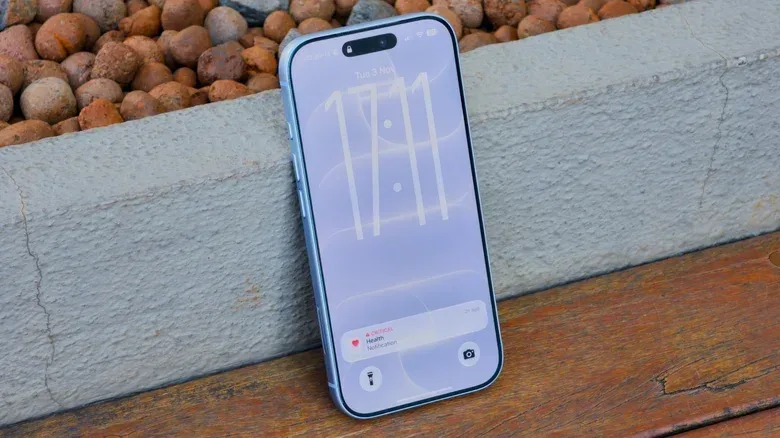
The Lock Screen is visible before Face ID or Touch ID verifies the person holding the iPhone. Notifications may display information there, and iOS can also permit selected actions before the device is unlocked. Convenience is the point of those options, but it is worth deciding how much convenience is appropriate for a screen anyone can wake up.
Start with notification previews. Open Settings > Notifications > Show Previews and select When Unlocked. Notifications will still arrive, but their contents remain hidden until the iPhone is authenticated. That is a direct way to reduce the chance that a visible message preview exposes a private conversation, a code or another piece of personal information.
Next, visit Settings > Face ID & Passcode, or the Touch ID equivalent on applicable phones. After entering the passcode, find Allow Access When Locked. This section controls functions available without authentication, including Control Center, Siri, search, message replies and home controls.
Control Center deserves particular attention. Leaving it available can allow someone with a lost phone to put it into airplane mode, making the device harder to locate. Turning that access off means the feature returns only after the phone has been unlocked. The same principle applies to the rest of the list: disable the items that do not need to operate before authentication, rather than treating every Lock Screen shortcut as harmless.
Why this is a different kind of protection
This adjustment does not replace a passcode, and it does not stop theft. It limits what can be observed or changed at the earliest stage of access. Think of it as reducing the clues and controls available before the main lock has been opened. It is a modest change that can matter immediately if a device is left on a table, misplaced or picked up by someone else.
Related coverage includes Five iPhone Settings to Review for Better Privacy and Theft Protection.
2. Use Safety Check to revisit sharing and permissions
Permission prompts tend to arrive when somebody is trying to use an app quickly. Over time, that can result in apps retaining access to location, photos, the camera or the microphone long after the original reason has faded. A periodic review is therefore more useful than assuming the answer given on first launch was permanently correct.
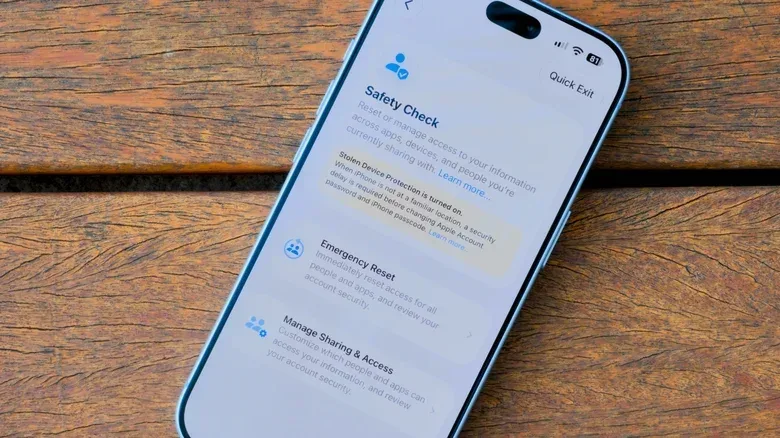
iOS provides Safety Check for this job. Go to Settings > Privacy & Security > Safety Check, then choose Manage Sharing & Access. The guided process reviews privacy-related sharing, including who can see a user’s location in Find My and which apps can reach sensitive data. Permissions can be revoked during that review.
Safety Check is best understood as an audit: a structured look at access already granted. It is not merely a switch for one privacy feature. That makes it valuable when someone cannot remember which apps they authorized months or years ago, or when their circumstances have changed and old sharing arrangements no longer make sense.
For a closer app-by-app review, return to Privacy & Security and inspect its categories. Location access is a useful place to begin. Apps that only need a location while actively being used can be set to While Using instead of Always. The Precise Location option can also be disabled when an app does not need exact coordinates. Navigation is a clear example of a situation where precise access may still be necessary, so the goal is not to deny every request automatically. It is to match the permission to the app’s actual job.
There is also App Privacy Report, which shows how often apps have accessed data such as location or the microphone. That report adds evidence to the decision-making process. If an app’s permission appears surprising or unnecessary, it gives the owner a reason to revisit the setting rather than relying only on memory.
Permissions are not all-or-nothing
A common mistake is treating privacy as a choice between accepting everything and deleting every app. iOS permission controls offer more granular choices. An app can retain enough access to function while losing background or exact-location access it does not need. The practical question is simple: what information does this specific app require for the feature I actually use? Answering that question category by category produces a more workable setup than blanket permission choices.
3. Require authentication for sensitive apps, or hide them
A phone can be secure at the Lock Screen and still be exposed once it is unlocked. That matters when someone is handed the device to view a photo, make a call or perform another innocent task. With an unlocked phone in hand, messages, notes and financial services can become easy targets for snooping or a fast switch to a payment app.
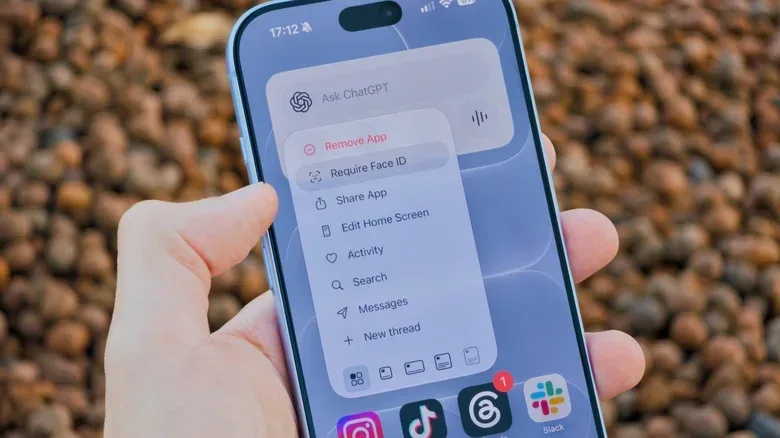
iOS 18 added the ability to lock or hide apps. To lock one, press and hold its Home Screen icon, choose Require Face ID or Require Touch ID, and confirm. Afterward, the selected app asks for authentication each time it is opened, even if the iPhone itself is already unlocked.
This is an extra authentication layer, not a replacement for the phone’s primary lock. Its value is in narrowing the consequences of an unlocked hand-off. A person can use the device for the task requested without automatically receiving access to the most sensitive destinations on it.
Users can also select the Hide option from the same long-press flow. The app is removed from the Home Screen and placed in a Hidden folder in the App Library. Accessing that folder requires authentication. Hidden apps will not display notifications or calls, however, so this is best reserved for apps whose alerts are not needed.
Locking and hiding serve related but separate purposes. Locking emphasizes access control: the app remains visible but protected. Hiding adds discretion by removing the app from the normal Home Screen view. For a frequently used service where notifications matter, locking is likely the more practical choice. For an app that does not need alerts and should not be obvious during casual browsing, hiding may fit better.
For gaming communities, the same thinking applies to any account-linked app that can reset credentials, receive codes or manage payments. The setting is not only for a narrowly defined class of “secret” apps. It is a way to choose which digital doors stay shut even after the phone itself has been opened.
4. Stop new app tracking requests and disable personalized Apple ads
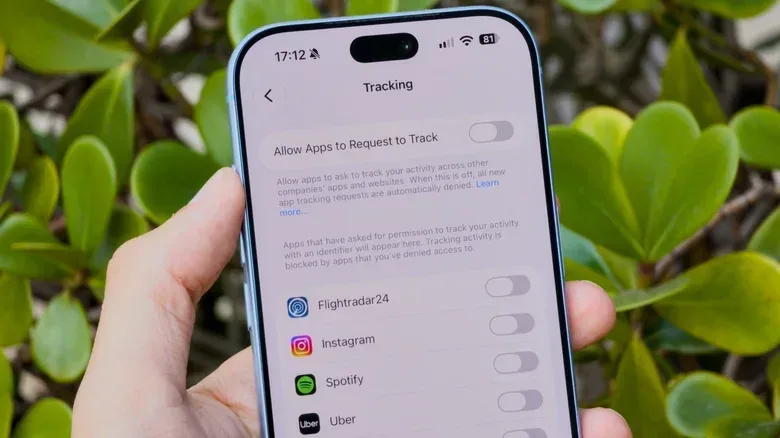
Tracking is not the same as every form of data collection. This distinction matters because one setting should not be oversold as a complete privacy shield. iOS has required apps that want to track activity to ask for permission since iOS 14.5. A user can deny requests one at a time, or stop apps from asking altogether.
Open Settings > Privacy & Security > Tracking and turn off Allow Apps to Request to Track. Doing so automatically denies tracking requests from apps. It can reduce the information apps and websites have about a user for advertising-related tracking, but it does not block all collection of information.
That limitation is important. Privacy tools work best when their scope is clear. This control specifically addresses app tracking permission; it does not make every app unable to collect any data connected to its own operation. Reviewing the permissions discussed above remains necessary.
Apple also offers advertising in the App Store, Apple News, Stocks and Apple Maps. Under Settings > Privacy & Security > Apple Advertising, switch off Personalized Ads to stop sharing search history for tailored advertising. Ads can still appear in those Apple services, but they will be less targeted.
These two controls make a practical pair. One limits requests by apps to track activity; the other opts out of Apple’s personalized advertising. Neither requires giving up the apps or services themselves. The trade-off is primarily that ads become less customized, which many people will consider a reasonable exchange for a smaller advertising profile.
For another mobile-security perspective with a gaming angle, see this look at privacy questions in Samsung One UI 9.
5. Confirm Stolen Device Protection is enabled
Stolen Device Protection addresses a particularly dangerous theft scenario: somebody sees the iPhone passcode being entered, takes the device, then tries to use the passcode to access protected apps or alter Apple Account settings. A passcode is essential for using an iPhone, but in this situation it can become information a thief already possesses.
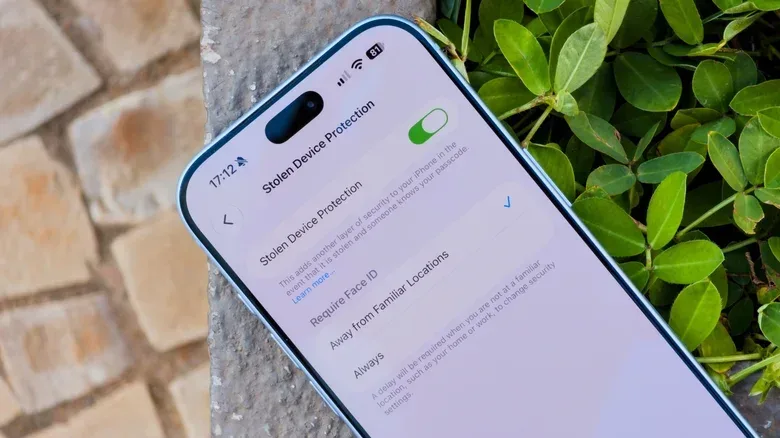
With Stolen Device Protection enabled, iPhone recognizes when it is away from familiar places, such as home or work. In those unfamiliar locations, possession of the passcode alone is not enough for sensitive actions, including accessing passwords or changing Apple Account settings. The owner can still complete such tasks, but after a one-hour delay.
That delay is purposeful friction. It provides a window to mark the iPhone as lost and contact a bank to block cards if necessary. In security terms, friction is not always a flaw: for rare, high-impact actions, slowing down an attacker can be the protection that creates time for the legitimate owner to respond.
Check the feature in Settings > Face ID & Passcode or the Touch ID equivalent, then locate Stolen Device Protection. It requires two-factor authentication on the Apple Account and Find My to be enabled. Newer iPhones may have it enabled by default, but checking is worthwhile because defaults are not a substitute for knowing how one’s device is configured.
There is one important housekeeping step: disable Stolen Device Protection before selling or giving away the iPhone. Security settings should protect the current owner without creating avoidable trouble for the next one.
A short order of operations for a stronger iPhone
Those who want to make changes quickly can start with the settings that help in the most immediate physical-access situations, then continue into privacy cleanup:
- Set notification previews to When Unlocked and remove unneeded Lock Screen access, especially Control Center.
- Confirm Stolen Device Protection, Find My and Apple Account two-factor authentication are active.
- Lock the handful of apps that would cause the greatest harm if opened during an unlocked hand-off.
- Run Safety Check and prune old location, photo, camera and microphone permissions.
- Disable app tracking requests and personalized Apple ads if tailored advertising is not wanted.
The aim is not paranoia or an unusable phone. It is proportional protection: fewer private details visible on a locked display, fewer unnecessary permissions left behind, and more resistance when a thief or opportunistic snoop gets physical possession of the device. The best configuration is the one that preserves the functions a person genuinely uses while requiring authentication for the actions that could do the most damage.