Samsung’s One UI 9 update is packed with the kind of quality-of-life changes that can sound minor on a feature list, then become the things people reach for every day. For mobile players in particular, the headline is not a brand-new gaming mode. It is that the existing Game Booster controls are easier to reach while a game is actually running, rather than becoming another settings menu expedition undertaken after an interruption.
That practical theme runs through the update. One UI 9 adds deeper Quick Panel arrangement options, a live data-speed indicator, support for up to three apps on screen, searchable screenshot groupings and several camera utilities. There are also AI-powered conveniences, including broader “Now nudge” prompts, photo clean-up tools and document-scan corrections. The trade-off is familiar: useful context-aware tools work best when they can draw on personal information, so users should understand what each feature needs before turning it on.
Not every addition will be available through one obvious switch. Several of the more advanced customizations live in Samsung’s Good Lock app and its separate modules. That setup may be more complicated than a single unified settings page, but it also means players can decide which power-user tools are worth their screen space and setup time.
Game Booster becomes less of a detour
The gaming-specific change is straightforward: while playing, swipe right from the left side of the screen to bring up Game Booster controls. The tools have not been described as receiving a major functional redesign, but the access change matters. Features are only helpful if they are reachable at the moment a player needs them.
Game Booster can be used for performance-related adjustments intended to conserve battery, CPU and GPU monitoring, screen-sensitivity controls, and recording or commenting functions. CPU and GPU are the phone’s main processing components: the CPU handles general computation and system tasks, while the GPU is focused on drawing graphics. Their monitoring readouts can offer a quick view of system activity, though a readout alone does not diagnose a game’s performance problem.
For a player trying to stretch a charge during a long session, direct access to performance controls is the clearest benefit. Likewise, someone who records gameplay no longer has to stop playing and hunt through app settings merely to find capture-related options. One UI 9 also lets users block Bixby from breaking into a game with weather or stock-market announcements. The relevant menu route is Gaming Hub > More > Game Booster.
This is the sort of update that respects the reality of mobile play. Touchscreen games are already competing with notifications, calls, low-battery warnings and the temptation to swap apps. A shortcut that reduces menu friction will not make a poorly optimized game run better, but it can make the phone feel less like it is fighting for attention during a match.
Samsung’s broader device customization is relevant here, too. The Quick Panel—the pull-down area for common controls—now supports easier drag-and-drop ordering and more granular horizontal and vertical resizing, including for the media widget. Dark mode is now a separate button rather than being tied to the display slider. Tap the pencil icon at the top of Quick Panel to customize it. For gaming, arranging frequently used controls closer to hand can be more valuable than filling the panel with every possible toggle.
Related coverage includes 10 One UI 9 Features That Give Samsung Phones More Control.
Network visibility could make connection problems easier to identify
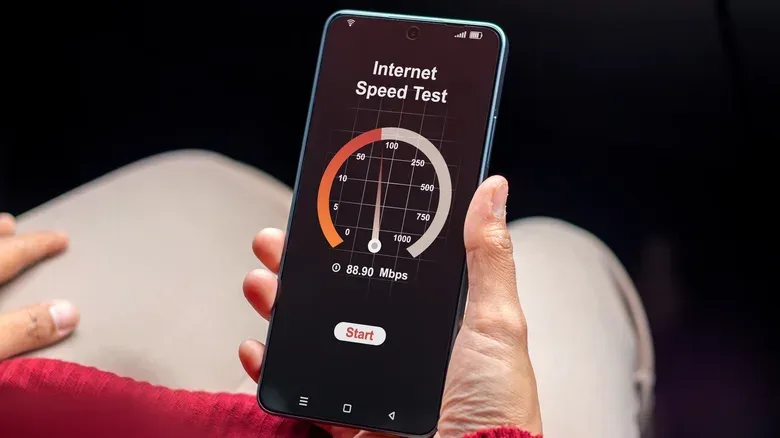
Online games, game downloads and cloud-connected services all depend on the connection behaving itself. One UI 9 introduces a Live Data Speed monitor that places real-time Wi-Fi and cellular connection speeds in the status bar. It does not replace a full diagnostic test, and it cannot determine whether a problem lies with a game’s servers, a home network or a mobile carrier. What it can do is give the user immediate context when pages crawl, downloads stall or an online session begins behaving suspiciously.
The feature requires a few steps through Good Lock. Install Good Lock if necessary, enable the QuickStar module, find Visibility of Indicator Icons, turn it on, then enable Network speed in the status-bar options. It is a somewhat involved route for such a basic-seeming indicator, but it could spare users from launching a separate speed-test app merely to establish that the connection is the likely culprit.
There is a useful distinction to keep in mind. The visible number is a current data-transfer rate, not a complete measure of online-game quality. A game can be affected by factors beyond the raw speed displayed in a status bar. Still, the indicator provides a fast first clue, particularly when changing between Wi-Fi and cellular data.
Three-app multitasking is built for large screens, not necessarily small ones
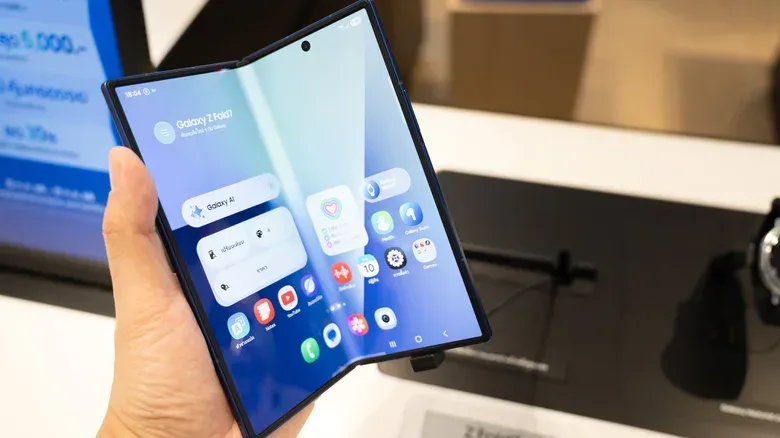
One UI 9 supports fitting as many as three apps on screen at once. This is particularly suited to wide-screen foldables such as the Galaxy Z Fold 8, where the physical display area makes simultaneous apps more plausible. On a conventional phone, the option may be technically available but less comfortable for anything requiring close attention.
For gamers, a three-way arrangement can support a game, a video and a browser or chat at the same time. The update does not remove the basic limitation: smaller panes leave less room for controls, text and gameplay information. The feature therefore looks most useful for games that do not demand constant full-screen touch input, or for players who want reference material alongside a title rather than trying to operate three demanding apps at once.
It is best understood as flexibility rather than a prescription to permanently turn every large display into an office dashboard. The practical win is choosing when a calendar, chat, guide, stream or auction should remain visible without repeatedly switching away from the current task.
Screenshots may finally become usable records
Players often take screenshots for reasons that go beyond sharing a victory screen: a QR code, a receipt, an event time, a booking confirmation or a note they do not want to type out. The result is usually a bloated screenshots folder where the one useful image is hard to find.
One UI 9’s Gallery app attempts to improve that situation by organizing screenshots into clickable types including QR codes, receipts and boarding passes. It also supports keyword searching. Open Gallery, choose Albums, then Screenshots to try the tools.
The distinction is important: this is organization and retrieval, not a claim that every captured image will be perfectly understood. Still, categories and text-based search could make screenshots more useful as lightweight reference files. For a mobile-game audience, the benefit is not limited to games, but it is easy to see why anyone accustomed to saving codes, schedules and instructions would appreciate less scrolling.
Samsung also adds multi-finger gesture customization through Good Lock’s Home Up module. Users can assign up to five personalized actions using gestures involving two, three, four or five fingers. A two-finger left swipe could open screenshots, for example, while a four-finger right swipe could split the screen. This is powerful, but it is not automatically intuitive. Assign gestures sparingly, choose actions that are genuinely recurrent, and avoid mappings likely to collide with normal in-app behavior. An elaborate gesture library is only productive if the user can remember it.
Camera tools offer a useful middle ground
One UI 9 adds a 24MP camera option between 12MP and 50MP. Megapixels, abbreviated as MP, describe image resolution in terms of millions of pixels. A 24MP option provides a middle choice for users who want more resolution than 12MP without always creating files as large as 50MP shots can produce.
To enable it, Good Lock’s Camera Assistant module is required. In Camera Assistant, go to Advanced Resolution Options and enable 24 MP resolution. This is an example of why the Good Lock requirement is worth noting: a useful setting may not appear in the ordinary camera interface without first installing and enabling its companion module.
The update also adds direct USB webcam use. Connect the phone to a computer with a USB cable, open the notification shade, tap the USB connection notification and select Webcam. The phone can then be selected as the camera in a video-calling app. That may be particularly handy for a creator who already owns a Samsung phone and wants a different camera option without relying on extra applications or account logins. A stand or clip will likely be needed for non-folding phones, while the Galaxy Z Fold 8 can balance itself on surfaces.
On the editing side, My Fan Cam uses AI to alter a video’s aspect ratio—the relationship between its width and height—and focus on a chosen subject. The cited use case is reframing a wide 16:9 performance recording as a vertical 9:16 clip. A smarter object eraser is also intended to identify unwanted elements without requiring the user to trace over them manually. These options are tools for reframing and cleanup, not substitutes for deciding what should be preserved in the first place.
Scanning and privacy tools are the update’s practical counterweight
The revised scanner uses AI-assisted processing to reduce the appearance of creases, folds and curved pages in scanned documents. It can also address glare and moiré, the rippling visual pattern that can appear when closely spaced black-and-white lines interact imperfectly. The new Finger Eraser option is meant to remove shadows from fingers holding down a document. A Home screen shortcut is available for users who scan often.
Meanwhile, Samsung has added a blue Privacy Indicator in the status bar for location sharing. Tapping it shows which apps are currently using location and offers a faster route to adjust access. This sits alongside the existing green indicator associated with camera use. The limitation is worth stating clearly: it is focused on location, not a comprehensive dashboard for every form of app access.
Now nudge deserves more caution. The AI suggestion system, introduced earlier with One UI 8.5, is now present beyond the keyboard, including chat notifications and a floating button. It can turn a conversational detail such as dinner plans into a calendar suggestion without leaving the message flow. To enable it, users must switch on Personal Data Intelligence at Settings > Security and privacy > More privacy settings.
Samsung states that this data is processed on the phone unless a user consents to share it with Samsung or partners for improved recommendations. That on-device default is significant, but users should still read prompts carefully, consider whether they need the feature, and pay attention to any request for broader sharing. Convenience is valuable; so is knowing the boundary at which a suggestion engine gains more access to personal context.
For users interested in improving their Android input setup alongside these One UI changes, Gboard’s lesser-known Android tools offer a related look at keyboard-side shortcuts and privacy-minded habits.