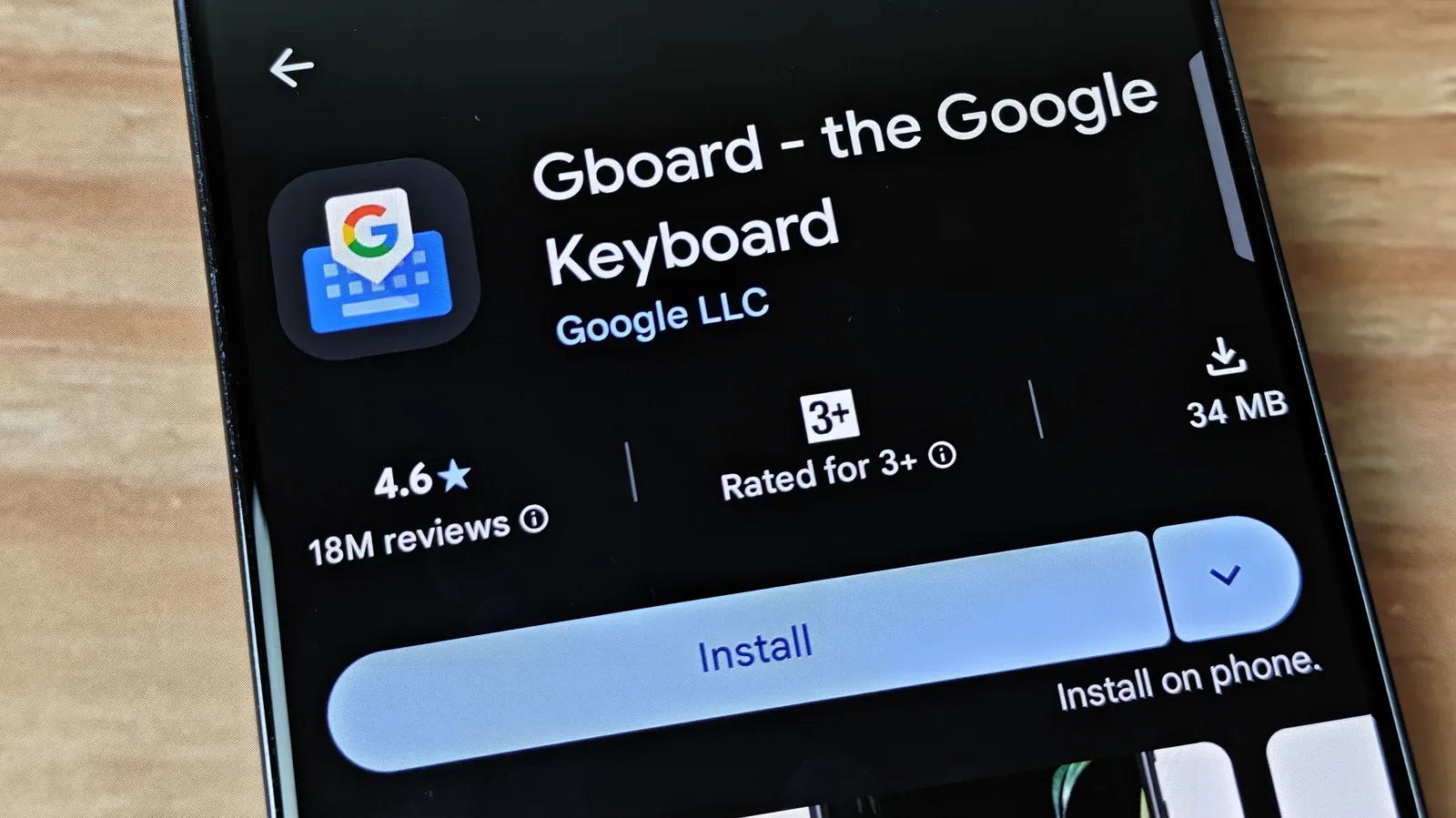
The software keyboard is one of the most frequently used tools on an Android phone, yet it is easy to treat it as permanent scenery: tap keys, accept the occasional correction, carry on. Gboard has a much deeper set of controls than that default experience suggests. A few settings can make moving text between apps quicker, make a large phone easier to type on, and make a tablet with a Bluetooth keyboard feel less like two devices awkwardly sharing a screen.
That matters beyond writing long messages. Phones are routinely used to send links, fill in forms, move snippets from a browser to a chat, caption images, respond to work messages and make quick edits that cannot wait for a desktop. In each case, friction tends to come from the same places: limited reach, repeatedly switching keyboard layers for punctuation, losing copied text, or having the on-screen keyboard consume too much display space.
Gboard is installed by default on Google’s Pixel phones and also appears on devices from a number of other brands, even though some manufacturers provide their own keyboard software. The useful point is not that every setting should be changed. It is that Gboard’s controls can be tailored to the way someone actually holds a device and enters text. The best configuration for a rapid one-thumb responder will not necessarily suit someone who writes on a tablet with a physical keyboard.
The clipboard is the biggest workflow change—and the setting to treat carefully
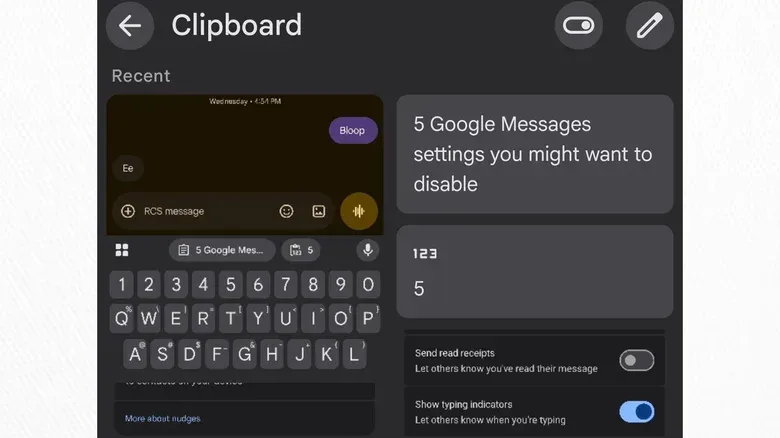
Android’s ordinary copy-and-paste behavior generally gives users one recent item to paste. Gboard’s clipboard expands that into a visible collection of copied material, including text and images. Instead of bouncing between a browser and a message app after every single selection, a user can collect several excerpts or pictures, open the destination app, and insert them in sequence.
This is a practical distinction. Copying several details for a message—such as names, a link, and a few sentences—normally means deciding which item deserves the single clipboard slot. With Gboard’s clipboard enabled, those pieces can wait together until the message is ready. The feature also supports pinned items, which remain available rather than disappearing with the ordinary clipboard timeout. A frequently used email sign-off is an example of content that could benefit from pinning.
Unpinned Gboard clipboard entries are deleted after an hour. That window is generous enough to support a multi-step task, but it also explains why the feature is disabled by default: copied content can be sensitive. A password copied from a password manager could remain in the clipboard for that period unless it is deleted manually. If a phone were compromised by something capable of reading clipboard data, recently copied information could be useful to an attacker.
The practical rule is simple: use the richer clipboard for ordinary working material, but be deliberate with secrets. Do not treat it as a secure notes drawer, and remove sensitive copied items when they are no longer needed. Pinning should be reserved for harmless, reusable text rather than account details or other private information.
To enable it, open Gboard in any text field and select the clipboard icon in the toolbar above the keys. If that button is not visible, the four-squares button opens the overflow menu where it may be located. Gboard then presents a Turn on Clipboard prompt.
Related coverage includes Gboard Settings That Can Make Android Typing More Productive.
Clipboard sync can bridge phone and desktop—but it expands the chain
Gboard itself does not provide its own cross-device clipboard synchronization. Other tools, including Microsoft Phone Link and KDE Connect, can synchronize clipboards between devices. With that kind of sync enabled, copying a string or image on a desktop can make it available to paste on the phone, and the reverse is true as well.
That can remove a surprisingly persistent interruption from mobile work. Rather than emailing oneself a URL, re-searching for it on a phone, or manually retyping a short line, the item can travel through the synchronized clipboard. But the convenience depends on users recognizing what synchronization means: copied data is no longer confined to the device where it was selected. The same care applied to Gboard’s local clipboard should apply even more firmly when another device is part of the path.
Make the keyboard fit the device instead of stretching around it
Large phone displays create a basic ergonomic issue. A keyboard may offer plenty of room, while the person holding the phone has only one thumb available and cannot comfortably reach the far edge. Gboard offers three related ways to adapt its layout: resizing, floating mode, and one-handed mode. They solve different problems, so it is worth knowing the distinction.
Resizing changes the keyboard’s dimensions and placement. Reducing its height returns more of the app to view; increasing it produces larger keys, or larger touch targets. A touch target is simply the on-screen area that can register a press. Bigger targets can reduce mistypes, while a shorter keyboard may be preferable when reading or editing a document with the keyboard open. The keyboard can also be raised, placing space beneath it when its usual low position is uncomfortable.
On a tablet, Gboard can be moved horizontally as well. That allows the keyboard to sit toward one side, which can make one-handed swipe typing more manageable. It is a small but useful example of a setting that makes more sense on a large display than a standard phone: extra screen width is not helpful if the keys remain positioned beyond comfortable reach.
Floating mode detaches Gboard from the bottom edge of the display. The keyboard becomes a movable, resizable window that stays above the app. It is particularly suited to tablets, where a keyboard stuck across the entire bottom can cover too much content. On a phone, floating mode can still help when the device is held at an unusual angle and a user needs the keys within thumb range.
One-handed mode is the more direct answer for large phones. It keeps the keyboard’s general screen area but packs keys toward either the left or right side. A control allows the alignment to be switched, and another resizing control permits further adjustment. This is not about freeing screen space; it is about reducing the distance between a thumb and the farthest letters. For someone regularly holding a phone while carrying something else, that is often the most meaningful comfort improvement.
These controls are available through Gboard’s top toolbar or the overflow menu behind the four-squares icon. There is no universal winner. Resizing is the broadest tool, one-handed mode is the obvious first stop for a large phone, and floating mode is most compelling when tablet screen real estate is the priority. Android tablet use is gaining more attention across the device industry, as seen in coverage of new MacBooks, iPads and HomeView, and keyboard placement is one of those small interface decisions that becomes much more noticeable on a larger screen.
Reduce unnecessary taps with punctuation and long-press tuning
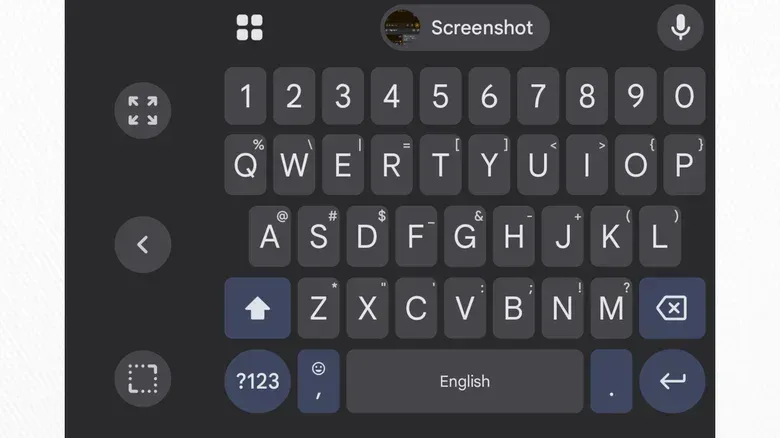
A keyboard becomes inefficient when frequently used characters require repeated mode changes. The ?123 key exists to expose numbers and symbols, but having to tap it for a comma or period adds an extra step to ordinary sentences. In Gboard’s Preferences menu, enabling the dedicated comma and period keys puts both characters one tap away.
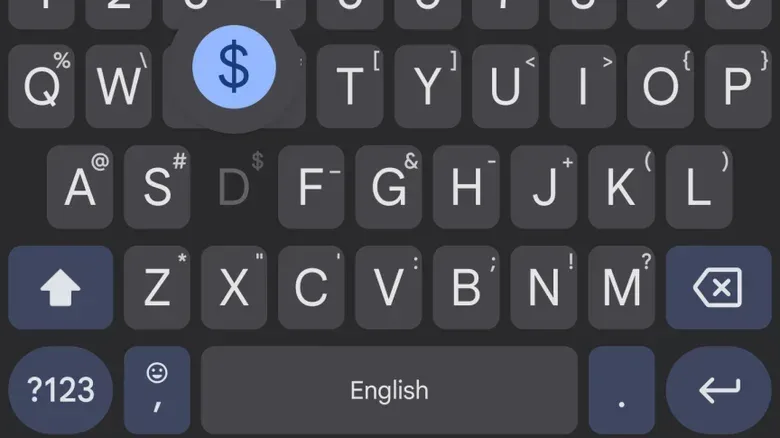
That may sound trivial, but keyboard settings are made of repeated actions. One extra tap is unimportant once; it is more noticeable across messages, searches, notes and forms. The same logic applies to long-press shortcuts. Holding a key can enter its corresponding symbol, avoiding a full switch to the symbols layout.
Gboard lets users change how long a key must be held before that action is triggered: Gboard settings > Preferences > Touch & hold duration. A short duration can reward quick typists, while a longer delay reduces accidental symbols. The supplied example of 200 milliseconds is not a universal prescription; it illustrates why this is a personal threshold. If symbols appear unexpectedly while typing, lengthen the delay. If the feature feels slow enough that it is never used, shorten it gradually.
The same Preferences screen includes keyboard vibration controls. Haptics are the physical feedback pulses that acknowledge a keypress. They can help a typist feel that an input registered without staring at every key, but long vibrations can overlap when someone types quickly. Gboard allows the vibration duration to be adjusted; two milliseconds is one example of a very light setting intended to preserve feedback without creating a constant buzzing sensation. Users who dislike vibration can avoid it, while those who value confirmation can tune it rather than accepting the default intensity.
Emoji and language-switch keys deserve a similarly pragmatic approach. Both can be kept on the primary keyboard for immediate access, but both can also be reached by long-pressing the comma key. Leaving them visible may suit multilingual users or people who use emoji constantly. Hiding them can make sense for anyone who keeps tapping them accidentally. The aim is not a maximal toolbar; it is a layout that reserves prominent space for the actions a person takes most often.
Physical keyboards get a compact Gboard companion
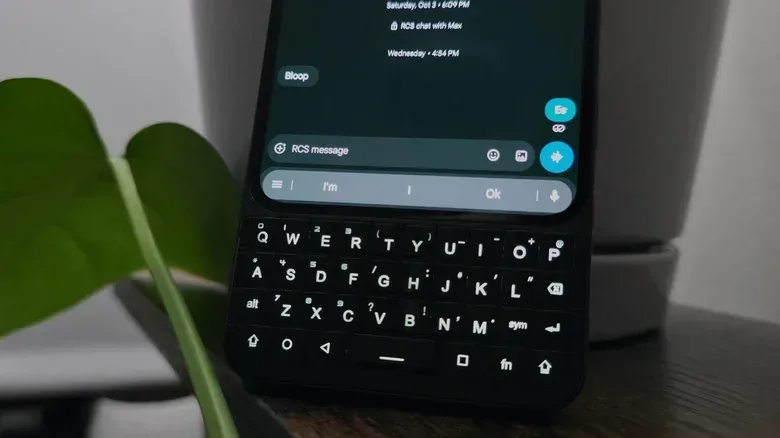
Gboard is not limited to touchscreen typing. When it detects a physical keyboard, such as a Bluetooth model connected to an Android phone or tablet, the large on-screen key layout disappears. In its place, Gboard displays a narrow strip along the bottom of the screen with text and emoji suggestions, an overflow menu, and a voice-input shortcut.
This is a sensible compromise. The physical keyboard handles letter entry, while Gboard retains assistance that can still be useful: predictions and quick access to related controls. Suggestions can be accepted with Alt + 1, Alt + 2, or Alt + 3, corresponding to the three presented options. Gboard also provides keyboard shortcuts for the clipboard, its Google Translate layer, emoji and symbol keyboards, among other functions.
The interface can be made less intrusive. On a tablet, dragging the strip from the bottom of the display can reposition it on a side, though doing so shrinks the strip and removes text suggestions. On a phone, the overflow menu includes Switch to vertical toolbar, reducing the interface to a small pill. Users who want no assistance bar at all can go to Gboard settings > Physical keyboard and turn off Show toolbar. That same area offers controls for disabling auto-correction and auto-capitalization—options some physical-keyboard users may prefer.
For people using phones with built-in physical keyboards, including the Unihertz Titan 2 Elite or Clicks Communicator, this mode is especially relevant. The central lesson carries across every configuration: Gboard is more than the rectangular field of keys that first appears on screen. Its hidden features can speed up routine text work, but the gains are strongest when the interface is shaped around real habits—and when convenience features such as clipboard history are used with a clear understanding of their privacy cost.