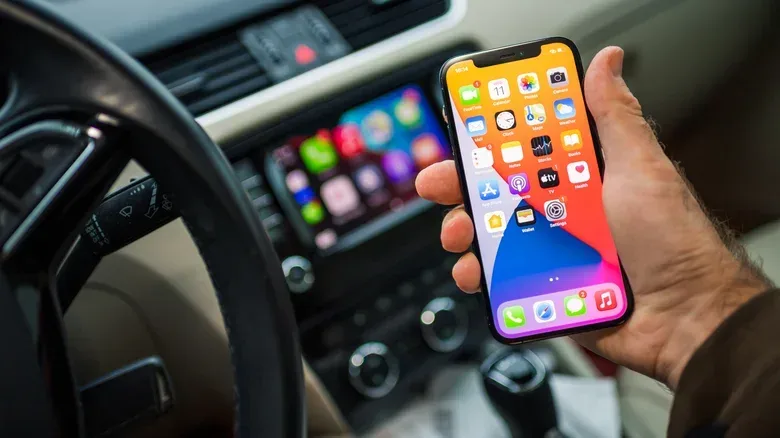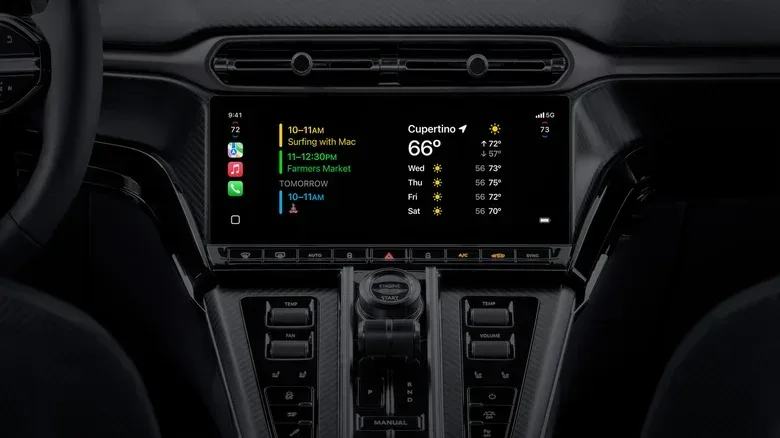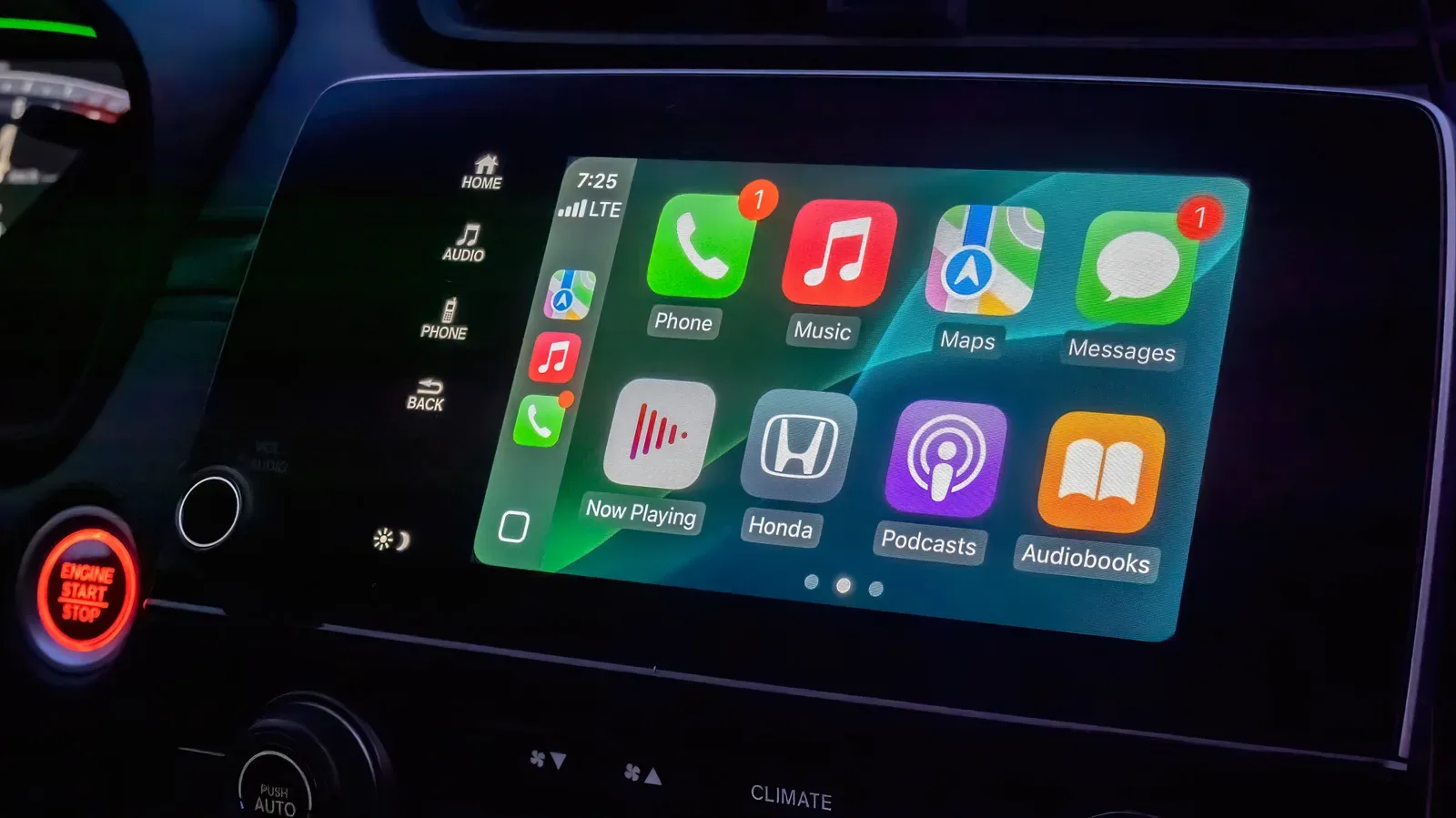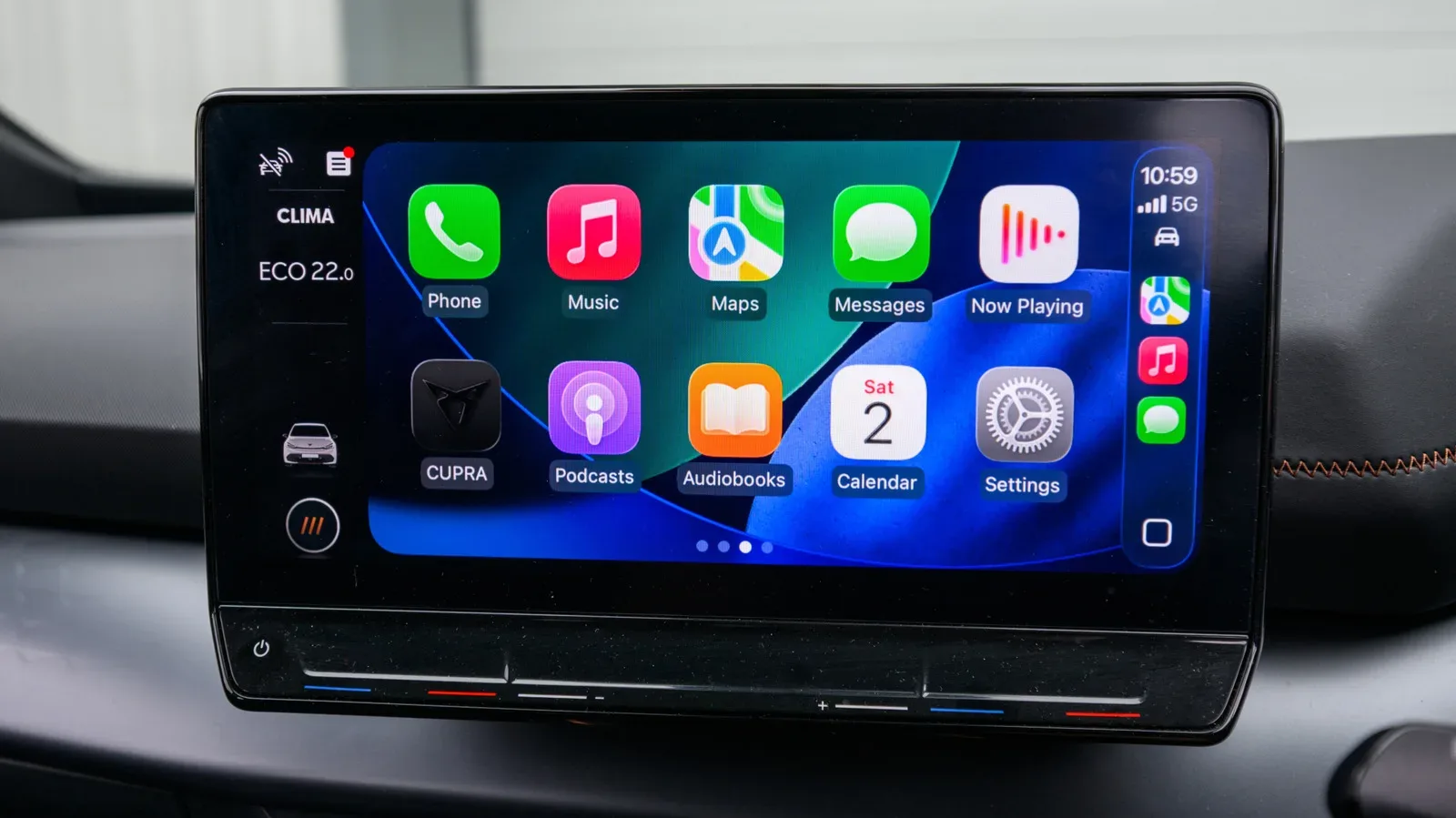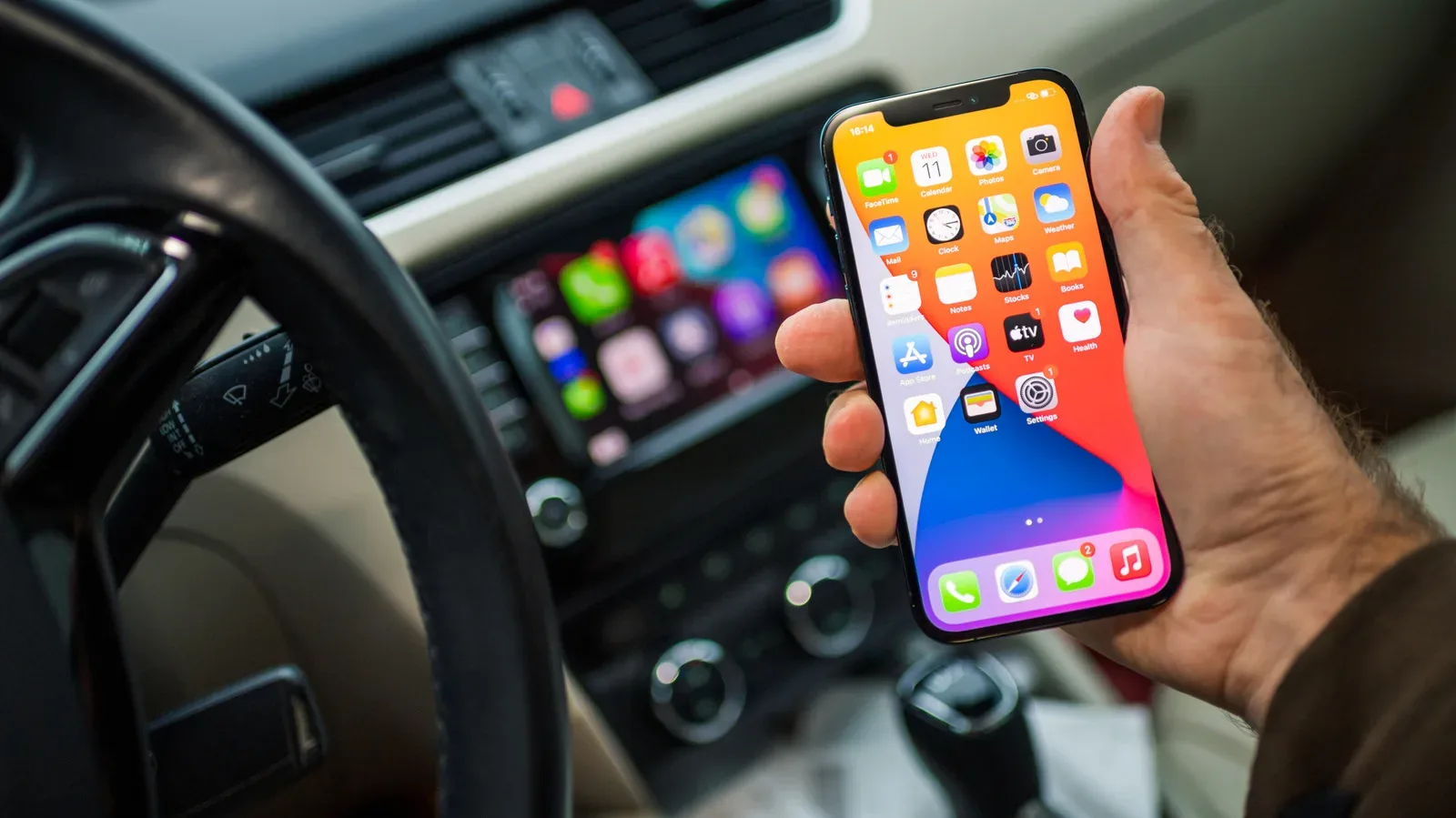
CarPlay has long been built around a straightforward bargain: keep the driving screen focused on the big essentials, such as navigation, messages and audio, while the iPhone does the heavier lifting elsewhere. Widgets broaden that idea. On compatible cars, they place compact information panels on the CarPlay dashboard, letting drivers see selected updates from supported iPhone apps without opening a full app interface.
That distinction matters. A CarPlay app, such as Maps or Spotify, is designed to take over most or all of the infotainment display for active use. A widget is a smaller, purpose-built information view that lives in a customizable stack. Think of it as a status panel rather than a destination: a forecast, a reminder, a sports score, a saved-location weather view or a smart-home control.
Apple introduced CarPlay widgets with iOS 26, and iOS 27 expands the pool of available widgets. The practical payoff is choice, but the sensible approach is not to recreate an entire phone home screen on the dashboard. A useful CarPlay widget should communicate something understandable at a glance, while leaving attention for the road.
How to add widgets to CarPlay
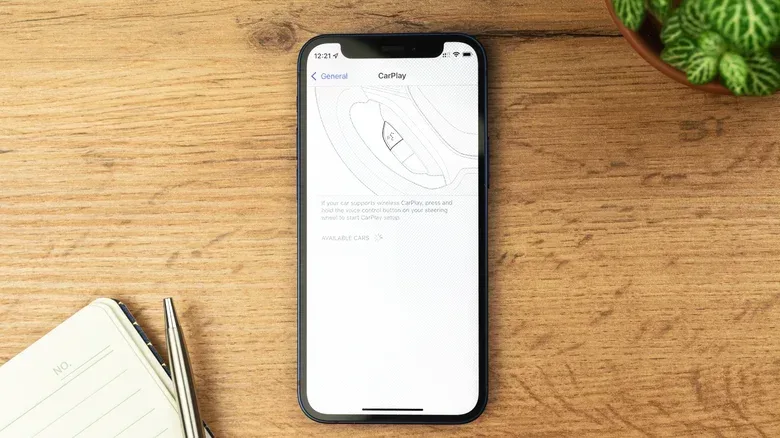
Set up the layout while parked or otherwise not driving. On the paired iPhone, open Settings, then follow this path:
- Tap General.
- Tap CarPlay.
- Select the relevant car.
- Choose Widgets.
- Confirm that Show Widgets is enabled.
- Tap Add Widget to see available choices.
The widget screen presents recommendations first, followed by compatible apps installed on the iPhone. It is worth opening an app’s options rather than assuming it offers only one panel. A single app may provide several widget types, each meant to surface a different category of information.
The quantity visible on the dashboard is not fixed across every vehicle. It depends on the size of the car’s infotainment display, so the same widget selection may be presented differently from one compatible car to another.
Arrange, remove and tailor the stack
Widget setup is not permanent. In the same CarPlay settings area, drag the handles on the right side of an item to change its position in the layout. Use the red minus control to remove one altogether. That makes the process closer to editing a short priority list than committing to a dashboard redesign.
Some widgets also have their own configuration. A blue information icon indicates that additional choices are available. For example, the Weather widget can be set to a particular saved location. That is a useful distinction: the widget is not merely a miniature version of an app; it can be tuned to answer one specific question, such as what weather to expect at a frequent destination.
Related coverage includes How to Add and Customize Widgets in Apple CarPlay.
Two optional automation settings can further change what appears:
- Smart Rotate moves through the widgets in a stack based on factors including time and location, attempting to show the most relevant panel.
- Widget Suggestions can surface widgets that may be useful even when they have not been added manually.
These tools are about reducing manual selection, but they are not automatically better for every driver. A person who wants a predictable display may prefer a tightly edited static stack. Someone who regularly moves between home, work and longer trips may find contextual changes more valuable. The key is that automation should make the dashboard easier to read, not turn it into a surprise feed.
Finding widgets on the CarPlay screen
Once widgets have been enabled and arranged, swipe from left to right in CarPlay to reach the leftmost page. Within a widget stack, swipe up or down to cycle between panels. This is a deliberately compact interaction model: move to the widget page, then move through the stack.
It also reinforces why selection matters. If a useful item is buried beneath several novelty panels, the feature stops delivering its main advantage. Widgets work best when the few panels placed in a stack are all plausible candidates for a quick check.
What a widget adds that a full CarPlay app does not
Full-screen apps are for tasks that need controls, detail or sustained attention. A navigation app has to show a route. An audio app needs playback browsing and controls. A widget fills the spaces between those active tasks with compact status information.
For example, Apple’s own widget options include Reminders, Weather, Clock, Podcasts, Photos, Home and Apple Sports. Each has a different potential role:
- Weather can show conditions as well as sunrise or sunset timing, and may be configured around a saved place.
- Home can provide smart-home access, such as turning off a lamp that was left on.
- Reminders can keep a small task prompt visible without opening a broader to-do interface.
- Clock offers a simple time reference; an analog clock is one option when navigation is not needed.
- Podcasts offers a compact route into audio information.
- Apple Sports can track favored teams through a live-score-oriented panel.
- Photos can display a selected album, making it a more personal, rather than practical, dashboard choice.
The best selection depends on the job the vehicle is doing that day. A regular commute may justify reminders, weather and smart-home controls. A longer drive may make destination weather or sports updates more appealing. Not every possible widget deserves a slot simply because it exists.
Third-party options make the choice broader—and more complicated
The iOS 27 expansion opens the door to more third-party dashboard information. Examples include Instagram Stories, Amazon order-status information and widgets for AI chatbots including Claude and Gemini. The wider availability is significant because it shifts CarPlay widgets beyond Apple’s own utility apps and toward the broader collection of services already living on an iPhone.
However, availability is not the same as suitability. A widget that provides a brief status update can make sense in a car. A widget that encourages scrolling, social catch-up or lengthy reading does not fit the same use case nearly as well. Instagram’s presence among possible widgets is an example of how dashboard utility and attention-grabbing social content can collide; the service’s broader role in social feeds is also visible in recent discussion of Instagram Reels and AI-created characters.
AI assistant widgets deserve similar caution. Their inclusion means a driver can place an assistant entry point on the dashboard, but an assistant is not inherently a glanceable information source. If the interaction requires composing or absorbing a detailed response, it is poorly aligned with the short, low-distraction role that makes widgets valuable in the first place.
A practical way to build a safer, more useful widget stack
A strong CarPlay setup is less about maximizing the number of apps represented and more about editing ruthlessly. Start with information that has immediate relevance and can be understood quickly. Then remove everything that asks for unnecessary attention.
Prioritize immediate answers
Choose widgets that answer a specific question in a moment: What is the weather at the saved destination? Did I leave a home device on? What reminder should I not forget? What is the score? These are concise prompts with a clear purpose.
Use customization to reduce noise
When a widget provides an information control, configure it around the location, album or other detail that matters. A targeted saved-weather location is more useful than a generic panel that must be interpreted every time it appears.
Treat suggestions and rotation as optional tools
Smart Rotate and Widget Suggestions can make a stack more dynamic, but they should earn their place. Keep them enabled only if their changes routinely surface useful information. If they cause the display to feel unpredictable, a manually arranged stack is the clearer option.
Skip dashboard distractions
Duolingo streaks and LinkedIn updates are examples of information that may be interesting on a phone but offers little value while driving. The same principle applies to any panel whose real purpose is to lure the user into a feed, a conversation or a multi-step task.
CarPlay widgets are most compelling when they remain deliberately small in ambition. They do not replace Maps, audio controls or full CarPlay apps. Instead, they make room for a handful of timely, low-friction details that drivers would otherwise have to seek out on their phone. Set up while stationary, keep the stack short, and favor updates that are genuinely glanceable over anything designed to hold attention.