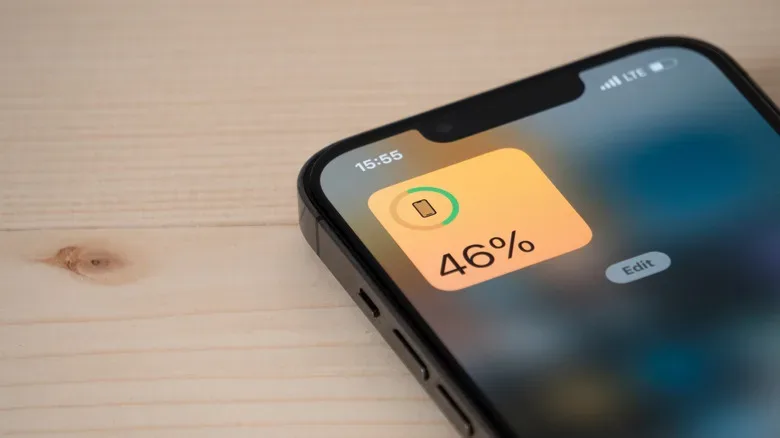
An iPhone that reaches the low-battery warning long before bedtime can feel like a tiny personal betrayal. Before blaming one particular app—or assuming the handset has suddenly become a very expensive paperweight—the most useful move is to inspect the battery information already built into iOS.
The Battery section of Settings can show which apps have consumed the largest share of power and, crucially, whether that use happened while the app was visible or while it was operating in the background. That distinction turns a vague “my battery dies too fast” complaint into something more actionable. A video-heavy social app may simply reflect a long scrolling session. A navigation, weather, music, or other app with substantial background activity may be worth a closer look.
This will not make every demanding app magically sip power like a Game Boy. Games, video playback, streaming, mobile data use, location activity, display time, and the general condition of the battery can all affect how long an iPhone lasts. Still, finding the largest contributors lets users make targeted choices instead of shutting down useful features at random.
Open the Battery screen in Settings
Start with the Settings app, then choose Battery, identified by its green icon. It is normally near other major device options such as Wi-Fi and Cellular. The page includes a visual summary of battery activity and an app-by-app view of power use.
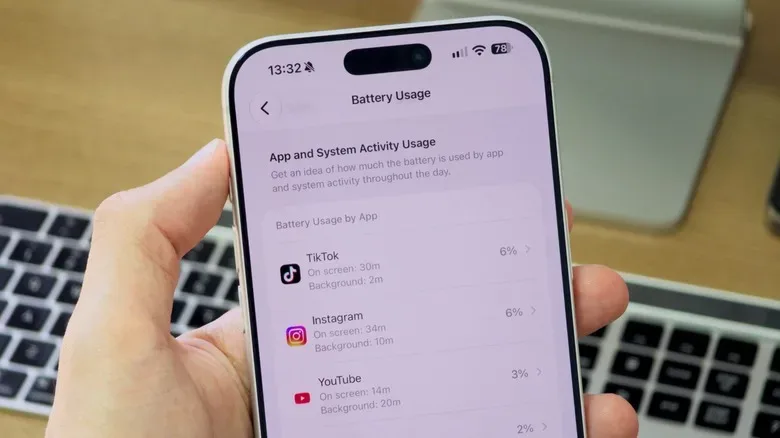
For a fuller breakdown, select View All Battery Usage. iOS has offered battery-use information since iOS 8, so this is not restricted to the newest iPhone models. The exact layout can vary by iOS version, but the core idea remains simple: the list ranks applications by their contribution to battery consumption over the displayed period.
Apps near the top have used the most battery. Often, that is perfectly ordinary. If someone spent a large chunk of the day watching TikTok clips, keeping up with Instagram, playing a graphically intensive game, or navigating with Google Maps, those apps are likely candidates to appear prominently. The list is evidence of usage, not an automatic conviction that an app is misbehaving.
Think of it as an activity ledger rather than a leaderboard nobody wants to win. The goal is to compare the result with how the phone was actually used. A frequently opened app with a high share of battery use may be expected. An app barely touched that appears unusually high deserves more investigation.
Read “On Screen” and “Background” activity correctly
The detail that matters most is the difference between On Screen and Background activity. On Screen time is the straightforward category: the app was open and actively being used. It may have been rendering a feed, running a game, playing a video, or displaying directions.
Background time means the application continued to use device resources when it was not the foreground app. That is not inherently a flaw. In fact, many useful phone features rely on it. A music service such as Apple Music or Spotify can keep streaming while the display is off. A maps app may need location information around a journey. A weather app may refresh relevant local conditions.
But background activity is also where an iPhone can quietly spend energy that a user never intended to donate. Location checks, content updates, and other behind-the-scenes work can add up. If a particular app shows significant Background time and its purpose does not seem to justify it, that app becomes a practical place to adjust settings.
Do not interpret every minute of Background activity as waste. Music playing while the screen is locked is still doing exactly what it was asked to do. Likewise, navigation depends on location awareness. The more useful question is: does this app need permission to keep doing this when I am not actively using it?
Use the app list to prioritize, not panic
Battery troubleshooting works best when it focuses on the few apps making the biggest difference. A phone can contain dozens or hundreds of apps, but small changes to a low-use utility are unlikely to transform daily endurance. Start with the entries at the top of the Battery list, then look for a pattern that fits the day’s usage.
- Social and short-form video apps: High usage can track with lots of screen-on time, video playback, and frequent refreshing.
- Games: Modern games can ask for substantial processing and graphics performance, so their battery demand may be naturally high.
- Maps and weather: Location-related features can use GPS and may continue activity outside the foreground.
- Music and audio apps: Streaming with the screen off still uses power, even though the display is not the culprit.
- Apps with unexpected background time: These are the clearest candidates for reviewing permissions and refresh behavior.
That approach is better than reflexively deleting apps or disabling every convenience feature on the phone. A battery report provides a basis for trade-offs. Someone who values up-to-the-minute weather information may accept its cost. Someone who only opens a particular service once a week may decide it does not need ongoing background access.
Battery life also sits beside other storage and maintenance concerns. People trying to keep an Apple device in shape may find the same diagnostic mindset useful in this guide on checking MacBook storage health before files face a game-over screen. Different device, different component, same broad principle: look at the available system information before guessing.
Reduce Background App Refresh where it makes sense
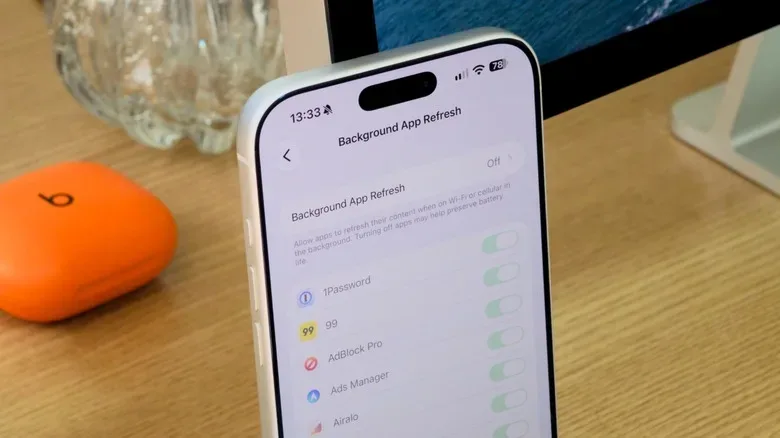
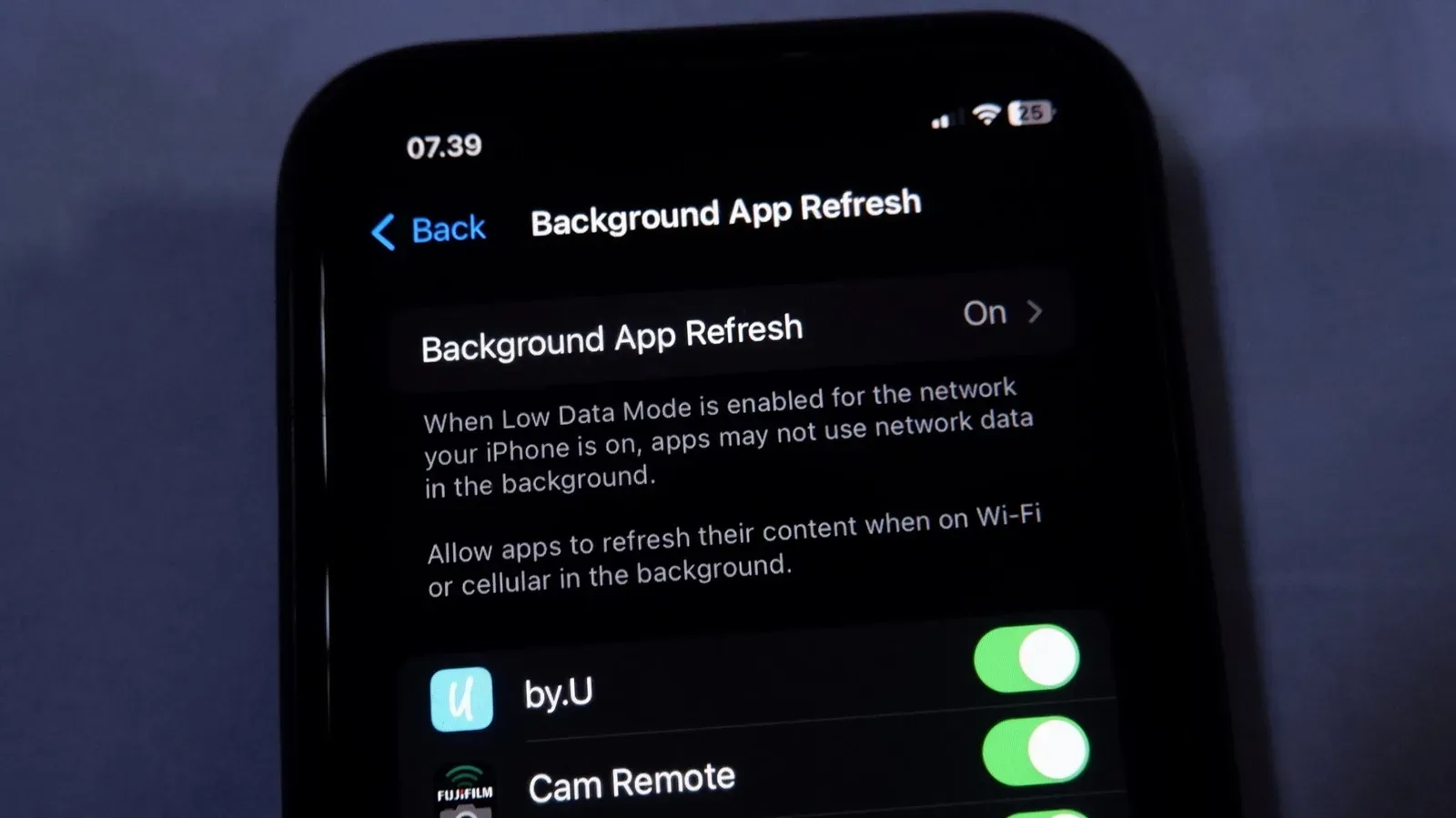
One setting that can influence background use is Background App Refresh. Find it through Settings > General > Background App Refresh. The feature enables apps to update their content when they are not front and center, which can make information feel ready sooner when an app is opened.
That convenience has a power cost. Users can switch Background App Refresh off for individual apps, preserving it for services they consider important, or turn it off more broadly. The per-app route is usually the more measured option because it avoids treating every app as equally essential or equally expendable.
For example, an app that benefits from timely updates may be worth retaining, while an app that rarely needs fresh information can be a candidate to limit. Turning the feature off does not necessarily mean the app stops working; it means it will not be given the same opportunity to update content before the user opens it. The trade-off is potentially slower freshness or loading when launching that app.
Use the Battery screen first, make one or two changes, and then monitor what happens across normal use. This makes it easier to understand which adjustment was helpful. Flipping a giant wall of switches all at once may feel satisfying, but it also makes the result hard to interpret.
Review location permissions without breaking useful protections
Location is another major area to review. Go to Settings > Privacy & Security > Location Services to see which apps can access location data. Constant GPS-related activity can consume resources, especially for apps that keep checking location beyond the moment they are being used.
For applications that do not need location to do their core job, location access can be disabled. For apps that are useful only when open—such as a service needed while checking directions or completing a local task—the While Using the App choice can be a sensible compromise. It permits location access during active use while preventing that app from using GPS in the background.
The important caution is not to disable Location Services indiscriminately. Turning the entire system off can affect valuable functions, including Find My. Losing the ability to locate an iPhone after it is misplaced is an extremely poor exchange for a modest power-saving experiment.
Instead, inspect permissions app by app. The best candidates for restrictions are the ones with little obvious need for continual location awareness. Keeping access available for services that genuinely need it is not a failure of battery management; it is a deliberate choice about what the phone should continue doing.
Check battery health before blaming software
App behavior is only part of the battery equation. An iPhone with a battery in poor condition may struggle to deliver strong daily endurance regardless of how carefully background refresh and location access are managed. If the battery dashboard does not reveal an obvious pattern—or battery life has declined despite reasonable app settings—checking battery health is the next logical step.
A worn battery changes the limits of every other optimization. Reducing background work may still help, but it cannot restore capacity that the battery no longer has. In that situation, a battery replacement may be the more meaningful remedy.
The practical routine is therefore uncomplicated: check Battery settings, identify the biggest users, distinguish active use from background behavior, revise Background App Refresh and location permissions only where appropriate, and examine battery health as part of the overall picture. A phone does not need to become a stripped-down emergency brick to last longer. It just needs its power budget spent on the things that matter most.