Your iPhone can feel like it is doing nothing while sitting in your pocket, but a collection of apps may be preparing for your next tap. Weather tools can retrieve updated conditions, cloud services can sync files, social platforms can stage newer posts, and podcast clients can collect episodes. The system setting that helps make much of that possible is Background App Refresh.
It is an easy feature to misunderstand because its name sounds broader than its practical role. It does not mean every app is permanently running at full speed behind the scenes, nor is it a master switch for alerts. Primarily, it gives supported apps opportunities to use the internet and update their content while they are not open on screen. The benefit is convenience: less waiting after launch. The trade-off is that network activity can consume battery power and, if enabled, cellular data.
For players, this is one of those small phone-management settings that can matter before a commute, a flight, or a long session away from a charger. You probably want your cloud saves, party communication, maps, authentication tools, and the podcast queued for the trip to behave sensibly. You probably do not need every store app, restaurant app, or game you have not touched in months checking in beforehand.
Background App Refresh is a preload tool, not an app-on switch
After you leave an app, iOS generally moves it out of active use and into a suspended state. Background App Refresh allows eligible apps to retrieve newer information during the time they are not actively being used. In plain language, an app may be able to get its next batch of content ready before you open it.
The setting is focused on internet-backed updates. Its menu offers choices for using Wi-Fi & Cellular Data, using Wi-Fi only, or turning the capability Off. That distinction is useful: choosing Wi-Fi only preserves the convenience of preloaded information when home, at work, or on another trusted network, without spending data from a mobile plan.
Common examples include:
- Weather apps updating location-based forecasts as you move around.
- Cloud storage and photo services syncing files or preparing photo backups, including services such as Google Photos and OneDrive.
- Podcast apps retrieving newly released episodes when their download settings allow it.
- Social and news apps pulling in newer posts or stories so their feeds are less stale at launch.
- Travel, navigation, reminder, and productivity tools keeping timely information closer to ready.
That does not guarantee an app will refresh whenever it wants. iPhone resource management still governs what happens in the background. The setting is best understood as permission for this kind of useful, intermittent content preparation, rather than a promise of continuous live updating.
Where to find the controls
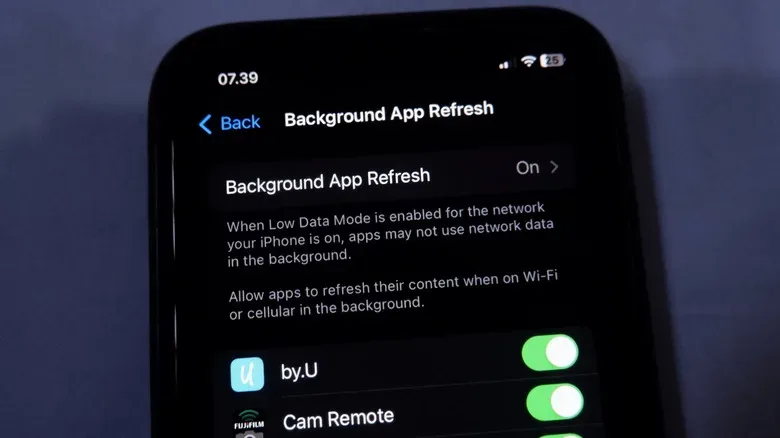
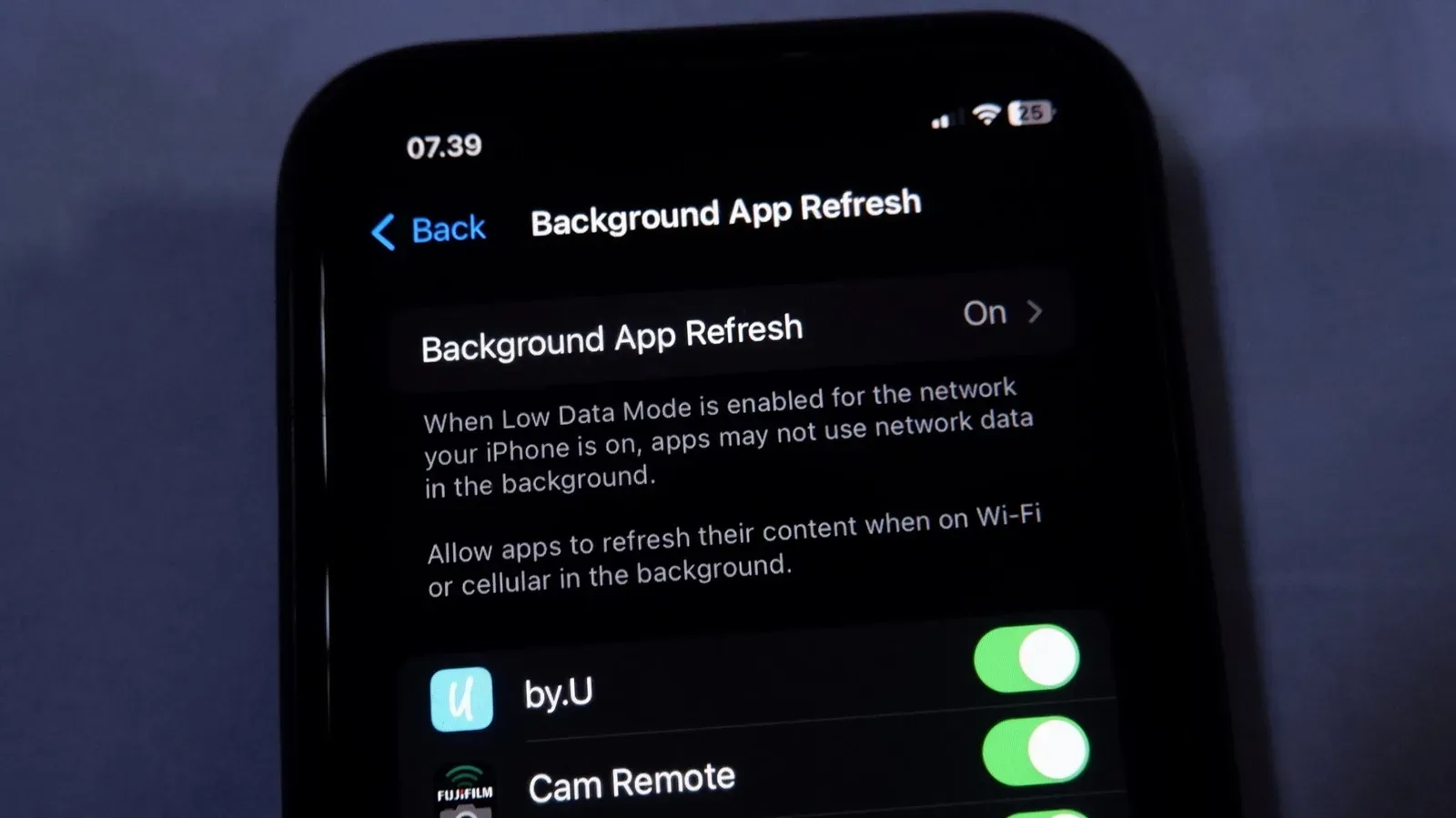
Open Settings > General > Background App Refresh. At the top of the page, tap Background App Refresh to select one of three overall behaviors:
- Wi-Fi & Cellular Data: Apps may refresh using either connection type.
- Wi-Fi: Apps may refresh, but cellular data is not used for that activity.
- Off: Background App Refresh is disabled system-wide.
Below that top-level selector is the more valuable part for most people: a list of individual apps with switches. This lets you make a targeted setup instead of treating every app as equally important. Turning a particular switch off means that app no longer gets Background App Refresh, while other apps can retain it.
If you are doing general iPhone housekeeping before a major system update, it can be worth reviewing this list alongside the broader preparation checklist in this guide to preparing an iPhone for iOS 27. Neither task requires wiping out useful settings; both are about knowing which conveniences are worth the resources they use.
Which apps should keep it enabled?
There is no universal best list, because usefulness depends on what you actually do with your phone. A clean rule is to leave Background App Refresh on for apps that you use often and for apps where up-to-date information matters before you launch them.
Good candidates often include navigation, travel, calendar, task-management, cloud syncing, weather, communication, and file-sharing apps. If a cloud service is part of your routine for screenshots, clips, photos, documents, or backups, preventing it from preparing work in the background may make the service feel less reliable or simply slower at the exact time you need it.
Podcast apps are another practical case. If new episodes are meant to download before a train ride or school run, allowing relevant background activity makes sense. A player who listens to gaming shows or walkthroughs while traveling may value that more than the modest savings from blocking it.
Games are less clear-cut. Most games do not need Background App Refresh simply because they are games. A title may still send notifications if those are allowed, and it will normally connect when opened. But companion apps, social hubs, cloud-linked utilities, event trackers, or services that handle downloads may have a stronger case than a single-player game you launch occasionally. Judge the specific app’s purpose, not just its category label.
Which apps can usually lose the privilege?
Start with apps you seldom open. If you only check a retailer, food-ordering service, reference site, ticket service, or shopping app once in a while, there is little reason for it to prefetch content every day. The same often applies to casual games and browser-like apps used to visit a particular database or website. When you do launch them, you may wait a few seconds for fresh data. For infrequent use, that is usually a reasonable bargain.
This is a low-risk experiment. Disable Background App Refresh for one app, then use your phone normally for several days. If the app feels slow, fails to keep a needed download prepared, or otherwise becomes inconvenient, turn the switch back on. Granular controls exist precisely so that you do not have to declare an all-or-nothing war on background activity.
Turning it off does not turn off notifications
A particularly important distinction: disabling Background App Refresh for an app does not automatically silence its notifications. Notification permissions are controlled separately, and Focus settings can also affect whether alerts appear. An app can still notify you even if it is not permitted to refresh content through this setting.
That makes the setting useful for trimming preloading without missing messages or time-sensitive alerts you have chosen to receive. Conversely, if the real problem is distracting alerts rather than battery or data use, Background App Refresh is not the correct switch. Review the app’s notification settings or the applicable Focus configuration instead.
Use Low Power Mode for the emergency battery phase
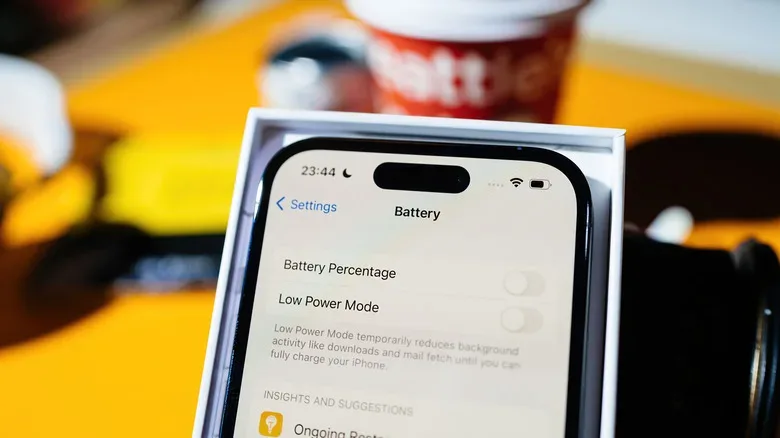
There are moments when fine-tuning individual apps is not the priority. Perhaps you are out for the day, the battery indicator is making an alarming descent, and you need the phone to last. Low Power Mode, available through Control Center, disables Background App Refresh for all apps.
This makes it a strong temporary tool. You can maintain a sensible everyday app-by-app configuration, then let Low Power Mode impose stricter limits whenever preserving charge becomes the mission. It avoids the annoyance of manually changing a long list of toggles and trying to remember which ones to restore later.
Other data controls solve different problems
Background App Refresh limits one type of background behavior. If an app is consuming too much mobile data in general, a stricter setting may be needed. Go to Settings > Cellular, choose Show All under the Cellular Data app list, and disable cellular access for the relevant app. It can then use the internet only when connected to Wi-Fi.
The Cellular page also reports data usage for the listed Current Period. Treat that label carefully: the period does not reset automatically on a fixed monthly schedule. To make the figures meaningful, scroll to the bottom of the Cellular page, choose Reset Statistics, then check back after using the phone through a typical stretch of time.
For a broader restriction on a specific connection, use Low Data Mode. With more than one SIM installed, open Settings > Cellular, select the carrier, then choose Data Mode > Low Data Mode. This limits background network activity so the connection prioritizes what is actively in use. It is especially useful when a plan is tight or a line is reserved for emergencies.
Wi-Fi can have its own Low Data Mode too, which matters when the Wi-Fi connection is actually a metered hotspot. Go to Settings > Wi-Fi, select the network, tap the information icon, and enable Low Data Mode.
A practical setup that avoids overcorrecting
For most iPhone owners, the best answer is not to shut down Background App Refresh across the board. Set the master option to Wi-Fi if saving cellular data is a priority, keep individual access on for apps that genuinely need fresh information, and turn it off for the long tail of rarely opened apps. Bring in Low Power Mode when battery life is suddenly more valuable than convenience, and reserve Low Data Mode or per-app cellular blocks for connections with tighter limits.
That approach keeps the useful parts of the system working: backups and files can stay in motion, navigation and travel information can remain current, and your next podcast episode has a better chance of being ready. At the same time, your iPhone is less likely to spend energy and data preparing menus, feeds, and storefronts you had no intention of opening.