When an iPhone is fading toward single digits, force-closing every app in the switcher feels like tidying up a problem. It is also usually the wrong target. Apps that are merely sitting suspended in the background are not automatically the reason a battery is draining quickly, so repeatedly swiping them away is not a dependable battery-saving routine.
The more useful approach is to look at the features that keep the display active, request data, use location information, maintain a cellular connection or affect the way the phone charges. These controls do not require turning the phone into a joyless slab; they let owners decide which conveniences are worth their power cost.
That distinction matters for anyone using an iPhone as a daily communication device, a controller, a music player, or a companion screen while gaming. A battery plan should preserve the things a person actually needs, then reduce waste around them. Start with the biggest, clearest levers rather than treating every open app as a culprit.
Why force-closing apps is not the default fix
An app can remain visible in the app switcher without actively doing everything it would do in the foreground. The important question is not whether an app was used earlier in the day; it is whether it has permission to do work while it is not on screen.
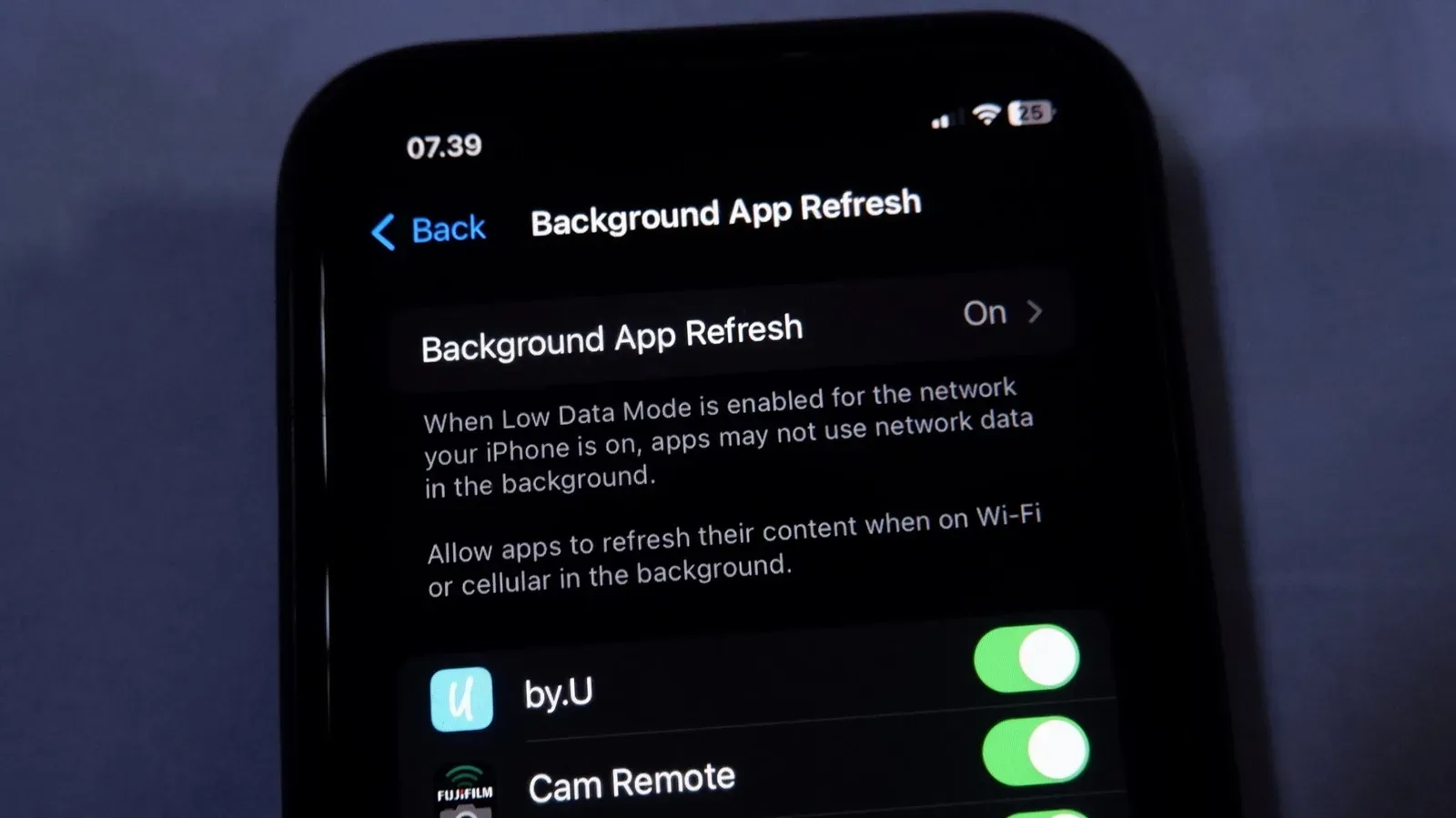
Background App Refresh is one such permission. When enabled, it allows apps to retrieve internet data and update while suspended. Disabling it stops those background update processes and can lower power use. This is a more direct response to unwanted background activity than closing apps one by one.
Location access is another meaningful control. For individual apps, setting location access to work only while the app is being used can prevent unnecessary location activity when it is not needed. The practical question is simple: does an app need to know where you are when you have not opened it? If the answer is no, limiting that access is a sensible battery-conscious choice.
This does not mean every background function is bad. Updates and location-based features can be useful. The point is to make a deliberate trade-off app by app, instead of using force-closing as a ritual with little payoff.
Make the screen do less work
The display is one of the most visible places to begin because its power use is directly tied to how the phone is being presented in front of you. Brightness is the first control to consider. A lower manual brightness level can reduce demand, while auto-brightness lets the phone adapt to changing light without requiring constant adjustment.
Auto-brightness is especially practical for people who do not want to manage a slider throughout the day. It can prevent a screen from staying brighter than necessary after moving from outdoors to a dimmer room. Manual control still makes sense if a user wants a fixed lower level, but it requires remembering to alter it as conditions change.
Always-On Display: convenience with a standing cost
Always-On Display keeps information available at a glance, but that persistent display activity comes with an ongoing battery demand. Switching it off is an uncomplicated option for someone who values runtime more than an always-visible lock screen. It is not an accusation that the feature is useless; it is an acknowledgement that a feature designed to remain active cannot be completely free in power terms.
Dark Mode and OLED screens
Dark Mode can also help, with one important hardware condition: the iPhone needs an OLED display. OLED panels can turn off the areas showing black pixels, meaning black portions of the interface can use less power. Dark Mode is therefore a potentially useful display choice on those models, rather than a universal battery promise for every iPhone screen.
What a 60 Hz frame-rate limit changes
Some iPhones with ProMotion can refresh the display at up to 120 Hz. Refresh rate, measured in hertz (Hz), describes how often the screen redraws in a second. Enabling Limit Frame Rate sets the display to 60 Hz rather than 120 Hz, cutting the maximum number of daily screen refreshes in half.
That does not guarantee a dramatic battery gain for every person. The improvement may be difficult to notice in ordinary use, while the difference in motion can be immediately noticeable to someone accustomed to 120 Hz. Scrolling and interface movement may feel less fluid. This is a valid setting to test, not a mandatory sacrifice: leave it on if smoother motion is less important than preserving charge, and turn it back off if the responsiveness trade-off is not worth it.
Wi-Fi can be the lower-power connection
Keeping Wi-Fi enabled is another straightforward battery measure. Connecting through Wi-Fi uses less power than connecting through a cellular network, so leaving Wi-Fi on can help the phone use less mobile data and reduce the demand associated with cellular connectivity.
This advice is often counterintuitive because toggling radios off can feel like an obvious way to save electricity. But in this case, an available Wi-Fi connection can be the more efficient route. The useful habit is not to disable Wi-Fi reflexively; it is to allow the iPhone to use Wi-Fi when it is available.
For a broader Apple-performance perspective, our look at the MacBook Neo’s iPhone chip and the considerations gamers should keep in mind is a reminder that power management is always a balance between capability and the compromises needed to conserve energy.
Use Adaptive Power and reserve Low Power Mode for the moments that count
iPhone power settings offer two related but distinct ways to manage energy use. Adaptive Power analyzes usage patterns and can adjust elements including screen brightness and background data to lower drain at times when the phone does not typically need its full power. It is designed as an automatic, usage-aware option rather than a constant manual intervention.
Low Power Mode makes similar types of reductions, but with a heavier effect on performance. That makes it better suited to the moments when keeping the phone alive is the priority: a long day away from a charger, travel, or simply the final stretch before charging is possible. It is not necessarily the ideal permanent setting if the performance impact is bothersome.
With Adaptive Power enabled, Low Power Mode automatically turns on when the battery reaches 20 percent. That pairing gives users a two-stage strategy: permit quieter, routine adjustments while there is still charge available, then use stronger conservation measures once the remaining capacity becomes more urgent.
Battery life today and battery health over time are different problems
It helps to separate two commonly blended ideas. Battery life is how long the phone runs on its current charge. Brightness, refresh rate, connections, background data and active display features affect that day-to-day result. Battery health concerns how efficiently the battery can charge and how much charge it can hold as it ages.
Some battery depletion is unavoidable over time. However, charging behavior can reduce unnecessary wear. Optimized Charging can pause charging at 80 percent until the phone is expected to need the rest of the charge. A user can also set a charge limit so that the battery does not routinely reach 100 percent.
The general aim is to keep the battery between 20 percent and 80 percent when practical, rather than regularly allowing it to completely drain or remain fully charged. That range can extend the battery’s useful life in a noticeable way, even before the display and background settings above are changed.
There is an important real-world caveat: preserving battery health is not the same as never charging to 100 percent. If a full charge is necessary for a day away from power, the phone is there to be used. Charge limits and optimized charging are tools for recurring patterns, not rules that should leave someone without the runtime they genuinely need.
A sensible order for making changes
People who want extra runtime without turning every feature off can work through the settings in an order that prioritizes low-friction changes.
- Use auto-brightness, or lower brightness manually when a bright screen is unnecessary.
- Keep Wi-Fi enabled so the iPhone can use it instead of cellular connectivity when available.
- Review Background App Refresh and disable it if background updates are not important.
- Set app location access to only while using the app where that suits the app’s purpose.
- Turn off Always-On Display if a permanently visible lock screen is not worth the ongoing draw.
- Use Dark Mode on an iPhone with an OLED screen.
- Try Limit Frame Rate only if accepting 60 Hz motion is an acceptable trade for potentially lower power use.
- Enable Adaptive Power, and keep Low Power Mode for situations where battery preservation outweighs performance.
- Enable Optimized Charging or choose a charge limit if reducing long-term battery wear is a priority.
That sequence avoids the most common dead end: clearing suspended apps while leaving the power-hungry settings untouched. The best iPhone battery strategy is selective, not punitive. Keep the features that have real value, reduce background permissions that do not, make the display less demanding, and use charging controls to look after the battery beyond today’s percentage meter.