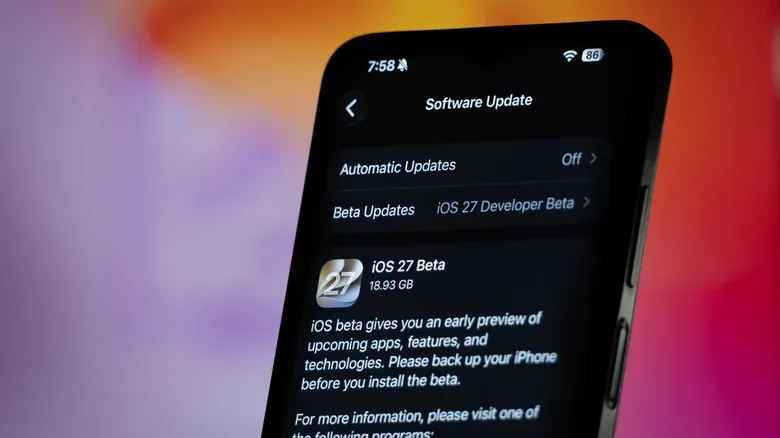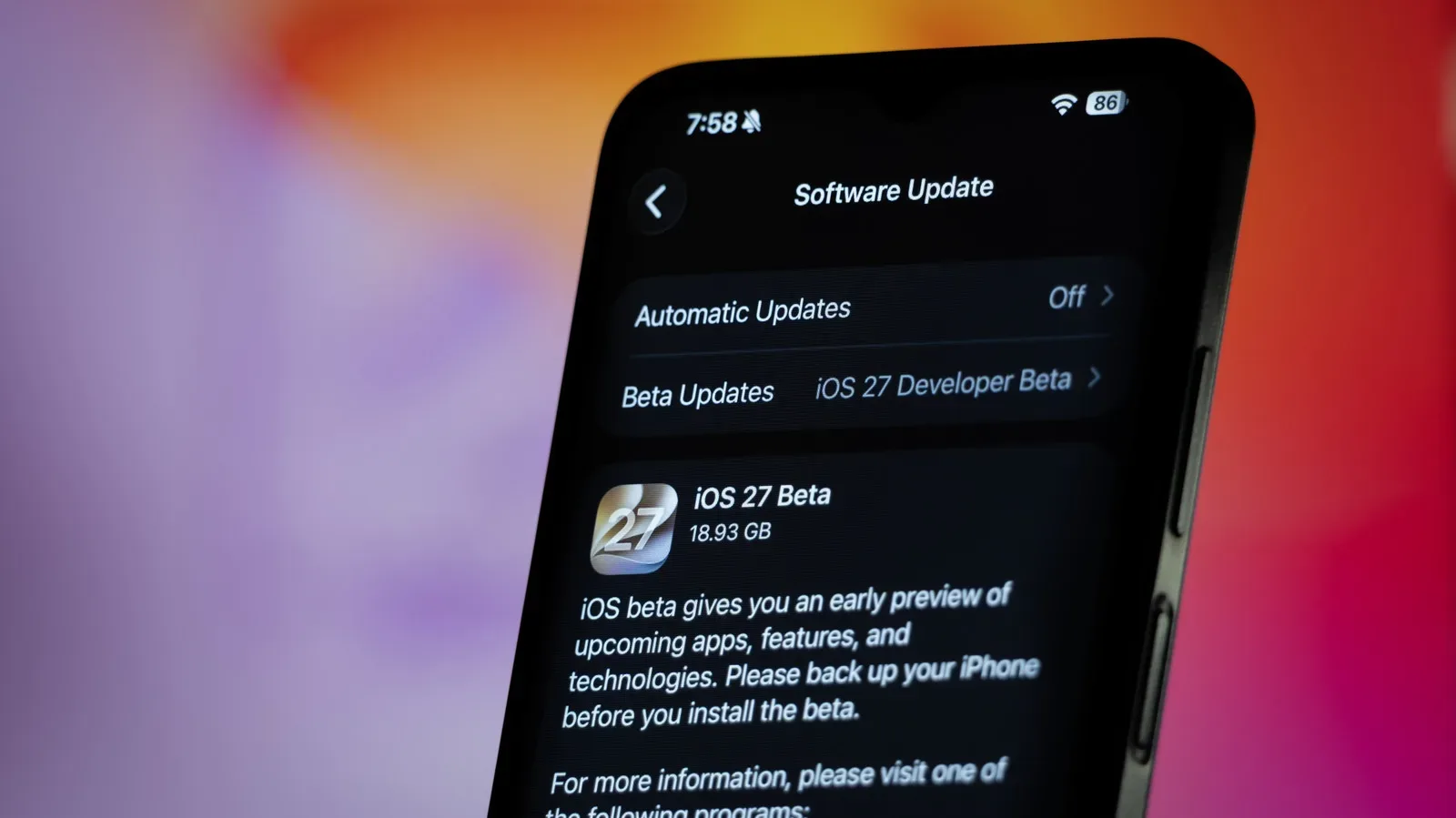
Public betas are tempting. A new iOS build can offer a first look at interface changes, features headed for the wider release, and the sort of operating-system novelty that makes a phone feel new again. Apple generally introduces the next major iOS version during WWDC in June, then makes the finished release available in the fall. The gap in between is where developer and public beta software lives.
For iOS 27, the early appeal includes the anticipated Siri AI work and further changes to Liquid Glass. But the word beta deserves to remain the loudest word in that sentence. Pre-release software is unfinished software. It can be perfectly workable for one person and an absolute nuisance for another, depending on the iPhone model, installed apps, accessories, account setup, and sheer luck.
That matters a great deal if an iPhone doubles as a gaming device, controller hub, authenticator, camera roll, travel wallet, or the place where every important contact and message lives. Before enrolling a primary phone in an iOS public beta, make a complete archived local backup on a Mac or Windows PC. That single precaution gives you a usable snapshot from before the update—one that will still be available if you later need to erase the beta and return to a stable iOS release.
Why an ordinary iCloud backup is not enough for beta testing
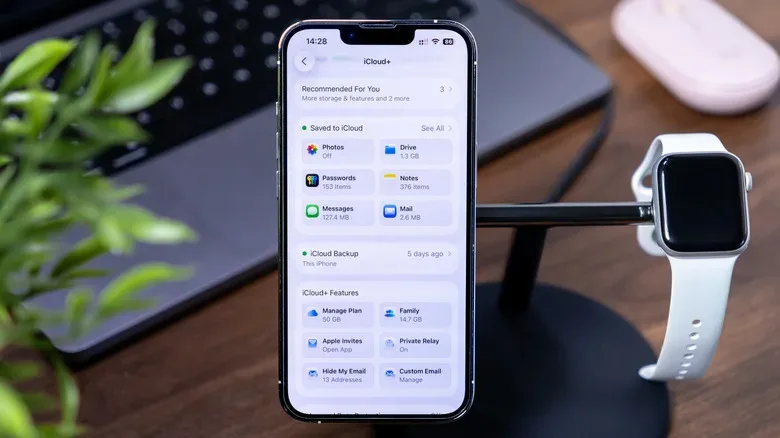
iCloud remains useful. It can synchronize material such as contacts, notes, photos, and other data, and iCloud Backup can create device backups automatically when it is enabled. To check that setting, open Settings, select your name at the top, then go to iCloud and iCloud Backup. The Back Up This iPhone switch should be on if you want automatic iCloud backups.
For routine use, that is a sensible layer of protection. It is not, however, the complete rollback plan a beta tester needs. iCloud backups update over time. Once the beta is installed, a later cloud backup may be based on that newer beta version. If the beta proves troublesome and you restore the phone to an older stable iOS version, a backup created under the newer system may not be compatible with the older one.
In other words, cloud backup can protect much of your ongoing data, yet it may not preserve a clean, restorable pre-beta state for downgrading. An archived computer backup does. Archiving tells the computer to leave that particular backup alone even when newer local backups are made later.
Think of it as keeping a save file before entering a game’s experimental branch. You might never need it. If an update breaks something essential, though, you will be glad the old save was not silently overwritten.
What can go wrong on a public beta?
Beta problems are not guaranteed, and some builds may be stable enough for day-to-day use. Still, installing one means accepting several possibilities. A crucial banking, work, school, social, or game-related app may not behave correctly. Bluetooth accessories could become unreliable. Performance can dip, battery drain can rise, and bugs can appear in unexpected corners of the system.
For players, the impact is often more than a cosmetic inconvenience. Mobile games may crash at launch, sign-in tools may fail, party-chat or companion apps may have issues, and a phone used for remote play or cloud gaming may be harder to trust during a busy week. A poor network connection can make those problems feel even worse, so it is also worth keeping basic home-network maintenance in the rotation; restarting a router before an online match is one simple separate habit that can help rule out a local Wi-Fi issue.
The more serious possibility is an interrupted update or a device that fails to boot normally afterward. That is uncommon, but the potential loss is significant enough that “I thought iCloud had it” is not a satisfying recovery strategy. A backup should be made before the installation begins, not after the beta has had time to create new data or replace older backups.
Make an encrypted archived backup on a computer
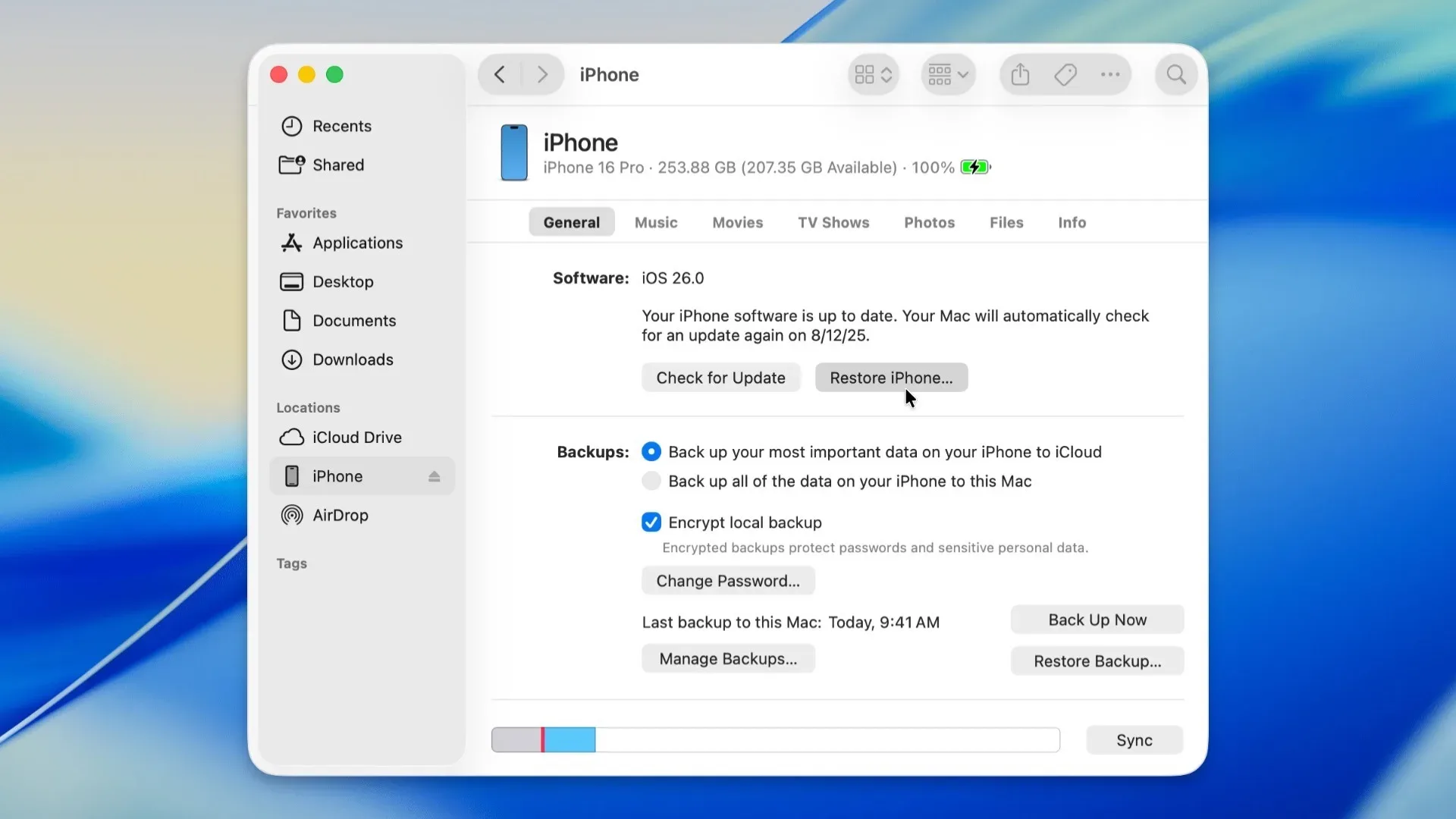
The process works with Finder on a Mac and the Apple Devices app on Windows. Begin with enough free storage on the computer for the backup, a dependable cable or connection, and time to let the task finish without interruption. If prompted, unlock the iPhone and enter its passcode to establish trust between the phone and the computer.
- Connect the iPhone to the Mac or Windows PC.
- On a Mac, select the iPhone in Finder’s sidebar. On Windows, open Apple Devices and select the phone.
- Open the device’s General section.
- Choose the option to back up all data from the iPhone to the Mac or computer rather than relying only on iCloud.
- Enable Encrypt local backup.
- Create and securely record the backup password.
- Select Back Up Now and wait for completion.
Encryption is not an optional flourish if the goal is a useful, fuller safety copy. An encrypted local backup can include sensitive information such as saved passwords, Apple Health data, and Wi-Fi settings. The tradeoff is responsibility: if the backup password is forgotten, that encrypted backup cannot be restored. Put the password in a secure password manager or another safe place before moving on.
Backup time varies with the amount of data on the iPhone. A phone packed with photos, videos, offline media, messages, and apps can take considerably longer than a lightly used device. Let the process complete, and avoid treating the start of the progress indicator as proof that the work is done.
Archive the backup after it finishes
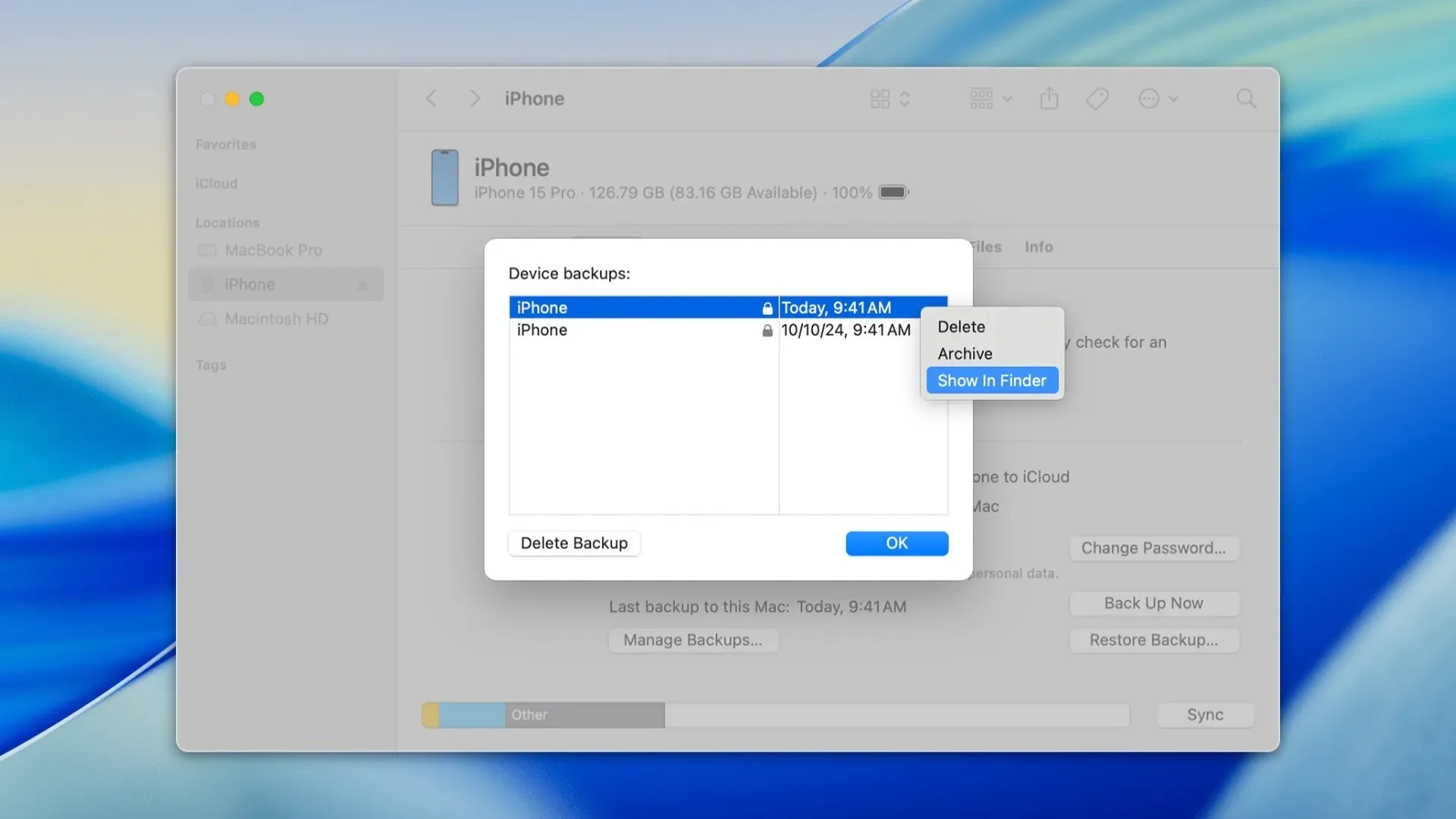
Creating a local backup is only the first half of the job. Once it is complete, open Manage Backups in Finder or Apple Devices. Find the newest backup in the list, right-click it, and select Archive.
This is the key action. The archived copy is preserved rather than being replaced during a later backup. It is the pre-beta snapshot that can be restored after returning to the prior stable iOS version. Check that the backup appears in the list and is visibly archived before installing anything.
An iCloud backup helps with everyday recovery. An encrypted, archived computer backup is the insurance policy for a beta rollback.
If the beta becomes a problem, returning to stable iOS is possible
A downgrade is not as painless as tapping an “undo update” button, but it can be done. Reasons to consider it include an indispensable app no longer working, unusually poor battery life, persistent slowness, or system behavior that makes the phone unsuitable as a primary device.
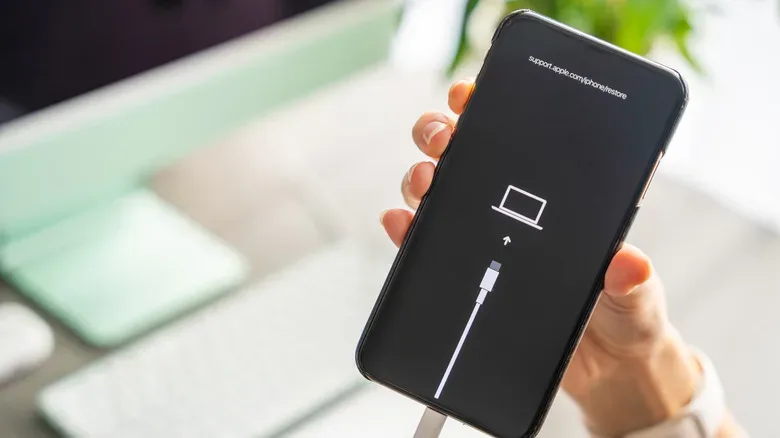
The basic route is to download the current stable iOS IPSW file for the exact iPhone model, put the phone into Recovery Mode, restore the stable software through the computer, and then restore the archived backup. Care is important here: use an IPSW that matches the device and select a version Apple is still allowing to be installed.
For current iPhone models, Recovery Mode begins with a quick press and release of Volume Up, followed by a quick press and release of Volume Down. Then hold the Side button until the phone displays the connect-to-computer screen. Keep holding through the normal restart until that screen appears.
With the iPhone connected and visible in Finder or Apple Devices, hold Option on Mac or Shift on Windows while selecting Restore iPhone. This allows the IPSW file to be chosen manually. Select the file, confirm the restore, and wait while the computer reinstalls the stable iOS version. The process is often around 15 minutes, though timing can vary.
When the iPhone restarts, complete the setup steps. At the Transfer Your Apps & Data screen, choose From Mac or PC, then select the archived backup. Enter the backup password if encryption was enabled. This is why both the archive and the password matter: the first preserves the pre-beta snapshot, while the second makes its protected contents recoverable.
A safer way to enjoy early software
The best beta device is usually not the phone that handles everything important. A spare iPhone is the lower-stakes place to explore new iOS features, report bugs, test favorite games and apps, and decide whether the update is worth waiting for. The primary iPhone can stay on the stable release, with everyday communication, payments, authentication, and game libraries less exposed to unfinished software.
If using a public beta on the main device is still the plan, take a minute to inventory what cannot fail. Check whether essential apps have beta compatibility information, make sure account credentials are accessible outside the phone, charge the device, and reserve time for recovery if something goes sideways. Most importantly, finish the encrypted local backup and archive it before the beta download starts. Early access is much more enjoyable when there is a dependable route back.