A phone notification arriving during a boss attempt has an almost supernatural sense of timing. It waits until the healing window is microscopic, the squad is calling positions, or a turn-based match is somehow more intense than a turn-based match has any right to be—then comes the buzz, banner, or incoming call. iPhone users have several ways to put those interruptions in time-out, but Silent mode, Do Not Disturb, and Focus are not interchangeable.
The quick version is simple. Silent mode stops the phone from audibly announcing many alerts, although notifications can still appear on screen and the handset may still vibrate. Do Not Disturb is intended to suppress alerts much more completely. Focus is the broader, more configurable system built around particular contexts, such as work, sleep, personal time, driving, or a carefully protected gaming session.
For players, collectors, stream viewers, and anyone who uses their phone while trying to concentrate, the distinction matters. One setting might be perfect for a quiet evening at home but useless when visual banners are the actual problem. Another may prevent distractions while still allowing a call from a household member, a calendar reminder, or a time-sensitive message. The goal is not to make the iPhone disappear from existence; it is to decide which interruptions are allowed to break through.
Silent mode: quiet audio, not necessarily quiet information
Silent mode is the familiar, low-effort option. With it enabled, the iPhone generally will not make noise for incoming notifications, though it can still vibrate. Crucially, those notifications may continue to show up visually. That means banners, lock-screen items, badges, and other on-screen signals can remain part of the experience depending on the app and device settings.
That makes Silent mode useful when the main concern is sound: sitting in a classroom, watching a movie, sharing a room with somebody asleep, or playing a game with headphones on. It is less useful when a banner across the top of the display can pull attention away from what is happening in an app or game.
Think of Silent mode as turning down the volume rather than closing the door. The inbox is still there. The notifications are still being delivered. They are simply no longer arriving with the full tiny-trumpet fanfare.
Do Not Disturb: the classic hard-stop option
Do Not Disturb predates Focus by quite a while, having arrived with iOS 6. Its original purpose was straightforward: prevent the iPhone from pestering its owner with banners, calls, and alerts. It remains the setting to reach for when the right answer is broadly, “Not now.”
For a gaming use case, Do Not Disturb fits moments where even a brief visual nudge is one distraction too many. Maybe it is a competitive round, a story sequence that should not be interrupted, a late-night grind, or simply an hour reserved for enjoying something without a running commentary from group chats and storefront promotions.
Related coverage includes Do Not Disturb vs. Focus on iPhone: What Changes and How to Set Them Up.
There is one important modern wrinkle: Do Not Disturb exists within the wider Focus system. Rather than being a completely separate relic from a pre-Focus iPhone era, it can be configured with similar exceptions. A user who wants a quieter phone but needs calls or messages from a partner, child, caregiver, or other key contact can tailor that behavior instead of choosing between total silence and total chaos.
The bluntness that once defined Do Not Disturb is still its greatest strength, but it can also be a limitation. If it blocks the one message a person truly needs, it has won the battle against distraction while losing the plot. Focus is Apple’s answer to that problem.
Focus is a ruleset for a specific part of your day
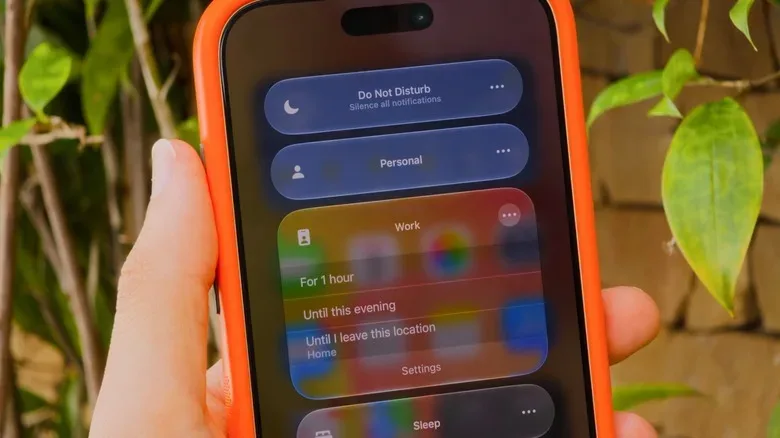
Introduced with iOS 15, Focus expands the Do Not Disturb idea into a collection of configurable profiles. Apple provides options including Personal, Work, and Sleep, and users can create their own. Each Focus can have its own notification rules, making it possible to treat a work shift, bedtime, travel, and game night as genuinely different situations rather than forcing one all-purpose setting to do every job.
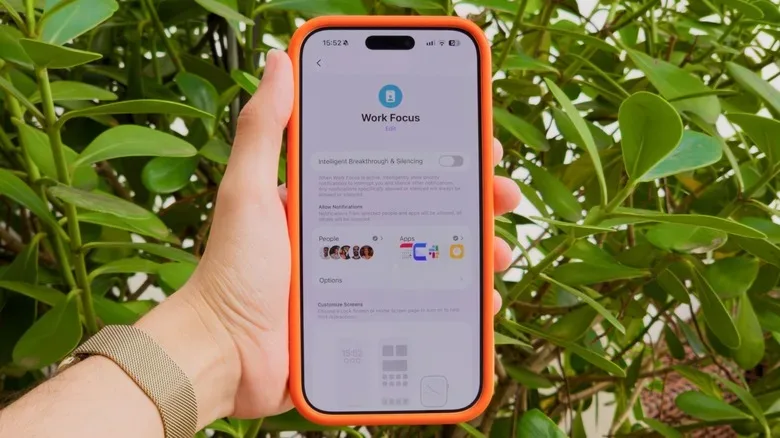
Inside a Focus, users can decide which people and apps may notify them. A Work Focus, for instance, might permit messages from colleagues and alerts from Slack or Mail while silencing social feeds, shopping apps, and every notification that is definitely not urgent despite its enthusiastic wording. A game-focused setup could reverse the priorities: let family contacts through, keep a party-chat or event reminder available if desired, and mute everything else.
There are two broad approaches when creating these lists:
- Allow notifications from selected people or apps: Best when only a small set of contacts and services should get through.
- Silence notifications from selected people or apps: Best when most alerts are welcome but a few repeat offenders need to be benched.
Neither is universally better. The practical choice depends on whether the desired notification environment is a private guest list or a mostly open door with a short ban list. For a tournament, raid, stream, or focused single-player session, the allow-list approach is usually easier to reason about: decide exactly what is important, and suppress the rest.
Focus settings also include a Time Sensitive Notifications option. This can preserve alerts that the system treats as important, such as reminders, alarms, or calendar events. That is useful for avoiding the classic problem where a player successfully blocks distractions and then misses the alarm reminding them to leave for work, pick someone up, or stop playing before the sun begins filing a complaint.
Where to find Focus and Do Not Disturb
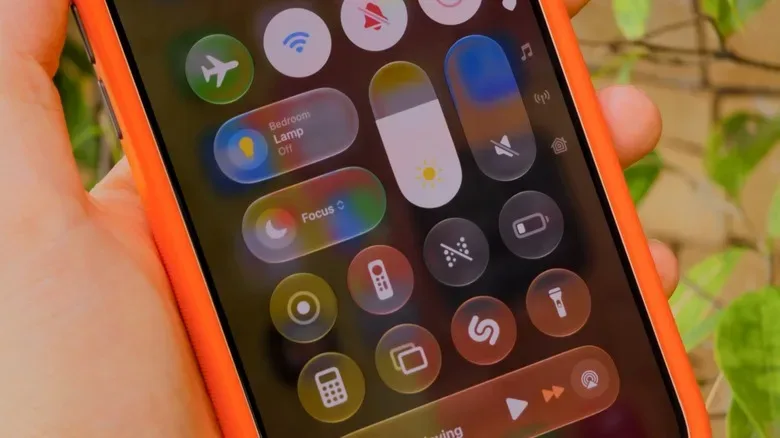
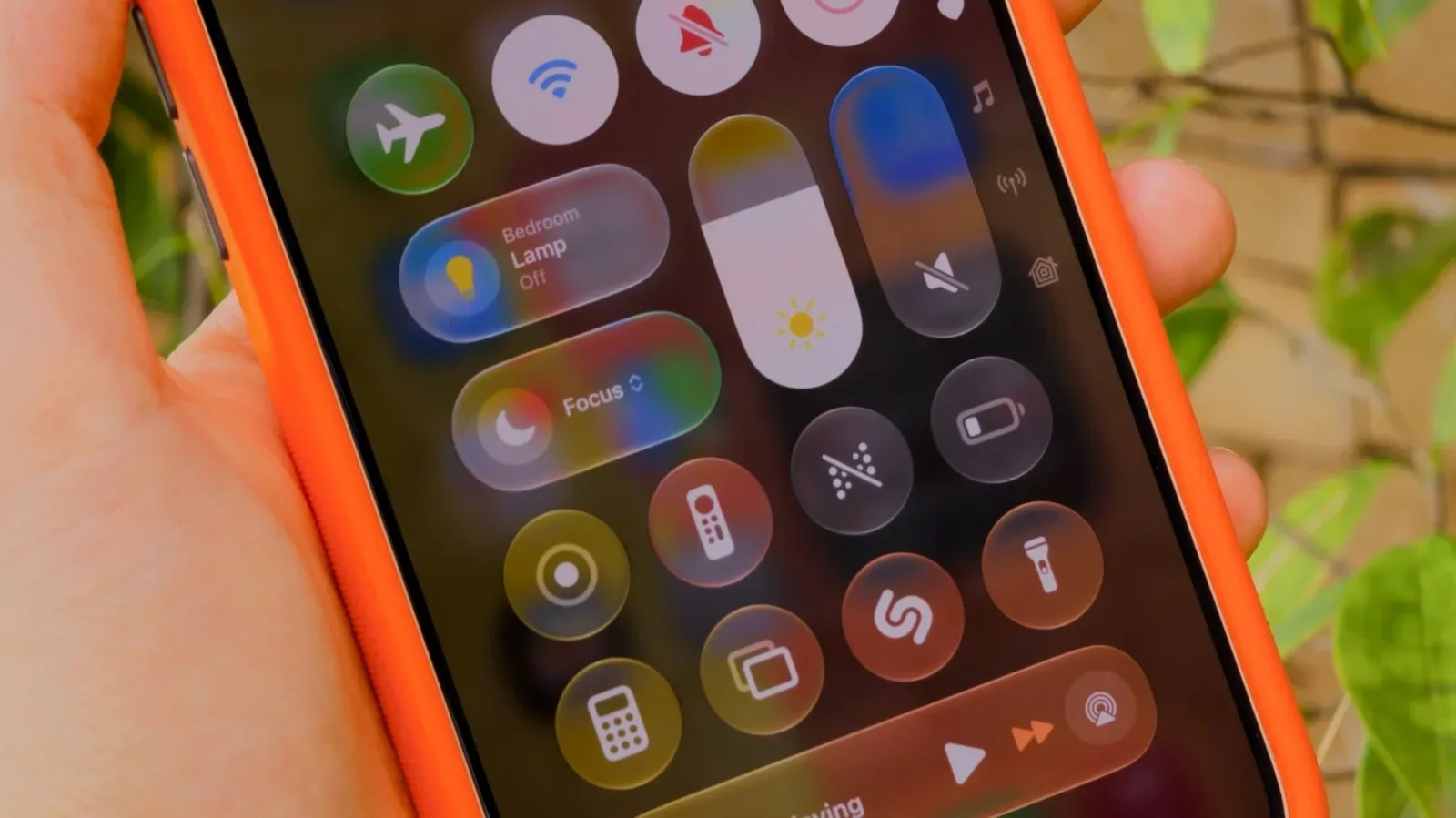
Focus controls are available in Control Center. On iPhones without a Home button, swipe down from the top-right corner of the display. On older models with a Home button, swipe up from the bottom. Tap the Focus control to view available modes, including Do Not Disturb and preconfigured options such as Personal, Work, and Sleep.
For deeper adjustments, the main destination is Settings > Focus. From there, choose the Focus you want to modify and set its permitted or silenced people and apps. Settings can also be reached through the options associated with a specific Focus in Control Center.
A sensible first setup for a dedicated “Game Time” Focus might look like this:
- Create a new Focus and give it a clearly recognizable name and icon.
- Allow calls or messages from the handful of people who should be able to reach you immediately.
- Allow only essential apps, such as a calendar, an authenticator if needed, or a specific communication app used by your group.
- Enable Time Sensitive Notifications if reminders and alarms must remain visible.
- Review Filters and Smart Activation options to see whether they fit the routine.
- Turn the mode on before launching a game, rather than trying to negotiate with a notification after it has already interrupted the action.
The details are personal. Some players will want no exceptions at all. Others may need a household contact, school notification, work app, or medical reminder to come through. The advantage of Focus is that it lets the iPhone follow those boundaries without demanding the same decisions every single evening.
Automation: Sleep, Driving, and a less manual routine
Focus modes do not always have to be enabled by hand. Sleep Focus can activate based on a sleep schedule configured through the Health app, making it a natural fit for anyone trying to keep late-night notifications from extending one more match into a wildly unrealistic bedtime.
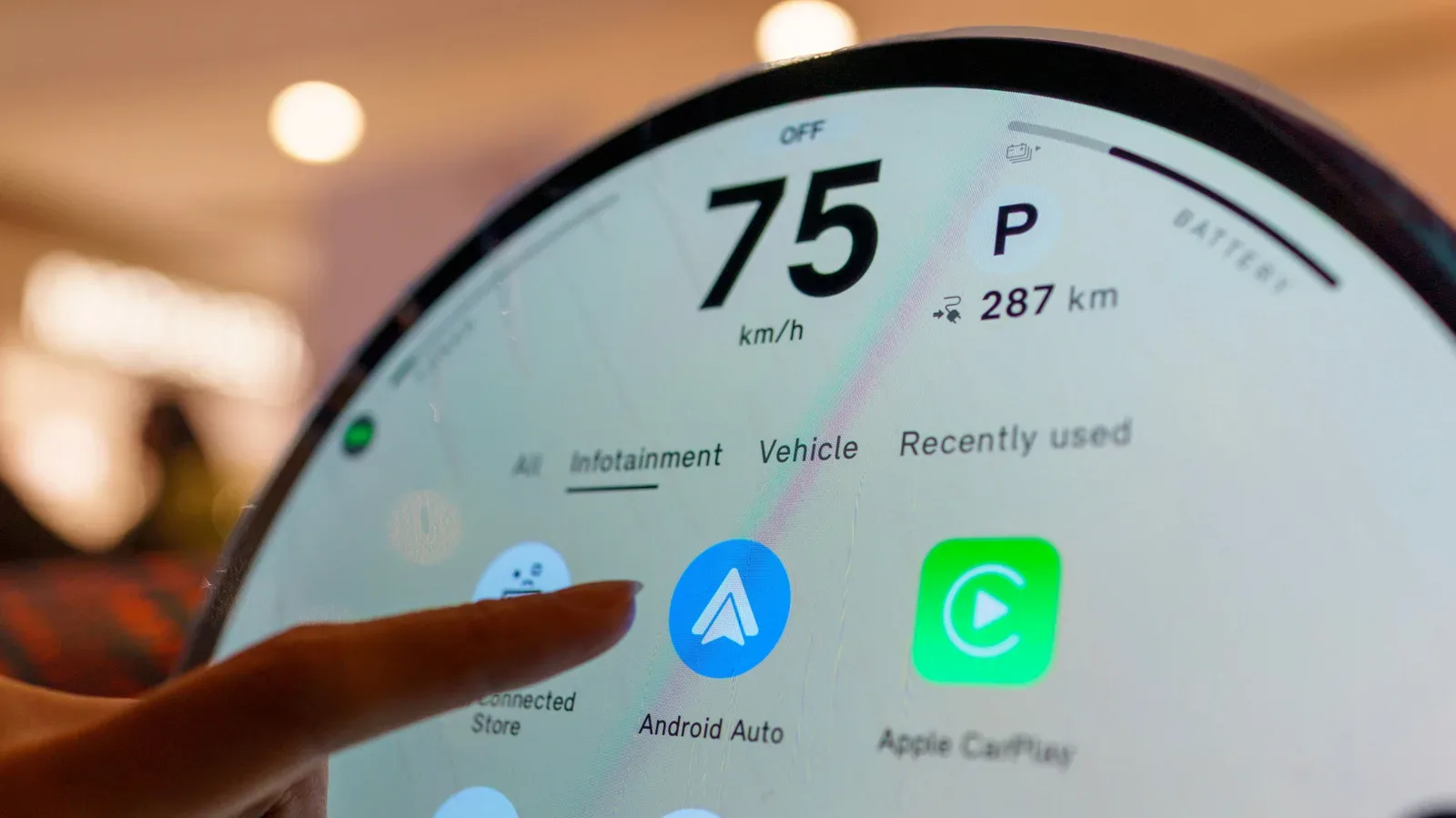
Driving Focus can also activate when the iPhone connects to CarPlay, helping reduce distractions on the road. That is a useful separation of contexts: a setting designed for a game should not be treated as a driving solution, and a driving-oriented Focus should not become an excuse to handle messages behind the wheel. For more on the connected-car side of phone behavior, see why a car software update can matter when Android Auto will not connect.
Apple Intelligence users may also have access to Reduce Interruptions Focus. This mode uses AI to assess which notifications may be important enough to surface. It can be a convenient starting point for someone who wants fewer interruptions without constructing a detailed list of rules immediately. Still, a custom Focus is likely the more predictable choice when the goal is a very specific environment—such as allowing only close family and a single group-chat app during an online session.
What contacts see, and what you still receive
When a Focus is active, people contacting you through iMessage may see a small indication that notifications are silenced. The exact alerts you see depend on the rules assigned to that Focus, but the underlying messages, emails, and other notifications are still received by the device. The point is not deletion. It is delayed attention.
That distinction is worth remembering. Turning on Focus does not mean a message has vanished into the void; it means the phone has stopped insisting that the message must become the center of the universe at this exact second. When the mode is switched off, normal alert behavior resumes.
For the simplest choice, use Silent mode when sound is the only issue. Use Do Not Disturb when you want a broad shield from interruptions. Use Focus when the situation has rules: who can contact you, which apps matter, what must be allowed through, and when the setting should activate automatically. Once those rules are in place, the iPhone becomes less of an unpredictable side quest and more of a device that knows when to let you play.