When Android Auto refuses to connect, the natural instinct is to interrogate the phone. Restart it. Toggle a setting. Remove the vehicle and pair it again. Blame the cable, then replace the cable. Make sure the Android Auto app is current. These are sensible first moves, but they can also leave one important participant in the setup sitting quietly in the background: the car itself.
Modern infotainment systems are computers with dashboards attached. They run software, maintain compatibility with phones, manage wired or wireless connections, and sometimes need their own updates. If Android Auto previously worked, the usual phone-side checks have gone nowhere, and a newer vehicle software version exists, updating the infotainment system is a reasonable next troubleshooting step.
That does not mean every connection hiccup is a firmware crisis, nor that an update will magically cure the problem. Android Auto is a handshake between the phone, the cable or wireless connection, and the car’s receiver. Any one of those pieces can be the awkward party that declines to shake hands. But treating the dashboard as a fully fledged part of the technical equation can save drivers from endlessly repeating the same phone fixes.
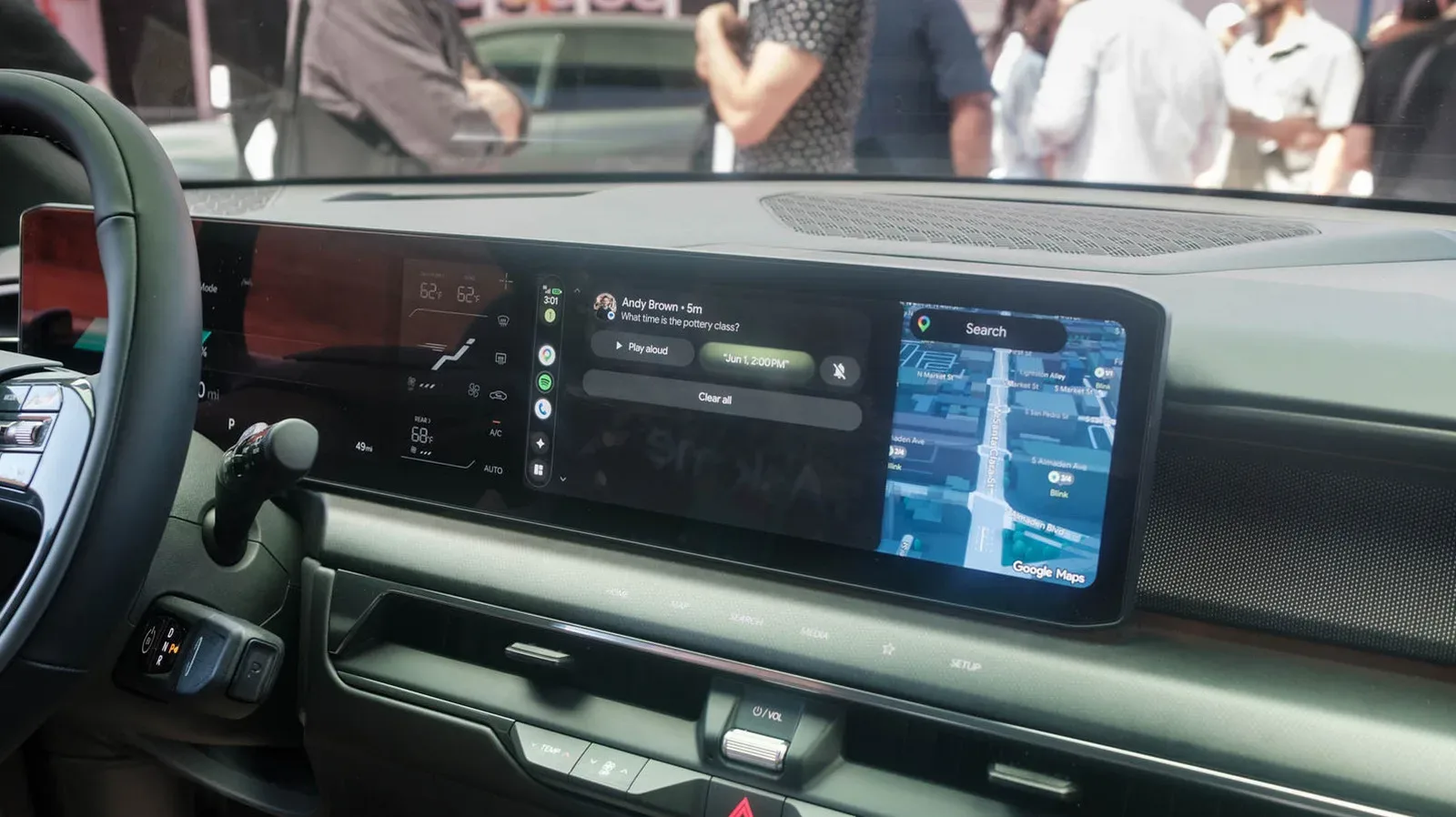
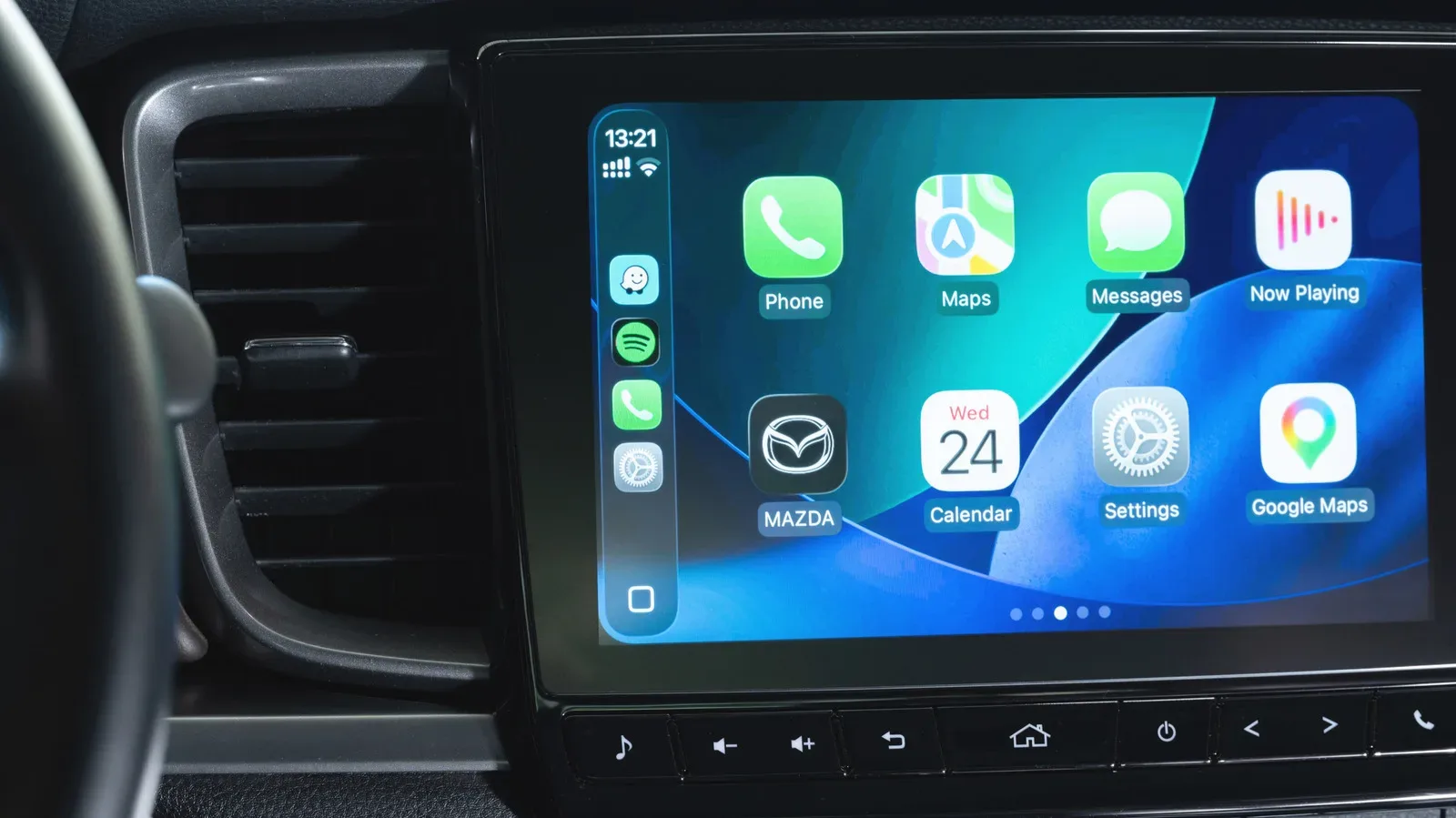
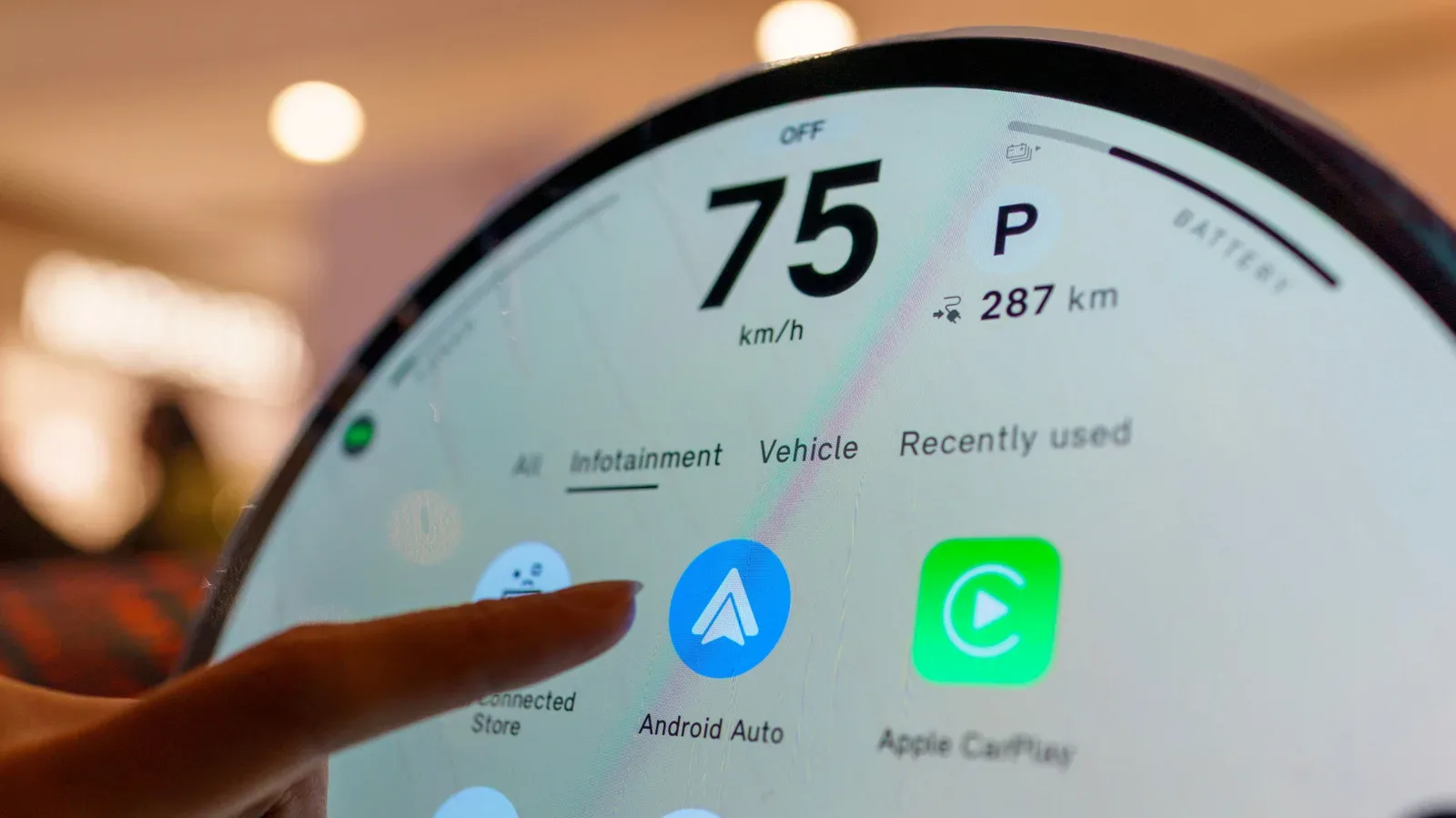
The car is not just a screen
It is easy to think of the vehicle display as a passive monitor for whatever the phone is doing. In practice, the infotainment hardware and software have responsibilities of their own. They must recognize a compatible phone, maintain the connection, present Android Auto correctly, and recover from interruptions. A dated firmware version can therefore contribute to failures that look, at first glance, like a handset issue.
Google’s troubleshooting advice includes restarting the infotainment system. For owners of aftermarket Pioneer or Kenwood receivers, it also points toward checking the manufacturer’s site for firmware. That guidance is useful because it redirects attention to the receiver rather than assuming the smartphone is automatically at fault.
This is especially relevant after the obvious routine has been exhausted:
- Confirm Android Auto is up to date on the phone.
- Restart the phone and the vehicle’s infotainment system.
- Forget the connection and set it up again.
- Try a different USB cable when using a wired connection.
- Check that Android Auto is enabled in the vehicle’s infotainment menus.
If those steps change nothing, the vehicle’s software deserves a place on the checklist. The principle is familiar anywhere two pieces of hardware need to stay in sync. It is also part of the wider conversation around software updates and feature behavior that PC players encounter with graphics technologies, including concerns raised around how major software changes can affect a game’s presentation. In a car, the stakes and functions are different, but the basic lesson remains: software on the other side of the connection matters.
There is evidence that vehicle updates can target connectivity
Manufacturers do issue infotainment releases intended to improve phone integration. Hyundai’s February 2026 update for ccNC-equipped vehicles in Europe included improvements to wireless Android Auto and Apple CarPlay connectivity. The update also addressed faster reconnection when a phone becomes unresponsive and automatic restoration after a restart.
Related coverage includes Android Auto Connection Issues May Need a Car Software Update.
Those details matter because they describe problems that users may otherwise interpret as random. A phone that does not reconnect promptly, a wireless session that fails after the handset stops responding, or a connection that does not return after a restart can all feel like failures in Android Auto itself. In some cases, however, the vehicle-side software may have received a fix specifically intended to improve that behavior.
Chevrolet likewise advises, for applicable vehicles, updating both the phone and vehicle software as an initial measure when Android Auto will not connect. It is a straightforward acknowledgement that there are two update paths to consider, not one.
How to look for the right update
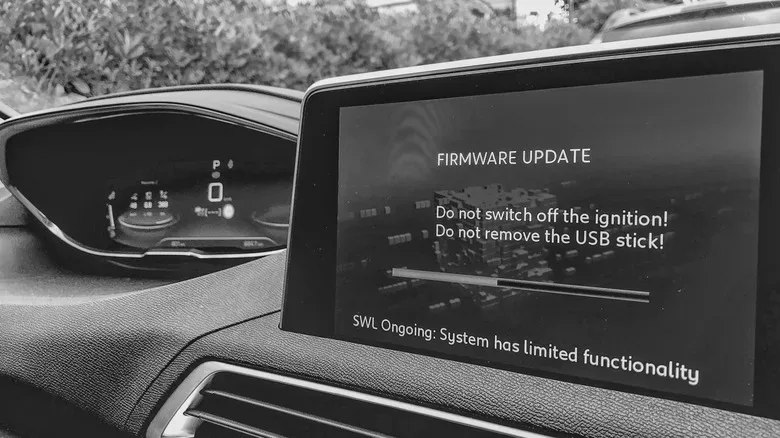
There is no universal infotainment-update button, menu location, or installation method. The correct procedure depends on the manufacturer, the vehicle, the model year, and the infotainment platform. Some vehicles can obtain updates over Wi-Fi. Others require a USB drive or SD card. In other cases, a dealer may handle the process.
Uconnect, for example, allows supported systems to connect to Wi-Fi through the vehicle settings. That does not mean every Uconnect-equipped vehicle follows the same process, and it definitely does not mean every make uses Wi-Fi at all. The safest starting point is the manufacturer’s official support material for the exact vehicle.
- Visit the automaker’s official website and locate support information for infotainment or software updates.
- Enter the VIN or accurate model details if the site requests them. This helps identify software meant for that particular vehicle.
- Read the listed installation method and requirements before downloading or starting anything.
- Follow the official directions exactly, whether they call for Wi-Fi, a USB drive, an SD card, or dealer service.
- If the instructions are unclear, or the manufacturer says dealer installation is required, use the dealer rather than seeking files from an unofficial location.
The last point is more important than it sounds. Firmware is not the place for guesswork. An incorrect file or an interrupted process can create more trouble than the Android Auto issue that prompted the search. Official vehicle documentation and dealer assistance are the appropriate routes when the process is uncertain.
Timing can tell you which side to investigate first
A vehicle update is worth considering, but the order of events still matters. If Android Auto stopped functioning immediately after a phone operating-system update or an Android Auto update, start by investigating the phone side. Checking Google’s Android Auto Known Issues information can help identify whether a newly introduced software conflict is already recognized.
Recent connection problems affecting Pixel 10 and Samsung S26 phones were addressed, while an issue involving the Samsung S25 was still under investigation. That is a useful reminder that not every compatibility problem belongs to the car. When the failure begins directly after a handset or Android Auto update, changing vehicle firmware first may be solving the wrong mystery.
For a wired setup, Google’s current guidance also emphasizes the USB connection. A quality cable shorter than three feet is recommended. That recommendation may sound oddly specific, but it is practical: long, damaged, low-quality, or charge-only cables can undermine a data connection before software is even part of the conversation. Confirming vehicle compatibility and verifying that Android Auto is turned on in the infotainment system are similarly basic checks that should happen before escalating to firmware work.
Updates improve support; they do not invent missing hardware
It is equally important not to overpromise what an infotainment update can do. Firmware can refine a connection process, address a bug, improve wireless stability, or add support within the limits of existing hardware and software design. It cannot necessarily give an older system Android Auto or Apple CarPlay if that system never supported either feature.
Uconnect makes this limitation explicit: its systems cannot simply be upgraded to add Android Auto or CarPlay. Uconnect 5, along with selected Uconnect 4 and 4C systems, includes both features, but that does not turn every earlier unit into a candidate for a download-based upgrade.
That distinction can prevent a frustrating detour. First establish that the vehicle and receiver support Android Auto at all. Then determine whether it worked previously. If the answer to both questions is yes, and standard phone and cable troubleshooting has failed, checking for an official infotainment update becomes a sensible, limited step—not a miracle fix.
The practical takeaway is pleasantly unglamorous: do the basics, note when the issue began, and update the right device for the evidence in front of you. A phone can be current while the car is behind, and an infotainment update can sometimes be the missing repair. But if trouble started with a handset update, a known Android Auto issue, an incompatible setup, or a bad cable, the dashboard firmware may be perfectly innocent.